MusicFab Podcast Converter
Browse and preview episodes from the authorized podcast library in MusicFab.
Download a single episode, a full show, or selected episodes.
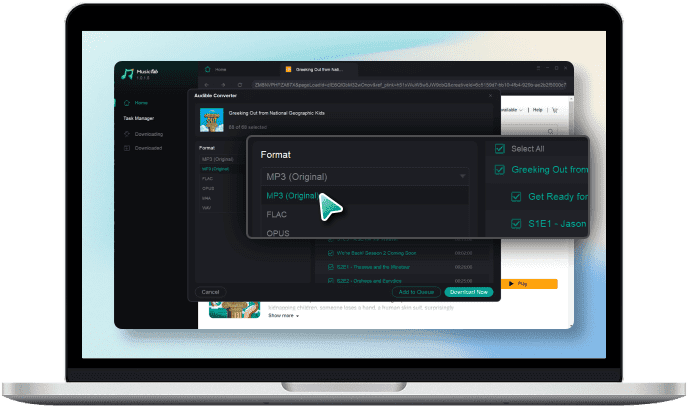
Choose M4A, MP3, or FLAC with the available quality options.
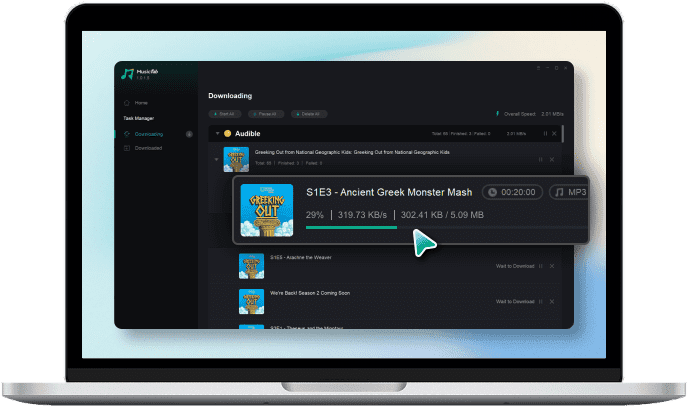
Manage selected downloads in a queue for personal offline listening.

Save Podcasts for Offline Listening
Discover and Manage Podcasts Your Way
Find the Right Show Faster
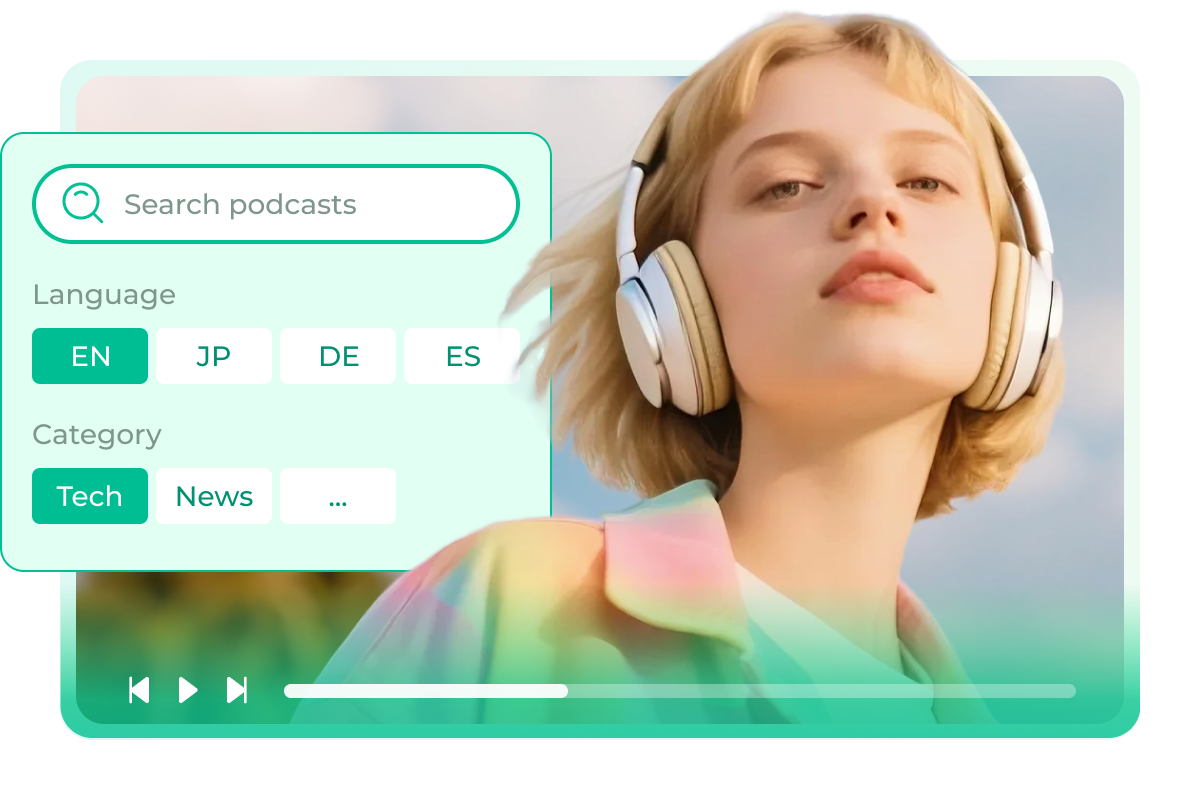
Start with the podcast library available in MusicFab. Browse by language or category, or search by show name, author, or description to narrow down the episodes you want to explore. The discovery flow keeps the information you need close at hand, so you can move from finding a show to previewing an episode without jumping between unrelated tools.
Preview Full Episodes in MusicFab
Listen before you download. Podcast Converter lets you play a full episode in the app, then pause, resume, drag through the progress bar, or switch to the previous or next episode. This makes it easier to confirm that you have selected the right content before adding an episode or a full show to the queue.

Download One Episode or a Full Show
Choose the scope that fits your listening plan. Download a single episode for a quick offline session, select an entire show when you want to prepare a complete series, or pick multiple episodes at once. Start the download immediately or add your selections to the queue so you can organize the next steps before processing begins.

Keep Your Downloads Ready Offline
The Downloads area gives you a clear place to follow selected podcast jobs. Check progress, pause a task when needed, or retry an item that needs another attempt. After completion, play the saved file locally or open its folder to continue organizing your personal listening setup outside the app.

More Control for Your Podcast Library
Choose the Format and Quality You Need
Save selected episodes as M4A, MP3, or FLAC files. For M4A and MP3, choose 320, 256, or 128 kbps. For FLAC, choose 24-bit or 16-bit output. These clear options let you balance file size, compatibility, and listening preferences before a download begins.

Batch Downloads with Queue Control
Prepare a full show or select several episodes in one pass instead of repeating the same action episode by episode. Add items to the queue, start them immediately, or keep the list organized while you decide what to process next. Paid plans support up to 300 episodes per day, subject to the product limit.

A New Option in MusicFab
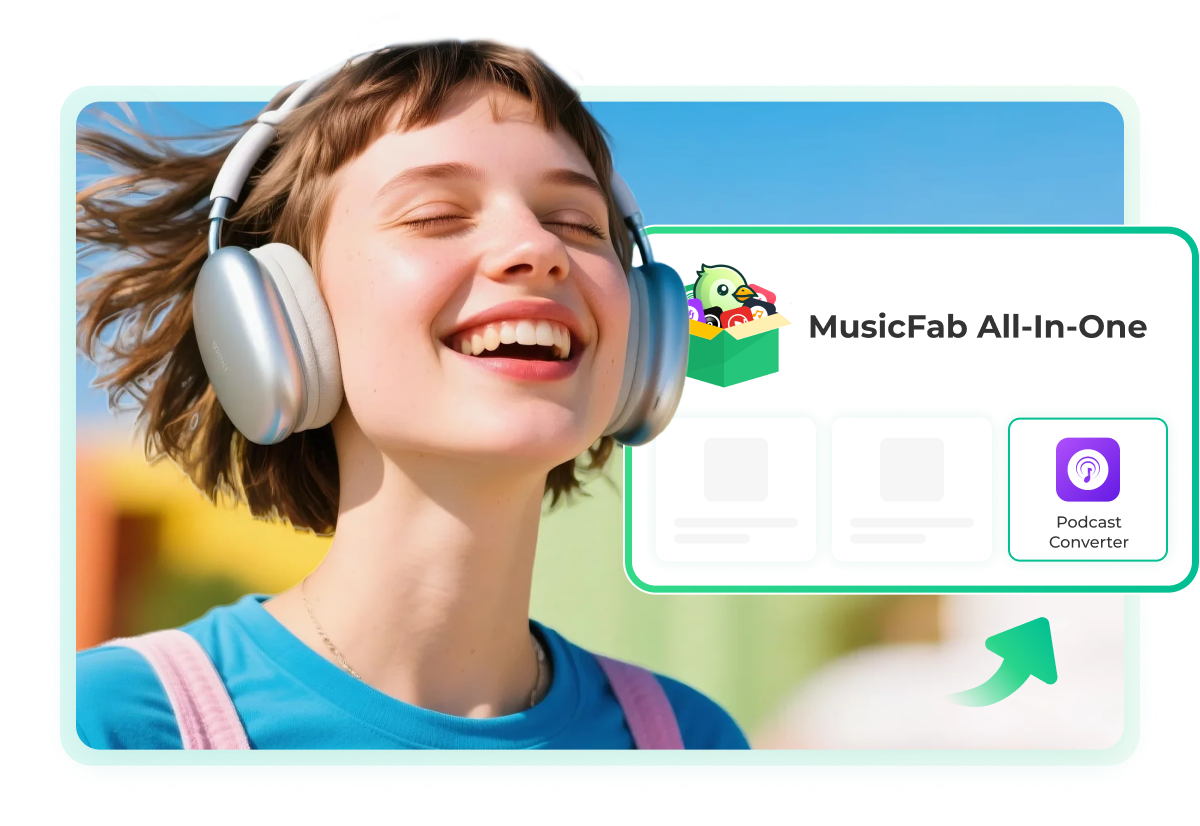
Podcast Converter works as a standalone purchase or as an option in MusicFab All-In-One. That gives you a focused way to add podcast downloads when you need them, while All-In-One users can keep the new option together with their broader MusicFab setup.
Podcast Listening That Fits Your Routine

Justin
from TrustpilotJacob
from TrustpilotDiana
from TrustpilotKelly
from TrustpilotLara
from TrustpilotJustin
from TrustpilotJacob
from TrustpilotDiana
from TrustpilotKelly
from TrustpilotLara
from Trustpilot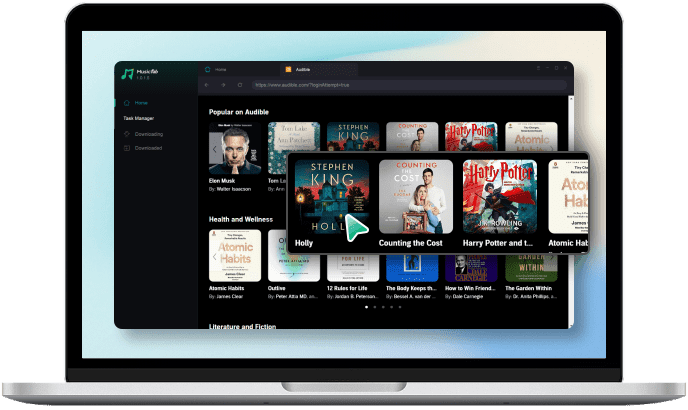
Open Podcasts in MusicFab. Browse by language or category, or search by show name, author, or description.
Play an episode to preview it, then select one episode, a full show, or multiple episodes for download.
Choose M4A, MP3, or FLAC and the available quality setting. Click Download Now or add the selection to the queue.
System Requirements