
How to Download Amazon Music to MP3

In short: music purchased from Amazon can be downloaded as a local file and imported into a media player. Downloads from Amazon Music Prime or Unlimited are for offline listening in the Amazon Music app; they are not the same as transferable MP3 files. This guide keeps those two cases separate.
The information below is for legitimate personal use of content you are authorized to access, subject to applicable copyright law and Amazon's terms.
Amazon Music to MP3: Key Takeaways
If you bought digital music from Amazon, Amazon's customer-service guidance says that you can download it locally and import it into a media player. Prime and Unlimited downloads are different: they are available for offline playback in the Amazon Music app rather than as computer-downloadable files. See Amazon's purchased-music download guidance for the current official boundary.
1. Download Purchased Amazon Music as MP3
This section applies only to music you purchased from Amazon's Digital Music store. It does not describe Prime or Unlimited app downloads.
How to download purchased music from Amazon Music
- 1. Sign in to the Amazon account that purchased the music.
- 2. Open the purchased music available in your Amazon library.
- 3. Select the track or album you want to download and follow Amazon's current download instructions.
- 4. After the download is complete, import the local file into a compatible media player if needed.
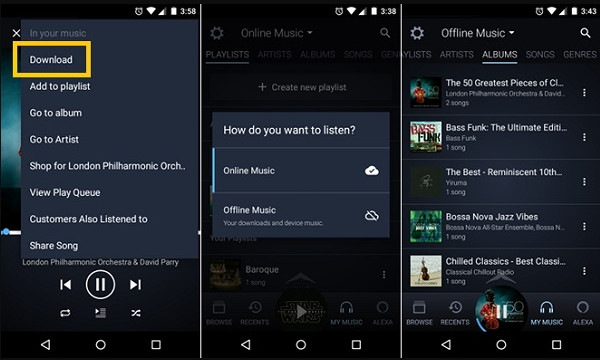
If you use Prime or Unlimited, the Download option is for offline playback in the Amazon Music app. It does not create a normal local MP3 file that you can import into another media player or transfer to another device.
2. MusicFab Amazon Music Converter
If you are looking for a separate local-output workflow for content available through your authorized Amazon Music account, MusicFab Amazon Music Converter is one option described by MusicFab. Its documented workflow is to find content in its built-in browser, choose output settings, and download to a compatible local format. Check the current product page for available formats and other product details.
How to use MusicFab with Amazon Music
Step 1: Open MusicFab and sign in with the Amazon account you are authorized to use.
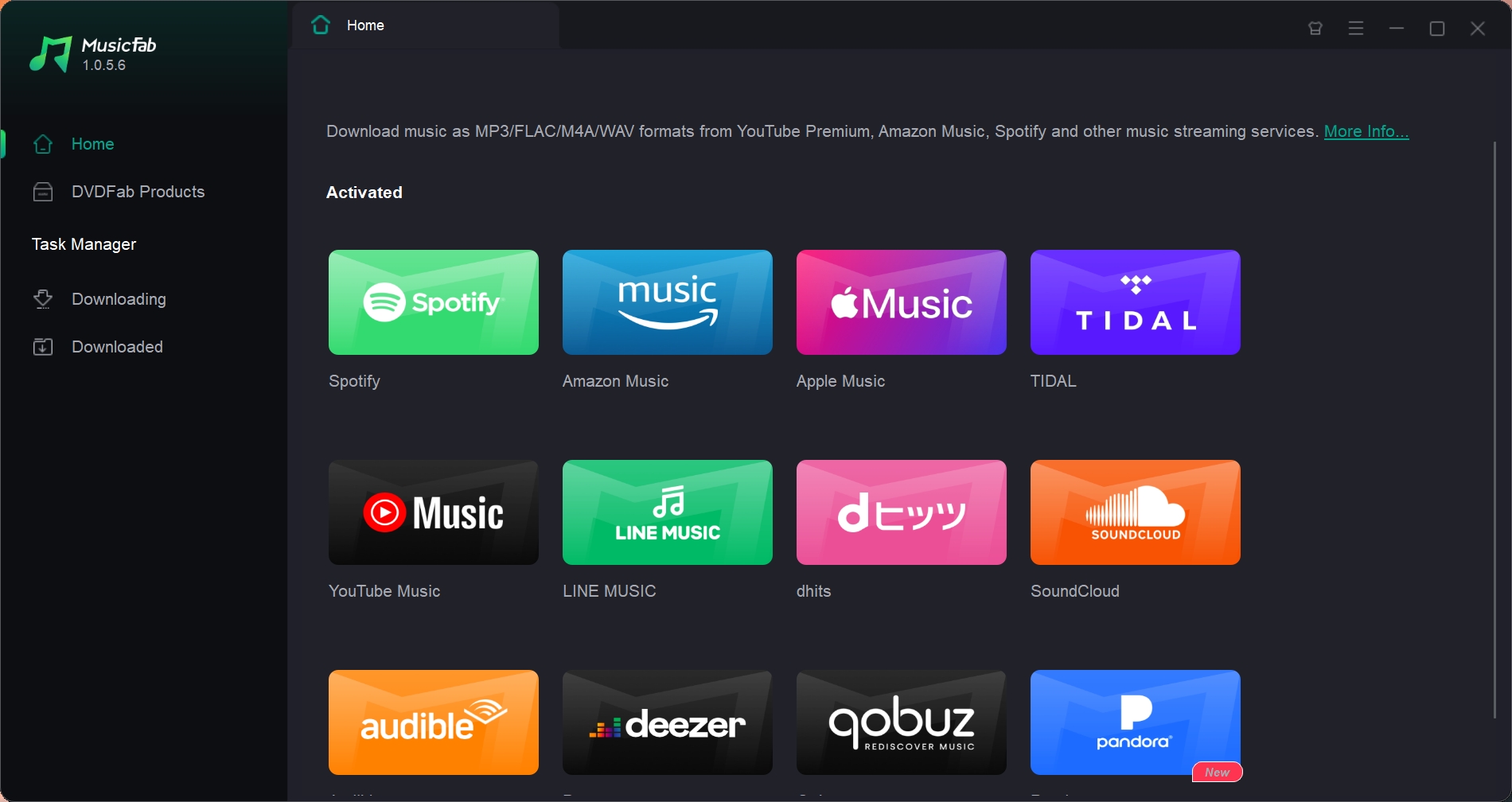
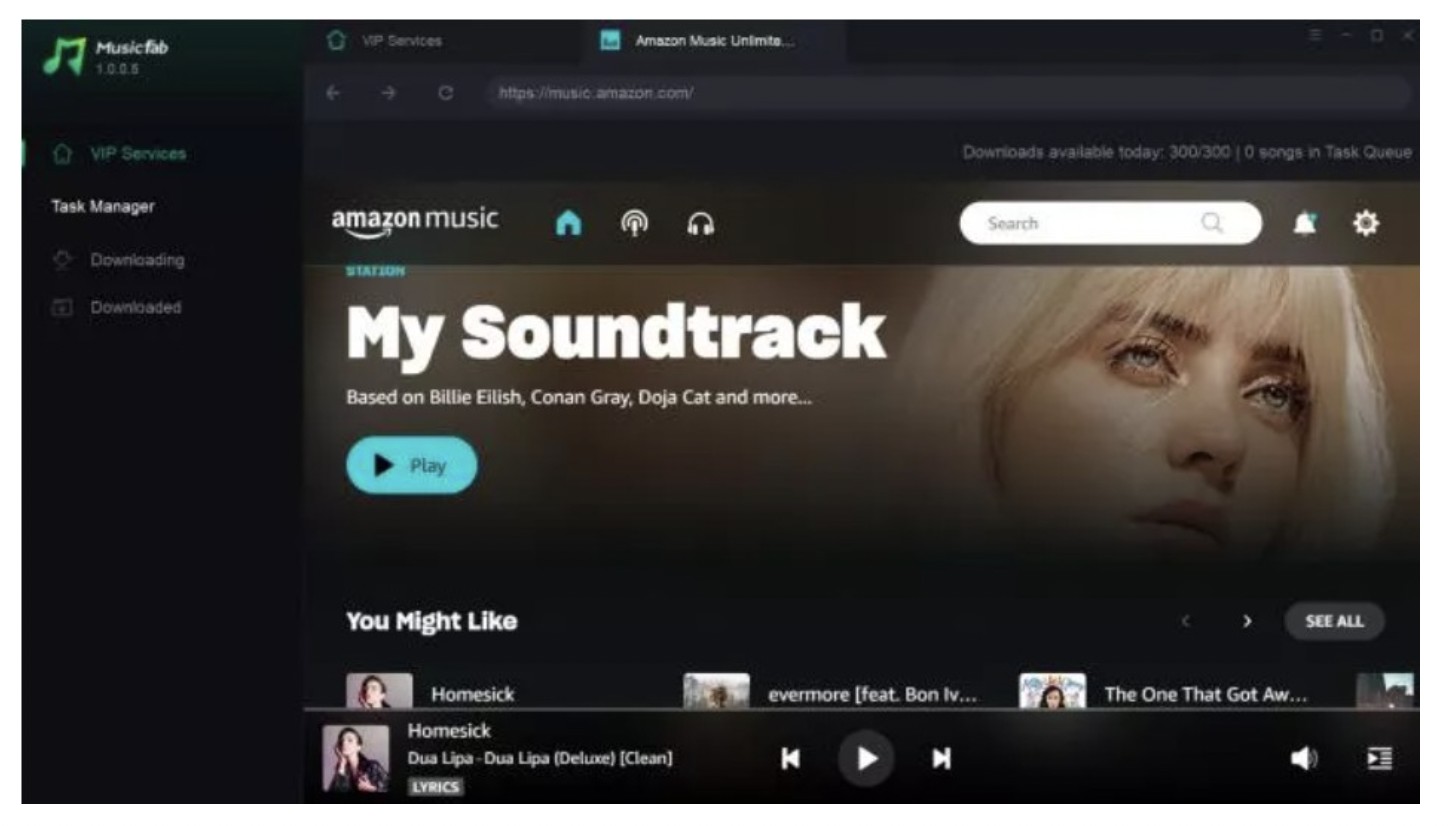
Step 2: Find the song, album, or playlist you want to process in the built-in Amazon Music browser.
Step 3: Open the available output settings and choose the options that fit your use case.
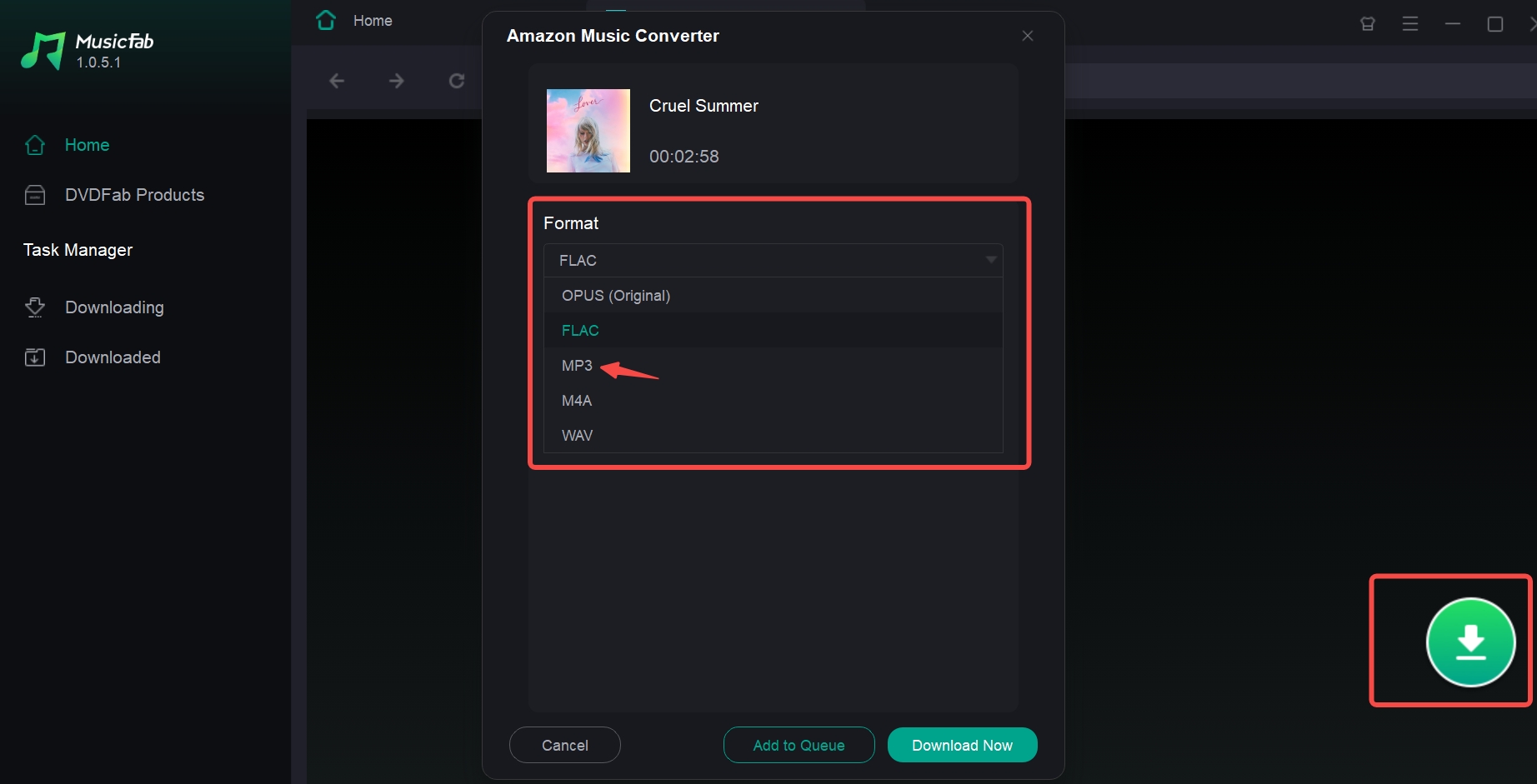
Step 4: Start the download, or add the selected items to the queue when that option is available.
3. Amazon Music MP3 Downloader
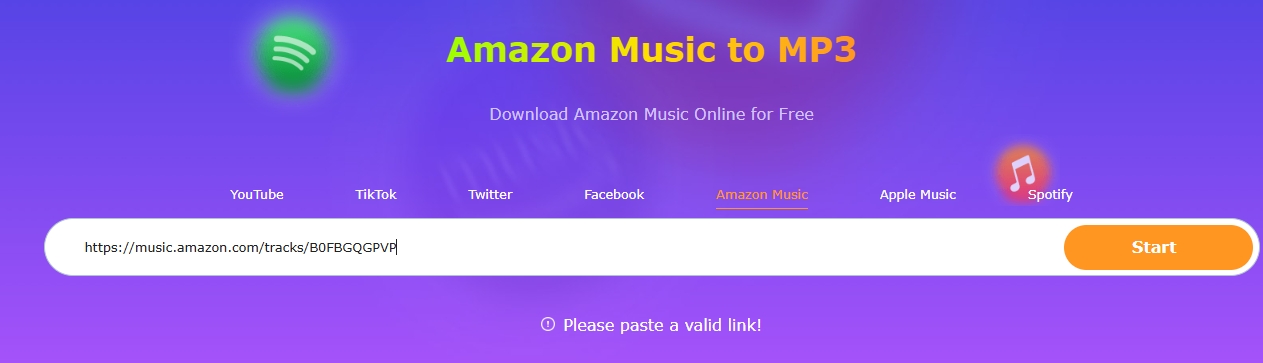
The following browser-tool workflow and screenshots are retained as a historical reference from this article's earlier test material. They are not an official Amazon download method and do not establish the tool's current availability, output, security, performance, or terms. Do not treat an app-only Prime or Unlimited download as a transferable local MP3 file.
Amazon Music MP3 Downloader is linked only to identify the historical test subject. Review its current terms and the permissions you have for the content before taking any action.
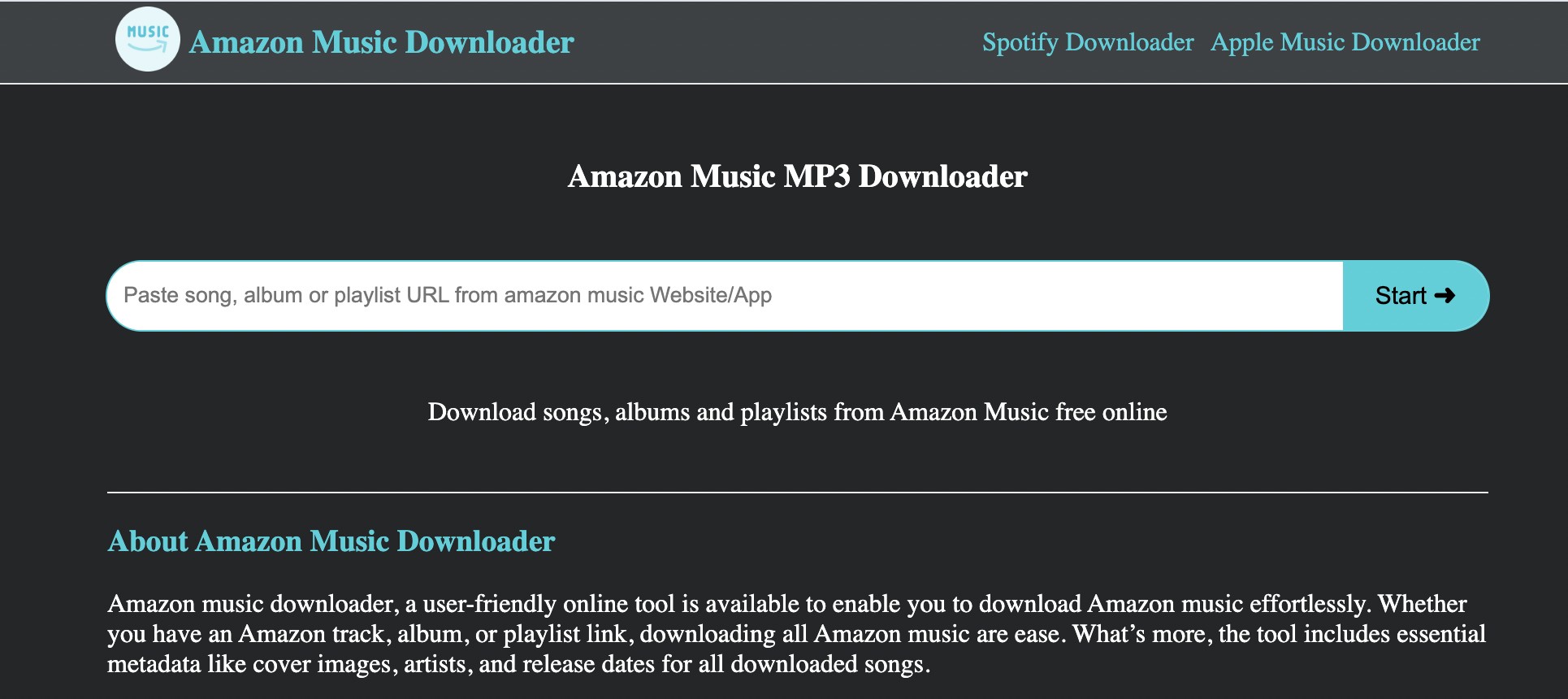
Existing browser-tool steps
- Step 1: Locate the song, album, or playlist in Amazon Music.
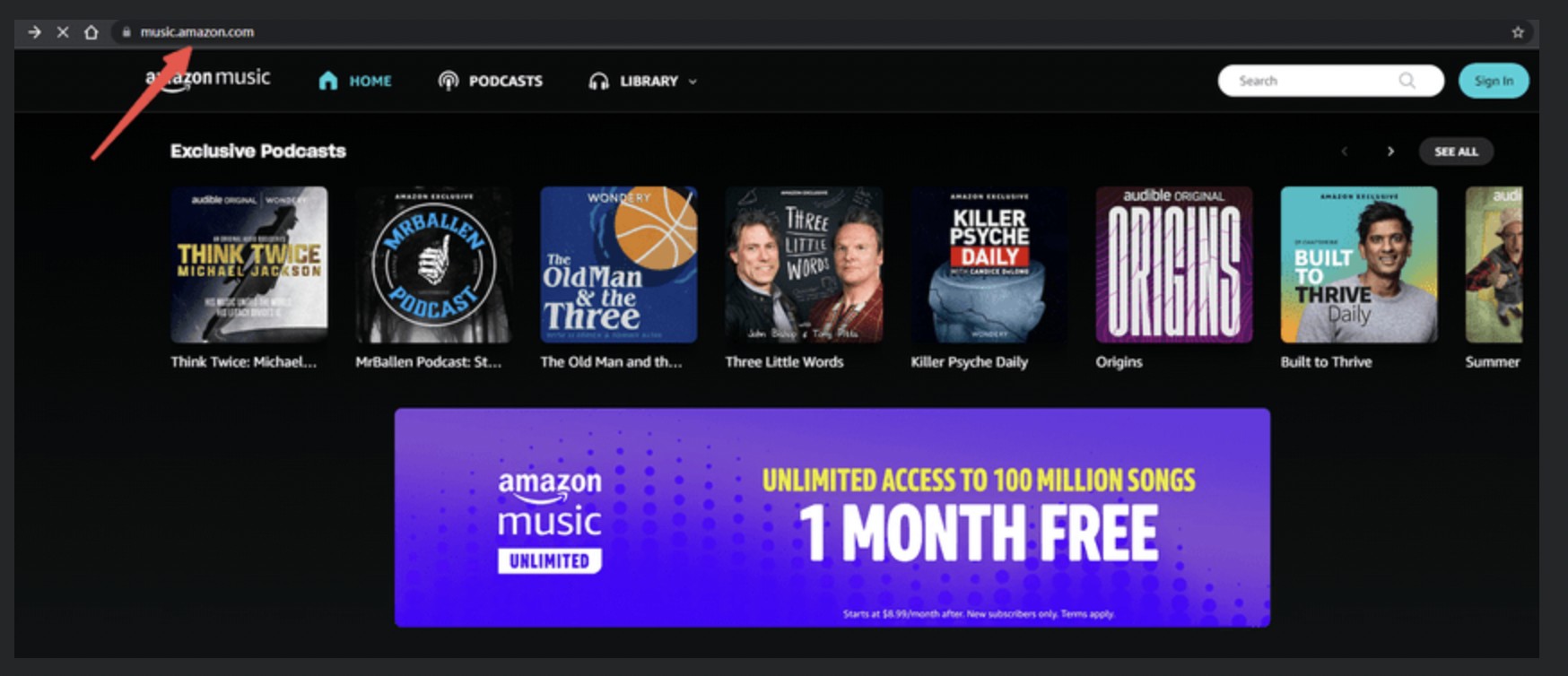
- Step 2: Use the Share option to copy the item's URL, then paste it into the tool's search field.
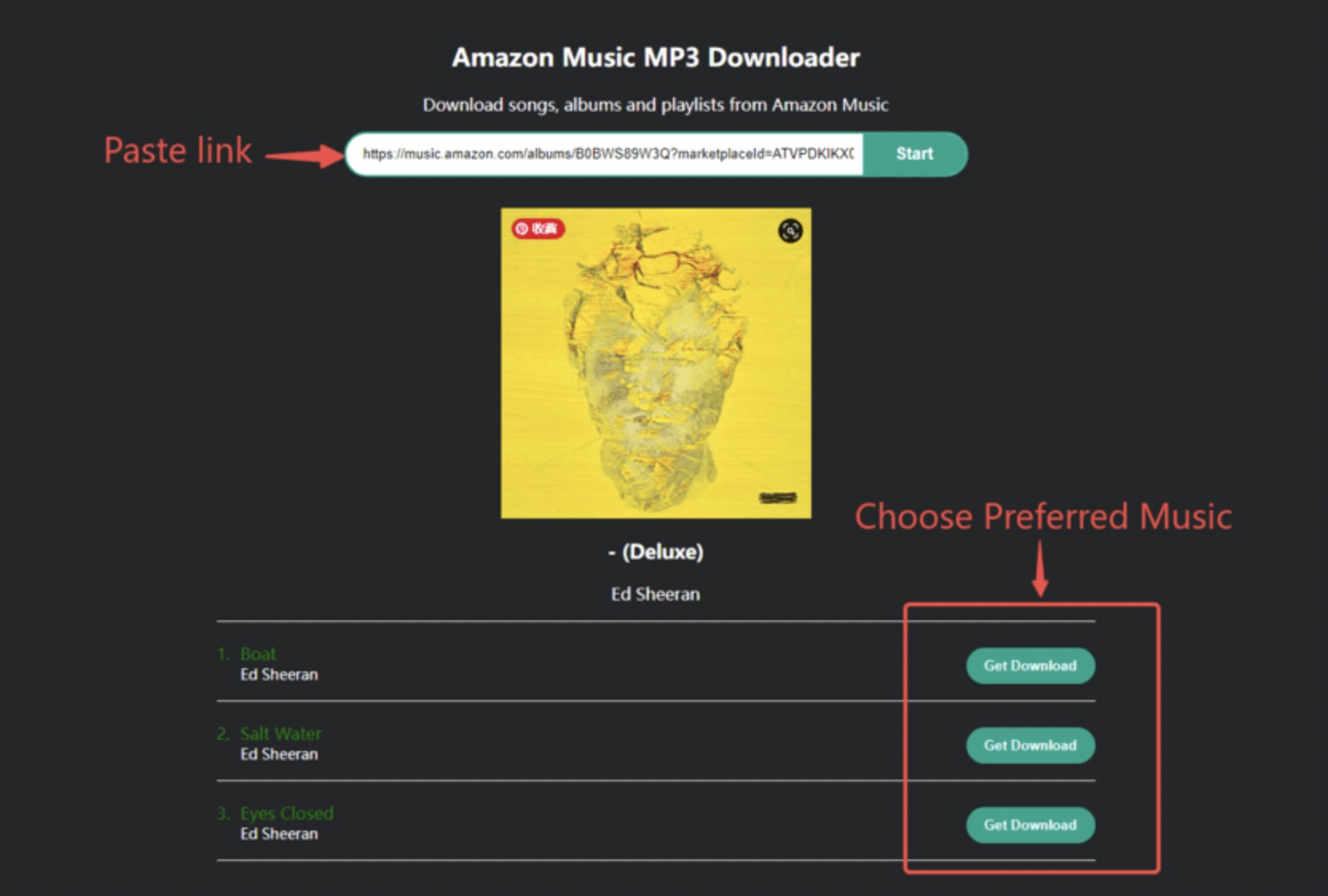
- Step 3: Follow the tool's current on-screen instructions.
4. KeepVid
This browser-tool section and its screenshots are retained as historical test material, not as a recommendation, a current service-status statement, or a comparison of tools. The article does not verify its present availability, output, security, or performance. Check the service's current terms and your rights to the content before taking any action.
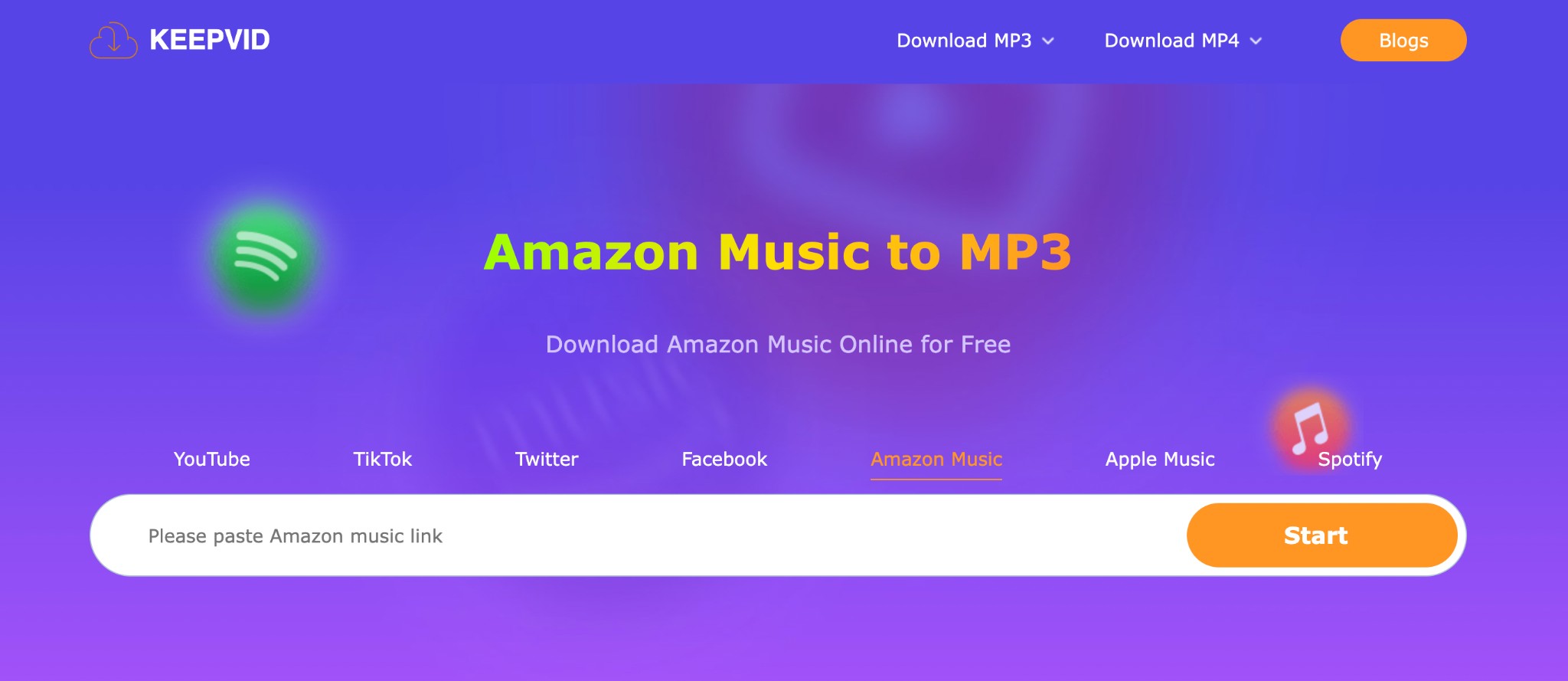
Existing KeepVid steps
- Copy the item URL from Amazon Music and paste it into the service's input field.
- Follow the service's current on-screen instructions.
5. Play Purchased Amazon Music Files on Android
These transfer steps apply to local music files you have already obtained from a purchase. They do not convert Prime or Unlimited offline downloads from the Amazon Music app into MP3 files.
Transfer purchased local music files to Android
- Connect your Android phone to your computer with a USB cable.
- Select File Transfer (MTP) on your phone.
- Copy the local music files into the Music folder.
- Open a local music player app to scan and play the files.
FAQs
Can you download purchased Amazon Music as an MP3 file?
Amazon's customer-service guidance says that purchased digital music can be downloaded locally and imported into a media player.
Are Amazon Music Prime or Unlimited downloads local files?
No. Prime and Unlimited downloads are for offline playback in the Amazon Music app and are not the same as transferable local MP3 files.
Can you import Amazon Music downloads into another media player?
You can import locally downloaded purchased music into a media player. App-only Prime or Unlimited offline downloads do not provide that same local-file result.
Conclusion
For Amazon Music, start by identifying the type of download you need. Purchased digital music can be downloaded locally and imported into a media player. Prime and Unlimited downloads are for offline listening in the Amazon Music app, not transferable MP3 files. Keep that distinction in mind before choosing any workflow.


Learn three ways to download Amazon Music: offline listening in the app, purchased MP3s, and an authorized desktop workflow for transferable files on phone and PC.
By Jane Chen - Aug 13, 2026