Can You Listen to SoundCloud Offline? App Saves & Alternatives

Summary: SoundCloud offline listening includes mobile app saves and creator-enabled file downloads. This guide explains both workflows, fixes incomplete saves, and outlines when desktop batch preparation fits.
Table of Contents
Yes, you can listen to SoundCloud offline with Go or Go+ saves in the iPhone or Android app. Preparing for a commute? Finish saving before you leave. Free offline files are a separate option: creators must enable downloads on individual tracks through the desktop website.
A Likes list that stops downloading halfway through is an unfinished queue, even if every track is visible. I treat offline readiness as a playback check, not a library count. That distinction matters when a familiar song loads online but stalls away from Wi-Fi. I'll walk through app saves, creator-provided files, and the desktop workflow for organizing a local collection.
Choose Between SoundCloud App Saves and Downloaded Files
Use Go or Go+ app saves when you want to listen inside SoundCloud on your phone. Choose a creator-enabled website download when you need an individual audio file for a local player. Paying for app offline listening does not turn those saves into exportable files.
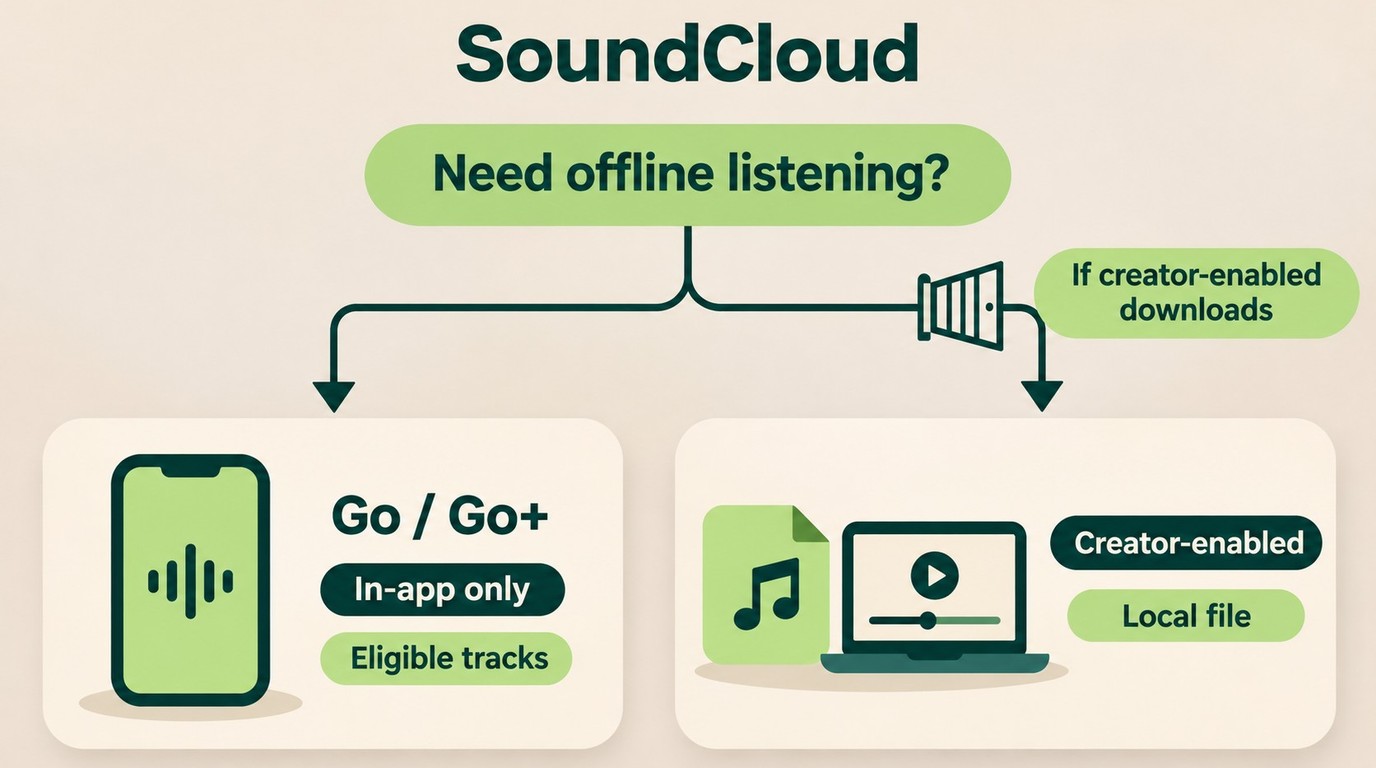
| Offline path | Access needed | Device | Saved result | Key limit |
|---|---|---|---|---|
| Go/Go+ app saves | Active Go or Go+ | iPhone or Android | In-app offline copy | Eligible tracks only |
| Creator-enabled download | Signed-in account | Computer browser | Uploader's original file | Individual enabled tracks |
Source: SoundCloud Help Center's guidance on app saves, file downloads, and offline availability, as of November 2026.
For a phone-based listening routine, I'd use the official app; for a track to open in another player, I'd look for the creator's download option. A subscription and a file solve different needs. Neither route means that every track in your library is available to save.
Free listening is a separate question from free offline listening. In the r/soundcloud thread “Offline listening?”, a Reddit reader asked, “Are we not able to listen to songs offline for free anymore?” The creator-enabled route offers a no-subscription file option for enabled tracks; it does not provide a free version of the app's offline library.
Preparation still happens online. Give the phone enough storage and time to finish saving, or give the computer time to finish receiving the file. If you're leaving with just your phone, an audio file sitting on a laptop at home does not solve the commute. Choose the destination device before starting.
Save Music Offline in the SoundCloud App with Go or Go+
Save eligible music through Likes or a playlist in the SoundCloud mobile app, then wait for the download to finish. Check playback without a connection before relying on it outside. The iPhone and Android workflows are shared, with different progress displays.
Start with an active Go or Go+ account signed into the phone's SoundCloud app. You also need an internet connection for the save and room on that device. Being able to stream a track while connected is not confirmation that its offline copy has finished.
Save Likes and Playlists on iPhone or Android
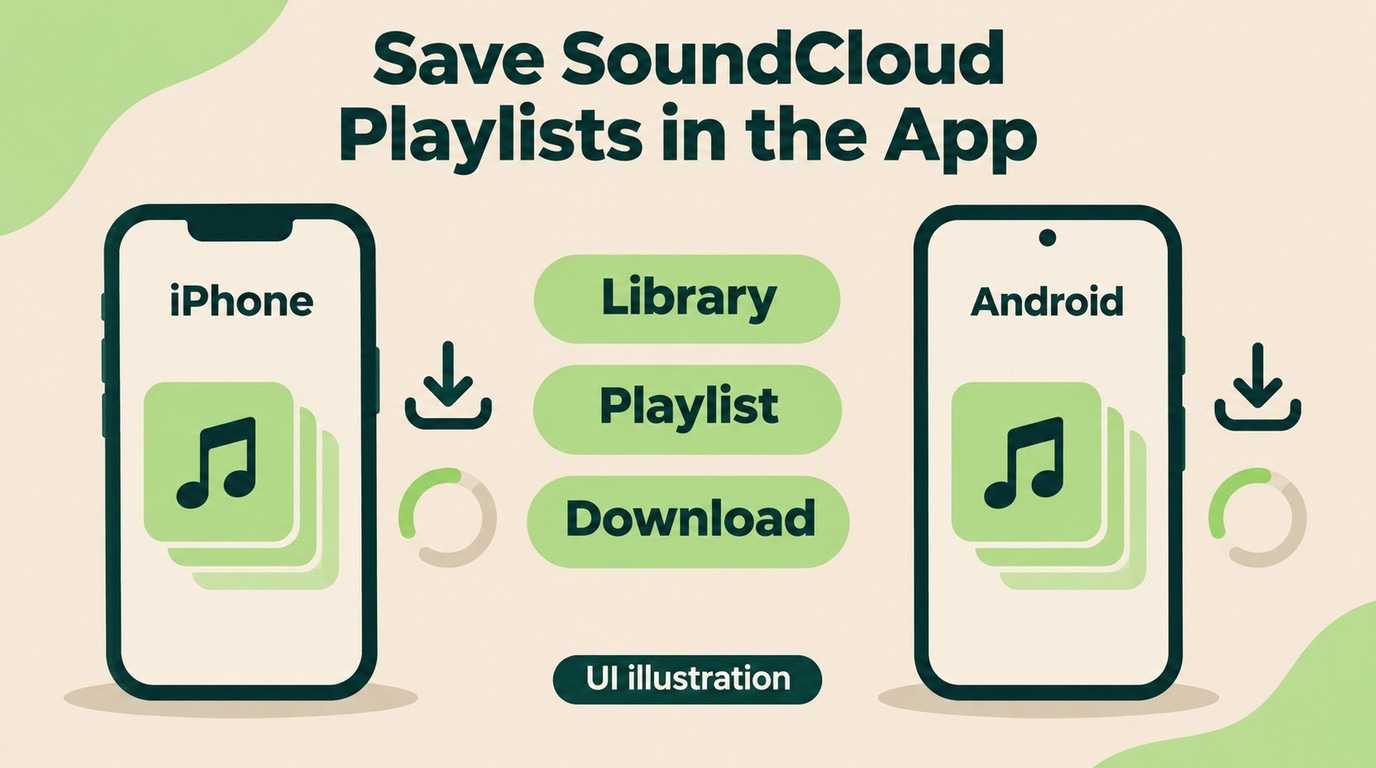
Likes and playlists give the app a collection to save. If you're preparing a specific listening session, a playlist keeps that selection together rather than mixing it into every track you've liked.
- Open the SoundCloud mobile app and sign into the account with your active Go or Go+ subscription.
- Add the tracks you want to your Likes or a playlist you've created.
- Open Library, then open Likes or the playlist you want offline.
- Tap the download button. For a playlist, look for the small arrow next to the heart.
- Keep the app connected and wait for the saving progress to finish.
The important part is the completed save, not the tap. On iPhone, SoundCloud shows an orange progress bar at the bottom of the screen; on Android, progress appears in the pull-down menu. Use that display to see whether tracks are still waiting.
New additions need attention too. After adding a track to Likes or a playlist, pull down to refresh the app while connected. That gives you a chance to see whether the new selection is being saved rather than assuming an older downloaded playlist already contains it.
Set Automatic Downloads and Wi-Fi Preferences
Automatic downloads fit a library you regularly want offline. In the SoundCloud app, open Settings, go to Downloads, and turn on Download automatically to save your Library of Likes and playlists. Leave it off if you prefer to choose particular collections.
Wi-Fi-only saving protects your mobile data allowance. In settings, Only download via Wi-Fi holds downloads until a Wi-Fi connection is available. If you've left home and the queue has stopped on cellular data, that setting is worth checking before treating the pause as an app failure.
Your setting should match your preparation window. Keep Wi-Fi-only saving enabled when you have time at home; allow cellular saving if you deliberately want to finish over your data connection. Switching connections does not itself confirm completion. Return to the progress display.
Check Playback Before You Leave and Fix Missing Tracks
Check the queue before changing the installation. In the r/soundcloud thread “Downloads keep stopping,” a Reddit listener described the symptom: “it downloads a portion of my likes and then just stops abruptly”. That is a useful description of an incomplete save, not a diagnosis of its cause.
Work through the app checks in this order:
- While connected, open the affected Likes list or playlist and inspect the saving progress.
- Check the Wi-Fi-only preference against the connection you're actually using.
- Pull down to refresh the collection; close and reopen the app if it still appears stuck.
- If a particular track remains unavailable offline, account for its rights-holder restriction rather than assuming your whole subscription has failed.
- Once saving is complete, turn off Wi-Fi and cellular data and play selections from different parts of the collection.
A successful offline spot-check gives you more useful information than watching a track play over Wi-Fi. Listen beyond the opening song, especially if the queue previously stopped partway through. This is a preparation check, not a guarantee for every item in a large library.
I would not start by signing out or reinstalling. Those actions remove the app's locally saved offline content, so use the settings and progress checks first. If you've already signed out or uninstalled, reconnect and save your selections again before the next offline session.
Download Creator-Enabled Files on the SoundCloud Website
On a computer, sign into SoundCloud and use Download file beneath an individual track's waveform when its creator has enabled it. This gives you the uploader's original file format. It is a separate file download, rather than a Go or Go+ save inside the phone app.
I'd use this route for an individual song the creator has made downloadable. It gets you a file without adding a separate downloader to that task. When the button is absent, this particular route does not apply to the track.
Find the Download File Button and Save One Track
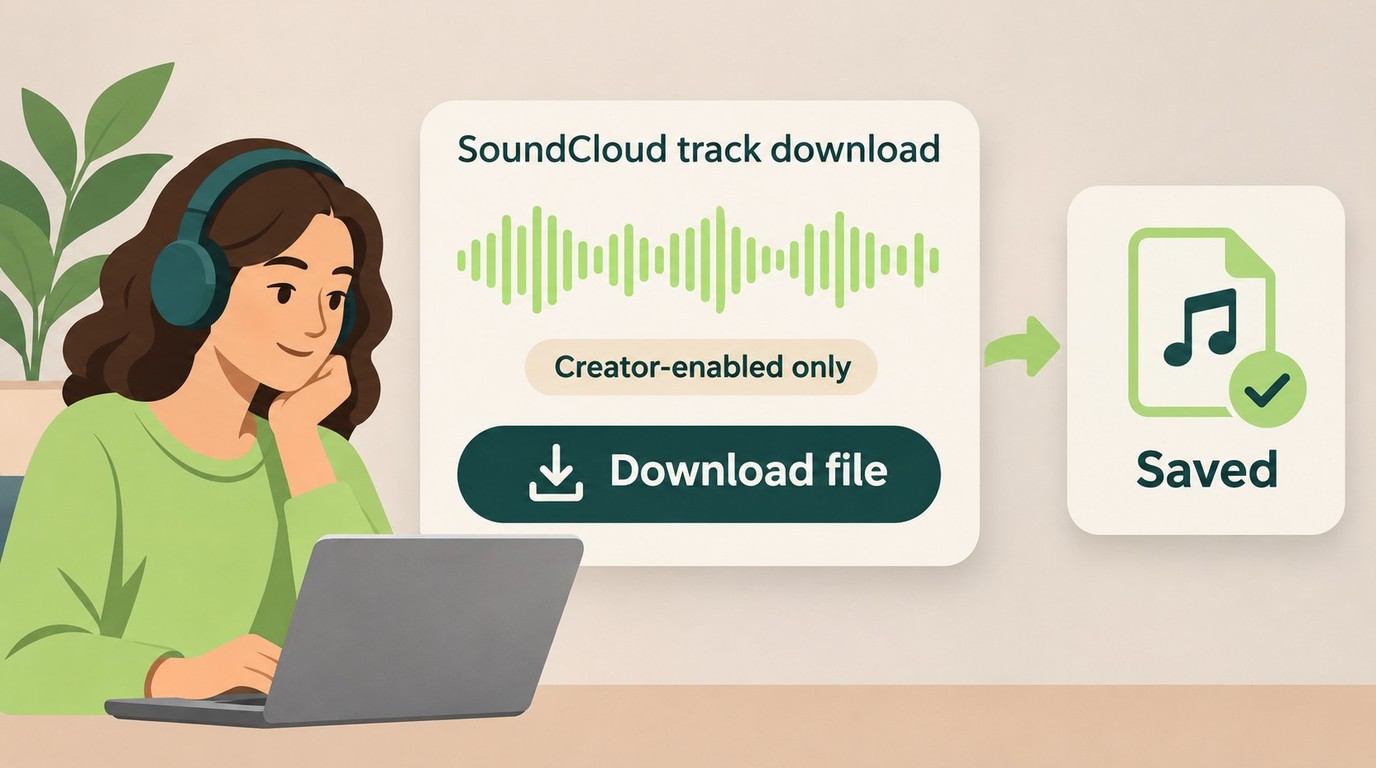
Open the track's own page before looking for the control. A playlist view is useful for finding songs, but SoundCloud's creator-enabled file feature works on individual tracks, not a playlist-wide download.
- Open the SoundCloud website in a computer browser and sign into your account.
- Open the individual track you want to save.
- Find Download file beneath the waveform and click it.
- Let the browser finish downloading, then locate the file in its download list or your chosen download folder.
The browser's finished file is the result you need here. Adding the song to Likes does not perform this download, and finding it in a SoundCloud playlist does not mean an audio file has reached your computer.
A missing button is a clear boundary. The uploader controls whether this option is available, so don't keep searching the mobile app for an equivalent file-export control. Go and Go+ mobile saves belong to the earlier workflow. A link in a track description that sends you to another site is also a different process from SoundCloud's Download file feature.
Whole-playlist preparation takes a different amount of attention. With this website feature, you open eligible tracks separately; it does not package the collection into a single playlist download. For a few creator-provided tracks, that is straightforward. For a local collection you regularly rebuild, the repeated track-by-track work becomes the reason to consider a batch workflow.
Open the Saved File and Understand Its Format
Play the downloaded file itself to confirm the result. A browser tab that still plays the SoundCloud page proves that streaming works, not that your local copy is ready.
- Find the completed audio file using the browser's download list or the folder you selected.
- Open it in a local audio player that supports its format.
- Disconnect the computer from the internet and start playback from that file again.
That final check separates a working file from an online page you happened to leave open. If the player rejects it, inspect the file extension and the player's supported formats before downloading the same track again.
The original upload is not necessarily an MP3. SoundCloud supplies the format the creator uploaded, so two downloadable tracks need not arrive in the same format. Renaming a file's extension does not convert its audio. If your destination player requires MP3, that is a separate conversion need; the SoundCloud-to-MP3 options address that narrower task.
A format label is not an upgrade in source quality. Saving or converting an audio file cannot restore detail missing from its source. For offline listening, I'd settle the practical question first: does the actual file open in the player you'll use away from the internet?
When MusicFab SoundCloud Converter Fits Desktop Listening
MusicFab SoundCloud Converter batch-downloads SoundCloud music on Windows and macOS in five formats: MP3, M4A (AAC), WAV, FLAC, and OPUS. With an active SoundCloud subscription, it uses direct-source downloading and preserves ID3 track information for a local music library.

- Convert SoundCloud Tracks to MP3, M4A(AAC), WAV, FLAC, or OPUS in Seconds
- Easily Batch Download SoundCloud Playlists, Podcasts, and Albums
- Download SoundCloud Songs in MP3 at up to 320kbps
- Works Perfectly with SoundClound Free, GO and GO+
- Builin Web Browser to Search and Download Music in One Click
Check the Trial, Output Formats, and File Organization
I see its clearest role in recurring playlist preparation: you want the files together, with artist and album details attached. For that desktop task, batch downloading and metadata retention address the work that repeats. The benefit is less manual sorting.
This is an established file workflow in actual use: from August through October 2026, users completed more than 15,000 SoundCloud download tasks in our client software. For your collection, the next step is choosing a format your destination player reads and checking the saved tracks there.
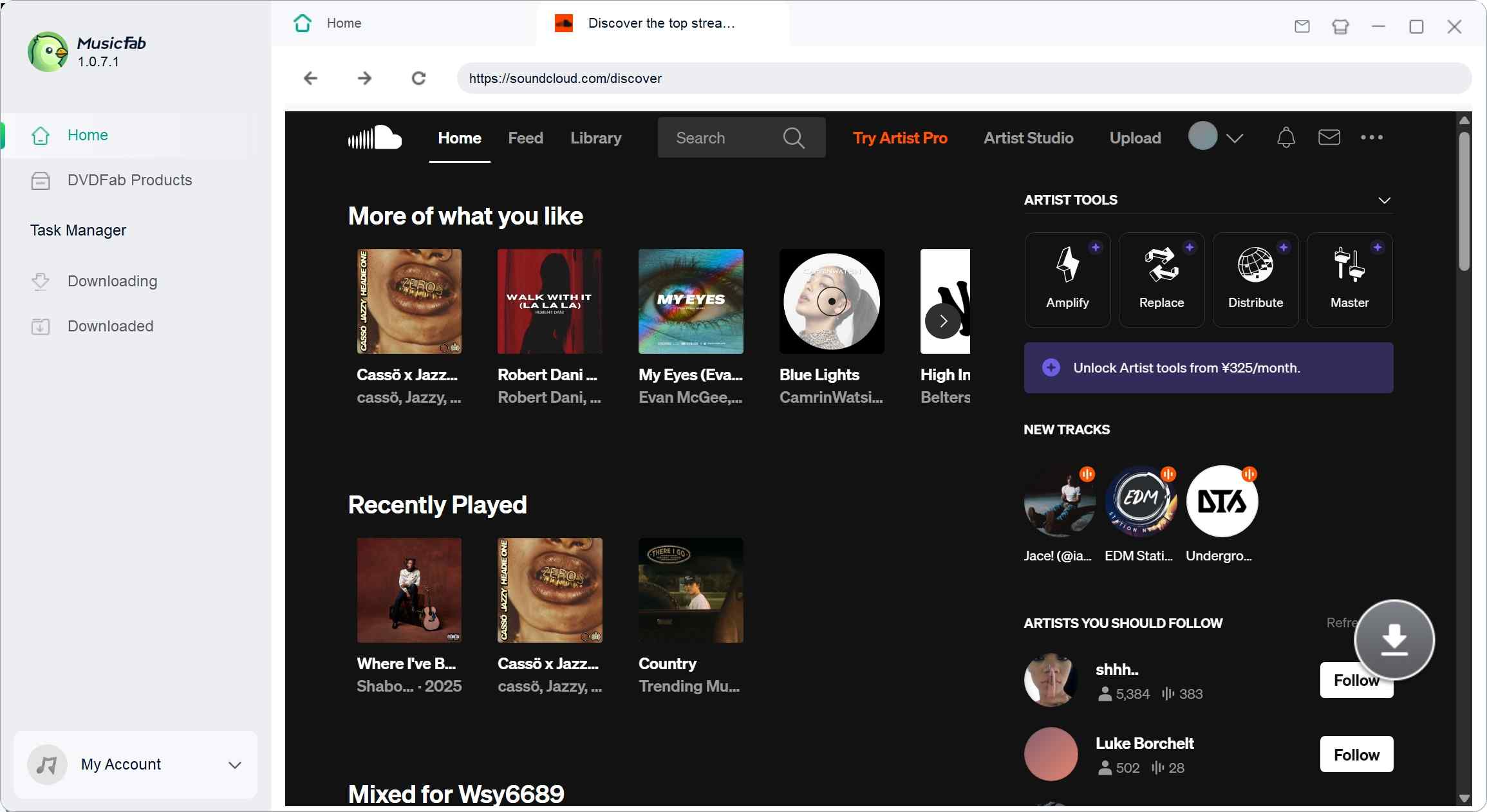
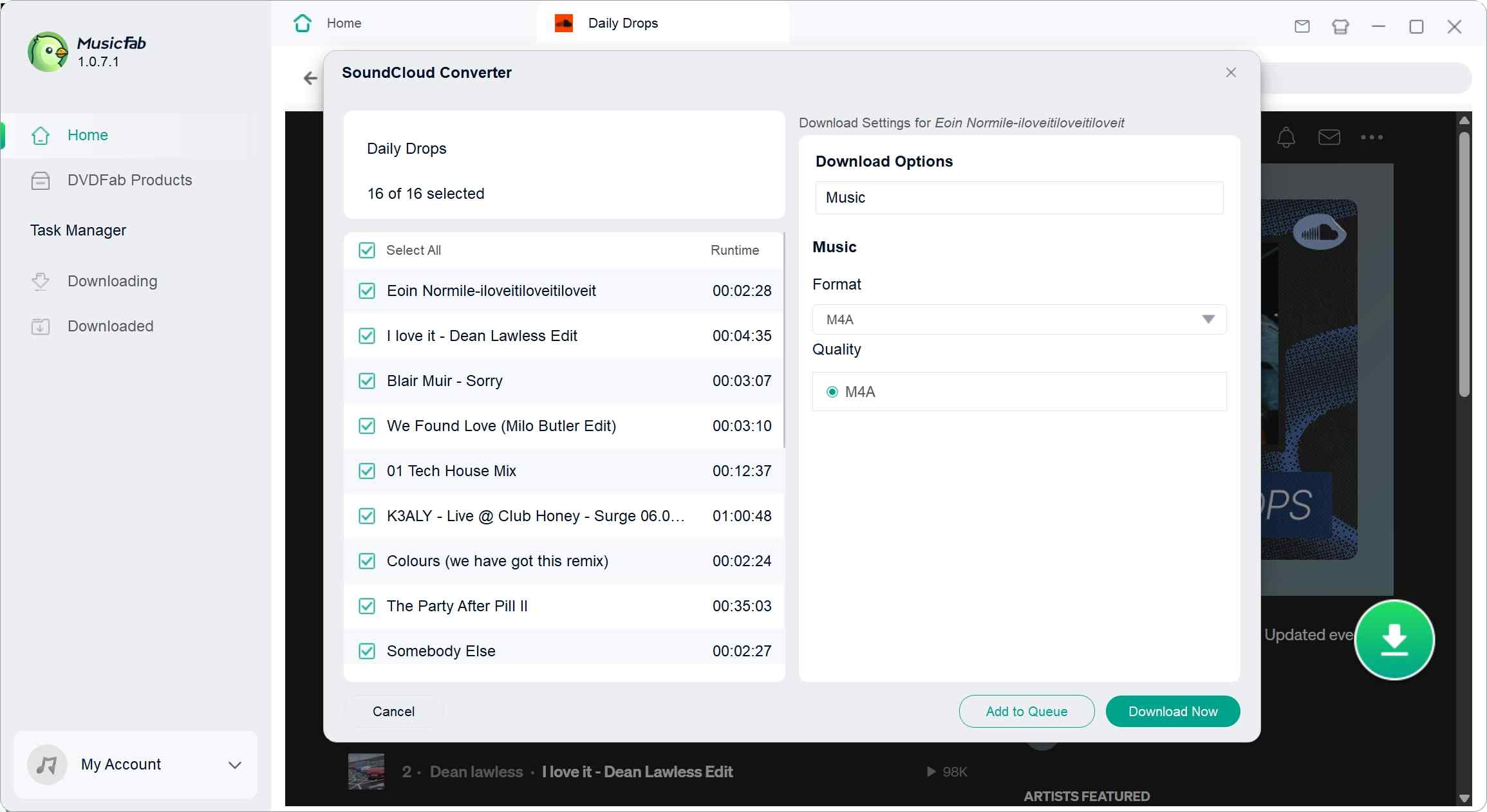
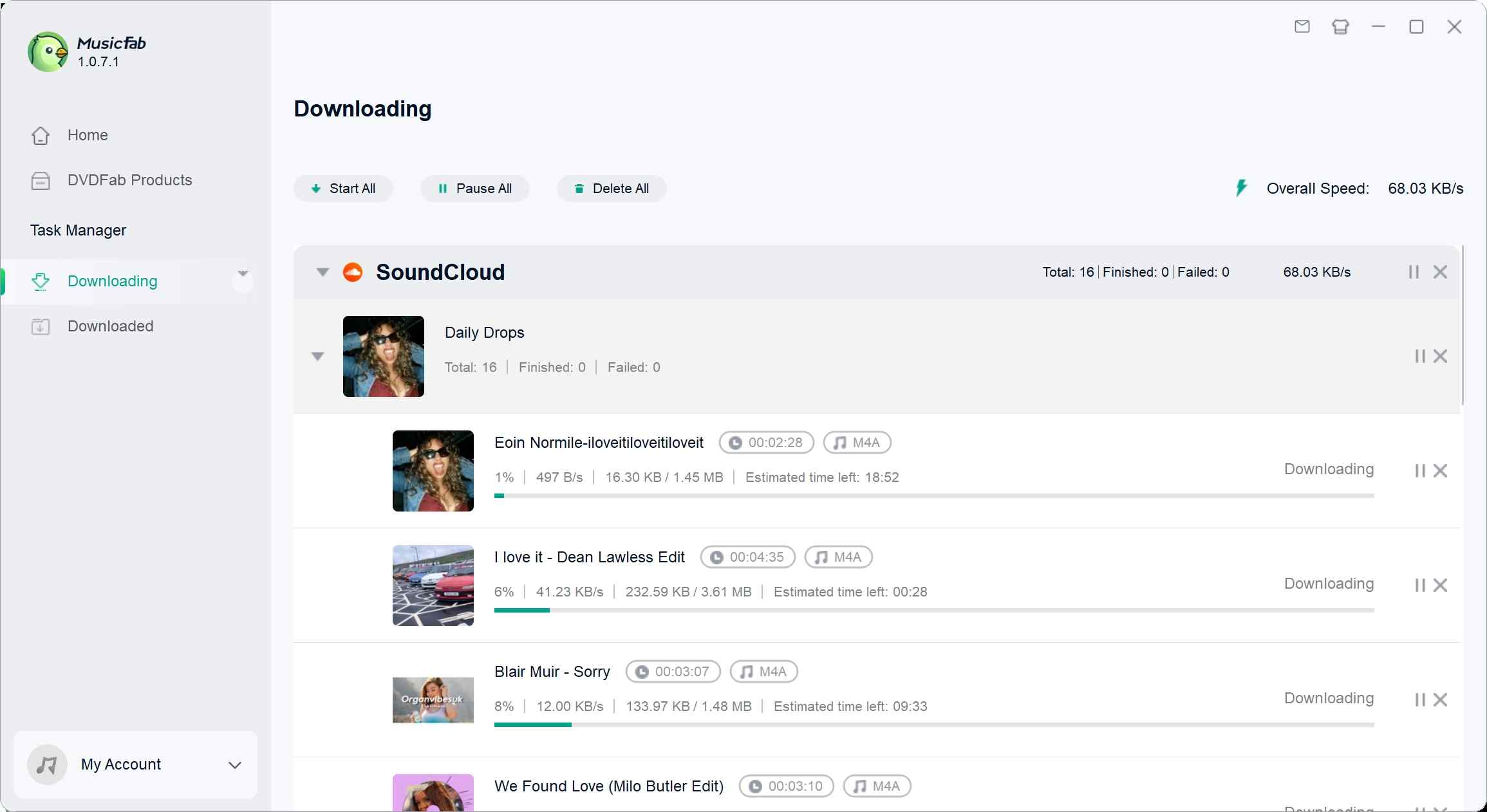
The result is a collection you can browse by its track information, rather than a folder you have to identify song by song. Choose the format for playback compatibility; putting the source into a WAV or FLAC file does not add missing audio detail.
This is a desktop workflow, so I would keep phone-only app listening with the official saves described above. The free trial gives you 30 days from installation to download 3 complete SoundCloud songs with the core features, including batch downloading, so you can put a small collection through the workflow.
You can start with the Windows or macOS version from the MusicFab SoundCloud Converter page.
Keep saved music to content you're entitled to access, for your own offline listening under SoundCloud's terms, which may restrict third-party clients. Do not redistribute or resell the files.
SoundCloud Offline Listening FAQ
Q1. Can a Windows 11 PC play my SoundCloud music offline?
Answer: Yes, with a downloaded audio file and a compatible local player. Opening SoundCloud on Windows 11 does not bring over the offline library saved on your phone. If you've already downloaded creator-enabled tracks, open those files directly; you don't need a separate Windows version of the phone's saves. The SoundCloud downloads on PC workflow covers computer-based file preparation rather than mobile-cache access.
Q2. Does a MacBook get the offline music saved on my iPhone?
Answer: Your iPhone's SoundCloud saves are not a MacBook audio folder. Prepare files on the Mac through the website route described above, or use a supported desktop file workflow. Then open those files in a compatible Mac player. I would choose based on where you plan to listen, rather than assuming that a shared SoundCloud account means a shared offline library.
Q3. What determines how long my offline music remains available?
Answer: Treat app saves as a temporary, device-local part of the subscription feature, not a permanent file collection. The specific reset actions that remove them are covered in the troubleshooting section above. Creator-enabled website files are a different result: a file you manage on your computer. Don't use the presence of either a library entry or a download icon as a substitute for checking playback before relying on it.
Q4. Will SoundCloud work on a plane without Wi-Fi?
Answer: Yes, for eligible music you've finished saving beforehand. In r/NoStupidQuestions, a traveler wrote, “I have a long flight tomorrow on Southwest and I always have horrible luck with their wifi..” I'd finish the offline check before heading to the airport, using the same phone and headphones you'll take. An airport connection is a poor time to discover that your playlist was still waiting to save.
Q5. What should I check before signing into a SoundCloud downloader?
Answer: Choose an established provider with an identifiable official website and maintained desktop software. Download the installer from that provider, inspect the sign-in page's identity and requested permissions, and avoid unrelated web forms asking for your SoundCloud password. A sign-in requirement is not itself a reason to reject a downloader. I would judge the provider and its login handling, rather than treating every account prompt as equally trustworthy.


Chrome extensions work well for occasional authorized SoundCloud tracks, but desktop apps offer a more controlled workflow for playlists, formats, and metadata. This guide compares the routes, limits, and best-fit scenarios.
By Jane Chen - Nov 2, 2026
This guide separates SoundCloud app-based offline listening from authorized local audio files on iPhone. It covers Go/Go+, Safari-to-Files, a desktop transfer workflow, Apple Music import, storage troubleshooting, and permission-first choices.
By Jane Chen - Aug 26, 2026
SoundCloud to WAV converter guide: learn how to verify real WAV files, follow creator permissions, compare active browser options.
By Jane Chen - Aug 26, 2026
This guide separates four practical PC download methods from two secondary technical alternatives. It explains SoundCloud's artist-enabled file option, source-quality limits, batch verification, online safety, and when a desktop workflow makes sense.
By Jane Chen - Aug 26, 2026