Can SoundCloud Convert to MP4? Official Limits and Clipchamp

Summary: Turn a SoundCloud audio file into an MP4 by pairing it with an image in Clipchamp. This guide separates official audio downloads from video export, explains source-quality limits, and identifies when extra audio preparation helps.
Table of Contents
Need a video, but your SoundCloud download is just audio? To convert SoundCloud to MP4, get an authorized audio file, add an image in Clipchamp, and export the video. SoundCloud's Download file option supplies the original audio file; it doesn't create a picture-and-sound video.
I understand the snag: an MP3-only tool leaves you short of a video, while a paid MP4 button looks like another toll. My take is that a SoundCloud to MP4 converter earns its place by delivering a usable video, not by listing more audio formats. I separate the source file from the finished video below. That keeps the download, image timing, and export checks attached to the result you need.
Download Source Audio With SoundCloud's Download File Option
Use SoundCloud's desktop website to get an individual track when its uploader has enabled Download file. Sign in first; this option returns the original uploaded format rather than a whole-playlist download.
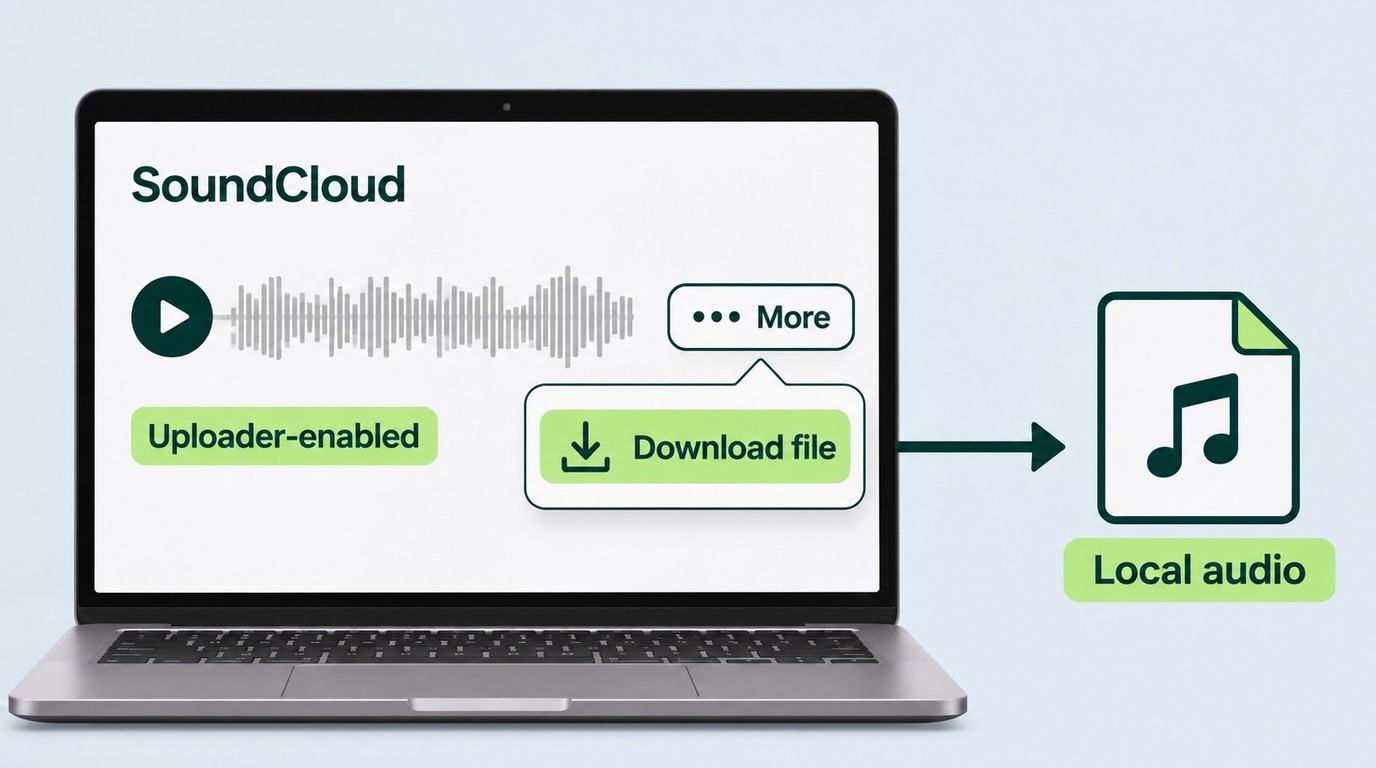
Have your SoundCloud login and the track page ready. Choose your own recording or a track whose creator has authorized your intended use. A playable stream and an available source file are different things.
- Open the track on SoundCloud's desktop website. Sign in and use the individual track page so you can locate its controls.
- Find Download file beneath the waveform. Look under More if the control is grouped there, then select it when available.
- Save the file in a project folder. Keep its original extension and use a name that identifies the track and artist.
- Play the saved audio locally. Confirm the right recording, complete ending, and usable sound before taking it into the editor.
I'd settle the source-file question before touching the video timeline. If the download control is absent, ask the creator for a usable file; refreshing a converter page doesn't create that source.
This route suits a single artist-enabled download. It doesn't fetch an entire playlist. SoundCloud Go or Go+ offline listening inside the mobile app is also separate: an offline entry in the app isn't the local audio file these editing steps require. Purchased tracks have their own format choices, determined by the upload and track setup; don't expect those choices on every streamed song.
Check the Source File Before Editing
Keep the best source you already have. An MP3 is usable audio material; converting it to WAV or FLAC won't reconstruct details lost before you received it. SoundCloud's acceptance of MP4 audio containers for uploads likewise doesn't establish a video-export feature.
An August 2025 poster in r/musichoarder described the quality-label problem as “all of them end up turning fake 320kbps mp3 files.” A larger bitrate label alone doesn't establish a better source.
I would preserve the original and avoid repeated audio conversions. Listen for a cut-off ending, distortion, or the wrong version now, because adding artwork won't fix those problems later.
For personal offline use, save only content you are entitled to access under SoundCloud's terms, and don't redistribute or resell those files.
Convert SoundCloud Audio to MP4 With Clipchamp
Microsoft Clipchamp turns a local audio file and an image into an MP4 video. Its free personal tier supports video export through 1080p when your project avoids premium assets and features.
Prepare the downloaded audio and an image you own or have permission to use. Open Clipchamp in desktop Edge or Chrome and sign in with a personal account. This browser workflow covers Windows and Mac; the instructions don't require a separate Mac converter.
A December 2024 poster in r/musichoarder put the snag plainly: “its either only mp3 or i have to pay for mp4.” An audio-only result really does leave the video unfinished. For a simple still-image music video, I would use Clipchamp's free export rather than pay just to change the file's label.
Import the Audio and an Image
Start with actual media files. A SoundCloud page URL is not the local audio asset used in this workflow. Keep the image and audio together so the project is easy to revisit.
- Create a new video in Clipchamp. Give the project a recognizable name before adding media.
- Select Import media. Choose the saved audio and image from your computer; both should appear in the media library.
- Place both on the timeline. Put the image on a visual track and the audio on its own track, with both starting at the beginning.
You should now have a visible picture and a separate audio clip. Merely importing the files into the library doesn't place them in the finished video.
Choose the image for the frame you intend to use. A wide picture suits a landscape video; a square cover needs a deliberate crop or visible margins. Preview the crop before adding text so the artist name or artwork isn't cut off.
Keep the Image Visible for the Whole Track
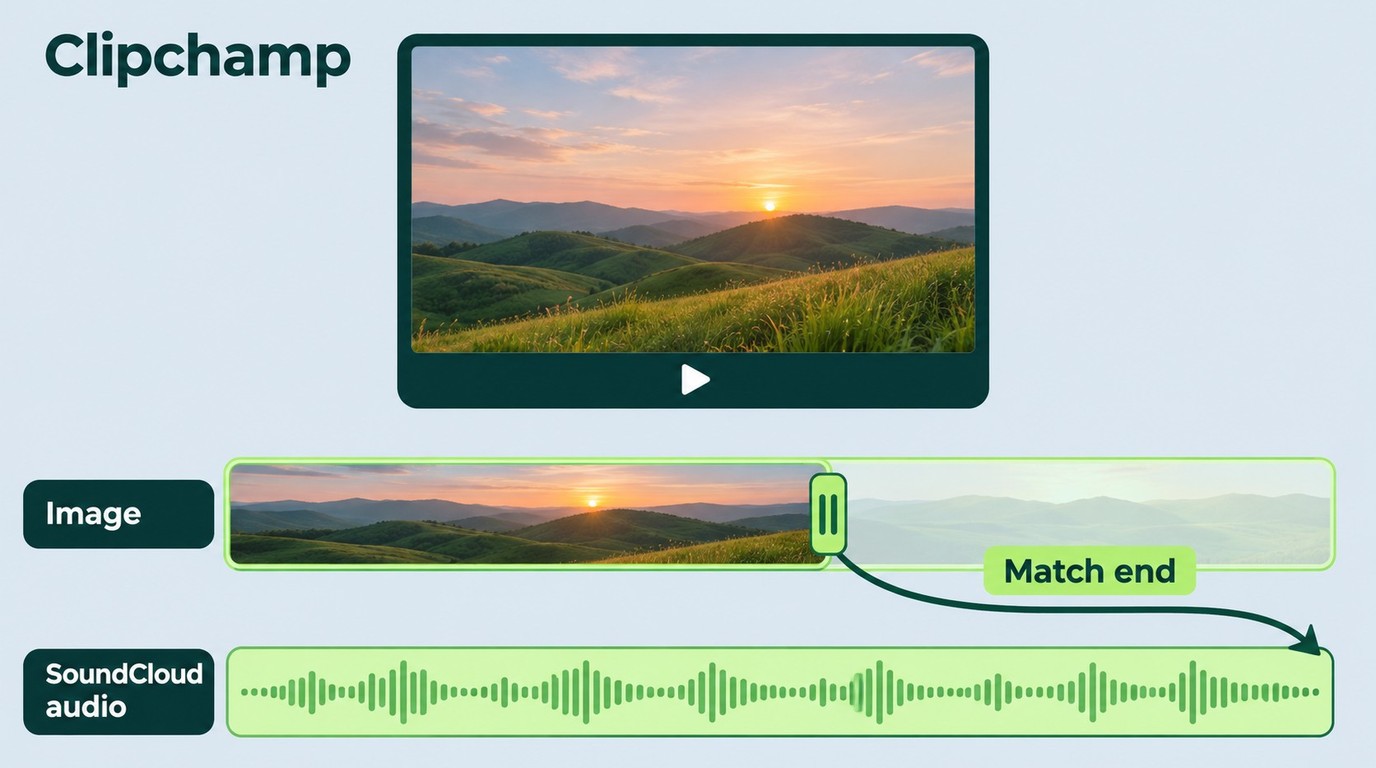
The picture needs to last as long as the music. A short image clip leaves part of the song without the intended visual, even when the audio track itself is complete.
- Select the image clip on Clipchamp's timeline. Zoom out enough to see where the audio ends.
- Extend the image's right edge to the audio's end. Keep the left edge at the beginning so the picture appears with the music.
- Preview the opening, middle, and ending. Confirm the image remains visible, the music starts correctly, and the ending isn't cut short.
I would fix a disappearing image on the timeline before changing export settings. Export resolution won't repair a gap between clips. If you add a title, make its duration intentional too; a credit shown briefly and artwork shown throughout serve different jobs.
Embedded cover art is not automatically a visual track. Likewise, audio tags don't become on-screen credits, and a separate lyrics file doesn't automatically become video captions. Add the elements you want viewers to see inside the editor.
Export and Check the MP4
Choose video export to get the picture-and-sound file. Clipchamp's audio-only export produces M4A, which leaves you without the visual you just arranged.
- Click Export in Clipchamp. Select 1080p or a lower video resolution for the free personal workflow.
- Save the completed MP4 to your computer. If a premium-feature prompt appears, remove the premium asset or feature to keep the project within the free tier.
- Open the saved MP4 outside the editor. Check its picture, sound, total duration, and ending in a local player.
The saved file is the deliverable; the project preview alone isn't enough. Keep the original audio, image, and editable project for later corrections. If Clipchamp asks you to relink media when reopening the project, those originals are what you need.
| Route | Result | Condition |
|---|---|---|
| SoundCloud Download file | Original-format audio | Artist-enabled; individual tracks |
| Clipchamp video export | MP4 video | Free through 1080p; no premium features |
| Clipchamp audio-only export | M4A audio | No video track in output |
Official references: SoundCloud Help Center on downloads, source formats, upload formats, and account access; Microsoft Support on editing, image duration, and export formats, as of November 2026.
The table separates the handoff: audio comes from the source-download stage, while the editor creates the video. A sharper image improves the picture; a higher video resolution doesn't improve the song's source quality. Clipchamp suits this still-image job, but its free tier doesn't include premium assets or features.
When MusicFab Fits Your Audio Workflow
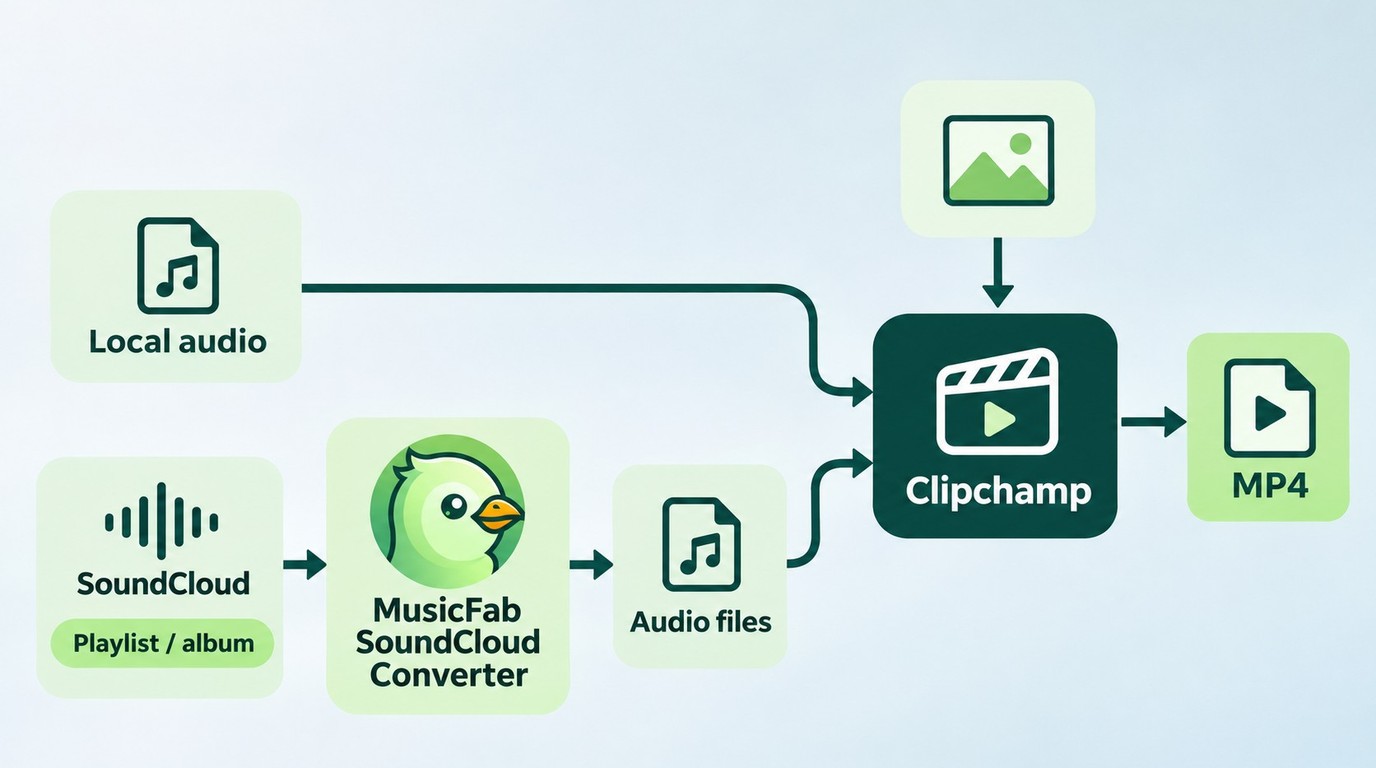
MusicFab SoundCloud Converter fits you when preparing a playlist or album means organizing several audio files before editing. If you already have the source for a single video, I would go straight to the editor.
Batch audio preparation is its role here. On Windows and macOS, MusicFab SoundCloud Converter uses direct source download and offers audio outputs such as MP3 and M4A, giving you local files to organize for your editing projects. Preserved track titles, artist information, and cover art help distinguish recordings before you import them. That matters when similar track names would otherwise make source selection tedious.

- Convert SoundCloud Tracks to MP3, M4A(AAC), WAV, FLAC, or OPUS in Seconds
- Easily Batch Download SoundCloud Playlists, Podcasts, and Albums
- Download SoundCloud Songs in MP3 at up to 320kbps
- Works Perfectly with SoundClound Free, GO and GO+
- Builin Web Browser to Search and Download Music in One Click
This audio-preparation workflow has an existing usage base: our client records logged more than 15,000 completed SoundCloud downloads during August through October 2026. For your project, the benefit is preparing the source collection, then choosing the right audio for each video.
MusicFab's output is audio; Clipchamp handles the picture-and-sound export described above. I would use the batch workflow for a collection, rather than treat it as a shortcut to finished videos. It prepares the music assets without replacing the editor's timeline.
The trial lets you download 3 complete songs per music service during 30 days from installation, including batch processing, so you can carry full tracks into an editing project. Start that audio-preparation workflow from the MusicFab SoundCloud Converter page.
Frequently Asked Questions
Q1. Can a Chrome Extension Create the MP4 for Me?
A: Only if it actually combines audio with a visual and exports video. A SoundCloud downloader extension that saves MP3 has completed the audio stage, not the video stage. Look for a documented picture-and-sound export, rather than assuming an extension's name establishes that capability. The SoundCloud downloader Chrome extension options concern audio acquisition; adding one isn't necessary when your source file is ready.
Q2. Is It Safe to Sign In to a SoundCloud Converter?
A: Sign-in alone isn't a reason to reject an established converter. Use its official installer, distinguish SoundCloud's sign-in page from an unrelated password-collection form, and read the access requested by any authorization screen. SoundCloud lists connected applications in account settings, where access can be revoked. I would avoid an unknown site asking for credentials without explaining its authorization flow; an MP4 promise doesn't establish trustworthy handling.
Q3. Can I Play the Finished MP4 on My Phone While Traveling?
A: Yes, if your phone's player supports the exported file and the MP4 is stored locally. Transfer the finished video, then play it with the phone offline before departure. Check the ending as well as the opening. A cloud-storage thumbnail or an editor project link isn't the same as having the video on the device; this also differs from SoundCloud's in-app offline cache.
Q4. Does Downloading a Track Let Me Publish the MP4 on YouTube?
A: No: a download button doesn't grant publication rights to the music or artwork. Use your own material or obtain permission covering the planned video upload; making a playable file and having permission to publish it are separate requirements.


Move SoundCloud playlists by matching recordings in Spotify, or play separate audio through Local Files. This guide explains missing-track reports, desktop and phone setup, and when a desktop converter helps prepare files.
By Jane Chen - Nov 14, 2026
SoundCloud offline listening includes mobile app saves and creator-enabled file downloads. This guide explains both workflows, fixes incomplete saves, and outlines when desktop batch preparation fits.
By Jane Chen - Nov 14, 2026
Chrome extensions work well for occasional authorized SoundCloud tracks, but desktop apps offer a more controlled workflow for playlists, formats, and metadata. This guide compares the routes, limits, and best-fit scenarios.
By Jane Chen - Nov 2, 2026
This guide separates SoundCloud app-based offline listening from authorized local audio files on iPhone. It covers Go/Go+, Safari-to-Files, a desktop transfer workflow, Apple Music import, storage troubleshooting, and permission-first choices.
By Jane Chen - Aug 26, 2026