SoundCloud Converter to Spotify: Import vs. Local Files

Summary: Move SoundCloud playlists by matching recordings in Spotify, or play separate audio through Local Files. This guide explains missing-track reports, desktop and phone setup, and when a desktop converter helps prepare files.
Table of Contents
A SoundCloud-to-Spotify converter either matches tracks already in Spotify or prepares audio for Local Files. If you want to download SoundCloud songs to Spotify, distinguish playlist matching from file transfer: an MP3 on your laptop still needs to reach your phone.
I see the missing-folder problem as the point where download tutorials leave you stranded. You have a song, but Spotify has no usable path to it. My rule is simple: a migration is unfinished until the intended recording plays on the device you actually use. I’ll follow that rule from playlist matching through the files left behind.
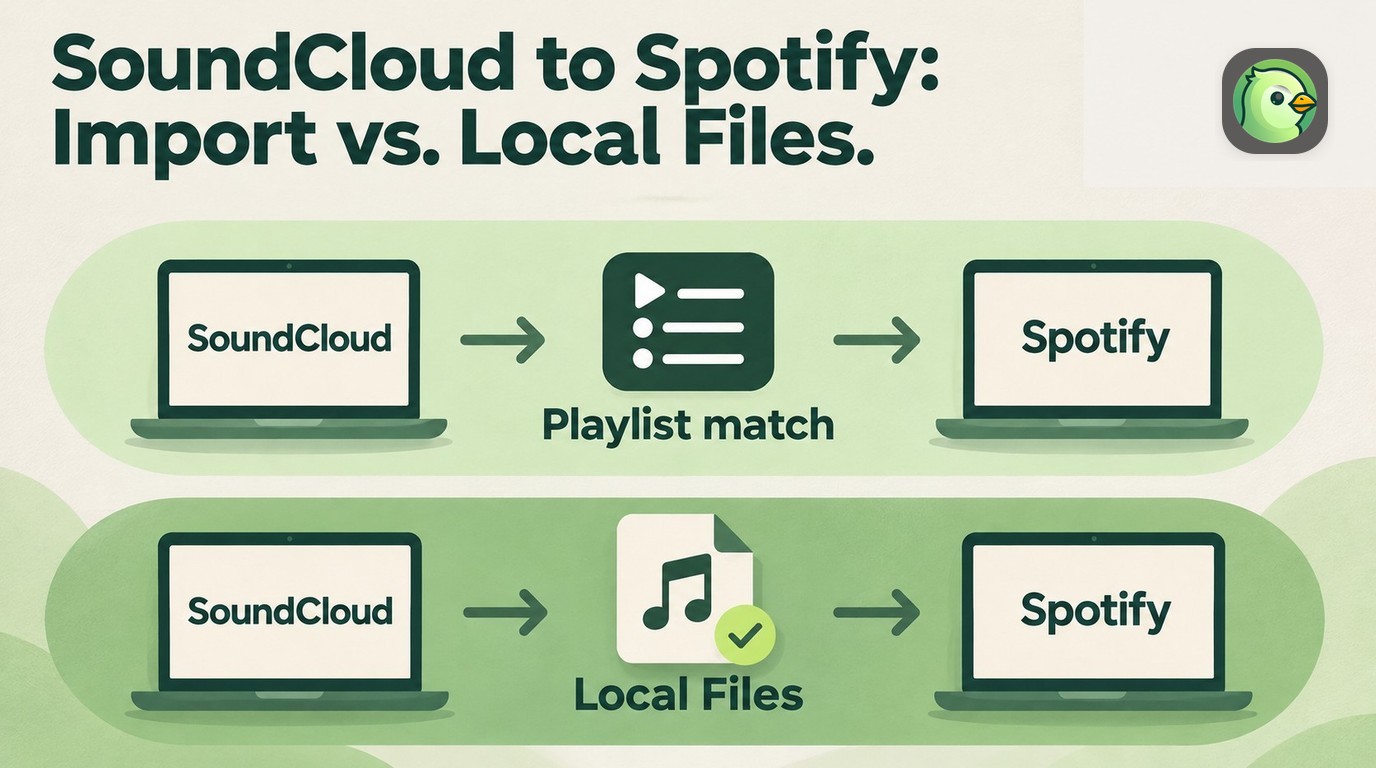
What Moves to Spotify: Playlists, Files, or Offline Saves?
Playlist import rebuilds a list using recordings in Spotify’s catalog; Local Files plays separate audio stored on your device. SoundCloud’s offline saves stay inside SoundCloud, so they are not files you can hand to Spotify.
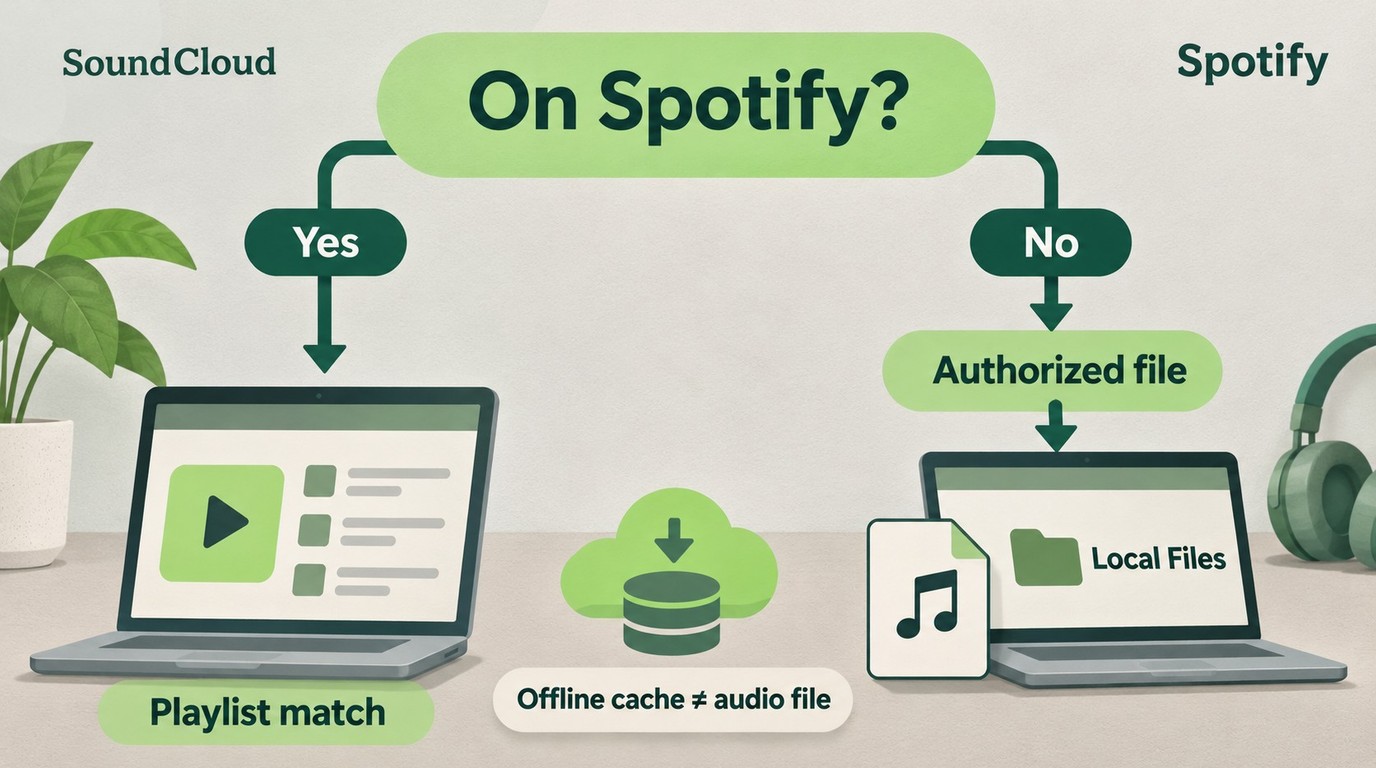
What Each Route Actually Adds to Spotify
| Route | What Spotify plays | File needed? | Main limit |
|---|---|---|---|
| Playlist import | A matching catalog recording | No | Missing or different versions |
| Local Files | Audio on this device | Yes | File access on each device |
| SoundCloud offline saves | No imported Spotify audio | No exportable file | Stays in the SoundCloud app |
Source: Spotify Support and SoundCloud Help Center, as of November 2026.
I’d match a catalog release first and reserve Local Files for recordings the match cannot supply. A playlist of released albums and a playlist of artist demos need different handling. Neither route publishes your audio to Spotify’s public catalog.
The folder confusion is real. One person in r/truespotify described tutorials that say “to open a local files folder on the laptop and I have no clue how to do that.” That is a setup problem, not evidence that the audio needs converting again. On a computer, the source folder is an ordinary folder in File Explorer or Finder; Local Files is the view inside Spotify.
Consider a playlist containing an album track and a creator’s alternate mix. This is an example, not a test run. Matching could find the album recording while leaving the alternate mix unresolved. Keep that unresolved entry on a missing-tracks list, then use the file route if you have the audio. You do not need to rebuild the whole playlist as MP3s because a recording is missing.
Transfer a SoundCloud Playlist with Tune My Music
Use Tune My Music to select SoundCloud as the source, choose a playlist, and rebuild its matches in Spotify. This transfers playlist entries rather than uploading the SoundCloud audio. I count a transfer as successful when the recording versions match, not merely when a new playlist appears.
Connect Accounts and Select a Playlist
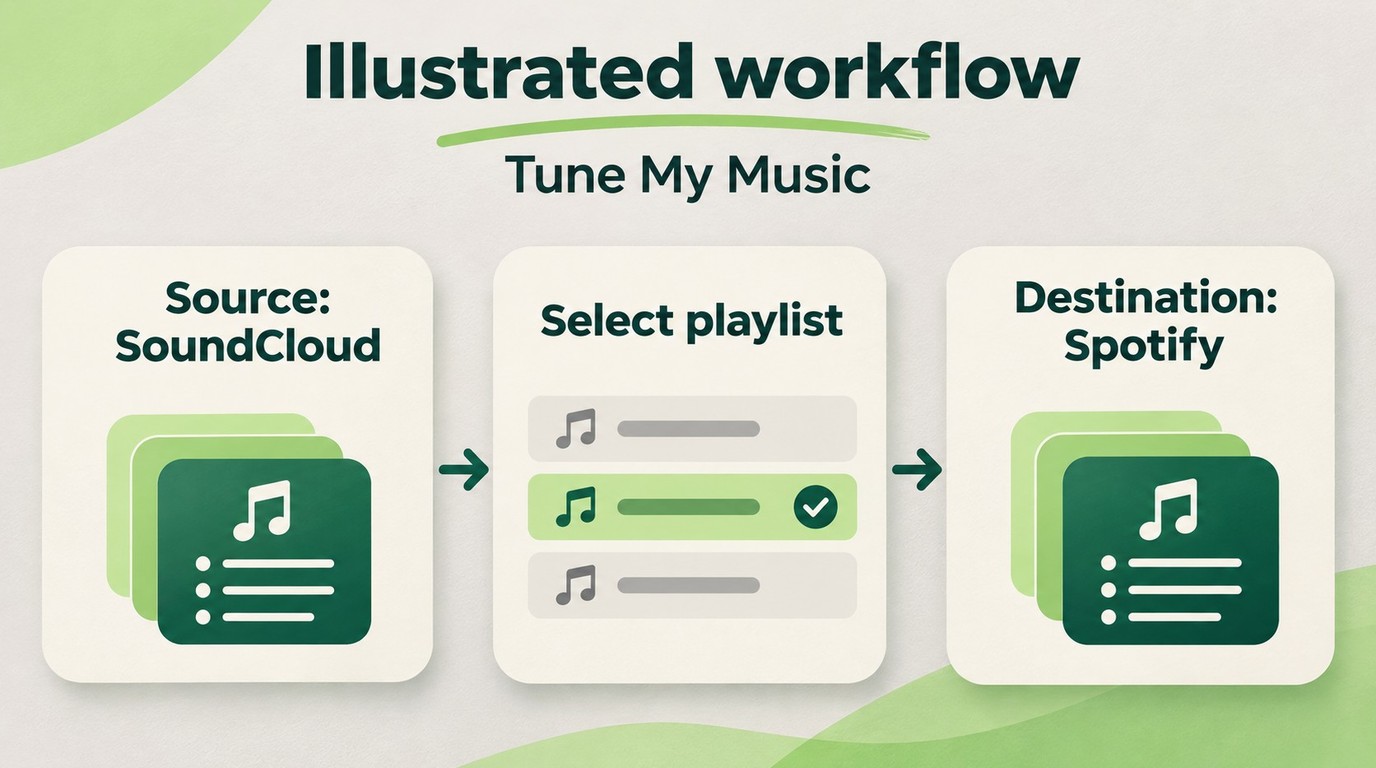
Have both account sign-ins and the source playlist ready. Keep the SoundCloud playlist intact while you work. For a first pass, choose a short playlist you can review by ear; a familiar selection makes a wrong live version easier to spot.
Spotify’s mobile app includes a Tune My Music import entry under Your Library → Import your music from other apps. If that entry is missing, or SoundCloud is absent from its source list, open Tune My Music’s SoundCloud to Spotify transfer page in your browser. It is the same transfer service. Do not assume every account shows the same source menu.
- Choose SoundCloud in Tune My Music. Sign into the source account and approve the access needed to read your selection.
- Select the playlist or tracks. Check the playlist name against the original so you do not migrate a similarly named collection.
- Choose Spotify as the destination. Authenticate the Spotify account that should receive the playlist.
- Start the transfer. Let Tune My Music finish matching and rebuilding the selected entries.
- Open the resulting playlist in Spotify. Keep the transfer report available while you check its contents.
The useful result is a Spotify playlist you recognize. Before moving a larger library, confirm that you authenticated the intended destination account, especially if your browser switches between personal and family accounts. A completed job in the wrong account still leaves you with cleanup.
Review Matches and Save the Missing-Tracks Report
Tune My Music matches using title, artist, album name, and ISRC, a recording identifier. Those fields help locate a corresponding track; they do not make a SoundCloud-only recording appear in Spotify’s catalog. Its completion report marks unavailable matches Missing and lets you download that list as a CSV spreadsheet file.
Review ambiguous matches before declaring the job done. Check the artist and album, then listen for the distinctions you care about: live versus studio, original versus remix, clean versus explicit, or a shortened edit. Duration is a useful clue, but listening settles a version mismatch better than a matching title alone.
Keep the missing CSV beside your original playlist. Add a note when an entry matched the wrong version, since “found” and “correct” are different outcomes. That gives you a focused list for manual Spotify searches and the Local Files route, without repeatedly processing the tracks that already landed correctly.
The alternate mix from our example belongs on that list. Search Spotify for the specific artist and mix name before obtaining a separate file. If the intended recording is absent, another matching attempt does not create it. Local playback is the next route for a file you already have.
Tune My Music fits you when most of your selection has Spotify counterparts. It does not solve the missing-recording problem by carrying the original audio across. Keep the report: that is the handoff to the next section.
Add SoundCloud Audio with Spotify Local Files
Use Spotify Local Files to play an audio file stored on your computer or phone, with Spotify allowed to access it. Adding its playlist entry does not automatically send the computer’s file to every phone. For me, playback on the destination device is the finish line.
Start with an audio file you have permission to use. SoundCloud’s web download button, when enabled by the uploader, supplies the uploaded original file for an individual track. Sign into SoundCloud on the web and look beneath the waveform for Download file; saving something offline in the mobile app is a different operation. The distinctions between SoundCloud song downloads matter here because Spotify needs the file itself.
Keep the alternate mix from your missing-tracks list as the example throughout setup. Choose an existing MP3 if you have one. That makes the first task locating and playing familiar audio, rather than changing formats and troubleshooting file access at the same time.
Windows and Mac: Add the Folder in Spotify
Use Spotify’s desktop app for the folder route. A Windows or Mac download belongs in an ordinary, stable folder, such as Music → SoundCloud Imports, created in File Explorer or Finder. That folder name is an example you choose, not a special directory Spotify creates.
- Place the audio in that folder. Check where your browser actually saved it rather than assuming it went into Music.
- Open Spotify → profile picture → Settings. Under Library, enable Show Local Files.
- Choose the source folder. Enable an existing folder under Show songs from, or select Add a source and choose SoundCloud Imports.
- Open Your Library → Local Files. Play the alternate mix, then add its entry to your playlist.
You have connected Spotify to a location on that computer. Keep the underlying file there after adding it; a playlist is not a backup of your Music folder. For a SoundCloud-to-Spotify MP3 workflow, file placement is the step that turns a downloaded MP3 into something Spotify can find.
iPhone and Android: Put the File on the Phone
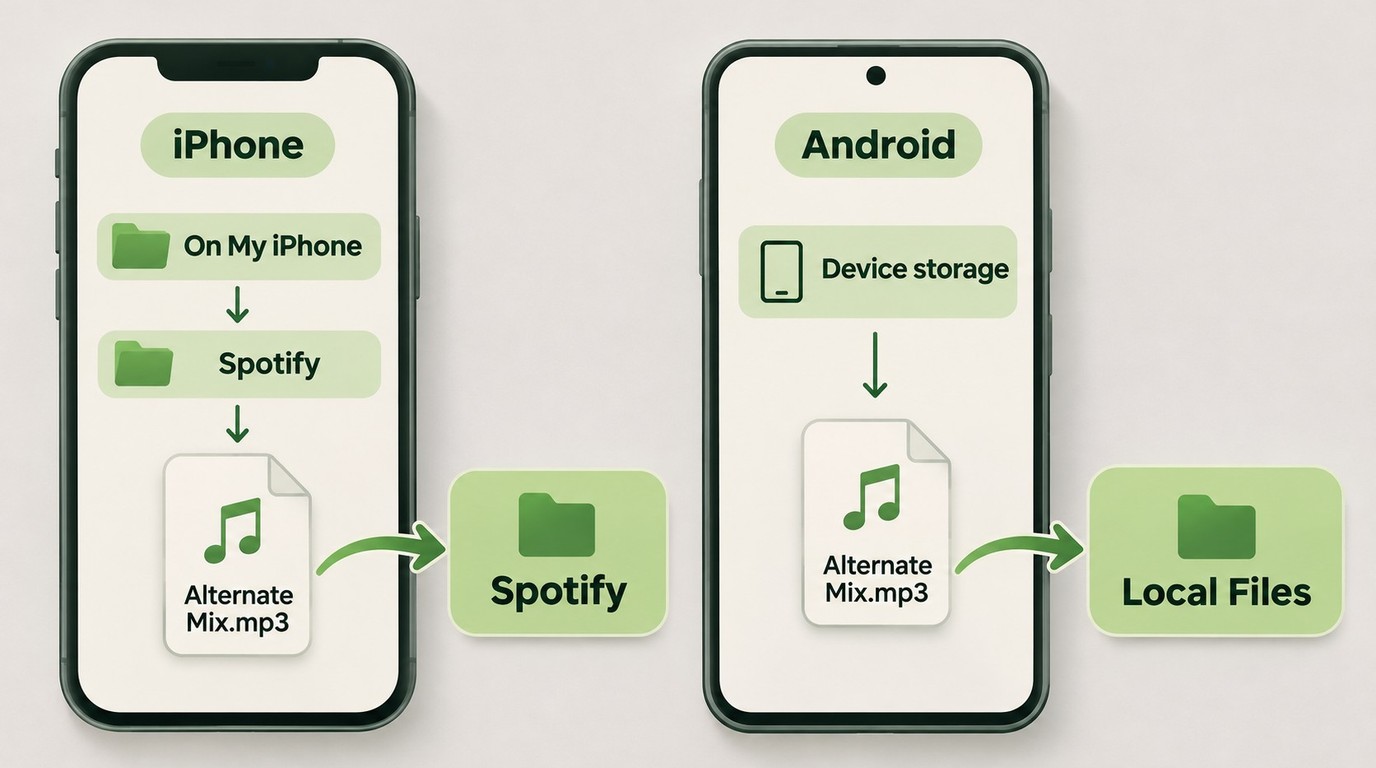
Both phone apps need local audio access. Spotify’s Local audio files setting is under profile picture → Settings and privacy → Apps and devices. Enable it and grant the device audio access. The difference is where the file goes.
On iPhone, use the Files app:
- Find the audio in Files. Open the browser or storage app’s folder where it was saved.
- Copy or move it to On My iPhone → Spotify. Choose the local Spotify folder rather than leaving it in a cloud-only location.
- Return to Spotify → Your Library → Local Files. Open the track and check playback.
The folder is the detail that trips people up. A person in r/Comehelpglo wrote, “After song converted to mp3 go into your phone files app and move the mp3 file into the newly automatic created spotify folder”. If Spotify’s folder is missing, restart Spotify. Keep its Help file; deleting that file can hide the folder.
On Android, a downloaded device file is what counts. In your file-management or storage app, select the file’s Download action; a cloud listing alone is not a local copy. You can also copy audio from a computer by USB, allowing file transfer on the phone. After the file reaches device storage, open Spotify’s Local Files view using the access setting above.
The practical distinction is location, not a different conversion for each phone. An iPhone file needs the local Spotify folder; an Android file needs to be downloaded onto the device and accessible to the app. Keep your original copy while confirming either route.
Check Playback Before Adding More Songs
Verify the alternate mix before scaling up. Its displayed title and artist should fit the file, and playback near the beginning and end should belong to the intended recording. Do this on the phone if that is where you listen.
A gray entry calls for file checks before another conversion. One person in r/truespotify wrote, “I woke up this morning to listen to some songs I saved in my local files and apparently it’s grayed out?” That describes a symptom, not its cause.
- Check the file’s location. Confirm the audio still exists on this device and is not just a cloud placeholder.
- Check Spotify’s access. Revisit the folder selection or local-audio permission, then restart the app.
- Update and re-add. Update Spotify and the device, remove the stale playlist entry, and repeat the relevant Local Files steps.
I’d leave reinstalling until those checks are exhausted. Spotify requires downloaded music and podcasts to be downloaded again after a reinstall. If a file remains unrecognized, renaming its extension is not a format conversion; keep the original and choose a suitable audio format instead.
When MusicFab SoundCloud Converter Fits the File Route
MusicFab SoundCloud Converter fits you when your missing-tracks list has become a batch of audio files to prepare and organize for Spotify Local Files. It handles the SoundCloud file preparation on Windows and macOS; Spotify handles playback from the folder you select.

- Convert SoundCloud Tracks to MP3, M4A(AAC), WAV, FLAC, or OPUS in Seconds
- Easily Batch Download SoundCloud Playlists, Podcasts, and Albums
- Download SoundCloud Songs in MP3 at up to 320kbps
- Works Perfectly with SoundClound Free, GO and GO+
- Builin Web Browser to Search and Download Music in One Click
Batch Downloads, File Formats, and Track Tags
Batch preparation reduces repeated file-by-file work. For SoundCloud file preparation, users completed more than 15,000 downloads in our client software between August and the end of October 2026. That is the file-acquisition part of the route, before you add the results to Spotify.
1. Open SoundCloud in MusicFab SoundCloud Converter. Sign into your SoundCloud account with the active subscription required for the download workflow.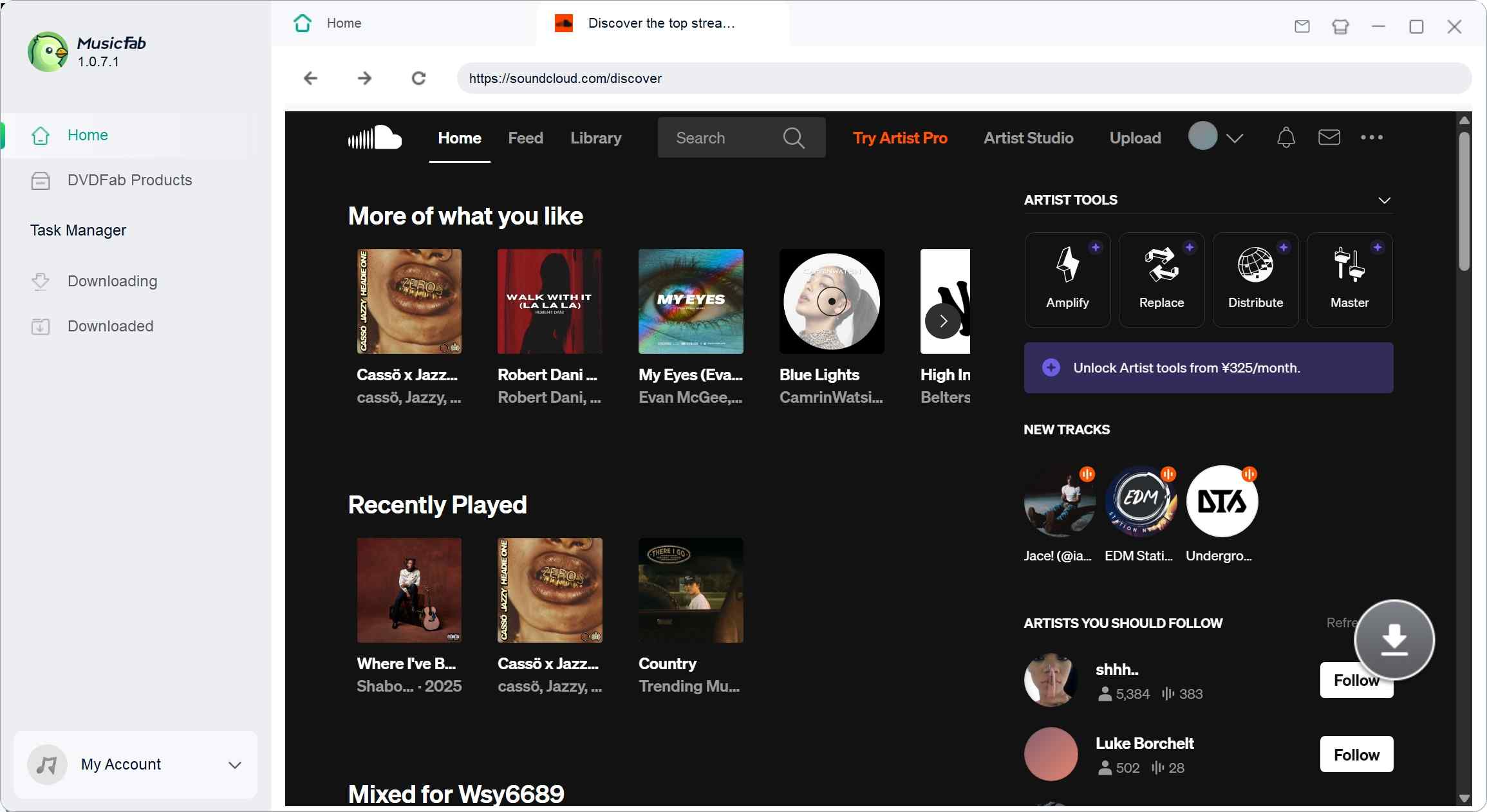
2. Select the track or playlist and choose an output. Use MP3 for your initial import sample; retained ID3 track tags, artwork, and track numbers help keep the batch identifiable.
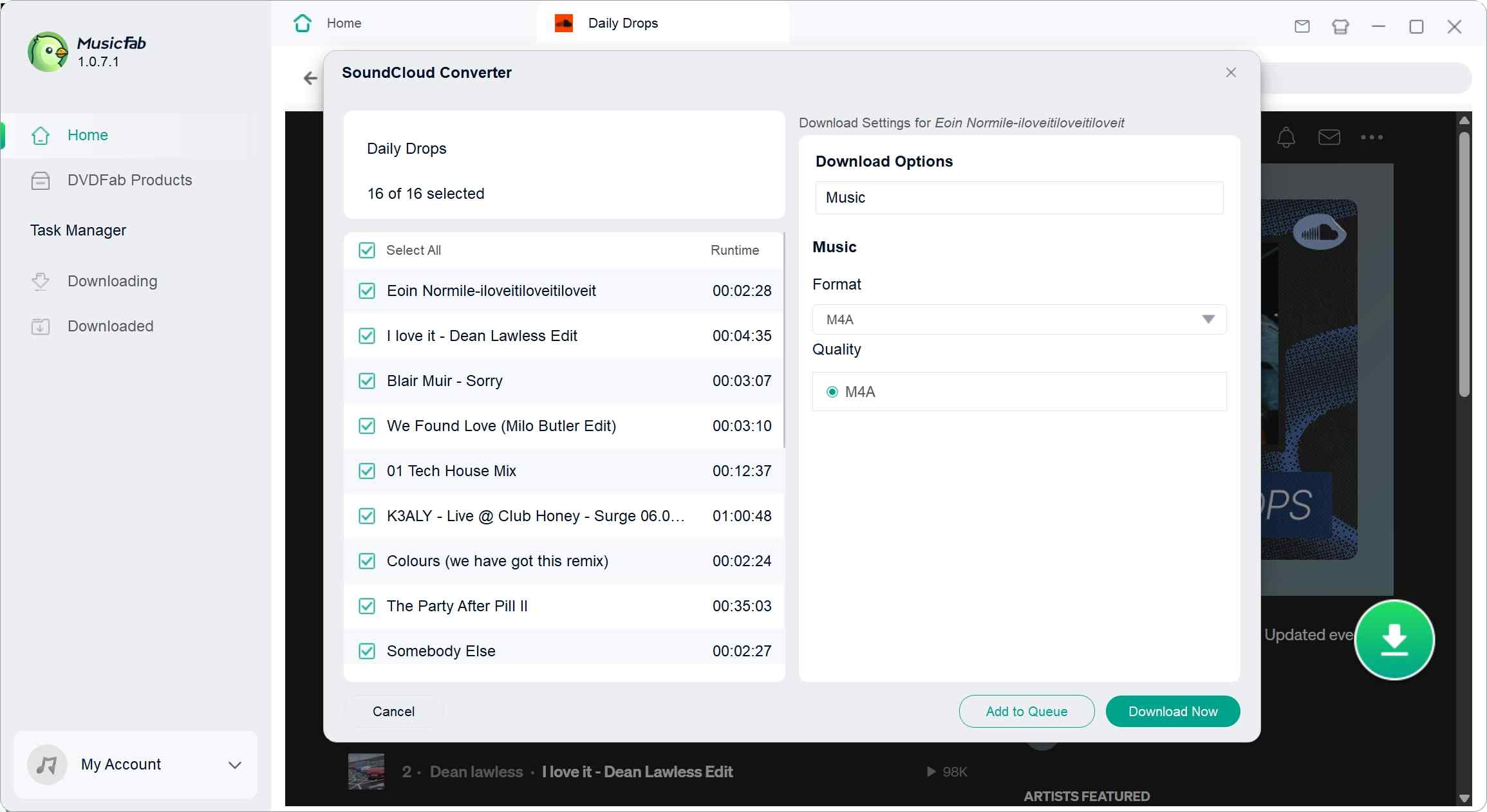
3. Download to your chosen folder. Use that folder in the Local Files steps above, then move the files to your phone when needed.
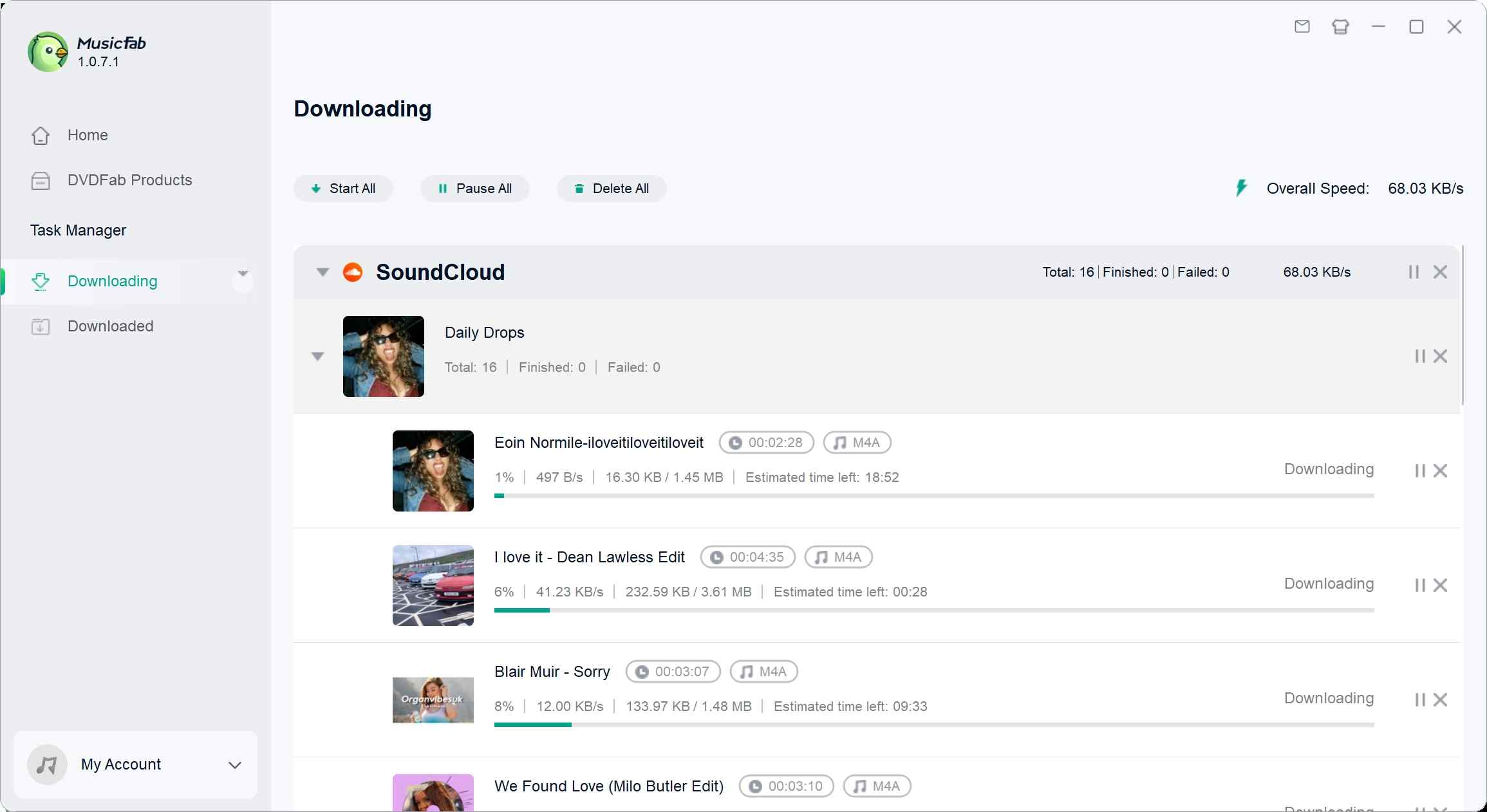
Direct source download is the acquisition method. The useful distinction here is that you receive audio files to manage, rather than another playlist of Spotify catalog matches.
Check a Full Song Before Converting a Playlist
A complete song gives you something useful to check. The trial lasts 30 days from installation and includes 3 complete songs per music service, so you can check the ending, tags, and Spotify import with a full track.
Source quality remains the boundary: exporting compressed audio as FLAC or WAV does not restore lost detail, so choose MP3 for the initial Spotify playback check. I’d judge this route by whether the prepared files play and stay organized, rather than by a lossless filename.
Start your file workflow with MusicFab SoundCloud Converter for Windows or macOS.
Use third-party tools only for content you’re authorized to access, within the service’s terms, and keep saved audio for your own offline listening; don’t redistribute or resell it.
FAQ: Moving SoundCloud Songs to Spotify
Q1. Is there a free way to bring the songs over?
A: Creator-enabled SoundCloud downloads provide individual files without buying a converter. That does not make a whole-playlist transfer service unlimited or free. For Tune My Music, look at the selection and any payment prompt before starting the job rather than assuming an entire library is included. Spotify Local Files is the playback route for audio you already have; it does not acquire the files. I’d separate those costs before choosing a tool.
Q2. Can I finish the job using just my phone?
A: Yes, when the playlist-transfer source is available or the audio file is already obtainable on your phone. Spotify’s mobile import entry handles catalog matching through its partner. For local audio, both iPhone and Android work with files present on the device; SoundCloud’s in-app offline save is not that file. A creator’s separately supplied download or an existing file gives you a phone-only starting point. Desktop conversion software runs on a computer, so that particular preparation route adds a computer to the workflow.
Q3. What should I look for when connecting an account?
A: Use an established service from its official site and review the account and requested access on the authorization screen. Playlist transfer needs access to read a source selection and write to the destination; a converter’s source sign-in is a separate workflow. Check the sign-in domain rather than entering credentials into an unfamiliar imitation page. Spotify’s account Apps page lets you remove access you no longer need. I’d keep permissions tied to the job, without treating sign-in itself as evidence of a problem.
Q4. Will everything keep playing when I go offline?
A: Imported Spotify catalog music needs Premium for music downloads, and Spotify requires going online at least every 30 days to keep those downloads. Local audio needs the actual file accessible on your listening device; do not apply that catalog-download timer to it. Before travel, disconnect the device from the internet and try the tracks you plan to hear. I’d check a catalog track and a local file separately, since success with one does not confirm the other.


Turn a SoundCloud audio file into an MP4 by pairing it with an image in Clipchamp. This guide separates official audio downloads from video export, explains source-quality limits, and identifies when extra audio preparation helps.
By Jane Chen - Nov 14, 2026
SoundCloud offline listening includes mobile app saves and creator-enabled file downloads. This guide explains both workflows, fixes incomplete saves, and outlines when desktop batch preparation fits.
By Jane Chen - Nov 14, 2026
Chrome extensions work well for occasional authorized SoundCloud tracks, but desktop apps offer a more controlled workflow for playlists, formats, and metadata. This guide compares the routes, limits, and best-fit scenarios.
By Jane Chen - Nov 2, 2026
This guide separates SoundCloud app-based offline listening from authorized local audio files on iPhone. It covers Go/Go+, Safari-to-Files, a desktop transfer workflow, Apple Music import, storage troubleshooting, and permission-first choices.
By Jane Chen - Aug 26, 2026