Apple Music to Spotify Playlist Converter: How to Transfer

Summary: Spotify provides mobile and browser entry points for importing Apple Music playlists through TuneMyMusic. This guide covers account setup, missing-track checks, route-specific free limits, and the separate role of local audio files.
Table of Contents
Spotify’s TuneMyMusic import works as an Apple Music to Spotify playlist converter, so you don’t have to rebuild your collection song by song. It matches tracks to Spotify’s catalog and creates playlists in your account. Here’s how to transfer an Apple Music playlist to Spotify and check the result.
Rebuilding a library by typing every song title is exactly the chore I’d want to avoid when switching services. I care more about getting the right recording than seeing a finished progress bar: a live version is no substitute for the studio track you saved. We’ll follow the import through to its destination, then separate matching problems from transfer limits and local-file needs.
Transfer Apple Music Playlists With Spotify’s TuneMyMusic Import
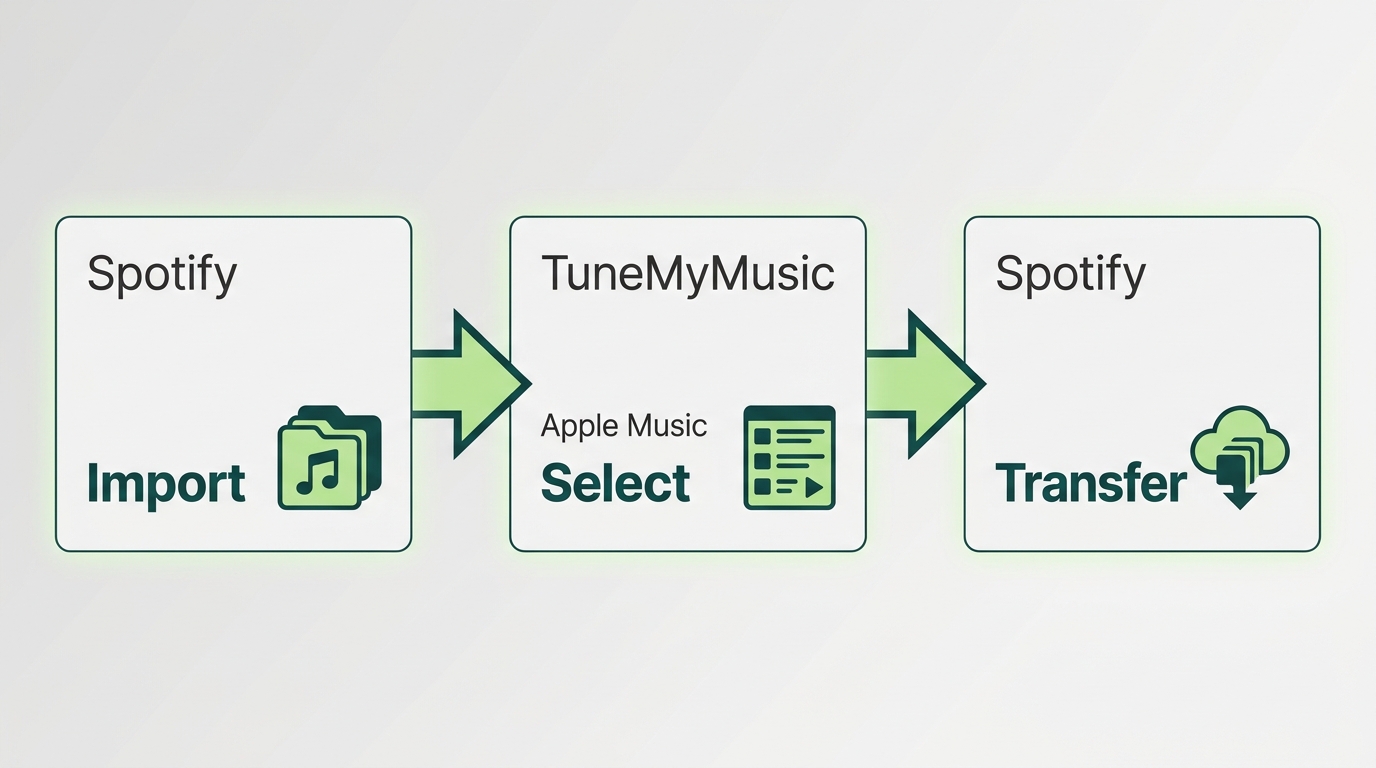
Start in Spotify’s mobile library or its web import page, then connect Apple Music through TuneMyMusic. Select the playlist, authorize the destination Spotify account, and finish the import. The result is a Spotify playlist, rather than a folder of downloaded audio.
Prepare your accounts before opening the transfer. You need access to the Apple Music playlist you want to copy and the Spotify account where it should appear. Open the source playlist first and make sure its contents are visible. If an expired subscription has left your library inaccessible, resolve that access problem before attempting a migration; an import button isn’t a playlist-recovery tool.
Treat sharing as a different task. Sending someone an Apple Music playlist link lets them open that playlist; it doesn’t create a copy in their Spotify library. For a service switch, choose the import flow rather than stopping at the share menu.
Import on iPhone or Android
Use the same TuneMyMusic flow on either phone platform:
- Open the import option. In Spotify, go to Your Library and tap Import your music from other apps. This opens the TuneMyMusic-powered transfer.
- Choose Apple Music. Sign in to the Apple Music account containing your source playlist. Check the account before continuing, especially if you use different accounts for family members.
- Grant access. Tap Allow when asked to authorize access to the source library.
- Select the music. Choose the tracks or playlists you want to import, then tap Transfer to Spotify. Start with a playlist you know well so the result is easy to assess.
- Confirm the destination. Sign in to the intended Spotify account to authenticate and complete the import. Return to Your Library to find the imported music.
My practical preference is a familiar playlist before a whole-library transfer. You’ll recognize a wrong album cut faster when you know what should play next. That makes the first import useful as a check, rather than just another task to finish.
The mobile option also answers the app-versus-browser question: you can begin inside Spotify without hunting for a separate transfer app. TuneMyMusic performs the transfer; the Spotify entry point doesn’t make it a Spotify-owned service.
| Entry point | Device | Opens | Creates | Best fit |
|---|---|---|---|---|
| Spotify app | iPhone or Android | TuneMyMusic | Spotify playlists | Mobile import |
| Spotify import page | Desktop or mobile browser | TuneMyMusic | Spotify playlists | Browser access |
Source: Spotify’s import page and Spotify Help Center, as of November 2026.
Both entrances lead to the same provider. Choose the screen that makes selecting and checking your playlist easiest.
Use Spotify’s Web Entry Point on Windows or Mac
The browser route is useful when you’re already organizing music on a computer. Open Spotify’s web import entry point on Windows or Mac and select Get Started. It redirects to TuneMyMusic, where you follow the account connection and playlist selection described above.
This is a website entry point, rather than a download tool built into Spotify’s desktop app. You don’t need to search the desktop app for the mobile menu label. The browser route also gives you somewhere concrete to go when the phone’s import option is hard to find.
That missing-menu problem is recognizable. One reader in r/truespotify asked, “But I go back into Spotify and I can't find the option anymore. Anyone know where to find it?” The web entry point addresses that navigation problem without changing the transfer method.
Find the Imported Playlist and Check a Small Sample
Finish by opening the destination playlist, not by closing the transfer screen. Compare its title and track count with Apple Music, then play familiar songs from different parts of the list. Keep the source playlist open alongside it when possible.
A matching count is a useful checkpoint, but listen too. A song title alone won’t tell you whether the importer chose a live recording or a remaster. If something is missing or sounds wrong, keep the result and review the specific discrepancy below before running the entire library again.
Check Missing Tracks, Versions, and Free Transfer Limits
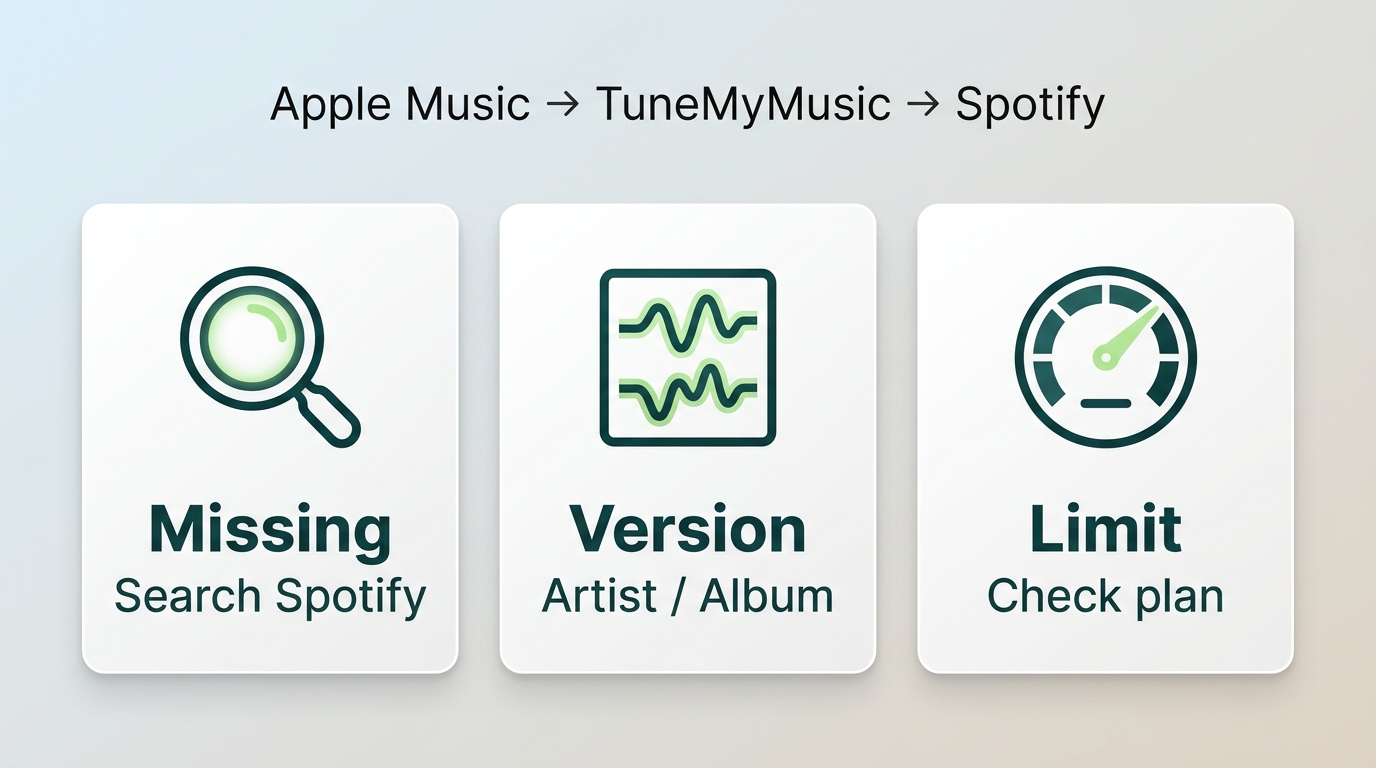
An incomplete transfer needs a diagnosis: missing catalog matches and an exhausted transfer allowance call for different fixes. Review the missing-track list and recording versions first, then identify the limit attached to the route you used. Repeating the full import won’t resolve an unavailable recording or expand a free allowance.
Review Missing Tracks and Alternate Recordings
Fix the individual match when a song has the wrong version. TuneMyMusic’s completion view includes a missing-track list and a CSV download option; CSV is a spreadsheet-readable text file. Save that list so you have a repair checklist rather than relying on memory.
Compare the artist, album, and version name against Apple Music. A studio track, concert performance, clean edit, and remaster are different choices even when their titles overlap. Search Spotify for the intended recording and replace the incorrect match when it’s available. Regional catalog differences also matter: a recording available in the source library isn’t necessarily offered in your destination region.
Check chronology separately from track presence. One r/truespotify reader described the problem this way: “when I transferred my library from Apple Music it wasn’t in chronological order of when the song was added.” That’s a reason to inspect your own result, rather than assume playlist order, liked-song dates, and listening history transfer together.
Keep cleanup deliberate. Look for repeated entries and distinguish an actual duplicate from another release of the same song before deleting it. Jane Chen’s recommendation: repair the mismatches before rerunning the library. A targeted correction preserves the work you’ve already checked.
Personal podcast recordings need a different route. A catalog matcher looks for a corresponding catalog item; a private audio file isn’t automatically one. Keep those files separate from the missing-song checklist instead of accepting an unrelated song with a similar title.
Keep Standalone Free Limits Separate From Spotify Import
The 500-track allowance belongs to TuneMyMusic’s standalone free plan, as of November 2026. Spotify’s import instructions don’t publish that same numerical cap for the integrated route. Don’t treat the standalone figure as a confirmed limit for every entry point.
The standalone free tier fits a transfer within its allowance; a larger collection needs the provider’s paid transfer option or another arrangement offered by that route. If you reach a limit, identify the service and plan named on that screen before paying. A transfer allowance counts catalog tracks, not downloaded audio files.
For a large library, settle source access and the applicable allowance before selecting everything. If only certain songs are missing, use the match checklist above. If the screen explicitly stops at a plan limit, address that allowance instead. Those are different problems, and neither calls for blindly starting over.
When MusicFab Fits a Separate Local-Audio Workflow
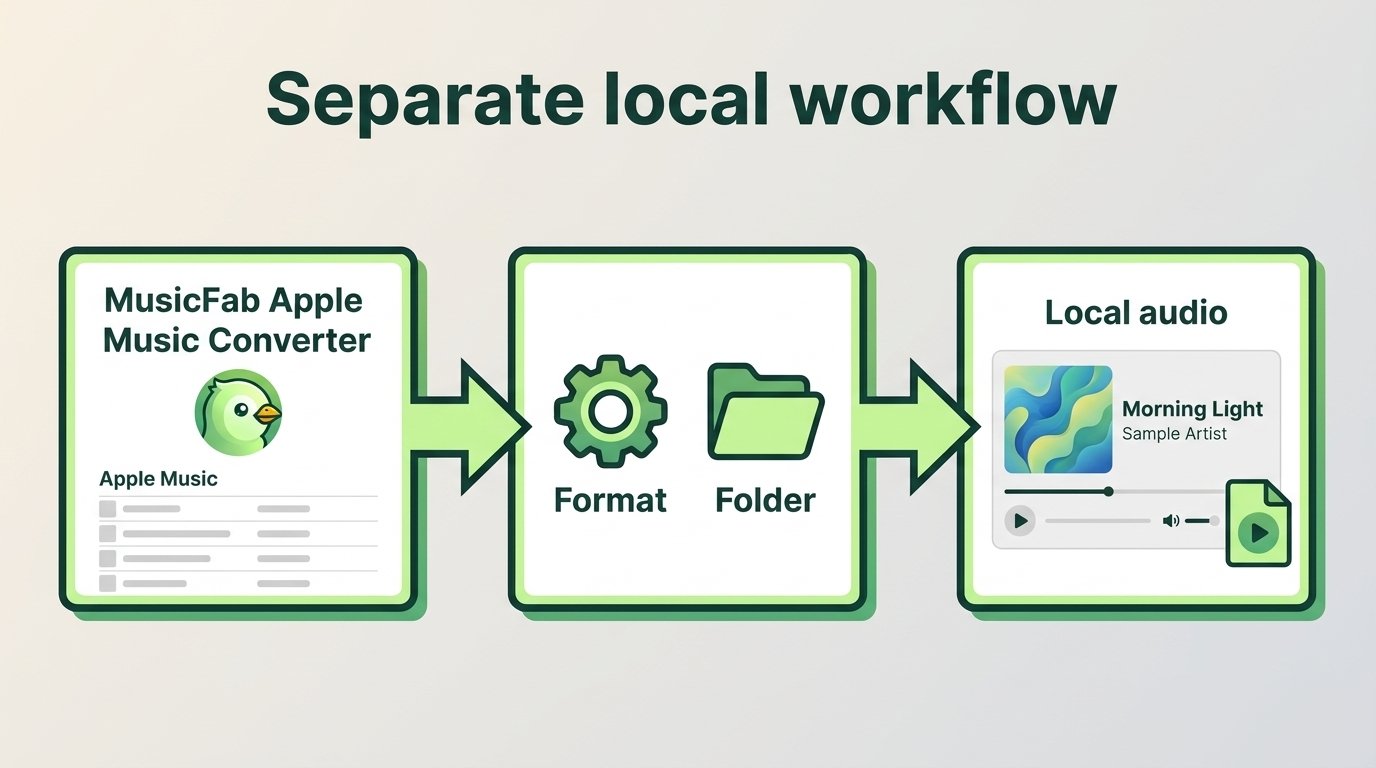
MusicFab Apple Music Converter fits you if you also want Apple Music tracks as local audio files on Windows or Mac. It uses direct source downloading to save audio, rather than matching songs into Spotify’s catalog. I’d keep that file workflow separate from the playlist import above.

- Batch download songs, playlists, albums and podcasts from Apple Music
- Convert to MP3, M4A, WAV, FLAC and more up to lossless quality
- Save lyrics and ID3 tags
- Built-in web browser to search and download music all in one place
Check a Small Local-Audio Sample Before Scaling Up
Choose the output for the player you’ll actually use. Our October 2026 Apple Music usage records include AAC, FLAC, MP3, and WAV outputs, giving you file choices for different players. MusicFab also retains song tags and artwork, so the files are easier to identify outside the streaming library.
- Open MusicFab Apple Music Converter and sign in to Apple Music through its built-in browser.
- Select the songs or playlist, choose an output format and destination folder, and start downloading.
- Open a saved song in your intended player and inspect its title, artist, and artwork before expanding the batch.
Our new-install records for August through October 2026 put download and installation together at under 2 minutes to begin a first task. That helps keep setup short when you’re evaluating a local collection. The 30-day trial starts at installation and includes 3 complete Apple Music songs, so you can assess whole files.
The limitation is scope: MusicFab saves files, rather than creating Spotify catalog playlists; use its full-song trial to assess the local-file workflow. Spotify’s local-file playback settings handle compatible audio already stored on a device, without turning it into a public catalog upload or guaranteeing playback on friends’ devices. Keep an active source subscription and save only authorized content for personal use under applicable law and service terms, which may restrict third-party tools. Don’t redistribute or resell the files.
Apple Music to Spotify Playlist Transfer FAQ
Q1. Is It Safe to Connect Apple Music and Spotify to a Playlist Converter?
A: Use the provider reached through Spotify’s official import entry point and review the account and permissions shown during authorization. That gives you an identifiable service, rather than an unknown page asking for credentials. Spotify’s entry point isn’t a security guarantee. I’d check that the source and destination accounts are correct before approving access; disconnect the provider afterward if you no longer need its connection.
Q2. Will Transferring a Playlist Delete It From Apple Music?
A: No. TuneMyMusic copies the playlist to the destination and leaves the source unchanged. You don’t need to delete the Apple Music version to complete the import. Keep it available while checking the Spotify copy, especially if the playlist includes alternate recordings that need manual correction. Copying the list also doesn’t establish ongoing synchronization between the services.
Q3. Does Transferring a Playlist Download Songs for a Flight?
A: No. Importing creates a playlist; it doesn’t download its audio. Spotify requires Premium for music downloads, and you must download the imported playlist separately while online. Before leaving, open Spotify offline and confirm that the playlist plays on the device you’re taking. An Apple Music offline download doesn’t become a Spotify download through playlist transfer.
Q4. Can I Transfer Spotify Playlists to Apple Music Instead?
A: Yes. To transfer a Spotify playlist to Apple Music, use Apple Music’s import process for that destination. It requires an Apple Music subscription and Sync Library enabled. Treat this as the reverse workflow, rather than reusing Spotify’s destination settings. Apple provides a review stage for alternative matches, so resolve those choices in Apple Music before considering the reverse transfer finished.


Send an Apple Music playlist from an iPhone or copy its link in a browser. Learn how listening links differ from public profiles and collaboration invites, and what to check when sharing fails.
By Jane Chen - Nov 6, 2026
Learn how lossless audio differs from hi-res and Spatial Audio, then configure Apple Music on your devices. Compare service specifications and understand the separate role of local-file exports.
By Jane Chen - Nov 6, 2026
This guide separates Apple Music's official offline downloads from local-file workflows, then evaluates two browser services and MusicFab for different library sizes. It also flags stale services, explains quality checks, and gives a practical selection rule for occasional tracks, playlists, and organized collections.
By Jane Chen - Oct 21, 2026
Start with six checks to separate an Apple Music outage from a device or account problem. Find targeted fixes for greyed-out songs, AutoMix, Replay, lyrics, and shared access, plus guidance for iPhone, Mac, Android, PS5, and Windows. Use Apple Support for unresolved errors before considering a personal local-copy workflow.
By Jane Chen - Sep 28, 2026