How to Share Apple Music Playlist Link

Summary: Send an Apple Music playlist from an iPhone or copy its link in a browser. Learn how listening links differ from public profiles and collaboration invites, and what to check when sharing fails.
Table of Contents
To share an Apple Music playlist link, open the playlist and use Share to send it, or choose More > Copy Link at music.apple.com. If your playlist is ready but the phone’s share sheet stalls, the browser gives you a separate copy-link route.
A finished playlist should not need a public profile just to reach a friend. I treat listening, discovery, and editing as separate permissions, because choosing the wrong entry point changes what you invite someone to do. That distinction matters when Share and Collaborate sit near each other. Below, the phone and browser routes come first, followed by checks for missing links or missing songs.
Share a Playlist Link With Apple Music
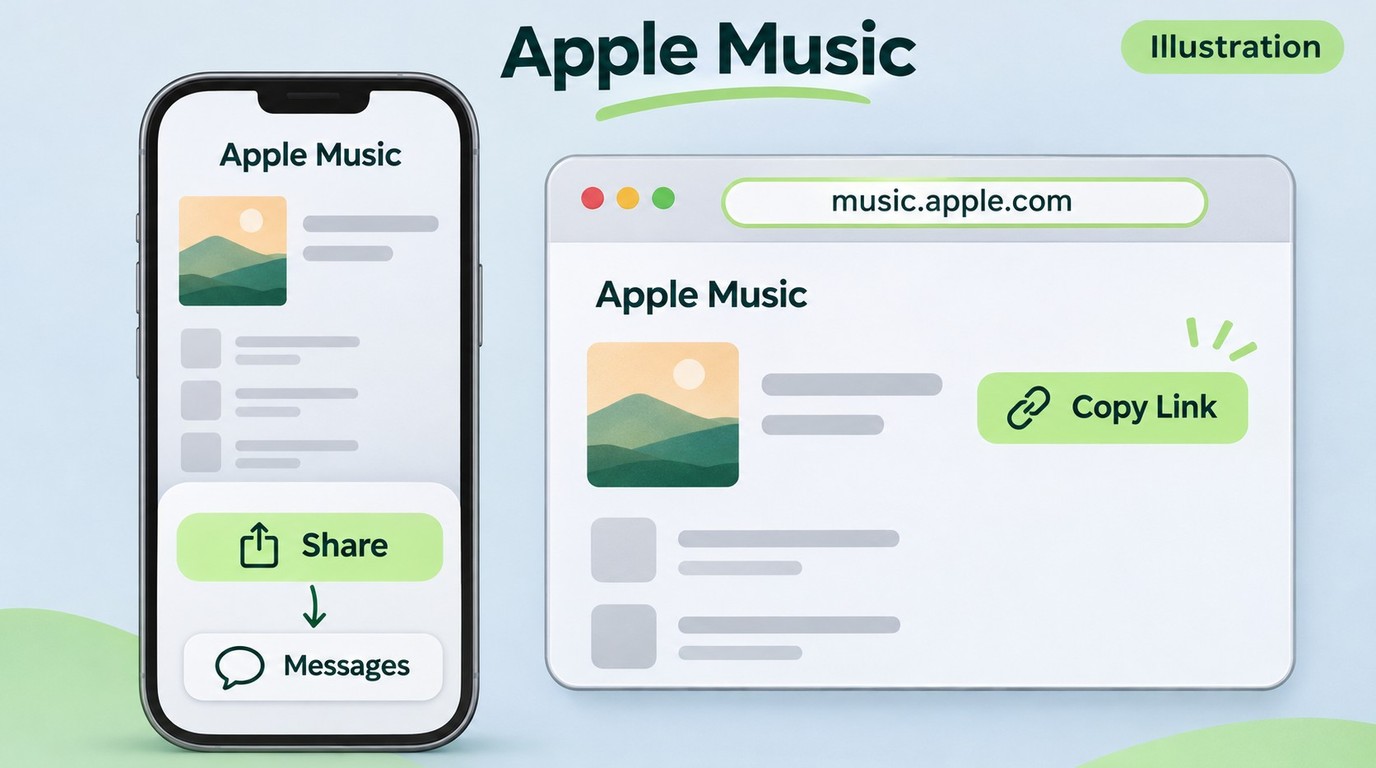
Use the iPhone app’s Share button to send a playlist through a messaging app, or use Copy Link in Apple Music on the web to put its URL on your clipboard. A listening link lets someone open the playlist; inviting them to edit it requires collaboration.
Send a Playlist From the iPhone App
The iPhone route suits you when you want to send a playlist straight into a conversation. Apple’s sharing instructions call for current iPhone software and an Apple Music subscription. Start from the playlist itself:
- Open Apple Music and open the playlist you want to send.
- Tap the Share button.
- Choose Messages, Mail, or an installed messaging app from the share sheet.
- Enter the recipient and tap Send.
This sends the playlist through the app you chose. If that app is missing from the share sheet, make sure it is installed, then swipe left across the app row and tap More. For a plain URL you can paste wherever you want, use the browser route below.
No playlist yet? On iPhone, open Library, tap the New Playlist button, and choose Create New Playlist. Give it a name, add songs, and save it before sharing. You do not need to build a public music profile to complete the send steps above.
Copy the Link in a Browser on Mac, Windows, or Android
The browser route suits you when the destination is a chat, document, or social post that needs a pasted URL. It also gives Mac, Windows, and Android readers a common route without hunting through different native-app menus.
- Open music.apple.com in your browser and find the playlist.
- Open the playlist’s More menu, shown as an ellipsis.
- Choose Copy Link.
- Paste the link into your message or document, then send it.
You now have a link, not an audio attachment. Ask the recipient to open it and confirm the playlist title and creator before you troubleshoot playback. Similar playlist names make the wrong destination easy to miss.
Choose Copy Link, rather than Copy Embed Code, for a message. Embed code is HTML intended for a webpage. Pasting that code into a chat is a different task from sending a clickable playlist URL.
Choose a Listening Link, Public Profile, or Collaboration Invite
Match the sharing option to what your friend needs to do. A recommendation needs a listening link; a playlist you want friends to help build needs an editing invitation.
| Option | Purpose | Entry point | Editing access |
|---|---|---|---|
| Playlist link | Open the playlist | Share or Copy Link | No editing invitation |
| Public profile playlist | Discovery through profile and search | Music Profile > Edit | No editing invitation |
| Collaboration invite | Join shared editing | Collaboration > Start Collaborating | Controlled by approval settings |
Apple Support: iPhone sharing, web sharing, collaboration, and playlist creation, as of November 2026.
Send a listening link for a recommendation, and reserve collaboration for choosing music together. Making a playlist discoverable is a separate choice, not a prerequisite for sending it.
For public discovery, open your account area in Apple Music, choose Music Profile > Edit, select the playlists you want shown, and save. Those selections control profile and search visibility.
For shared editing, use Apple Music’s collaboration workflow on iPhone, iPad, or Android:
- Open Apple Music and the playlist.
- Tap Collaboration at the top.
- Set Approve Collaborators, then tap Start Collaborating.
- Send the invitation through a message or email.
Keep approval enabled when you want to choose who joins. With approval off, anyone holding the invitation link can join, so use that setting deliberately. This controls collaboration access, not ordinary listening-link playback.
Why an Apple Music Playlist Link May Not Work
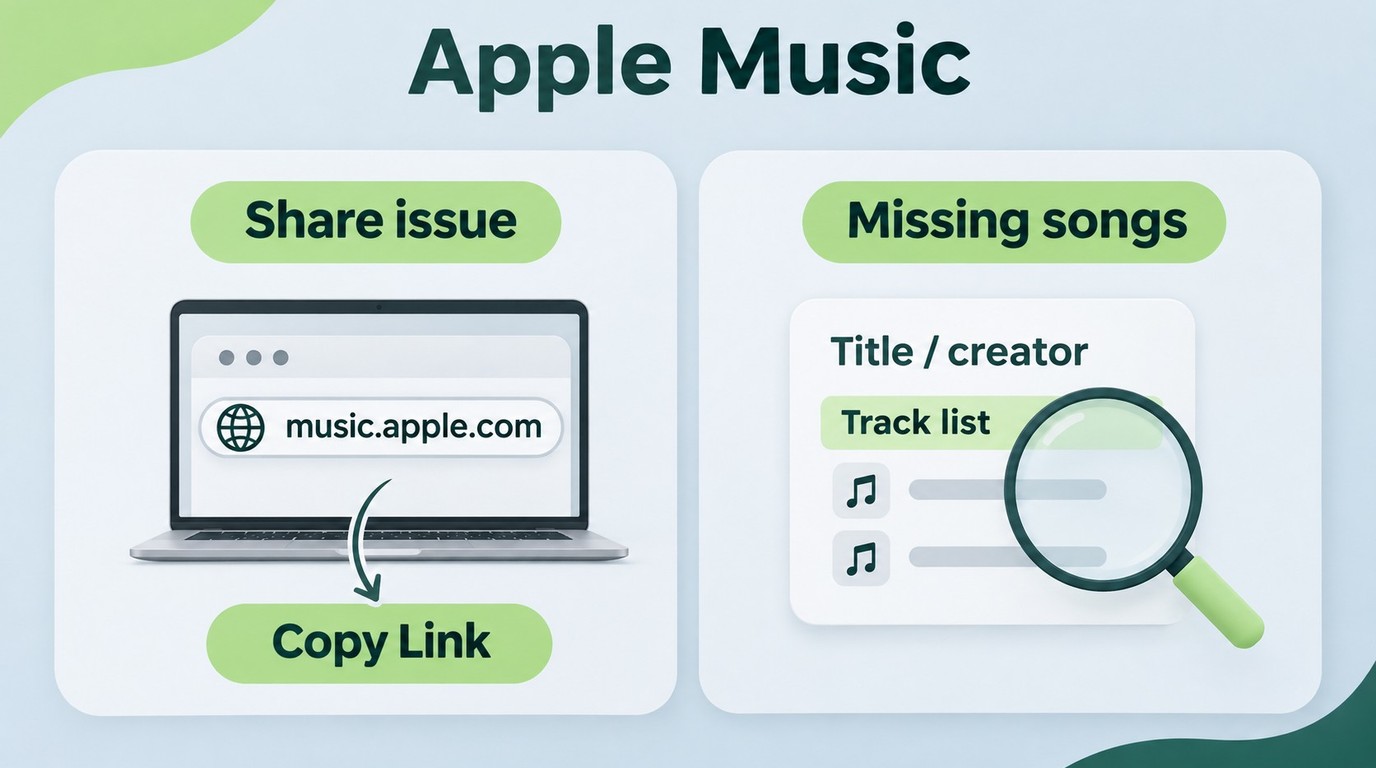
If Share produces no message or link, investigate the sending side; if a link opens but the songs look wrong, investigate what the recipient sees. Check current software and the subscription prerequisites, then identify which failure you have before changing settings.
An unresponsive control is different from a bad destination. In an August 2026 r/AppleMusic post titled “Playlist sharing and collaboration problems,” the author wrote, “I click on the share icon within the playlist, but nothing happens.” That describes a blocked action, before a recipient has anything to open.
Use the browser Copy Link route from the previous section when the phone’s sharing control does nothing. This is another official route to the URL, not a repair for the app. If the browser also fails, note whether the playlist itself opens and whether the problem affects another playlist; those details make an Apple Support request more useful.
Separate “cannot send” from “cannot hear” before touching library settings. A subscription check, a public-profile toggle, and a collaboration approval each concern different access. Turning them all on does not diagnose a silent Share button.
When the Link Opens but Songs Are Missing
Compare the actual views before sending another link. Ask your friend for the playlist title, creator, and a missing track’s name, then compare those with the playlist opened from your sent URL. A screenshot helps distinguish an empty list from an older version of the right list.
A December 2025 r/AppleMusic post titled “Apple Music shared playlist not updating to recipients” captured the stale-view problem: “I'd be patient with this, but it's now been going on for a few hours.” That is a symptom to investigate, not a refresh deadline to promise.
Personal tracks deserve a separate check. If the missing songs are files you added yourself, look for those exact tracks in your friend’s Apple Music catalog; a playlist URL does not attach your local files. If the catalog track is unavailable in their region, repeatedly copying the URL will not change that availability. Keep the distinction clear: the correct playlist opening and the recipient being able to play each song are different outcomes.
MusicFab for a Separate Personal Offline Collection

- Batch download songs, playlists, albums and podcasts from Apple Music
- Convert to MP3, M4A, WAV, FLAC and more up to lossless quality
- Save lyrics and ID3 tags
- Built-in web browser to search and download music all in one place
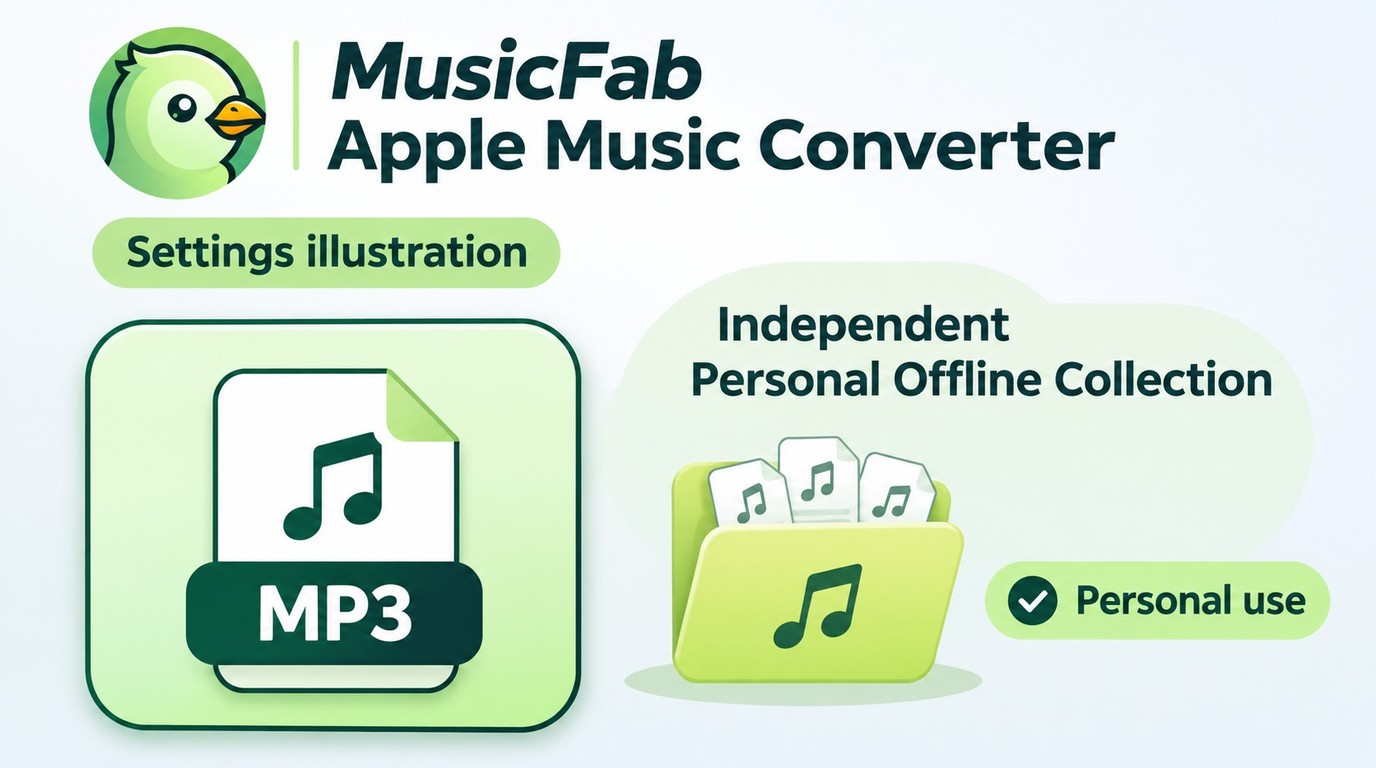
For that separate file-based task, MusicFab uses direct source download technology to save Apple Music audio in common formats. Our October product-use records include AAC, FLAC, MP3, and WAV output, giving you format choices for the player you use. Choose a format your player supports rather than treating an audio file as a substitute for a listening link. To convert Apple Music to MP3 for your own offline collection, select MP3 as the output format in MusicFab’s download settings before starting the download.
I keep this workflow separate from sharing: MusicFab does not generate the playlist URL discussed above. The MusicFab Apple Music Converter page provides the desktop software for that use.
Saving requires an active Apple Music subscription and authorization under applicable law; Apple’s terms may restrict third-party clients. Keep saved audio for your own authorized offline use, including personal copying where local law permits it, and do not redistribute or resell it.
Apple Music Playlist Sharing FAQ
Q1. Can Someone Without Apple Music Listen to My Shared Playlist?
Answer: Opening the link is different from playing full songs. Someone on Android or Windows can use the Apple Music website to open the playlist, but full catalog playback requires an Apple Music subscription. Do not promise a particular preview length to a non-subscriber. If your friend just wants to know which songs you chose, send the playlist name with the link so they know what to look for; sharing does not transfer your subscription benefits.
Q2. Does an Apple Music Playlist Link Expire?
Answer: Do not treat an ordinary playlist URL as a timed collaboration invitation. There is no fixed expiry period to apply here, and a link is not a guarantee of indefinite access. If an older link stops opening the expected playlist, open that playlist in Apple Music and copy its current link again. If you meant to invite an editor, use the collaboration controls instead of applying invitation rules to a listening URL.
Q3. Can Someone Forward My Playlist Link to Other People?
Answer: Yes. A recipient can copy your message or forward the URL. Hiding a playlist from your public profile is not a way to stop that forwarding. Before sending a personal playlist, consider whether its title, creator information, and song choices are suitable for a wider audience. For a collaboration invitation, the approval setting described above determines who joins; an ordinary listening link does not give someone editing access.


Learn how lossless audio differs from hi-res and Spatial Audio, then configure Apple Music on your devices. Compare service specifications and understand the separate role of local-file exports.
By Jane Chen - Nov 6, 2026
This guide separates Apple Music's official offline downloads from local-file workflows, then evaluates two browser services and MusicFab for different library sizes. It also flags stale services, explains quality checks, and gives a practical selection rule for occasional tracks, playlists, and organized collections.
By Jane Chen - Oct 21, 2026
Start with six checks to separate an Apple Music outage from a device or account problem. Find targeted fixes for greyed-out songs, AutoMix, Replay, lyrics, and shared access, plus guidance for iPhone, Mac, Android, PS5, and Windows. Use Apple Support for unresolved errors before considering a personal local-copy workflow.
By Jane Chen - Sep 28, 2026
Capture Apple Music’s interface on iPhone, iPad, Mac, or Windows while understanding why song audio is often missing. Follow native device steps, find your saved video, and distinguish screen capture from local-audio workflows. Three FAQs address game capture, imported files, and Sing or animated lyrics.
By Jane Chen - Sep 28, 2026