Apple Music Lossless Audio: Official Setup and File Exports

Summary: Learn how lossless audio differs from hi-res and Spatial Audio, then configure Apple Music on your devices. Compare service specifications and understand the separate role of local-file exports.
Table of Contents
Apple Music lossless audio preserves the audio data in the supplied recording using Apple Lossless Audio Codec (ALAC). If you’re choosing between a larger download and better sound, the answer starts with your connection: selecting lossless doesn’t make an ordinary Bluetooth listening path lossless.
I understand the hesitation about filling a phone with larger albums when most listening happens through wireless earbuds. My take: storage is a poor place to spend your audio budget if the connection discards the benefit you’re saving. I’ll separate Apple Music audio quality from the hardware delivering it, then walk through the official settings. After that, we’ll look at service differences and the separate question of managing local files.
What Apple Music Lossless Audio Actually Means
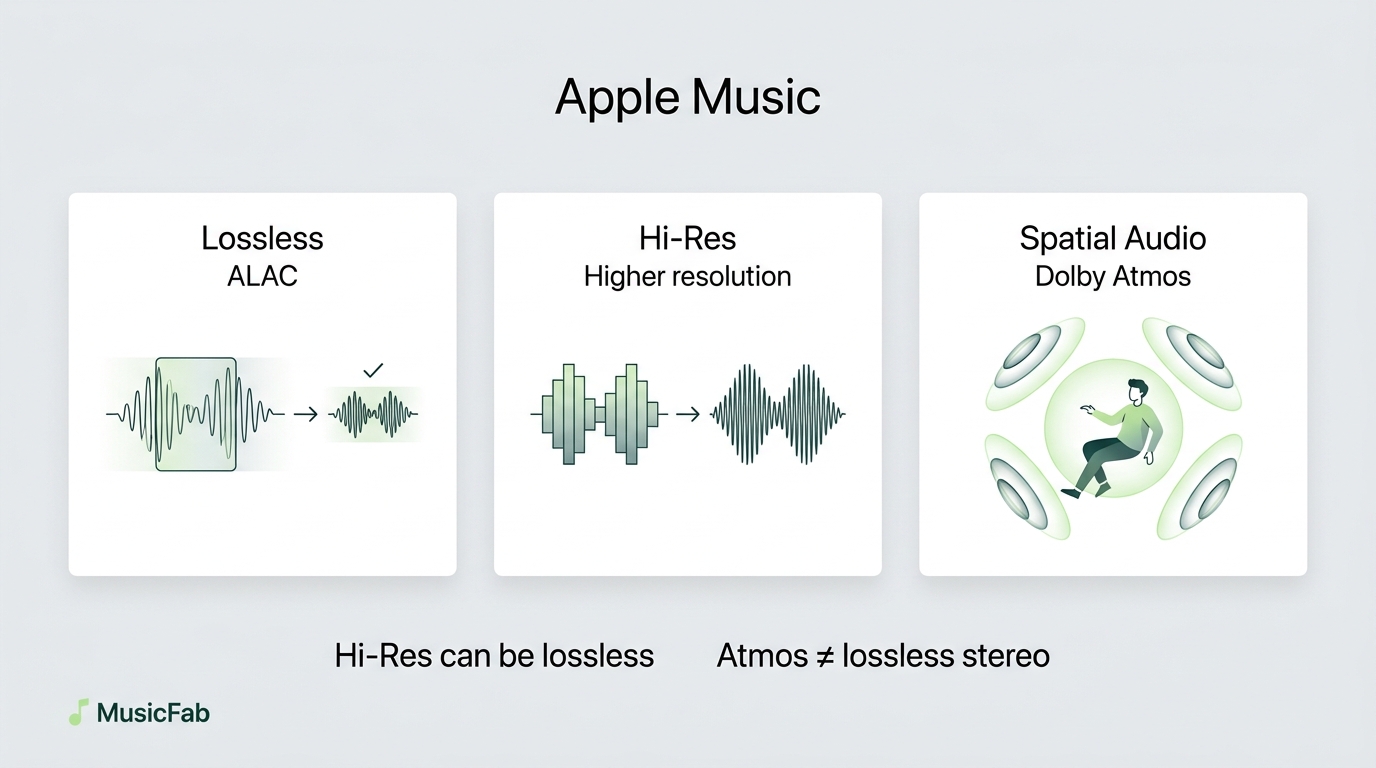
Lossless describes preservation, while Hi-Res describes resolution above CD quality. Apple Music uses ALAC for lossless compression; its Lossless setting supports up to 24-bit/48 kHz, and Hi-Res Lossless supports up to 24-bit/192 kHz.
Those numbers describe different things. Bit depth describes the precision of each audio sample; sample rate counts samples per second. CD quality is 16-bit/44.1 kHz. Bitrate measures data per second, so a compressed AAC bitrate isn’t interchangeable with a lossless resolution. Apple’s lossless playback guide explains the available tiers.
A larger resolution label isn’t a guaranteed audible upgrade. In a January 2026 r/AppleMusic post about download storage, one listener wrote, “I don’t really see the point, since I mostly listen on the go over Bluetooth anyway.” That’s a useful question about the listening setup, rather than proof that lossless has no value. I’d separate preservation from audibility: keeping the source data and hearing a difference are different goals.
Lossless vs. Spatial Audio and Dolby Atmos
Spatial Audio concerns how sound is presented around you. Dolby Atmos is an immersive mix format; neither term means “higher-resolution stereo.” A track’s Atmos version and its lossless stereo version are separate listening choices.
Compare the same mix when judging compression. Switching from stereo to Atmos changes more than the audio encoding, so a different vocal balance isn’t evidence that lossless itself sounds different. Choose Atmos for the presentation you enjoy, and choose lossless for preserving the supplied stereo audio data.
How to Turn On Lossless in the Apple Music App
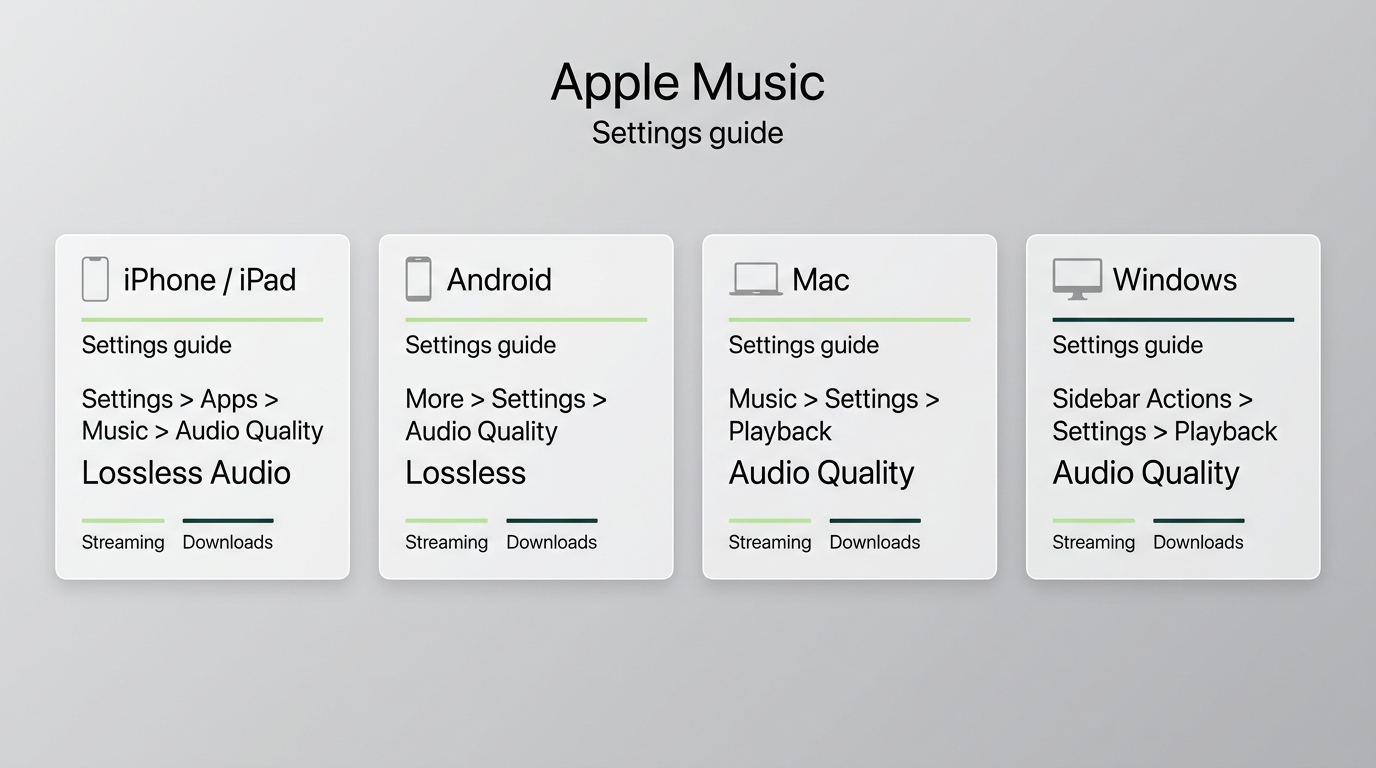
Enable Lossless Audio in the official Apple Music app’s audio settings, then choose streaming and download quality separately. A compatible output path matters too: the song’s lossless badge identifies its playback format, not a measurement of everything reaching your ears.
Start with an active Apple Music subscription, an updated app and system, and your intended headphones or speakers connected. A DAC, or digital-to-analog converter, turns digital audio into the signal that drives analog headphones. Built-in audio hardware already does this; an external DAC is useful when its supported output exceeds your device’s.
The settings below follow Apple’s current device instructions, as of November 2026. Select the branch for your device; these aren’t consecutive steps across different computers.
iPhone and iPad: Choose Streaming and Download Quality
Choose Lossless for a compatible everyday wired setup; select Hi-Res Lossless when your track and hardware support the higher rate. On iPhone and iPad, listening above 48 kHz requires an external DAC. Plugging in headphones is only part of that chain.
Ordinary AAC Bluetooth listening isn’t lossless. Compatible USB-C AirPods Max support lossless over a USB cable; Apple also documents specific AirPods-and-Vision-Pro wireless combinations. Those exceptions don’t turn a regular iPhone-to-Bluetooth-earbuds connection into lossless playback.
Android: Enable Lossless in Apple Music Settings
Match the setting to your phone’s wired audio hardware. Above 48 kHz, an external DAC is needed on some Android devices, rather than being a universal requirement. Look up the supported rate for your exact phone and USB audio device.
Don’t use a bigger download to troubleshoot buffering. If cellular playback stalls, lower that streaming setting while keeping your preferred download quality. You’re changing separate controls, so a mobile-network compromise doesn’t have to change your offline library.
Mac: Set Playback Quality and Match Your Output
Check the Mac model before buying a DAC. Apple lists native playback up to 96 kHz on 14-inch and 16-inch MacBook Pro models. Its guidance calls for an external DAC above 48 kHz on other Macs.
I wouldn’t buy an accessory solely because a guide says every Mac needs one. Compare your Mac’s output specification with the track you actually want to play. The relevant mismatch is between those capabilities, rather than between marketing labels.
Windows: Use the Apple Music App’s Playback Settings
- Open Apple Music, select Sidebar Actions → Settings, then choose Playback.
- Under Audio Quality, enable Lossless Audio and set streaming and download quality.
- Start a lossless-available track and confirm that your intended speakers or wired DAC are selected.
Windows has an official Apple Music app with lossless settings. Use it for this workflow. A badge alone doesn’t establish the output device’s sample rate; compare the connected device’s supported rates with your selection.
Existing downloads need separate attention on every platform. Use Remove Download, keep the library entry, and download the track again after changing quality. Don’t choose Delete from Library when you simply want a replacement file. This is the key distinction when downloading songs from Apple Music: changing a setting doesn’t upgrade files already stored.
Apple Music vs. Spotify and TIDAL: Audio Quality Compared
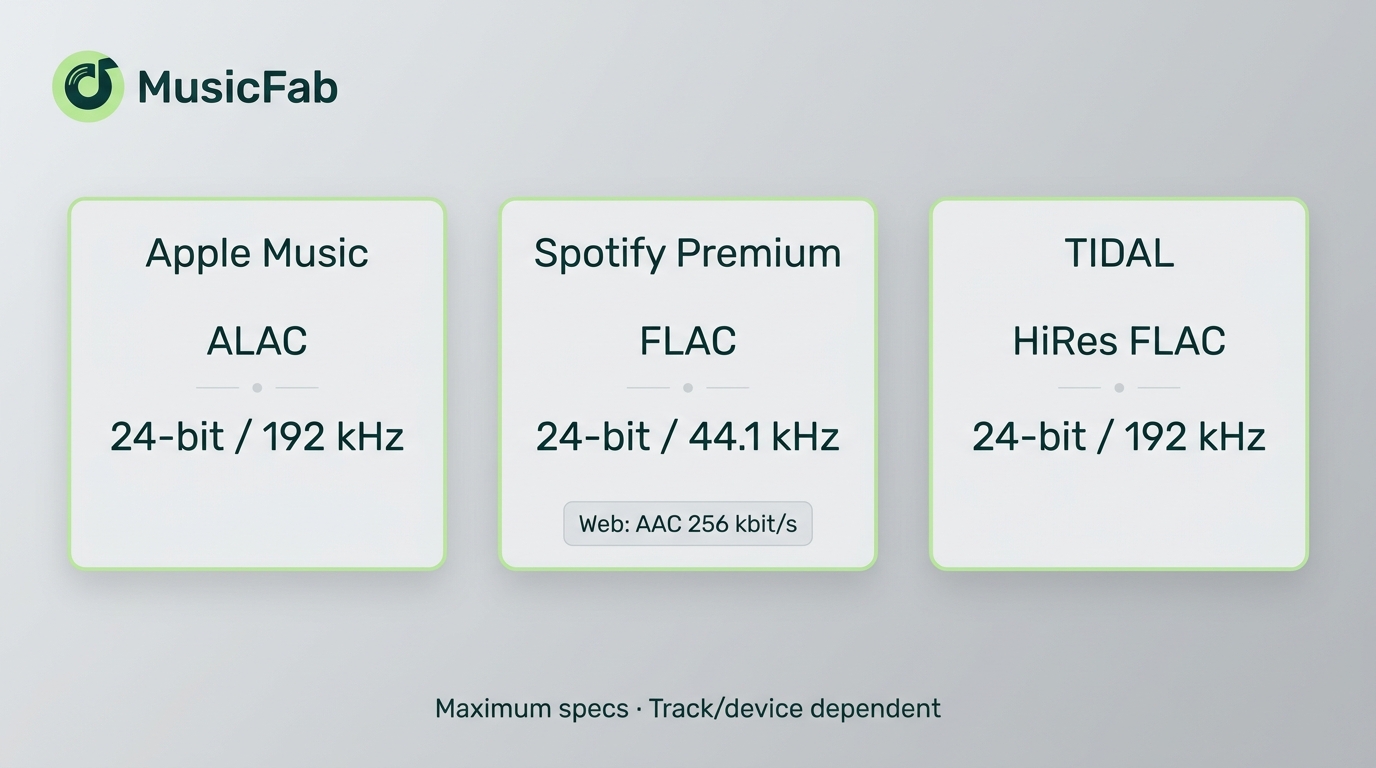
Apple Music and TIDAL offer lossless tracks up to 24-bit/192 kHz, while Spotify Premium offers FLAC up to 24-bit/44.1 kHz in its desktop, mobile, and tablet apps. Those are service ceilings, not a promise that every track or output device reaches them.
Test Environment: Reference Setup, Not a Measured Benchmark
Date: November 2026.
Hardware: Compatible wired headphones or speakers; a DAC supporting the selected sample rate where required by the device.
OS: A supported iOS/iPadOS, Android, macOS, or Windows version for the chosen official app.
Tools: The official Apple Music, Spotify Premium, and TIDAL apps.
The figures below are published service specifications, not measurements from this setup.
- Apple Music uses ALAC and suits you if you want hi-res options within Apple Music’s catalog and apps. Its upper tier needs a matching playback chain. For a compatible wired setup, that makes the track’s available version worth examining before changing hardware.
- Spotify Premium now includes lossless, so the old “Spotify is capped at 320 kbps” comparison is outdated. Spotify’s Audio Quality support page distinguishes app-based lossless from the web player’s AAC at 256 kbit/s. If your playlists already live there, use its supported app before assuming you need another subscription.
- TIDAL offers HiRes FLAC up to 24-bit/192 kHz and CD-quality FLAC at 16-bit/44.1 kHz. Its HiRes FLAC support guide lists compatible apps and playback requirements. It fits a hi-res listening setup, but the track’s delivered format still sets the starting point.
I wouldn’t switch services for a sample-rate ceiling my equipment can’t deliver. For a wired hi-res system, compare the available albums and device support on Apple Music and TIDAL. For an existing Spotify setup, its lossless tier changes that decision. Matching ceilings also don’t establish matching masters or identical sound.
When MusicFab Apple Music Converter Fits a Local-File Workflow
MusicFab Apple Music Converter fits you if you want to organize albums as local files outside Apple Music’s managed downloads. It is a separate desktop converter for Windows and Mac, using direct source downloading to save Apple Music tracks in formats such as FLAC or MP3.
- Batch download songs, playlists, albums and podcasts from Apple Music
- Convert to MP3, M4A, WAV, FLAC and more up to lossless quality
- Save lyrics and ID3 tags
- Built-in web browser to search and download music all in one place
Batch album handling and retained ID3 tags, artwork, and track numbers help keep an exported album together in a local player. That’s a file-management benefit: you spend less time renaming tracks or rebuilding album order. Choose the format your player supports rather than assuming a larger file will improve playback.
Our client usage data recorded more than 1.8 million successfully completed Apple Music downloads from August through October 2026. For your own album workflow, the useful next step is checking the exported tracks and album order in your intended player.
An export can’t restore audio information missing from its source, so a FLAC extension alone doesn’t establish original-source fidelity; the 30-day trial includes 3 full songs per music service, letting you evaluate complete tracks and their organization. I see the converter’s role here as local-library management, rather than a reason to chase a higher resolution label.
Apple Music Lossless Audio FAQ
Q1. Why is the lossless badge missing after an app update?
Answer: Check the current track version and whether you’re playing a stream or an older download. In a September 2026 r/AppleMusic thread, one listener described a badge that “won't provide any bit depth or sample rate information.” That describes a display symptom, not its cause. Retry a known lossless-available track, then revisit the relevant quality setting above. If playback still fails, the Apple Music troubleshooting guide helps separate app failures from output-device problems.
Q2. Can I download lossless music for a flight, and how long can I use it?
Answer: Yes, download it in Apple Music beforehand, then check that it plays with your connection switched off. Leave room for the larger downloads. Apple’s offline listening instructions cover saving tracks in the app. These remain managed subscription downloads, rather than standalone files you own. Their availability follows the subscription and catalog; don’t plan around a universal fixed expiry period.
Q3. Does Hi-Res Lossless disable AutoMix and Crossfade?
Answer: Yes. Apple’s current iPhone guide says AutoMix and Crossfade aren’t available while Hi-Res Lossless is selected. Choose regular Lossless or another quality setting to use them. AutoMix creates transitions between songs; Crossfade overlaps their endings and beginnings. I’d keep the transition style you enjoy rather than sacrifice it for an unused resolution ceiling. There’s no need to convert files to solve this setting conflict.
Q4. Is it safe to sign in to an Apple Music converter?
Answer: Use an identifiable vendor and its official installer, then inspect the Apple sign-in address and the vendor’s privacy information. A recognizable login flow is a more useful trust signal than a promise of absolute safety. Jane Chen recommends checking the installer’s publisher and the sign-in destination before entering credentials. Product activation and your Apple Music account are separate: an app’s registration policy doesn’t mean it can access your music without platform sign-in. Use an active Apple Music subscription and save only content you’re authorized to copy for personal offline listening under Apple’s terms and applicable local law, including any conditions on personal-copy exceptions. Do not redistribute or resell those files.


This guide separates Apple Music's official offline downloads from local-file workflows, then evaluates two browser services and MusicFab for different library sizes. It also flags stale services, explains quality checks, and gives a practical selection rule for occasional tracks, playlists, and organized collections.
By Jane Chen - Oct 21, 2026
Start with six checks to separate an Apple Music outage from a device or account problem. Find targeted fixes for greyed-out songs, AutoMix, Replay, lyrics, and shared access, plus guidance for iPhone, Mac, Android, PS5, and Windows. Use Apple Support for unresolved errors before considering a personal local-copy workflow.
By Jane Chen - Sep 28, 2026
Capture Apple Music’s interface on iPhone, iPad, Mac, or Windows while understanding why song audio is often missing. Follow native device steps, find your saved video, and distinguish screen capture from local-audio workflows. Three FAQs address game capture, imported files, and Sing or animated lyrics.
By Jane Chen - Sep 28, 2026
The Apple Music Family Plan costs $19.99 a month in the US for up to six people.
By Jane Chen - Aug 26, 2026