
Download SoundCloud on Mac: Official Limits and Local Files

Summary: SoundCloud on a Mac can mean using the official player, taking a creator-enabled download, or creating an authorized local audio file. This guide explains the limits of each route, playlist checks, format choices, and where MusicFab fits.
Table of Contents
If you want to download SoundCloud on Mac, first choose the outcome: the official player gives you SoundCloud access, while a creator-enabled download or converter creates a local audio file. Installing a Mac app alone does not export MP3s. For portable files, use an authorized source and a local-file workflow.
The confusing part is that the same search can describe two very different jobs. A new MacBook Air may show a Download control that appears to do nothing, while someone else only wants a desktop window for listening. I prefer MusicFab’s direct-source workflow to SoundCloud’s official player when I need Finder files, because the player provides access while the converter exposes portable output formats. “Offline inside SoundCloud” and “a file in Finder” are not interchangeable. I’ll walk through the official options first, then the local-file and playlist workflows, quality checks, troubleshooting, and the converter’s practical fit.
What “Download SoundCloud on Mac” Actually Means
On a Mac, “download SoundCloud” can mean installing a player, using an uploader-enabled file download, or exporting a normal audio file for another player. Those routes have different permissions and produce different results, so the right first step is to name the destination, not the app.
In practice, the phrase “SoundCloud downloader Mac” usually refers to a converter that exports files, not SoundCloud's official player.
Install the Player Versus Export a Local File
The official SoundCloud desktop player is an access layer. It gives you a window for browsing, searching, and playing SoundCloud, but it does not automatically turn every stream into an MP3, WAV, or FLAC in your Downloads folder. A browser tab, a desktop wrapper, and a native audio file are three separate things.
That distinction matters when your real goal is an Apple Music library, a DJ folder, a USB drive, or a compatible portable player. Those destinations need a file that Finder can see. If you only want uninterrupted listening inside the service, an official player or managed offline mode may be enough and creates less library work.
Where SoundCloud’s Official Download Controls Apply
SoundCloud’s native file download appears only when the uploader has enabled it for that track. A title that includes “Free Download” is not proof that the control is active; the permission is a separate setting. If the control is missing, the Mac is usually not the root cause.
Managed offline listening is different again. It keeps playback inside the service’s app and account environment rather than handing you a freely movable audio file. Think of it as an access benefit, not a file-export promise. Once you decide which of these three outcomes you need, the rest of the guide becomes much less mysterious.
Official SoundCloud Options on macOS
The official Mac path is useful for listening and for tracks whose uploaders expose a native download. If you searched “SoundCloud desktop app Mac,” expect an access and playback tool rather than a universal audio-file exporter. It does not promise a universal export button, and an offline option inside the service is not the same as a local file you can rename and move.
Use SoundCloud’s Official Mac Access Path
SoundCloud provides a desktop-player help path, and its mobile app is listed through Apple’s App Store. On macOS, the practical official route is to open SoundCloud in a supported browser or use the current desktop-player option available to your account and region. Avoid treating an unofficial wrapper as an official SoundCloud release.
For a clean setup, work through these checks:
- Open SoundCloud in your browser and sign in to the account you normally use.
- If you choose the desktop-player route, obtain it from SoundCloud’s own help or download page rather than a random mirror.
- Play one track and confirm that search, playlists, and account controls work before looking for export features.
- Decide whether you need service-managed listening or an actual file in Finder.
The fourth check is the one people skip. If you need a file, stop expecting the player to produce one and move to a workflow designed for local audio.
Check Whether the Uploader Enabled a Track Download
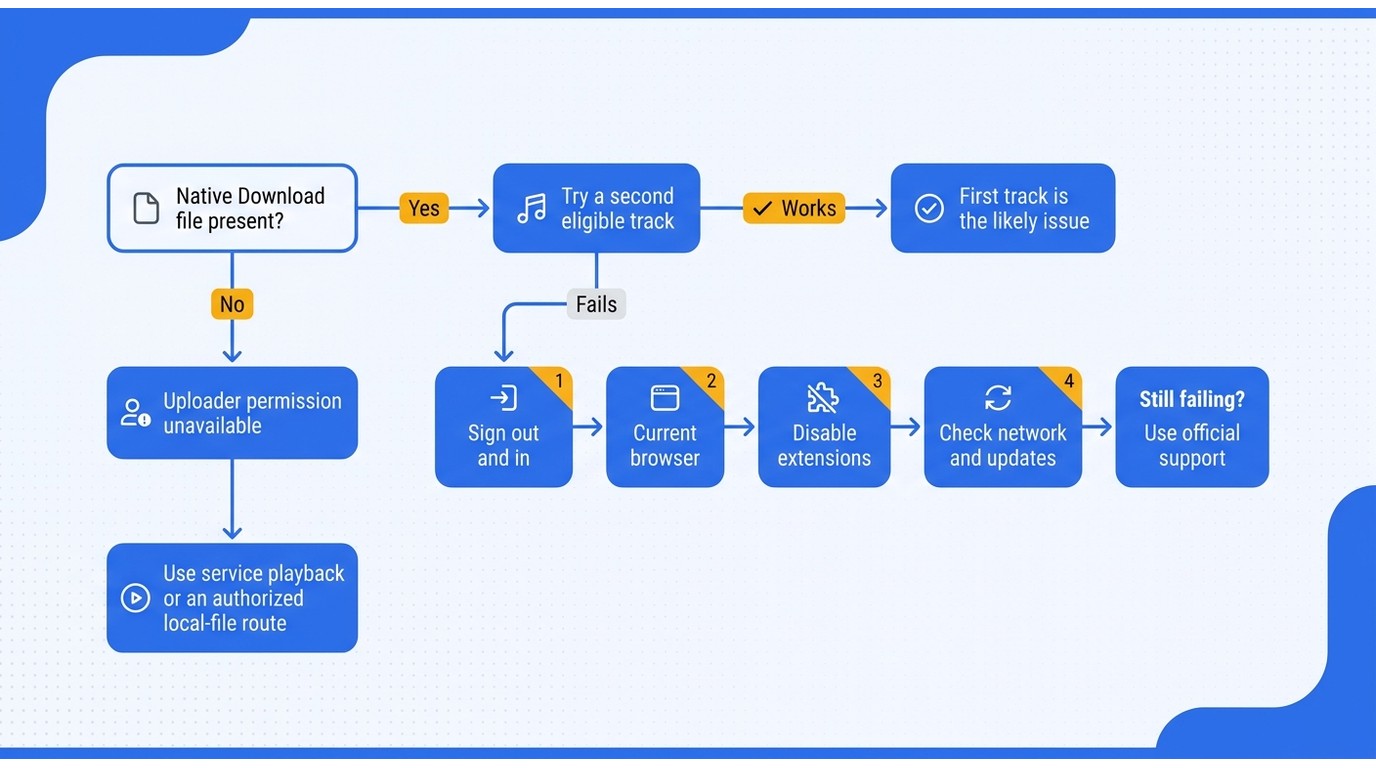
Open the track menu and look for the native Download file control. When it is present, the file comes from the uploader’s enabled route and is usually the simplest choice for a small number of tracks. When it is absent, a label in the title or description does not override the missing permission.
This is also where many “can I download SoundCloud on Mac?” searches go sideways. The Mac can be working perfectly while a particular track is not available for native export. Test a second eligible track before changing browsers, reinstalling an app, or assuming macOS blocked the action.
Understand In-App Offline Listening
An in-app offline feature is designed for playback within the service’s controlled environment. It can be convenient for a flight or a weak connection, but it does not place a portable MP3 beside your other music. The files remain tied to the app, account, and service rules.
Use this route when you want the least setup and already like SoundCloud’s library experience. Choose a local-file workflow when you need Finder access, another player, independent tags, or a backup of an authorized personal music collection. That is a use-case decision, not a claim that one route is universally better.
How to Save SoundCloud Tracks as Local Audio Files on Mac
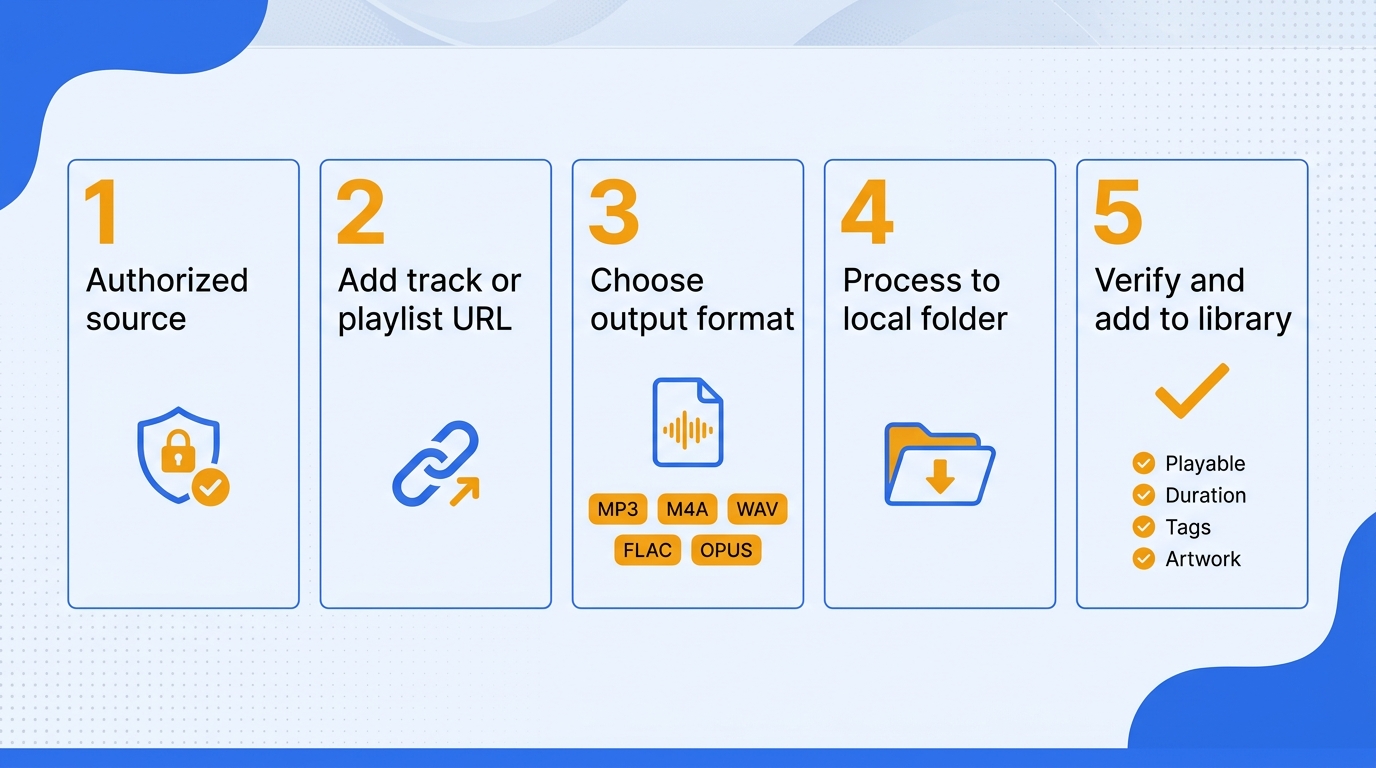
To create a local SoundCloud audio file on a Mac, prepare an authorized source, submit its link to a compatible converter, choose the output format, and verify the finished file in Finder and a second player. The sequence is straightforward, but the source permission and the post-download check are what keep the result usable.
Please note: Save local copies only for personal, authorized use of tracks you can legitimately access. A downloader can conflict with SoundCloud’s Terms of Use, and copyright rules differ by jurisdiction; do not redistribute files.
Prepare the Mac and the Authorized SoundCloud Source
Start with the source, not the converter. Use a track you are entitled to save for personal use, keep your SoundCloud account active where the service requires it, and copy the track or playlist URL from the normal SoundCloud interface. Do not use a title alone as a substitute for the real source link.
Create a destination folder before you start. A folder such as Music/SoundCloud Imports makes it easier to spot failed items, move files into Apple Music, and keep a second backup. Also leave enough storage for the chosen format: uncompressed WAV and FLAC files are larger than MP3 or OPUS, especially across a full playlist.
Add the Track and Choose an Output Format
A Mac converter may accept a pasted link, or it may offer an integrated browser that lets you sign in and select the track from inside the app. The useful distinction is not the button design; it is whether the job resolves to a local file with predictable metadata and a format your player can read.
For one track, paste the URL and inspect the title, artist, and artwork before starting. Then choose the format based on the destination:
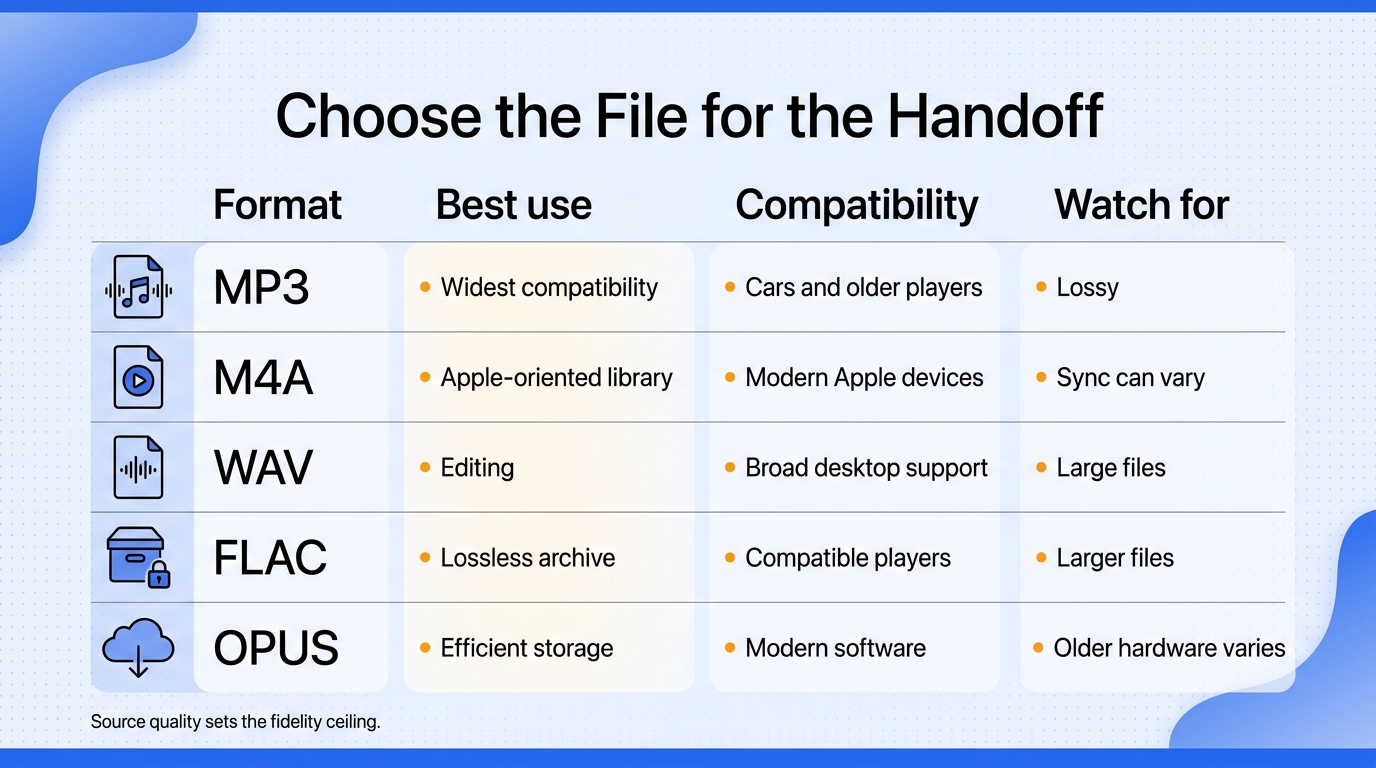
- MP3: The broadest choice for older players, car systems, and simple sharing within your personal devices.
- M4A (AAC): A compact option for Apple-oriented libraries when the target player accepts the file cleanly.
- WAV: Useful for editing or an uncompressed working copy, but it consumes more storage and may need extra tag handling.
- FLAC: A lossless library choice when your player supports it and you want the file to retain more source detail than a lossy encode.
- OPUS: Efficient for compatible software and smaller storage footprints, but not the safest pick for older hardware.
If you are comparing a SoundCloud to MP3 downloader, look for the actual output options rather than a large “320 kbps” badge. A container or bitrate setting cannot recreate detail that was absent from the source.
Start the Download and Locate the Finished File
Once the title, destination, and format look right, start the job and wait for the task to show a completed state. Do not clear the queue just because the progress bar reached the end; a playlist or a redirected link can still leave an item unresolved.
Use this short completion check:
- Open the destination folder in Finder and confirm that the expected filename exists.
- Open the file in a second player, such as QuickTime Player, VLC, or Apple Music, and listen past the opening seconds.
- Check duration, artwork, artist, album, and track number in the player’s information panel.
- If anything is missing, keep the source link and task log, then retry that item rather than restarting the whole collection.
This is where a local-file workflow earns its keep. A green status indicator is not the same as a playable, correctly tagged file. The file itself is the deliverable.
Move the File into Apple Music or Another Player
In Apple Music, use File > Add to Library and select the finished audio file or the folder containing it. If a particular M4A refuses to sync, try opening it locally first and test a different supported format rather than assuming every AAC container is interchangeable.
A Reddit report on Apple Music sync said, “For whatever reason, any file that is an m4a file refuses to sync to my Apple Music library. (I get a warning saying 'This item is not eligible for the Cloud Music Library.')” That is a compatibility warning, not proof that the source link failed. Keep an original copy, and use a format that fits the player you actually use.
How to Download a Full SoundCloud Playlist Without Missing Tracks
To download SoundCloud playlist items on Mac without missing tracks, submit the playlist as one job, review the queue before starting, and audit the output folder against the expected track count. Completeness matters more than a “finished” badge because unavailable or duplicated items can hide inside a large batch.
Use a Playlist-Level Input
Copy the playlist URL rather than pasting each track separately. A playlist-level input lets the app build a queue, preserve sequence information, and expose unavailable items before you spend time processing them. If your collection is large, a focused SoundCloud playlist downloader comparison can help you compare batch behavior without confusing it with single-track conversion.
A playlist may contain tracks with different permissions, deleted uploads, duplicates, or links that redirect to a new version. Treat the playlist as a source index, not a guarantee that every row will produce a file.
Review the Queue Before Starting
Before clicking Start, compare the queue with the source playlist. Remove obvious duplicates, note unavailable entries, and choose one output format for the first run so troubleshooting stays controlled. If the queue shows fewer items than the playlist, stop there and resolve the mismatch.
Storage planning is part of the job. MP3 and OPUS are easier on disk; WAV and FLAC make more sense when your player and archive strategy support them. A batch that fills the drive halfway through can look like a download failure when the real problem is capacity.
Audit the Output Folder
After the run, compare the number of playable files with the number of expected tracks. Then check a few files from the beginning, middle, and end of the playlist for artwork, tags, numbering, and duration. Keep a small failed-items list instead of deleting the source playlist immediately.
The need for that audit is not theoretical. A StacherIO Reddit report described a job that “shows in stacher it downloads the full playlist but in the folder sent to HD it sometimes is missing majority of tracks.” A Reddit user looking for a playlist downloader summarized the desired outcome more bluntly: “All the ones ive tried either have a song cap or they dont have any covers.” The practical lesson is to verify the folder, not just the app’s status message.
For a managed library, cover art, ID3 tags, track numbers, and lyric files are not decoration. They determine whether an album stays organized after you move it to Apple Music, a USB drive, or a standalone player.
SoundCloud Download Quality: Formats, Bitrate, and Metadata
SoundCloud download quality has three separate parts: the quality of the source, the output format, and the metadata written into the file. A 320 kbps label describes an encoding setting, not proof that the original upload contained 320 kbps of useful detail.
Source Quality Versus Output Settings
A converter can preserve or re-encode the audio it receives, but it cannot add information that was never in the source. If an upload is already compressed, choosing WAV may give you a larger file without making it more detailed. Conversely, a lossless output can be sensible when the source and your downstream workflow justify the extra storage.
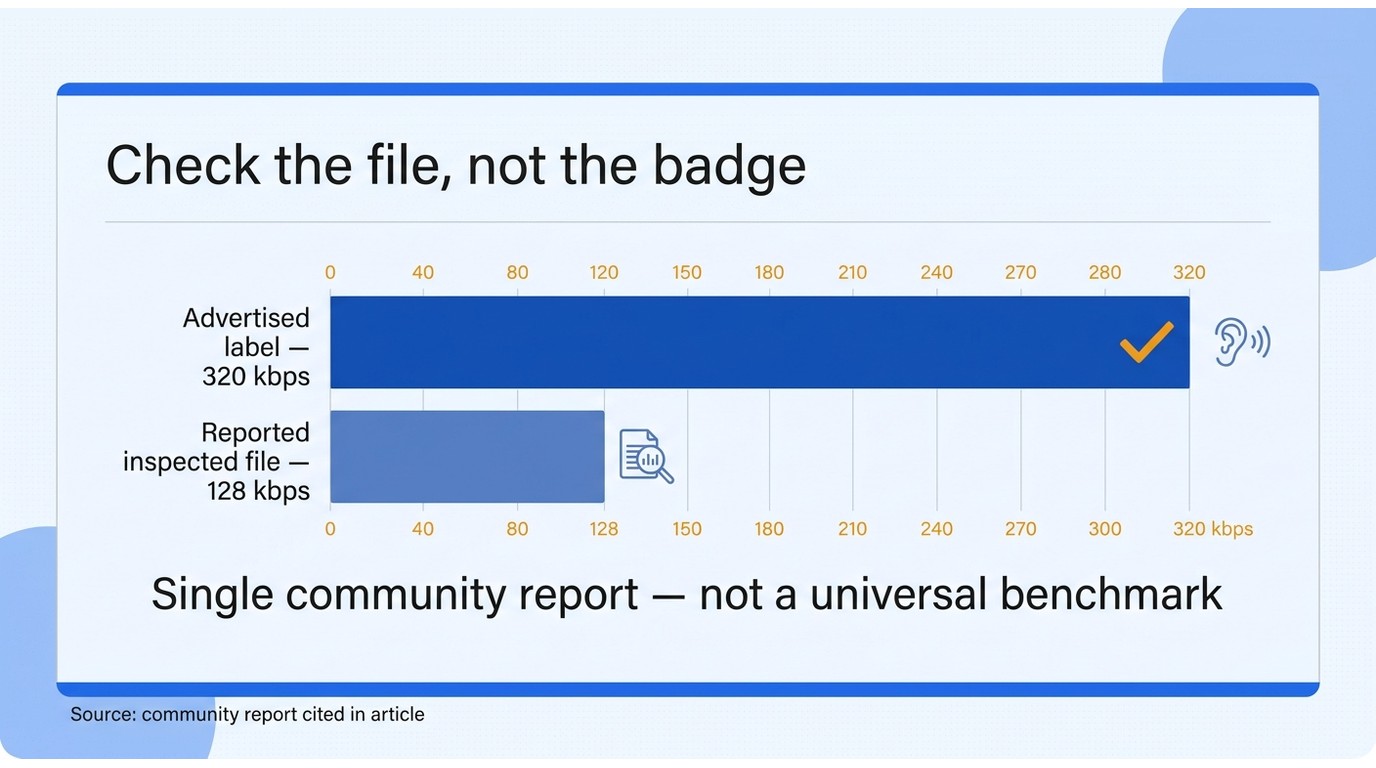
The skepticism is healthy. A Reddit audio-quality report put it plainly: “Despite advertising '320kbps' output, the downloaded files are actually only 128kbps. That’s really disappointing.” My quality verdict is to distrust a naked 320 kbps badge when a measured file tells a different story. Treat nominal bitrate as one field to inspect, not a quality verdict. Listen for clipping or obvious artifacts, and check the file’s properties when the destination matters.
Choose a Format for Your Playback Device
Choose MP3 when compatibility is the priority, M4A when your Apple-focused library accepts it reliably, WAV for editing, FLAC for a lossless archive, and OPUS for efficient playback in software that supports it. The best choice is the one your next device can open without another conversion pass.
For a deeper format decision, the SoundCloud to WAV converter guide is more useful than a blanket “highest quality” promise. WAV is not automatically better for a phone, and MP3 is not automatically wrong for a car stereo. Match the file to the handoff.
Keep Tags, Cover Art, Track Numbers, and Lyrics Organized
Metadata is what turns a folder of files into a library. ID3 fields carry the title, artist, album, cover, and track number; a separate .lrc file can carry synchronized lyrics when the workflow provides it. Confirm that the player reads those fields before you start renaming hundreds of tracks by hand.
This is also where local downloads can outperform a hurried one-off workflow. A clean album sequence, consistent artwork, and correct track numbers save more time than chasing a headline bitrate. In my view, the useful quality test is “does the file still make sense in your library next month?” rather than “what number did the landing page print?”
Why the SoundCloud Download Button Is Missing or Not Working
Troubleshooting a SoundCloud download button not working on a Mac starts with the track’s permission, followed by the session and browser state. If the uploader has not enabled a native file, changing macOS settings will not create that control.
Confirm the Track’s Download Permission
Open the track menu and look for the actual download command. A “Free Download” phrase in a title can be a marketing label, a link to another page, or an instruction to follow the creator; it does not guarantee that SoundCloud exposes a native file button.
A Reddit report from a Mac user described the exact symptom: “Click download track and nothing happens at all. Just got new macbook air and it doesnt work but the button worked on my old mac, please tell me there is a fix for this”. Before troubleshooting the laptop, test another track that visibly offers a download. That comparison separates a track-level permission problem from a browser problem.
Refresh the Mac Session and Browser State
If an eligible track still does nothing, work through the basics in this order:
- Sign out of SoundCloud, close the browser, reopen it, and sign back in.
- Try the same track in a current browser with extensions temporarily disabled.
- Check that the network is stable and that the browser is not blocking a new tab or download prompt.
- Update the browser or desktop player, then retry from the original track page.
Do not change several variables at once. If the command works in one browser but not another, the result points to session or extension state. If it fails only on one track, return to the uploader-permission check.
Choose a Local-File Route When the Official Control Is Unavailable
When the official control is not offered, use the authorized local-file workflow described earlier, with the same personal-use and service-terms boundaries. The fallback should solve a real portability need, not turn an unavailable permission into a reason to take content you are not entitled to save.
That is the line between a practical Mac workflow and a race to find a random web converter. Reputable software should explain its supported formats, account handling, and trial limits. If it hides those details, the apparent convenience is not worth putting your music library or account credentials through it.
MusicFab SoundCloud Converter for Mac: Specs, and Best-Fit Uses
MusicFab SoundCloud Converter is a Mac and Windows local-file workflow for readers who need batch handling, format choice, and library metadata rather than SoundCloud-only playback. Its useful fit is specific: authorized personal libraries that need portable files, not casual listening inside the official player.
A SoundCloud converter Mac users install should be judged by its supported formats, batch behavior, metadata retention, trial limits, and daily cap.
MusicFab SoundCloud Converter is a desktop app for macOS and Windows that batch-downloads SoundCloud playlists to MP3, M4A (AAC), WAV, FLAC, or OPUS at up to 320 kbps / 24-bit / 44.1 kHz while retaining ID3 tags, cover art, track numbers, and .lrc lyrics.
As of April 2026, SoundCloud Converter was listed at $49.99 per year or $69.99 for a lifetime license.
Verified Mac Capabilities and Output Choices
The verified product specifications list macOS support, SoundCloud input, batch downloads, an integrated browser, and output to MP3, M4A (AAC), WAV, FLAC, and OPUS. The quality ceiling is listed as up to 320 kbps and 24-bit / 44.1 kHz, with ID3 tags, cover art, track numbers, and .lrc lyrics retained.
The mechanism is the key difference in the workflow: MusicFab is positioned around direct source download rather than real-time audio capture, with conversion speeds stated up to 20x. That can reduce the wait for a playlist, but actual performance still depends on the network, Mac hardware, and source. I would choose MusicFab over a playback-bound workflow for a playlist because its published specification lists conversion at up to 20x, while playback-bound methods are constrained by track runtime. I would still judge it by the files it delivers and the metadata it preserves, not by speed alone.
What the 30-Day Trial Lets You Validate
The trial lasts 30 days and allows three complete songs per service. That is enough to test a full song, inspect the selected format, check artwork and tags, and move the file into the player you actually use. A short preview would not answer those questions.
Use the trial like a workflow check:
- Select one representative SoundCloud track and one short playlist.
- Try the output format you expect to keep, not just the smallest file.
- Open the results in Finder and your target player.
- Inspect tags, artwork, track numbers, and lyrics before deciding whether the workflow fits.
Best Fit and Important Boundaries
MusicFab suits a Mac user who wants batch local files, several audio-format choices, and less manual library cleanup. It is not ideal if you only need to stream inside SoundCloud, if your player accepts only one narrow format, or if you do not have an active relationship with the original service. The product terms and SoundCloud’s own rules still define what you may save and use.
The product has a defined daily cap of up to 300 songs per streaming service. That boundary is easy to overlook when a tool supports playlists. For a normal personal library, the more important question is whether the queue completes cleanly and the resulting files fit your player.
SoundCloud Mac Download Methods Compared
There is no single “best” SoundCloud-on-Mac route. Official access wins for service-managed listening, creator-enabled downloads win for a few eligible files, and a Mac converter fits a managed local library with batch and metadata needs. A SoundCloud to MP3 Mac workflow makes sense only when you need a portable local file; official access remains simpler for playback that stays inside SoundCloud.
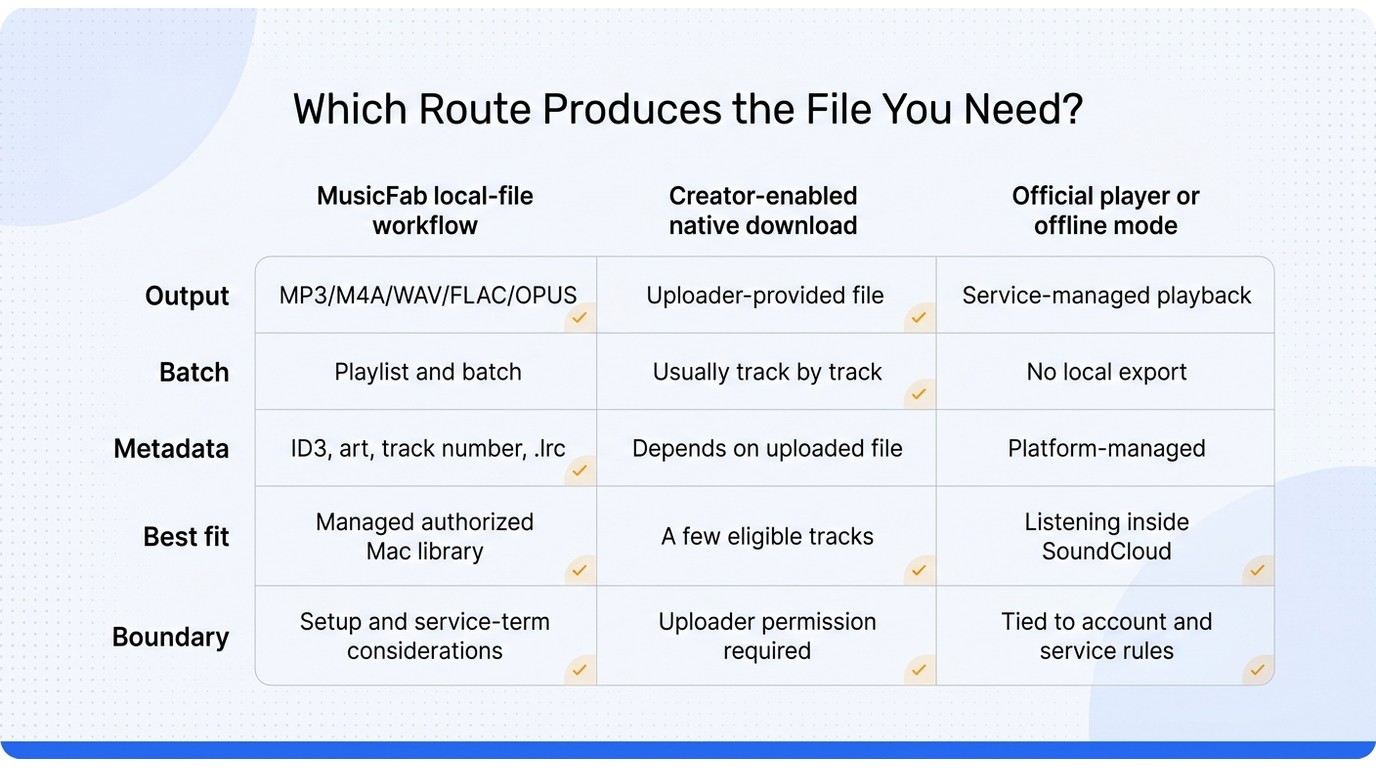
| Route | Output | Batch | Metadata | Best fit |
|---|---|---|---|---|
| Official desktop or app access | SoundCloud-managed playback | No local export | Platform-managed | Listening inside SoundCloud |
| Creator-enabled native download | Uploader-provided file | Usually track by track | Depends on uploaded file | A few eligible tracks |
| MusicFab SoundCloud Converter | MP3, M4A, WAV, FLAC, OPUS | Playlist and batch support | ID3, cover, number, .lrc | Managed Mac library |
SoundCloud Help Center and the converter’s official product page, August 2026.
Official Player or Offline Mode
Choose this when your priority is quick access, search, and playback that stays inside SoundCloud. It is the lowest-friction route and the least useful for Finder-based organization, another music player, or a portable file archive. The fit verdict: best for platform-only listening; not ideal for moving tracks into a separate library.
Creator-Enabled Native Download
Choose this when the uploader exposes the official control and you only need a small number of files. It keeps the workflow close to SoundCloud, but it depends on each track’s permission and the file the uploader supplied. The fit verdict: best for a few eligible tracks; not ideal for a large playlist or consistent metadata.
Mac Converter for a Local Library
Choose this when you need batch input, a defined output format, and tags or artwork that remain useful after the files leave SoundCloud. The converter’s limitation is equally clear: it adds setup, account, and terms-of-use considerations that the official player does not. The fit verdict: best for an authorized, organized local library; not ideal if you never need files outside SoundCloud.
FAQs
Can I Download SoundCloud on a MacBook Air or MacBook Pro?
Yes, you can use SoundCloud on either MacBook model through the official web or desktop-player path available to you. That gives you playback access. A local MP3, WAV, FLAC, or other file requires a creator-enabled download or an authorized converter workflow.
Is It Legal to Convert SoundCloud Tracks to MP3?
There is no universal yes-or-no answer. Personal-copying exceptions vary by jurisdiction, and a platform’s Terms of Use can impose separate limits. Keep an active relationship with the original service where required, save only music you are authorized to use, and do not redistribute the files. Local law and the service terms control the final answer.
How Long Do Locally Saved SoundCloud Files Remain Usable?
A normal file can remain on your Mac, but its permitted use depends on the source rights, your environment, and applicable service terms. Do not treat a saved file as a promise of access after a subscription or permission changes. Keep your own backup only within the rights that apply to the music.
Can I Play Saved Files on a Plane or Another Offline Device?
Usually, a compatible local file can play without a network connection after it has been added to the target player. Test the exact format and metadata before travel, and keep the files for personal, authorized use. In-app offline playback is a separate experience and may not produce a file that another device can open.

This guide separates SoundCloud app-based offline listening from authorized local audio files on iPhone. It covers Go/Go+, Safari-to-Files, a desktop transfer workflow, Apple Music import, storage troubleshooting, and permission-first choices.
By Jane Chen - Aug 26, 2026
SoundCloud to WAV converter guide: learn how to verify real WAV files, follow creator permissions, compare active browser options.
By Jane Chen - Aug 26, 2026
This guide separates four practical PC download methods from two secondary technical alternatives. It explains SoundCloud's artist-enabled file option, source-quality limits, batch verification, online safety, and when a desktop workflow makes sense.
By Jane Chen - Aug 26, 2026
Learn how to download SoundCloud on Android, including Go and Go+ offline saves, artist-authorized files, downloader categories, file locations.
By Jane Chen - Aug 26, 2026