NoteBurner Spotify Music Converter Review: Offline vs. Export

Summary: This review distinguishes Spotify’s in-app offline listening from NoteBurner file export. It explains advertised modes, paid terms, trial checks, device support, and when a complete-song trial helps assess playback.
Table of Contents
My takeaway in this NoteBurner Spotify Music Converter review: it’s worth considering if you need authorized audio files for a standalone player. If you just want Spotify offline music, Premium already handles that. The buying catch is its short trial: a playable opening does not establish full-song playback.
A clean opening still leaves the ending untested. I consider playback on your target device the purchase test, rather than a successful conversion message. That distinction matters when you’re moving from Spotify’s app to an MP3 player. I’ll walk through the modes, paid terms, and a small-playlist check before looking at an alternative with a complete-song trial.
Is NoteBurner Spotify Music Converter Worth Paying For?
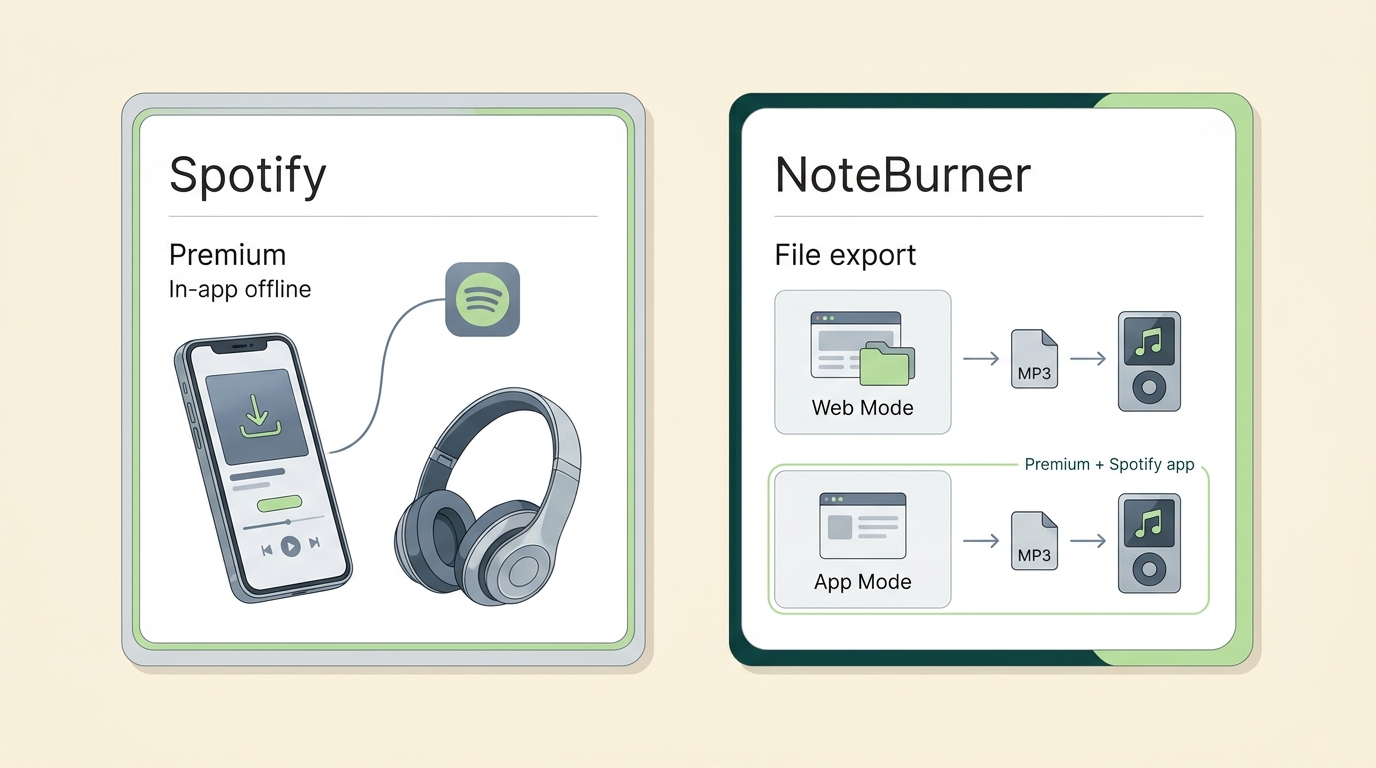
NoteBurner fits you if your listening setup needs exported audio files instead of Spotify’s in-app downloads. For offline listening inside Spotify, I’d keep using Premium rather than buy a converter for the same job.
Spotify’s official offline feature downloads albums and playlists for playback in its app. You must connect at least once every 30 days to retain those downloads, so include that connection in your travel plans. Those app-managed downloads are not an MP3 export for a separate player.
NoteBurner is a third-party converter, separate from that built-in feature. Its appeal is file output and batch handling; its buying limitation is how little a preview reveals. As one Reddit contributor in r/musichoarder put it in June 2026, “i love noteburner and use it regularly but my main only1 problem is that it limits free users for only 1 minute per song if you havent purchased the subscription”. That captures the purchase dilemma: you can inspect the opening before paying, but not the ending.
Web Mode vs. App Mode: Quality and Speed
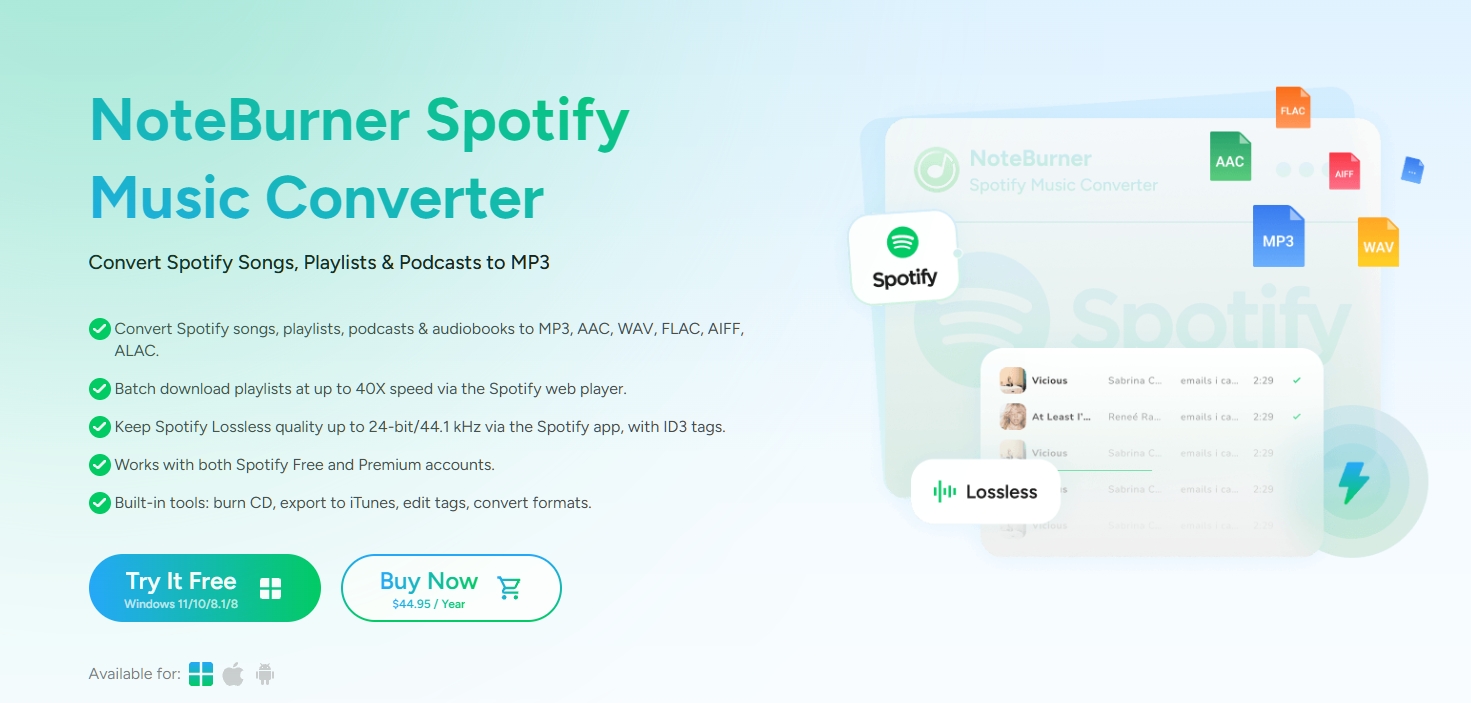
NoteBurner Web Mode vs. App Mode: Advertised Limits (November 2026)
| Decision point | Web player mode | Spotify app mode |
|---|---|---|
| Advertised conversion speed | Up to 40X | 1–10X |
| Premium lossless claim | A FLAC extension alone does not establish a lossless source | Up to 24-bit/44.1 kHz FLAC with Spotify Premium |
These are NoteBurner’s advertised specifications, not our measured results.
The practical split is clear. Web mode suits you if you want the browser-based batch workflow; app mode is the relevant route for the advertised Premium lossless output and requires the Spotify app. Don’t use the web-mode speed ceiling as an estimate for a lossless app-mode job.
Spotify already supports lossless listening and downloads on Premium, with compatible content and devices. For an export, choosing FLAC alone does not establish that the source was lossless. Converting lossy audio into FLAC cannot restore discarded information.
My buying verdict: choose the mode that supplies the audio you need, rather than the larger speed multiplier. An MP3 player that only accepts MP3 gains no format compatibility from a FLAC file.
Plans, Renewal, and Trial Limits
The displayed standalone plans are $44.95 for a year and $89.90 for lifetime access, before tax. The annual plan renews automatically; its displayed purchase price should not be treated as a renewal quote. The sales page does not specify the renewal amount.
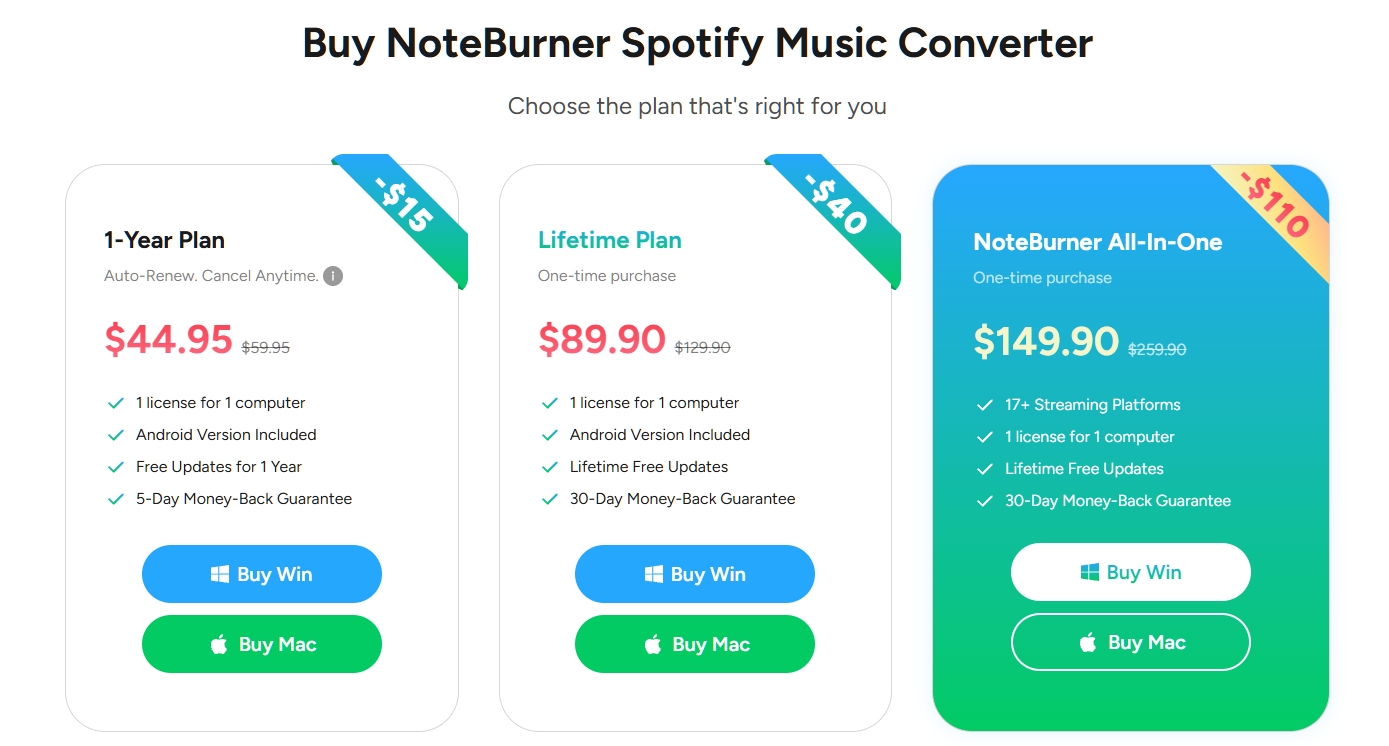
Each plan covers 1 computer and includes the Android version. The listed money-back windows are 5 days for annual and 30 days for lifetime purchases. These are different purchase terms, not interchangeable trial periods.
The free trial exports the first minute of each song. That is useful for checking basic playback and tags; it is insufficient for checking a final chorus, an ending, or a whole album’s transitions. I’d settle the format and device questions before choosing a paid term.
How to Try NoteBurner Spotify Music Converter Before Buying
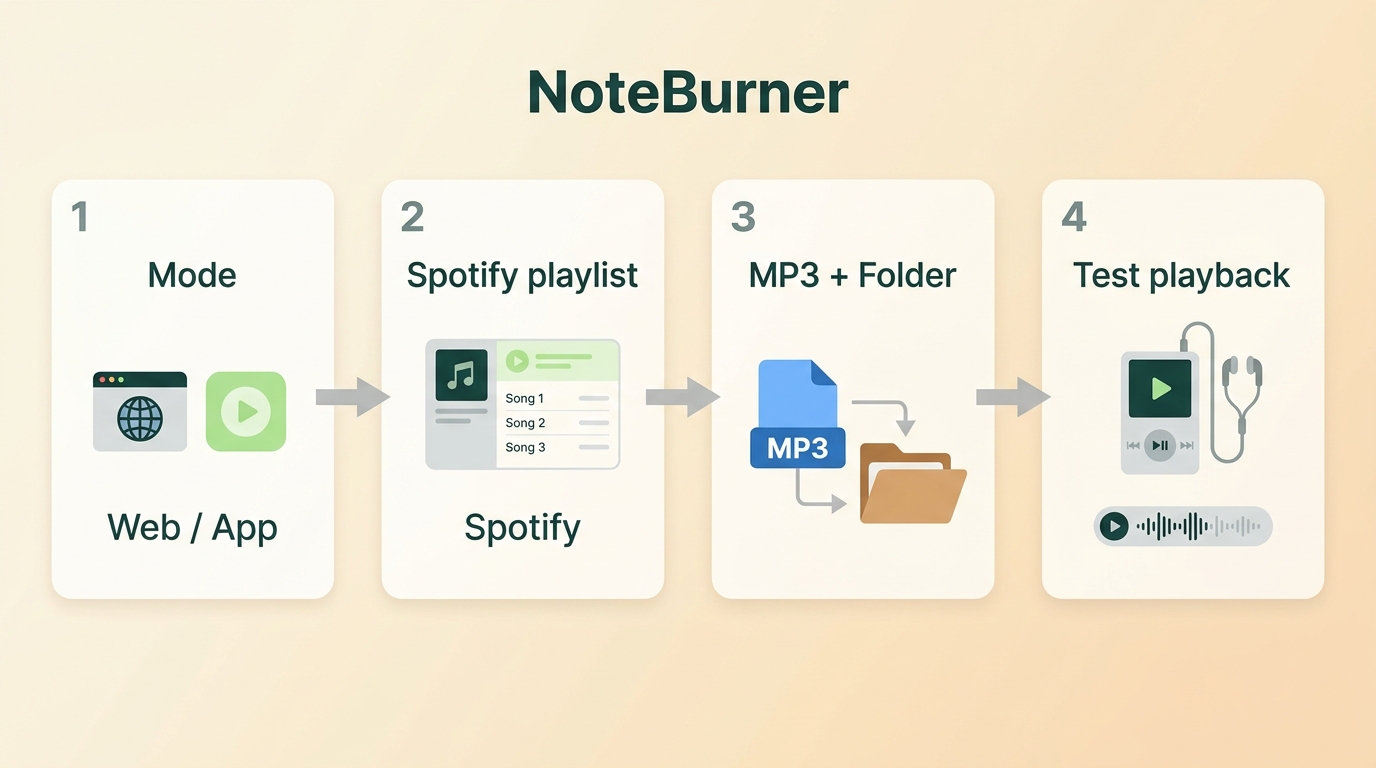
Use NoteBurner’s own trial to check a small playlist in the player you intend to use. The trial produces opening excerpts, so it checks basic compatibility without answering the complete-song question.
Prepare a Windows or Mac computer, your own active Spotify account, a small playlist you are authorized to process, and your player’s supported audio formats. Install Spotify too if you choose app mode. Premium and the appropriate mode are prerequisites for the advertised lossless option.
Step 1: Install and open NoteBurner Spotify Music Converter using the publisher’s download center. Select web-player or Spotify app mode.
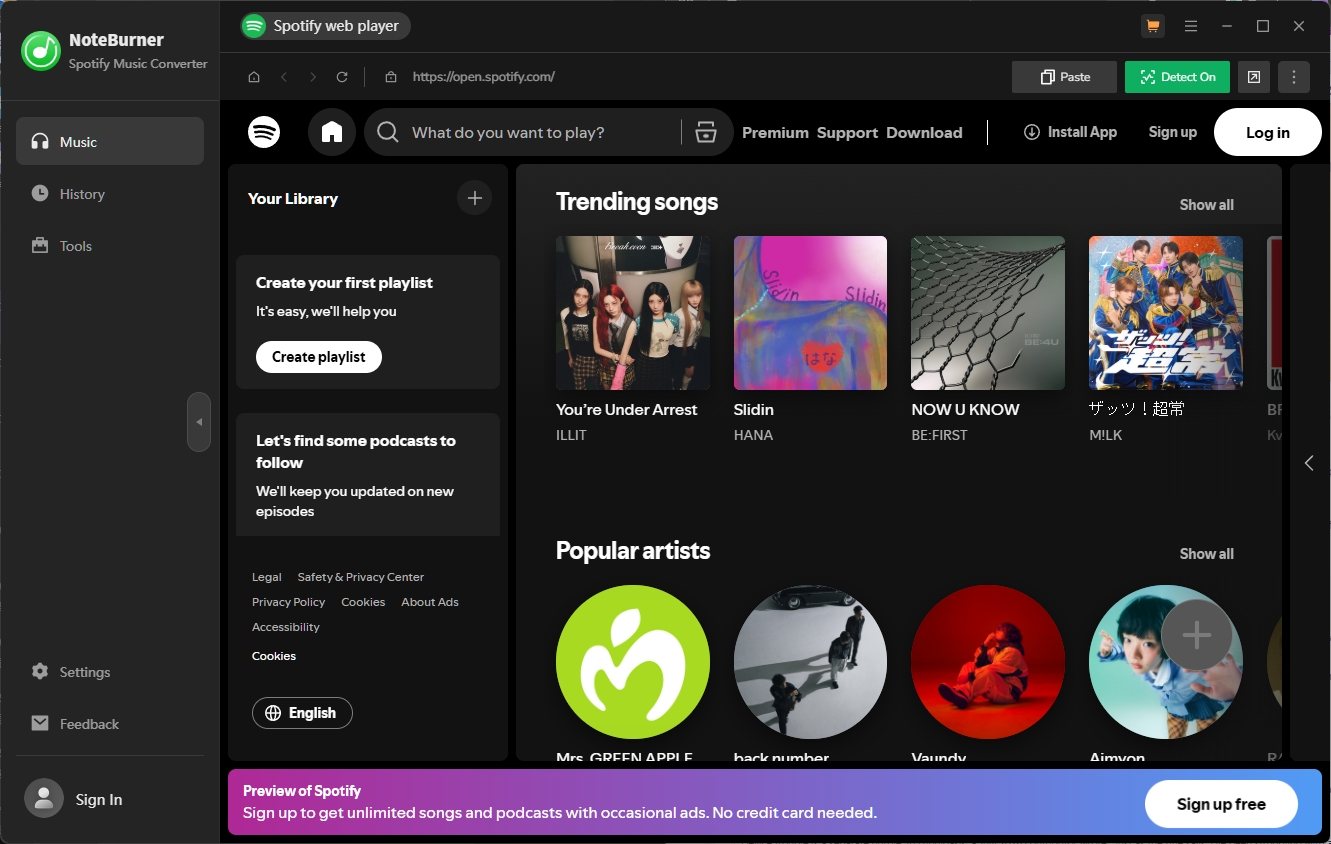
Step 2: Sign into your own Spotify account through NoteBurner’s provided sign-in flow. Open the small playlist you prepared.
Step 3: Select a few tracks, choose an output format your player accepts, and set a recognizable destination folder. MP3 is the relevant choice for an MP3-only player.
Step 4: Start conversion, wait for the selected jobs to finish, and open the exported files from that folder in your intended player.
The useful result is playback on the destination device. A finished queue alone doesn’t answer that question.
Check Playback, Track Order, and Lyrics
Check the actual recording, not just the filename. Compare the excerpt with the selected Spotify version, then inspect the title, artist, cover art, and track order in your player. If a lyrics file is present, check whether that player loads it alongside the audio.
Device trouble is a separate hurdle. In r/innioasis, a July 2026 contributor wrote, “just as the title says, i've been struggling with adding my music to my y2 for hours.” That complaint concerns getting music onto a player; it does not establish a NoteBurner defect.
I’d use a short playlist containing tracks whose order matters. A Spotify playlist to MP3 workflow is useful only when the resulting collection remains navigable on your device. Once you have full-song output rights, check endings and transitions too; the preview cannot cover those parts.
When MusicFab Spotify Converter Is Worth Considering
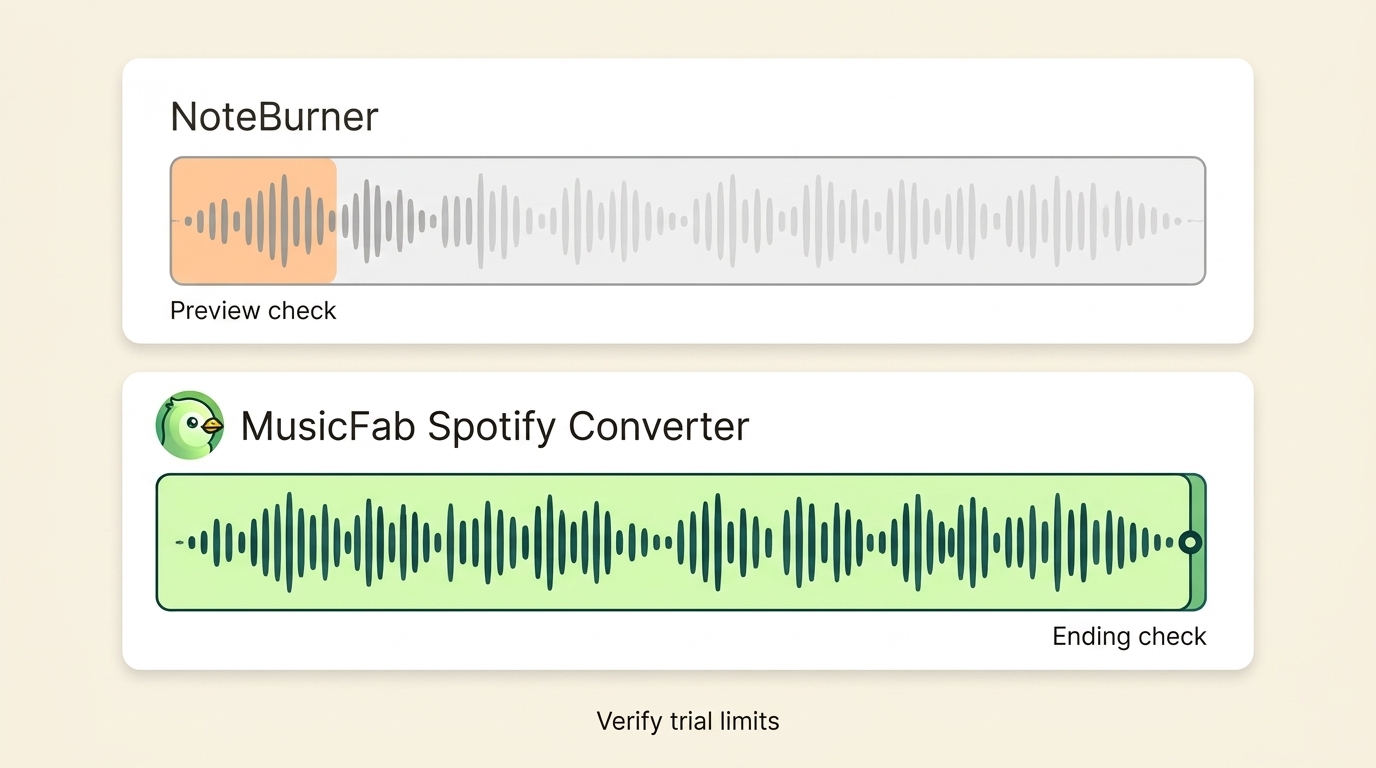
MusicFab Spotify Converter fits you if you want to check complete-song playback, track order, and lyrics before buying. I’d use that full-song allowance to resolve the gap left by an opening excerpt.

- Save Spotify music as MP3, FLAC, WAV, M4A or OPUS format.
- Download Spotify songs/playlists/albums/podcasts in batch
- Remove Spotify ads for free users.
- Save Subtitles as External SRT Files.
MusicFab Spotify Converter runs on Windows and Mac and saves Spotify audio as MP3, M4A (AAC), WAV, FLAC, or OPUS, letting you match the format to your player. Its built-in browser handles playlist batches; retained ID3 tags, cover art, track numbers, and .lrc lyrics give you the pieces to inspect on that device.
Test environment (June 2026)
- Check: Complete-song trial entitlement.
- Account state: No MusicFab account registration.
In that trial check, our team could save 3 complete songs per service during the 30-day trial from installation. That lets you inspect the ending as well as the opening, using the same playback checks above.
Our client records logged more than 2.5 million completed Spotify downloads over the 3 months ending November 1, 2026.
The paid allowance is 300 songs per streaming service per day, shared across computers using the same account and reset at 00:00 UTC. For a larger library, plan batches around that daily allowance; start with the complete-song trial from the official MusicFab Spotify Converter page.
NoteBurner Spotify Music Converter FAQ
Q1. Is It Safe to Sign Into Spotify Through NoteBurner?
Get NoteBurner’s installer from its publisher and use the app’s Spotify sign-in flow. As MusicFab editor Jane Chen, I’d avoid repackaged installers or pages asking you to send someone your password. Spotify’s User Guidelines prohibit unauthorized copying and cached-file transfers, with suspension or termination among the consequences; an active subscription alone does not authorize export. Keep permitted copies for personal offline listening, follow local law, and do not redistribute or resell them.
Q2. Does a NoteBurner Spotify License Include Music One?
No. The standalone Spotify converter and NoteBurner Music One are different purchases. Don’t read a Music One feature list as the service coverage of your Spotify license. For a Spotify-only library, the standalone scope is the relevant one. If you need another music service, the bundle’s separate entitlement matters; the Android inclusion described above does not add other streaming services.
Q3. Does NoteBurner Spotify Music Converter Work on Android?
Yes. NoteBurner offers an Android version with a listed minimum of Android 8.0. That makes “desktop only” an outdated description. Android installation, Windows or Mac installation, and playback of exported files are separate questions. An iPhone cannot install the Android package or desktop application; playing a compatible audio file on it is a different workflow.
Which Option Fits Your Listening Setup?
Stay with Spotify Premium if your goal is offline listening inside its app; consider NoteBurner when you need authorized file export for a separate player. Match its mode to your source-quality and device requirements, and use the trial for the checks it actually covers.
For complete-song validation, the alternative above lets you extend those checks to the ending. My recommendation is to buy for the listening setup you have: a lossless file extension cannot substitute for a lossless source, and a playable preview cannot settle whole-song playback.


Install Spotify on a compatible Mac and distinguish system requirements from installation errors. Learn how app-managed offline listening differs from separate audio files, with practical guidance for travel and file organization.
By Jane Chen - Nov 6, 2026
Find a missing Spotify playlist through account checks and the official recovery page. Learn the limits of deleted-playlist restoration and how copies of accessible tracks differ from restoring a cloud playlist.
By Jane Chen - Nov 6, 2026
Install Spotify on a compatible iPhone or iPad and resolve common App Store obstacles. Learn how in-app offline music differs from audio files transferred from a computer.
By Jane Chen - Nov 6, 2026
Spotify’s in-app downloads differ from standalone media files. This guide separates making a new MP4 from authorized audio, saving compatible player audio, and requests for existing Spotify videos.
By Jane Chen - Nov 6, 2026