Spotify Download iOS: Official App and File Options

Summary: Install Spotify on a compatible iPhone or iPad and resolve common App Store obstacles. Learn how in-app offline music differs from audio files transferred from a computer.
Table of Contents
To download Spotify on iOS, get the official app from Apple’s App Store. If the download keeps spinning, check compatibility and the App Store first. Installing the app is free; downloading music for offline listening in Spotify requires Premium.
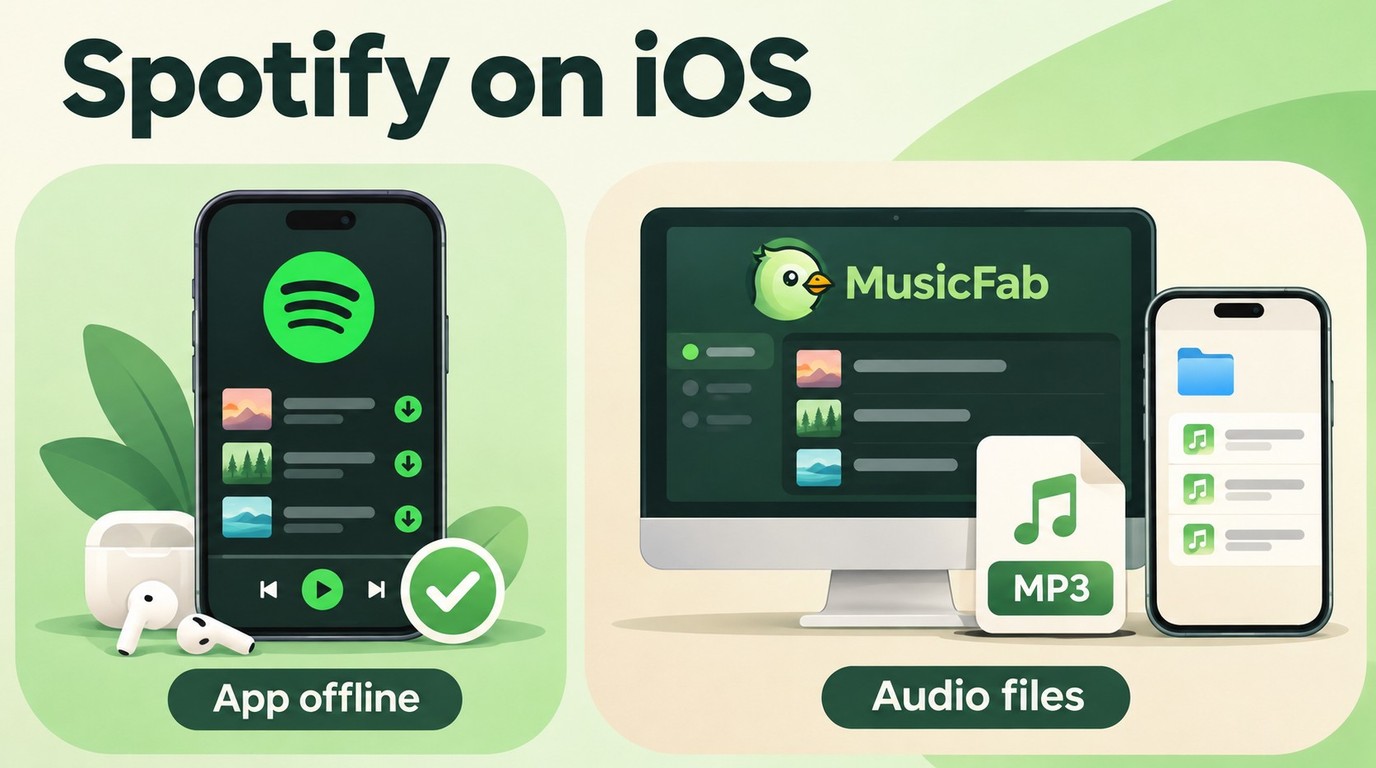
A phone switch can leave you with an odd problem: other apps install, but Spotify stays stuck loading. I wouldn’t buy a converter to fix an App Store spinner. That’s a different job. I’ll walk you through installation, in-app music downloads, and the point at which a desktop file workflow makes sense.
Install Spotify on iPhone or iPad with the Apple App Store
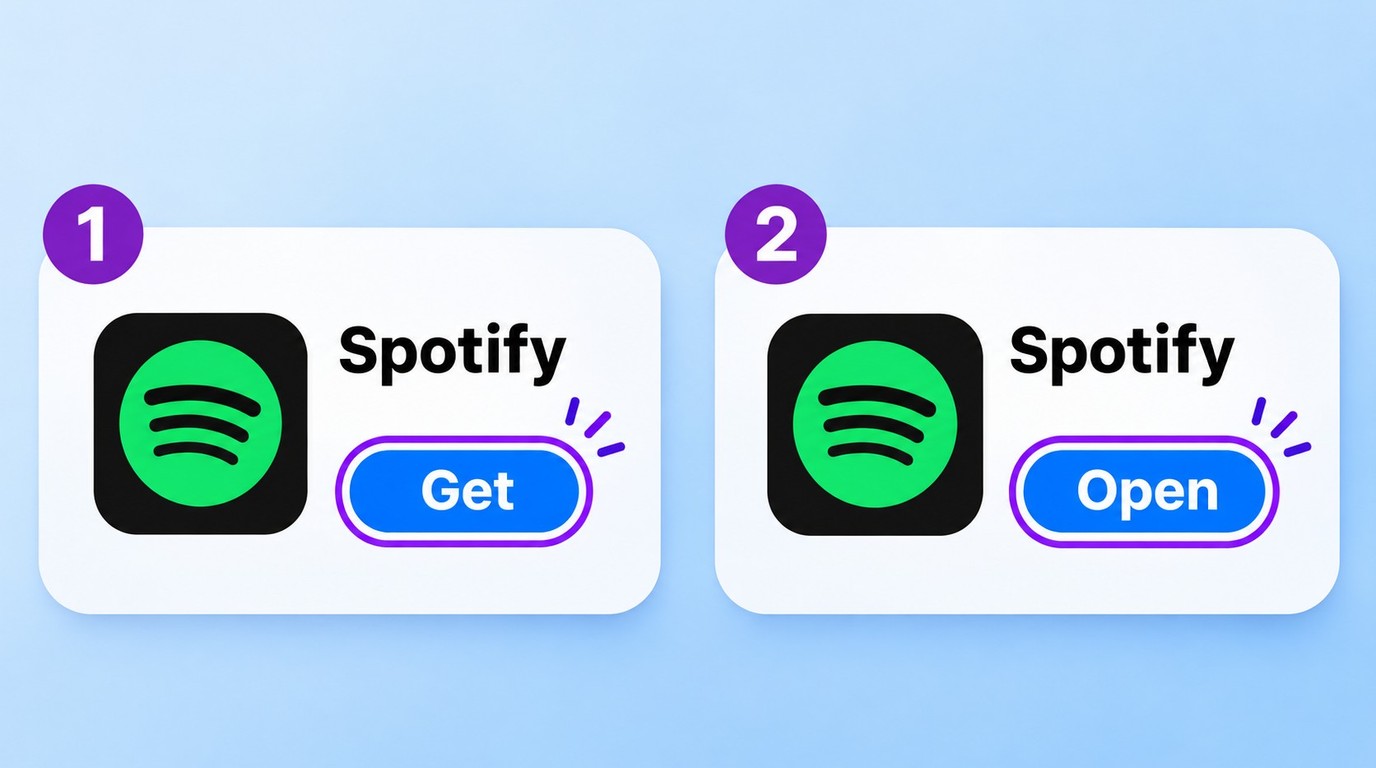
Install the official Spotify app through the Apple App Store, then open it and sign in. The same process works on iPhone and iPad; you don’t need a separate installer or a paid converter.
Check Compatibility and Account Access
Compatibility is the first gate. The US listing requires iOS 16.1 or later on iPhone and iPadOS 16.1 or later on iPad. Find your installed version in Settings → General → About, and use Software Update if your device supports a newer release.
Have your Apple Account ready for the App Store download. You also need an internet connection and available device storage. Wi-Fi is a useful choice when setting up a new phone, especially if several apps are downloading together.
Keep your Spotify login separate from your Apple Account. Apple authorizes the app installation; your Spotify account holds your music library and subscription. If you previously used a particular sign-in method, use that method again rather than accidentally creating a new account.
The app costs nothing to install. Premium is a separate decision about listening features, not a prerequisite for reaching the Spotify home screen. For this task, the App Store is sufficient; it doesn’t provide standalone song files.
Find the Official Listing, Install, and Sign In
Use the developer identity to pick the right app. A familiar green icon alone isn’t enough.
- On your iPhone or iPad, open the official US Spotify listing in the App Store.
- Confirm the app is Spotify’s music and podcasts app and that the developer or seller is Spotify.
- Tap Get, or the cloud download icon if you previously installed it, and complete the Apple authentication prompt.
- Wait for installation to finish, then tap Open.
- Sign in to Spotify with your existing account, or create an account if you’re new.
You’re finished with installation when Spotify opens to your signed-in home screen. Your playlists being visible does not mean their audio has downloaded. If the button never becomes Open, stay with the installation problem in the next section.
I’d stop troubleshooting the installer at that finish line. An empty offline library belongs to the music-download workflow, even when the same word, “download,” appears on both screens.
Why Spotify Won’t Download on Your iPhone
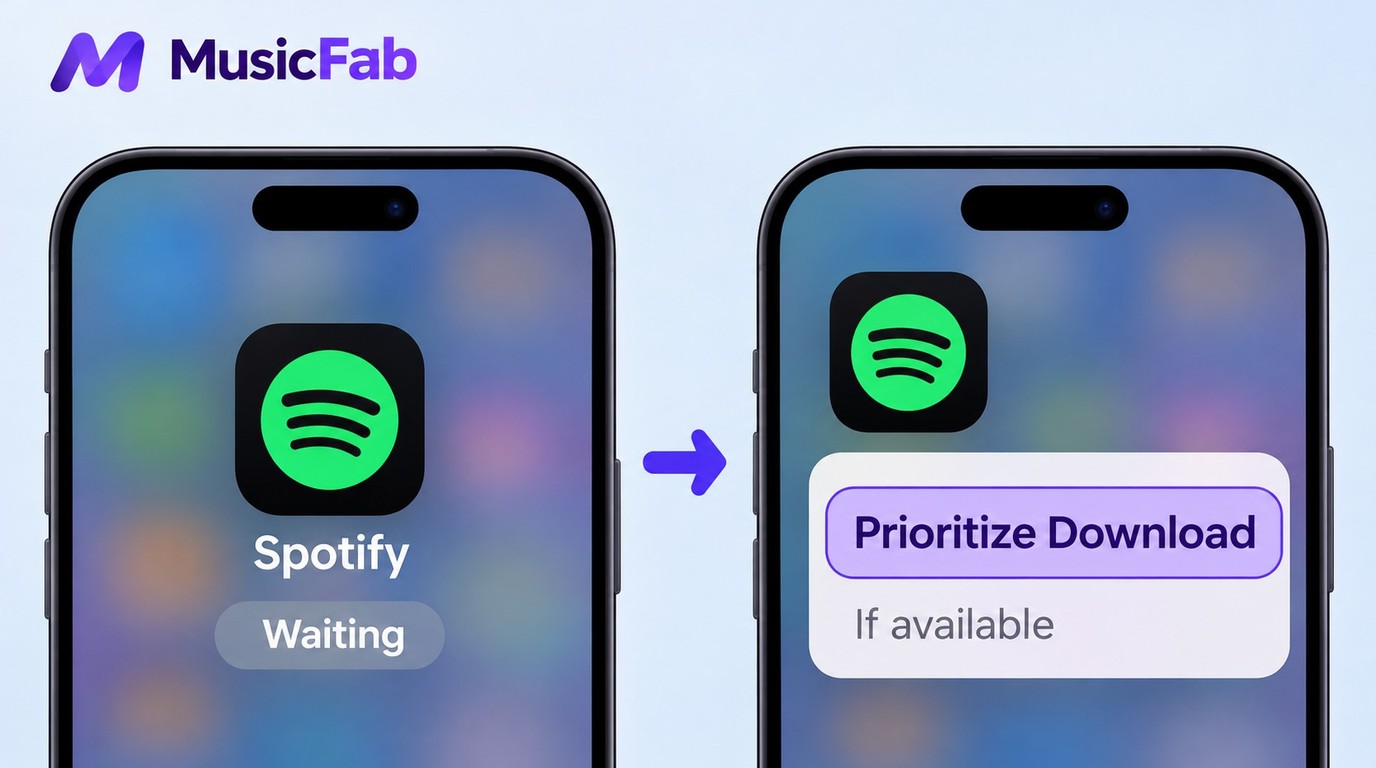
A spinning App Store icon, an incompatible-system message, and an Apple Account verification prompt need different fixes. Read the message before deleting anything; repeated install attempts won’t change an unsupported operating system.
The loading symptom is real. One person in r/truespotify described it this way: “Since I got my Iphone and moved from Android I can’t install the Spotify app , it just keeps loading like the video shows , only Spotify no other app has the same issue , can anyone help pleeaase .” That describes the symptom, not its cause.
Match the fix to what your phone shows:
- Waiting or spinning: confirm the internet connection works and storage is available. Touch and hold the app icon, then choose Prioritize Download if that option appears.
- Still stalled: restart the iPhone or iPad and try the App Store download again.
- Verification or billing message: resolve the Apple Account prompt. A free app can still require a valid payment method on file.
- Compatibility warning: compare the installed system with the requirement above, then install an available supported update.
Apple’s app-download troubleshooting guidance covers prioritizing, restarting, and payment verification. I’d use the displayed error to choose a branch, rather than repeat the entire list after every attempt.
An older phone is a separate case. In r/iphone, someone asked, “Is there any way to get Spotify running on an iPhone that old?” If the device cannot reach a supported system, this current-app installation route stops there. An unofficial package doesn’t establish compatibility, and an old-browser workaround isn’t a dependable substitute.
Download Music for Offline Listening with Spotify for iOS
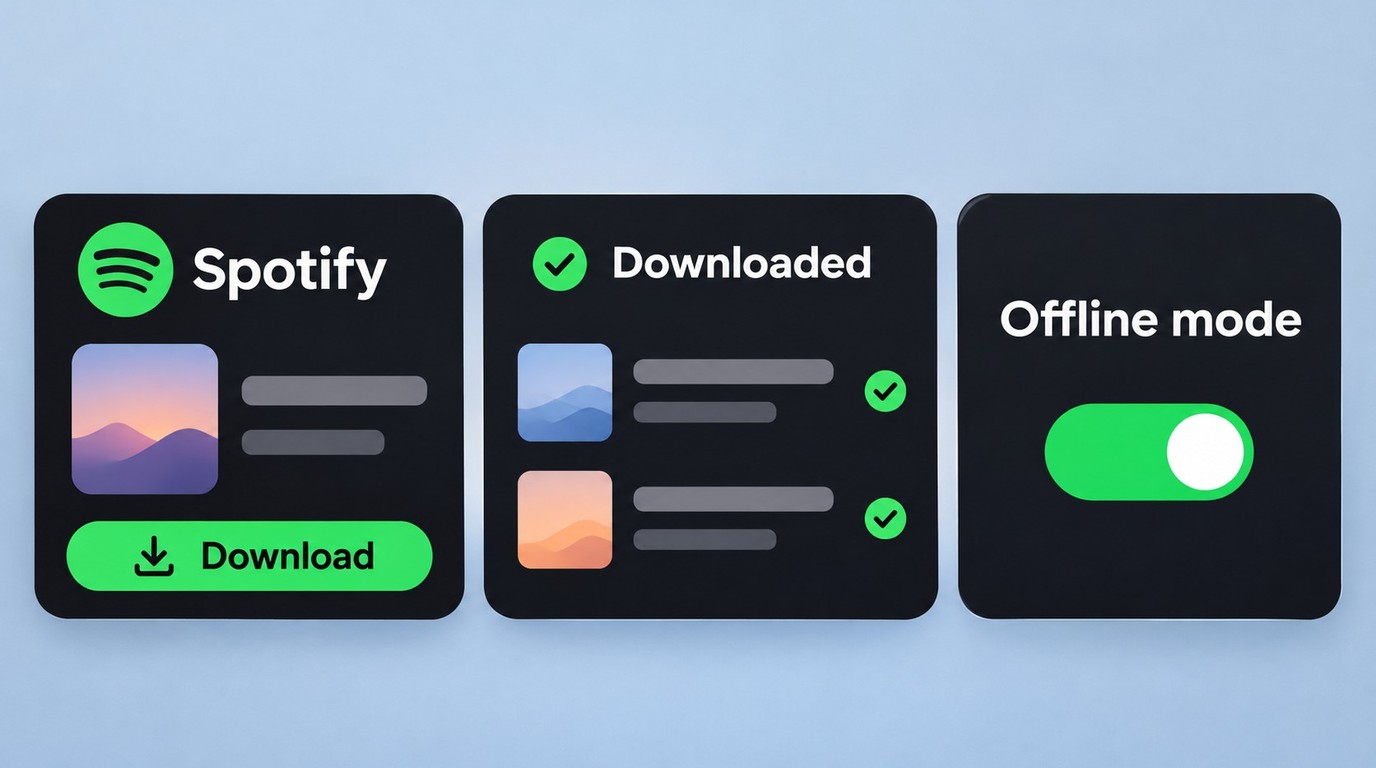
Spotify Premium lets you download albums and playlists for listening inside the iOS app. Free accounts support podcast downloads, not music downloads; the installed app alone doesn’t change that distinction.
Download a Playlist and Confirm Offline Playback
Start online, signed into the account that has Premium. Leave enough storage for the music you want.
- Open Spotify for iOS and choose an album or playlist. For an individual song, add it to a playlist first.
- Tap Download and wait for the downloaded status to appear beside the tracks.
- Open your profile picture → Settings and privacy → Data-saving and offline, then switch Offline mode on.
- Play a downloaded track. Confirm you hear the audio, then turn Offline mode off when you want online listening again.
I count audible playback as completion, not a tapped arrow. Grayed-out tracks in Offline mode aren’t available for offline listening, so resolve those before leaving your connection. Cellular downloads need a separate switch. In Data-saving and offline, enable Downloads over cellular under Downloads and streaming if you want to use mobile data; Wi-Fi is the default.
Keep the official limits in mind: up to 10,000 tracks per device, across 5 devices, with an internet connection at least once every 30 days to retain downloads. Reinstalling Spotify means downloading the stored music again. For music that stalls after installation is complete, the Spotify song-download fixes address that separate problem.
| Task | Requirement | Result |
|---|---|---|
| Install the app | Compatible iPhone or iPad | Free app installation |
| Download music | Spotify Premium | Listening within Spotify |
| Download podcasts | Free or Premium account | Offline podcast playback |
| Import local audio | Legally stored audio files | Local Files playback |
Source: Spotify’s Help Center and the US App Store listing, as of November 2026.
The distinction is the destination: Spotify downloads stay in Spotify’s listening workflow; Local Files imports audio you already have. It doesn’t export the catalog to MP3.
When MusicFab Fits a Desktop-to-iPhone File Workflow
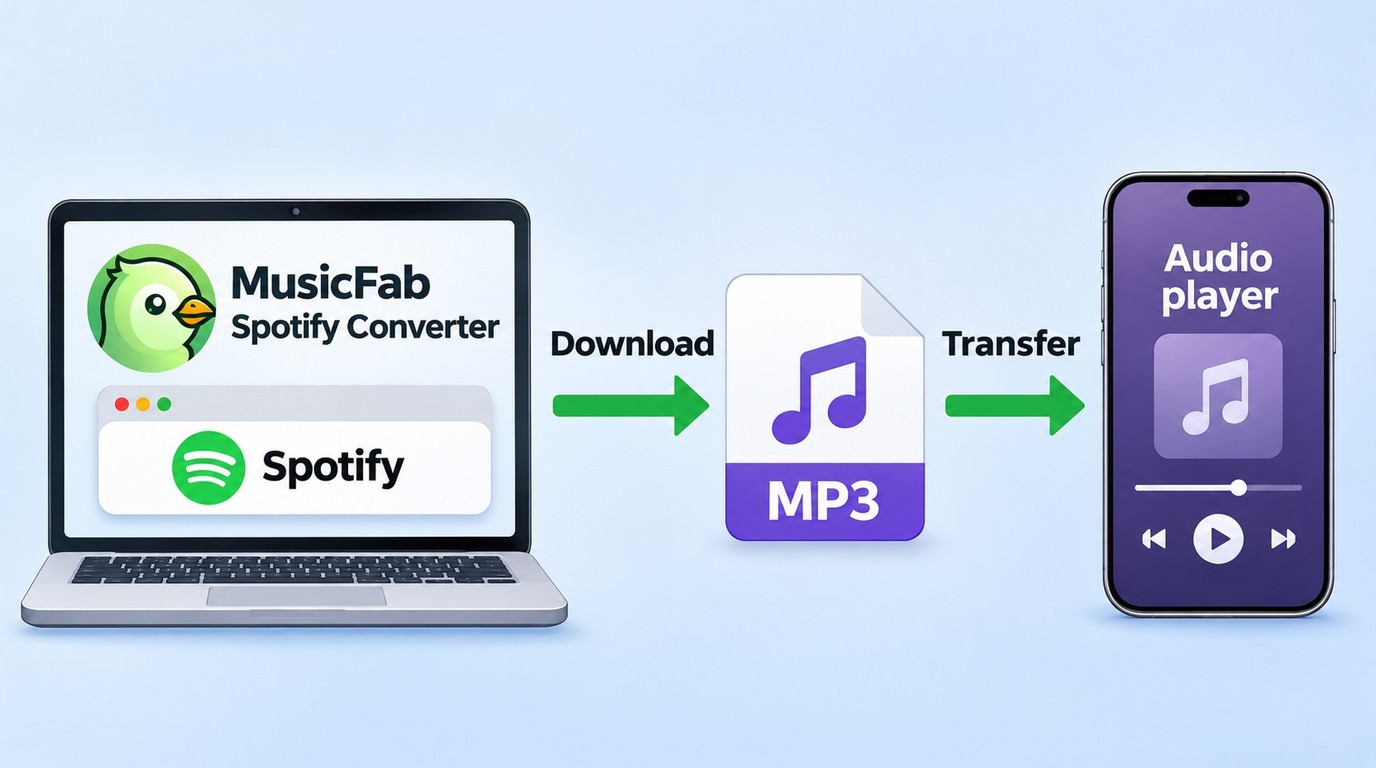
MusicFab Spotify Converter fits you if you have a Windows PC or Mac and need audio files to import into an iPhone player. It uses direct-source downloading for a desktop file workflow, separate from Spotify’s in-app offline feature.

- Save Spotify music as MP3, FLAC, WAV, M4A or OPUS format.
- Download Spotify songs/playlists/albums/podcasts in batch
- Remove Spotify ads for free users.
- Save Subtitles as External SRT Files.
My recommendation as Jane Chen: choose the destination player before choosing the output format. To organize that library, MusicFab Spotify Converter for Windows and Mac offers MP3 at up to 320 kbps, M4A (AAC), WAV, FLAC, and Opus with ID3 tags; those output types are reflected in our October usage records. Match the format to your player.
Choose your output in the built-in Spotify browser on your computer, then import the resulting file into your chosen iPhone player. Our client records logged over 2,500,000 completed Spotify downloads in the 3-month window ending November 1. For your own library, confirm the song version, album details, and track order before transferring a playlist.
The practical limit is the computer requirement: this isn’t an iPhone-native converter. The 30-day trial includes 3 full Spotify songs, giving you complete tracks for checking the output and phone-player compatibility.
Spotify’s terms may restrict downloader use; keep an active subscription and save only content you’re authorized to copy under applicable local law, including any relevant personal-copying exception. Keep copies for personal offline listening; don’t redistribute or resell them.
Start the desktop workflow from the MusicFab Spotify Converter official page.
Spotify iOS Download FAQ
Q1. Can I install Spotify on an iPhone without the App Store?
A: For this US iPhone workflow, use Spotify’s official App Store listing. An Android APK won’t install as an iPhone app, and an IPA file isn’t proof of an official or compatible Spotify release. Distribution options differ by region; a tutorial for another market doesn’t establish a supported US route. I wouldn’t hand an unfamiliar installation service my Apple Account credentials.
Q2. Do Spotify downloads transfer from Android to iPhone?
A: Your account library and the audio on your old phone are separate. On Android, use the official Spotify app with Premium to download music for listening inside that app; those downloads must be downloaded again on your iPhone. Sign in to the same Spotify account to find your saved playlists, then download the music again on the iPhone. Copying an Android app package or its cached files isn’t the iOS download process. If the new phone reports an offline-device limit, manage the old device’s downloads rather than creating a replacement account.
Q3. Is it safe to sign in to Spotify inside a desktop converter?
A: A sign-in requirement alone isn’t a reason to reject a desktop tool. Use an established developer’s official installer and inspect the login domain and requested permissions; a logo isn’t authentication. A Spotify-hosted login uses Spotify’s domain, including accounts.spotify.com. Where an app uses linked-account authorization, you can remove its access from Spotify’s Apps page. For embedded-browser sign-ins, review the developer’s privacy policy and session controls.


Find a missing Spotify playlist through account checks and the official recovery page. Learn the limits of deleted-playlist restoration and how copies of accessible tracks differ from restoring a cloud playlist.
By Jane Chen - Nov 6, 2026
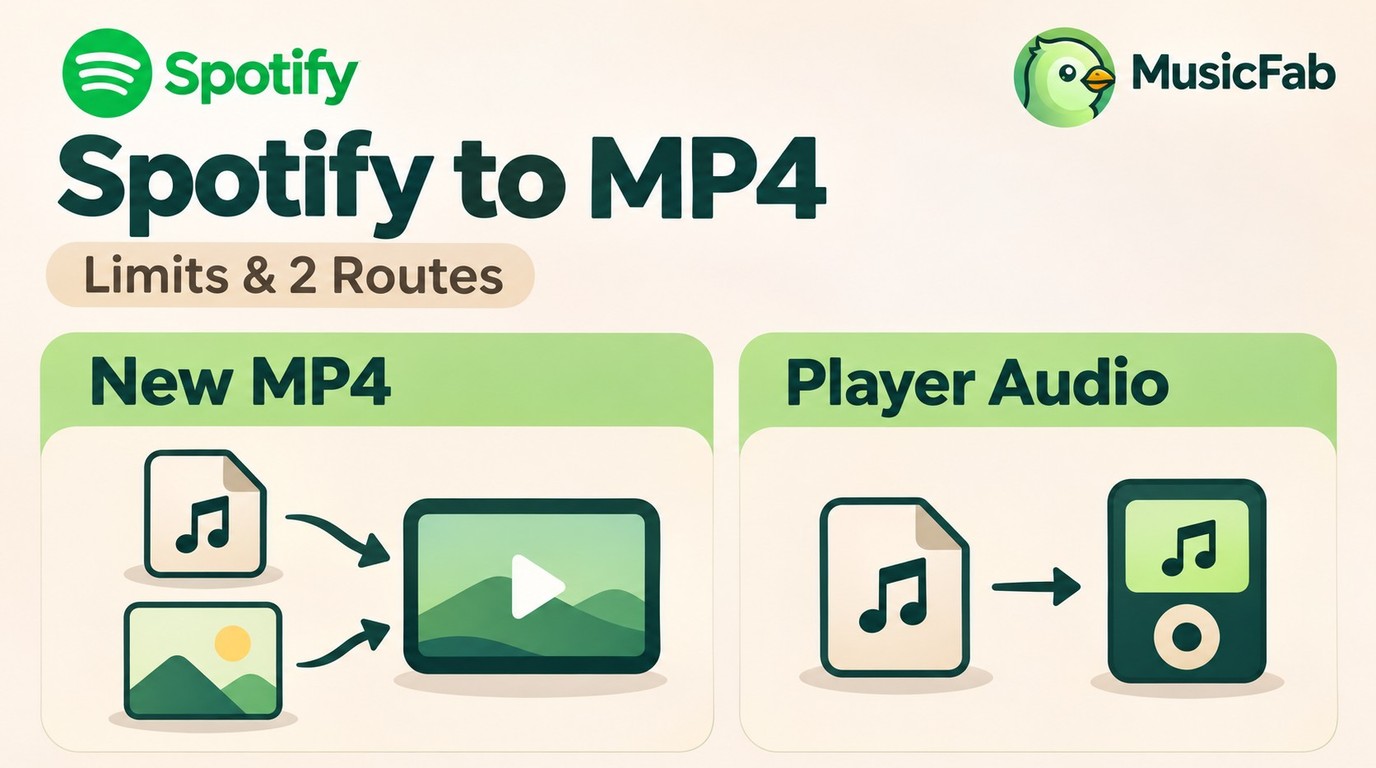
Spotify’s in-app downloads differ from standalone media files. This guide separates making a new MP4 from authorized audio, saving compatible player audio, and requests for existing Spotify videos.
By Jane Chen - Nov 6, 2026
Install Spotify on a supported Mac and download playlists for in-app offline listening. Learn how app downloads differ from standalone audio files, when a converter fits, and what to consider for travel and account access.
By Jane Chen - Nov 6, 2026
Reduce unwanted Spotify pauses by checking Discord microphone activity and choosing the right input mode. Understand the trade-offs for Listen Along, distinguish immediate mobile pauses, and assess a separate local-music workflow.
By Jane Chen - Nov 6, 2026