Spotify to MP4: Official Limits and 2 Output Routes

Summary: Spotify’s in-app downloads differ from standalone media files. This guide separates making a new MP4 from authorized audio, saving compatible player audio, and requests for existing Spotify videos.
Table of Contents
Spotify’s offline downloads are not MP4 exports. To convert Spotify to MP4, make a new video from authorized audio; if you just want songs on an MP3/MP4 player, choose compatible audio instead. A Spotify to MP4 converter serves a different job from downloading an existing music video.
I care more about whether a song plays on your device than whether a download bar reaches the end. A folder full of filenames is not a working music library. This guide separates the file choices, walks through the video and audio routes, and shows what to inspect before handling a whole playlist. You’ll also see where an existing Spotify video falls outside those routes.
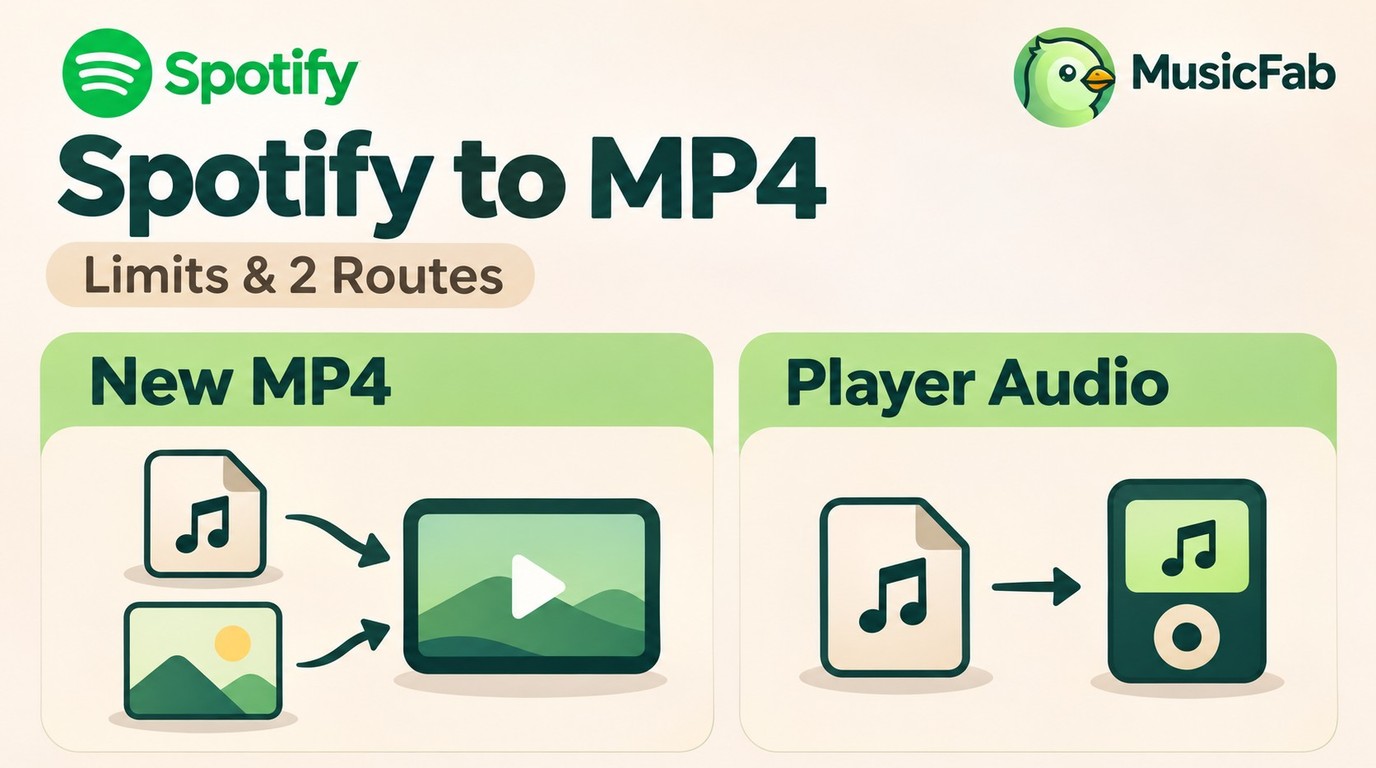
What Spotify Can Export, and Which File You Need
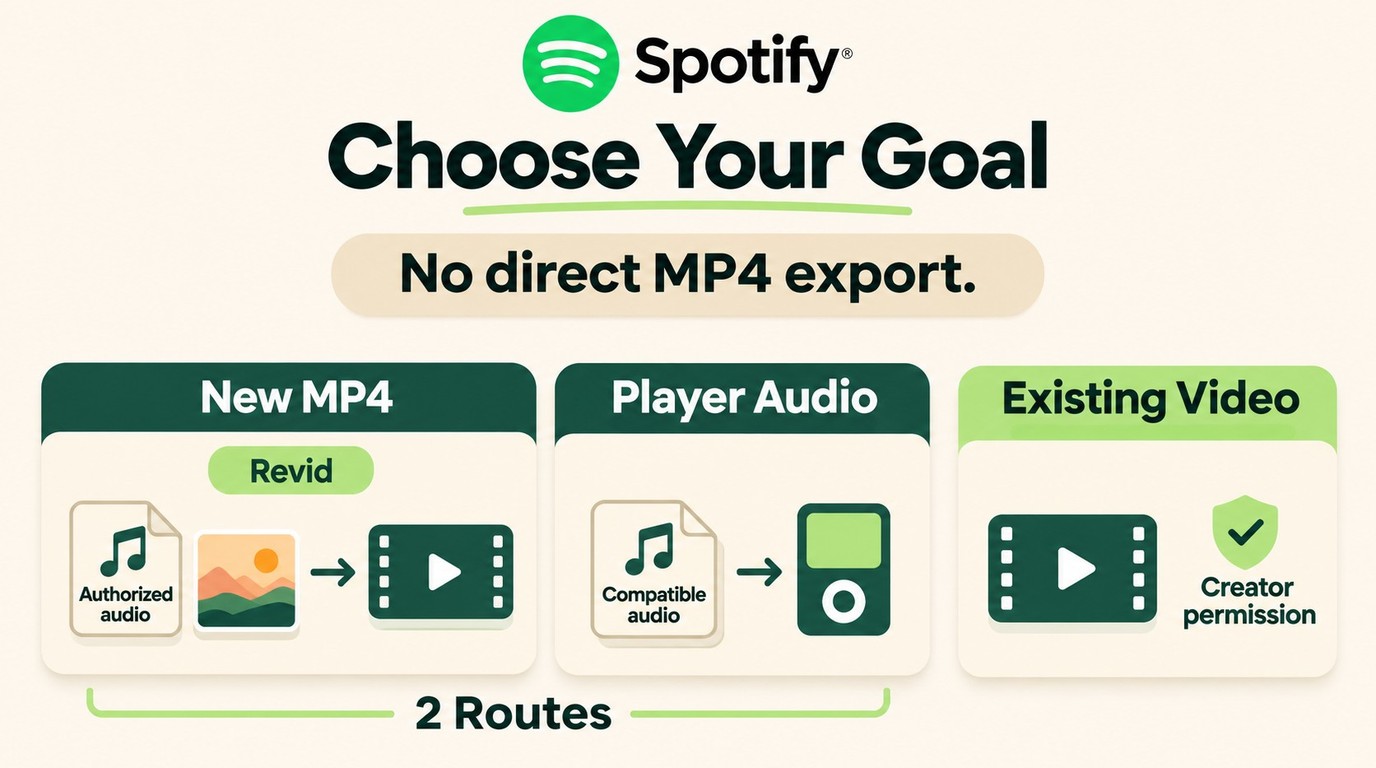
Spotify provides in-app offline downloads, not a documented standalone MP4 export. For a new video, start with an audio file and add a visual; for a portable player, use an audio format that the device actually supports.
| What you need | Official route | File or result | Next step |
|---|---|---|---|
| Existing Spotify video or Canvas | Playback; no documented MP4 export | Original video not exported | Obtain creator-authorized media |
| New video made from audio | No documented video-rendering feature | Newly created MP4 | Use authorized audio in Revid |
| Songs for an MP3/MP4 player | Spotify app on compatible devices | Supported audio or in-app playback | Match the device’s supported format |
Choose the file format from the player’s manual, not its name. If its manual lists MP3 for music, adding a video track does not solve the listening task.
Why an Offline Download Is Not an Exported File
The Download button belongs to Spotify’s playback system. As of November 2026, Premium supports album, playlist, and podcast downloads, while free accounts can download podcasts. Those downloads stay within the app’s offline workflow; copying its storage folder to a memory card is not an MP3 or MP4 export.
Music videos, video podcasts, and Canvas loops are different requests. A Canvas is the looping visual associated with a track, not the full music video. Likewise, making a video from a song does not recover a podcast’s camera footage.
The distinction matters to real listeners. One Reddit poster in r/4kdownloadapps wrote, “Getting mp3s from spotify would be nice but the videos are the ticket.” If that describes your goal, seek a downloadable edition from the creator. For a new cover-art video or player audio instead, follow the matching route below.
Create an MP4 With Revid's MP3 to MP4 Converter
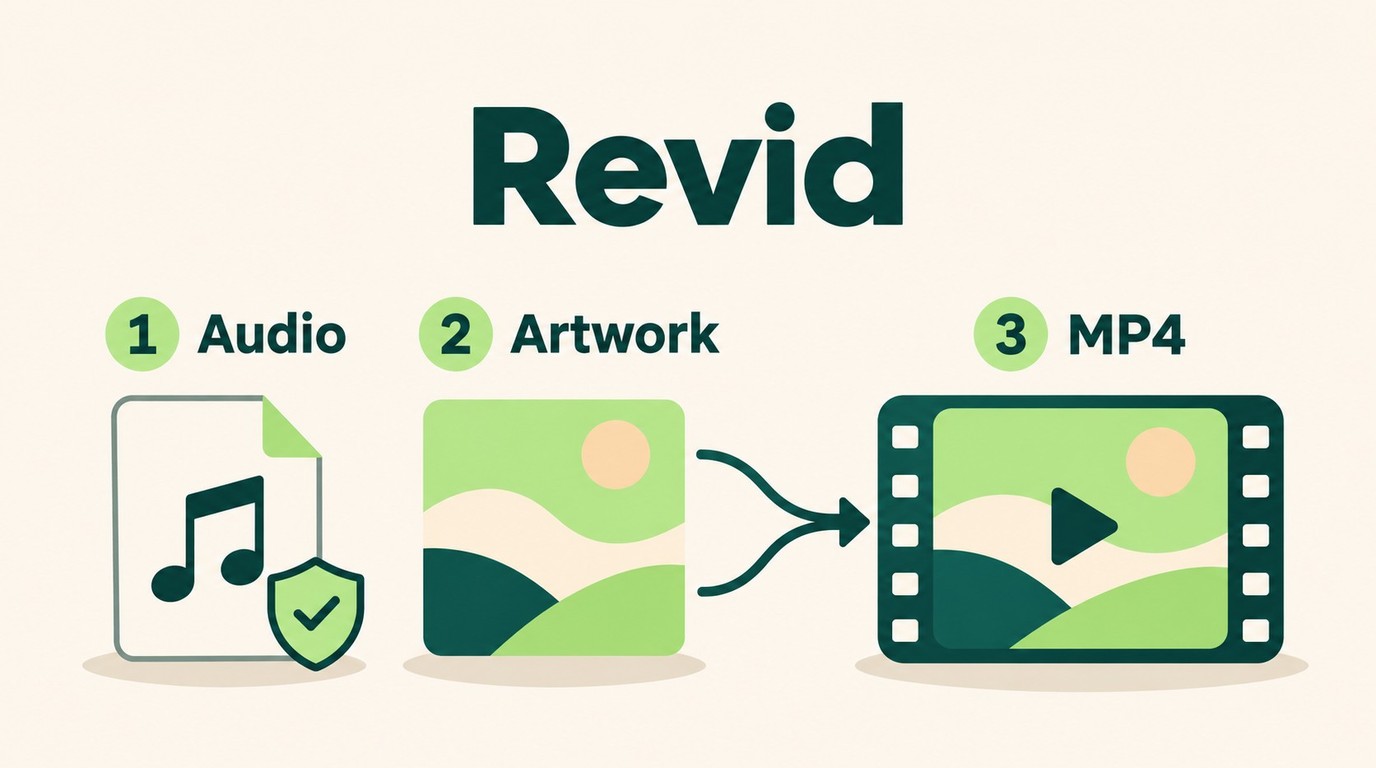
Revid MP3 to MP4 Converter makes a new video from a local audio file, using a cover image or a visualizer. It fits you if you already have the audio and need a video deliverable; it does not fetch the original music video from a Spotify link.
Start With an Audio File You Have Permission to Use
A real audio file is the prerequisite. Use your own recording, an artist-supplied download, or other audio you are authorized to use for this purpose, plus an image you have permission to include. Open the song locally before importing it. A Spotify track URL identifies a catalog item; it is not an audio attachment.
Keep listening access separate from a video project’s inputs. A song playing inside Spotify does not give this converter a local file to open. If all you have is an in-app download, obtain an appropriate source file before starting this route.
Renaming is not conversion. Changing the extension leaves the underlying media unchanged; it does not add the video track that an MP4 video needs. Return to the original filename and work from the actual audio.
Use this route for a cover-art video, not for recovering a performance. The picture and sound you supply become the new video. That makes the output easy to understand: it should contain your chosen image or visualizer, not footage taken from Spotify.
Add a Cover Image, Convert, and Check the Result
Use Revid’s MP3 to MP4 Converter page for this workflow. Its local conversion tool is separate from Revid’s credit-based AI video generator; the steps here use the audio-file converter.
The saved file deserves its own check. A browser preview shows the composition, but the downloaded MP4 is what you will actually use. Confirm that the image fills the frame as intended, the audio starts correctly, and playback reaches the ending without losing the song.
A wrong crop is a layout problem. If the artwork cuts off the artist’s name, adjust the image or layout and render again. If the downloaded video has no sound, confirm that the original audio plays before changing the visual settings.
Conversion does not restore missing detail. A low-quality source stays limited by that source even after it becomes a video. If your player only needs the song, skip the visual track and follow the audio route below.
Save Audio for an MP4 Player With Sidify Free
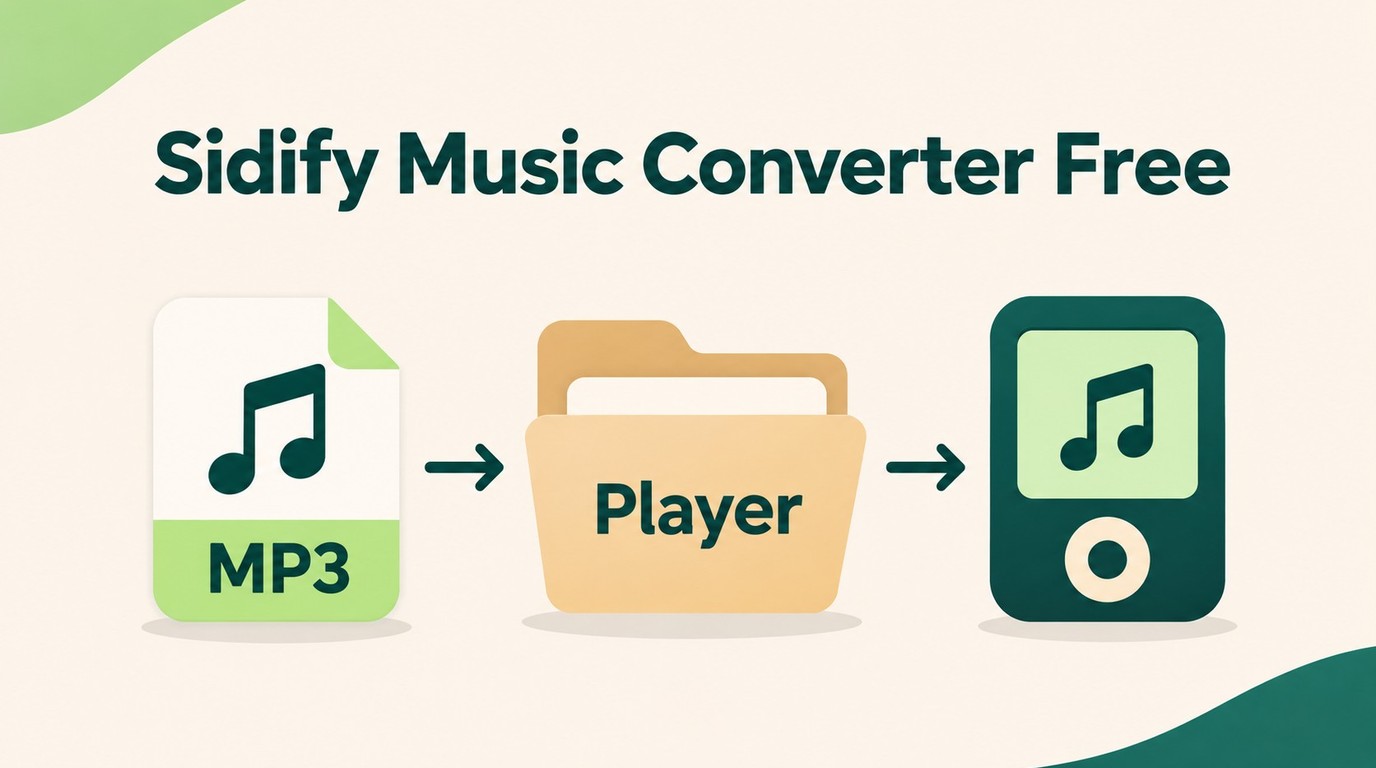
Sidify Music Converter Free provides a desktop audio route when your player needs songs rather than pictures. The Windows workflow below saves MP3 files to a chosen folder; it is not an MP4 video-export procedure.
Choose the Audio Format and Save Folder
For a music-only task, match the audio format to the device’s manual before importing a playlist. If it runs Spotify itself, app-based Spotify playback and local-file playback are different ways to use that device.
Use the Free application for these steps. Keep its settings separate from Professional-edition features, and start with a track you are authorized to process. This walkthrough uses Windows rather than transferring instructions from another edition or operating system.
The useful result is a playable audio file in your folder. If you cannot locate it, return to the output path selected in Settings rather than searching Spotify’s cache. For saving Spotify songs as MP3 files, the distinction is the file you retrieve, not the download icon inside Spotify.
Verify One Complete Track Before Copying a Playlist
Choosing audio resolves the video question, not the playback question. One r/musichoarder poster described transferred songs this way: “most of the songs were corrupted and wasn't playable”. That is a reason to check the destination, not evidence that a particular converter caused the problem.
Use the song’s identity as well as its filename. Compare the artist, album, studio or live version, and duration with the track you intended to save. Listen to the opening and ending. A matching title or a bitrate label does not establish that the performance is the same.
Sidify Free fits a basic audio-file task when its output plays correctly on your device. It does not meet a request for an original video. Once the track passes the checks above, process the playlist in the same format rather than repeating an unresolved playback problem across the card.
When MusicFab Spotify Converter Fits the Audio Route
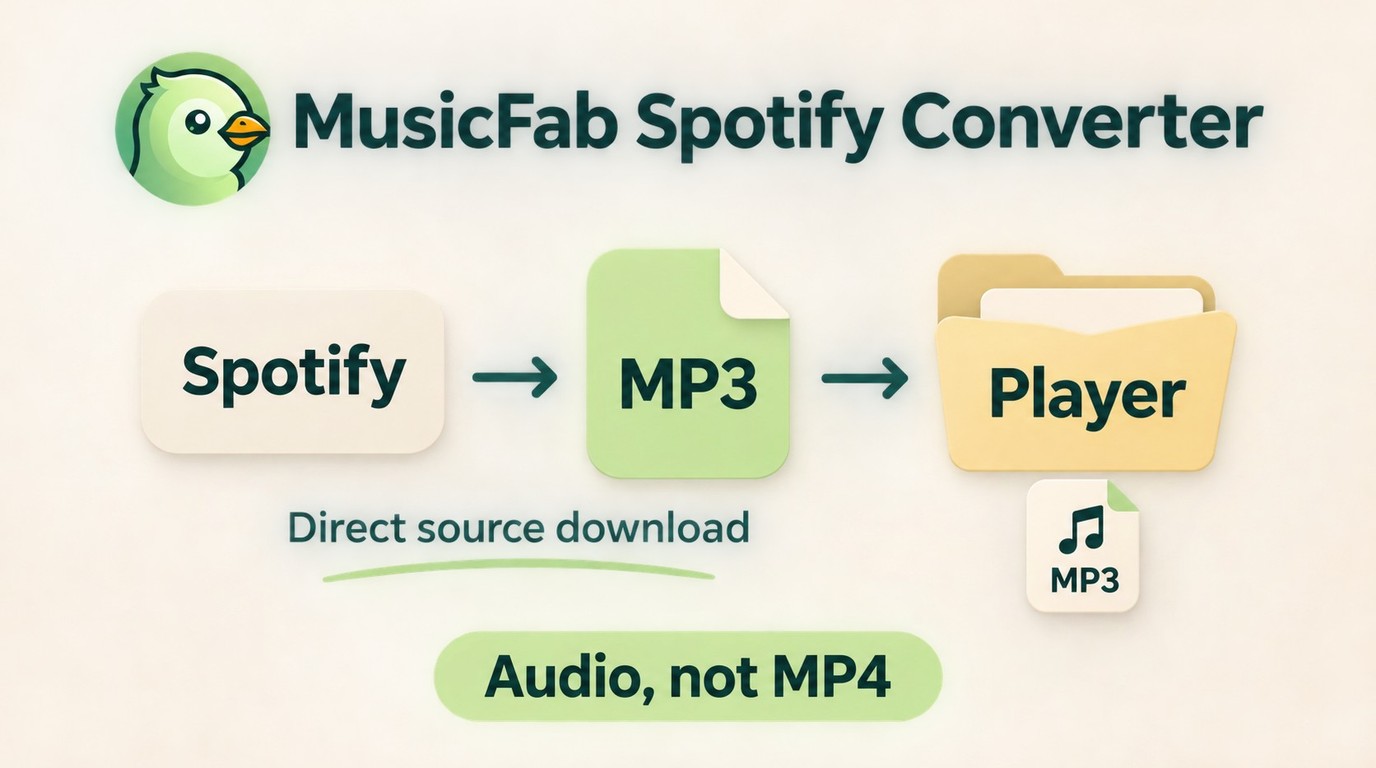
MusicFab Spotify Converter fits you if you need complete-song evaluation, track details, and playlist audio for a local library. Separate from Spotify’s own offline feature, this Windows and Mac converter uses direct source download technology to save MP3, M4A (AAC), WAV, FLAC, or Opus with track metadata, so you can choose a device-compatible format and retain song details.

- Save Spotify music as MP3, FLAC, WAV, M4A or OPUS format.
- Download Spotify songs/playlists/albums/podcasts in batch
- Remove Spotify ads for free users.
- Save Subtitles as External SRT Files.
Use the Full-Song Trial to Decide Whether the Audio Route Fits
The trial lasts 30 days from installation and provides 3 complete songs per music service, including core output and batch features without a preview-length cutoff. Choose a track whose studio or live version you recognize. A complete song lets you check the ending and device playback, rather than judging a filename or a short preview.
Use the available songs to check the whole path:
- Choose a representative track. Open Spotify in MusicFab’s built-in browser, sign in with an active Spotify subscription, and select the audio format and save folder for your player.
- Inspect the complete output. Compare the version, opening, middle, ending, artwork, and track number with the selected song.
- Check the destination. Play the saved file on your device before queuing a larger playlist or album.
FLAC names an output format; it does not, by itself, prove that the source was lossless. Choose it for a compatible audio workflow, without treating a format label as an upgrade to the source.
MusicFab produces audio, not MP4 video; use the Revid route above when the deliverable needs a picture. To start the complete-song audio workflow, use the MusicFab Spotify Converter trial.
Frequently Asked Questions
Q1. Can I Make the Video on a MacBook?
Yes, from an existing audio file. Revid’s browser converter provides that route without needing a Windows installation. Choose an audio file your browser can play, then use the same image-and-audio workflow above. For the audio branch, MusicFab supports Mac as well as Windows. The Sidify Free instructions in this article are the Windows procedure; they are not a Mac walkthrough.
Q2. What Can I Do on an iPhone or Android Phone?
You can turn a local audio file into a new video in a compatible mobile browser. Revid supports the file-picker workflow on phones, so the source needs to be accessible from your device’s files. Spotify’s mobile Download button serves in-app listening, not that input requirement. MusicFab is desktop software, not an iPhone or Android downloader. For a phone-only listening task, the official app’s offline feature fits without making a video.
Q3. Will Official Downloads Stay Available Throughout a Trip?
Reconnect Spotify at least every 30 days to keep its in-app downloads. Before leaving, open the intended playlist or podcast in Offline Mode and confirm that it plays, rather than relying on a saved-looking cover image. Spotify’s offline download requirements also explain why reinstalling the app removes downloads. This is an app-access rule, not the lifetime of a generic MP4 file; creating a cover-art video does not preserve an episode’s original footage.
Q4. How Should I Judge a Converter’s Spotify Sign-In?
Judge the publisher and login flow, not the presence of sign-in alone. Use an established tool’s official installer, distinguish Spotify’s login from an unrelated password form, and do not send credentials to a stranger offering a conversion service. If an app has been granted connected-account access, Spotify lets you remove that access from your Apps page. I would stop at an unexplained password request rather than treat it as part of getting an MP4.
Q5. Does My Subscription Cover Using a Song in a Video?
No: an active subscription grants listening access, not video-publication rights; Spotify’s usage rules restrict unauthorized third-party copying, while personal-copying exceptions under applicable copyright law are case-specific, not blanket permission. Keep authorized saves for personal offline listening; do not redistribute or resell them, and obtain the rights needed for public video use.
Choose Your Next Step
Use Revid when you have authorized audio and need a newly made MP4; use the audio route when your player needs songs. Neither route is a verified way to export Spotify’s original music videos, video podcasts, or Canvas loops. Verify the actual file on the destination player before starting a playlist. For a larger audio library, apply that same check to the complete-song trial above.


Install Spotify on a supported Mac and download playlists for in-app offline listening. Learn how app downloads differ from standalone audio files, when a converter fits, and what to consider for travel and account access.
By Jane Chen - Nov 6, 2026
Reduce unwanted Spotify pauses by checking Discord microphone activity and choosing the right input mode. Understand the trade-offs for Listen Along, distinguish immediate mobile pauses, and assess a separate local-music workflow.
By Jane Chen - Nov 6, 2026
Save Spotify playlists to Apple Watch with the official app, then confirm playback without your iPhone. This guide covers setup, stalled downloads, account requirements, and the separate role of desktop music files.
By Jane Chen - Nov 6, 2026
Create and check a Spotify playlist on mobile or desktop, then choose listening or editing access. The guide also covers prompt-based creation, finding a missing playlist, and offline listening requirements.
By Jane Chen - Nov 6, 2026