Start a Spotify Jam: Host, Join, Control, and Leave

Table of Contents
Sent a Jam link to a friend across town, and they got locked out? Or your Spotify keeps nudging houseguests to join a jam they never asked about? I've hit both, and the fix comes down to three things most guides skim past: who actually needs Premium, where the real off switch lives, and what to do when playback drifts out of sync.
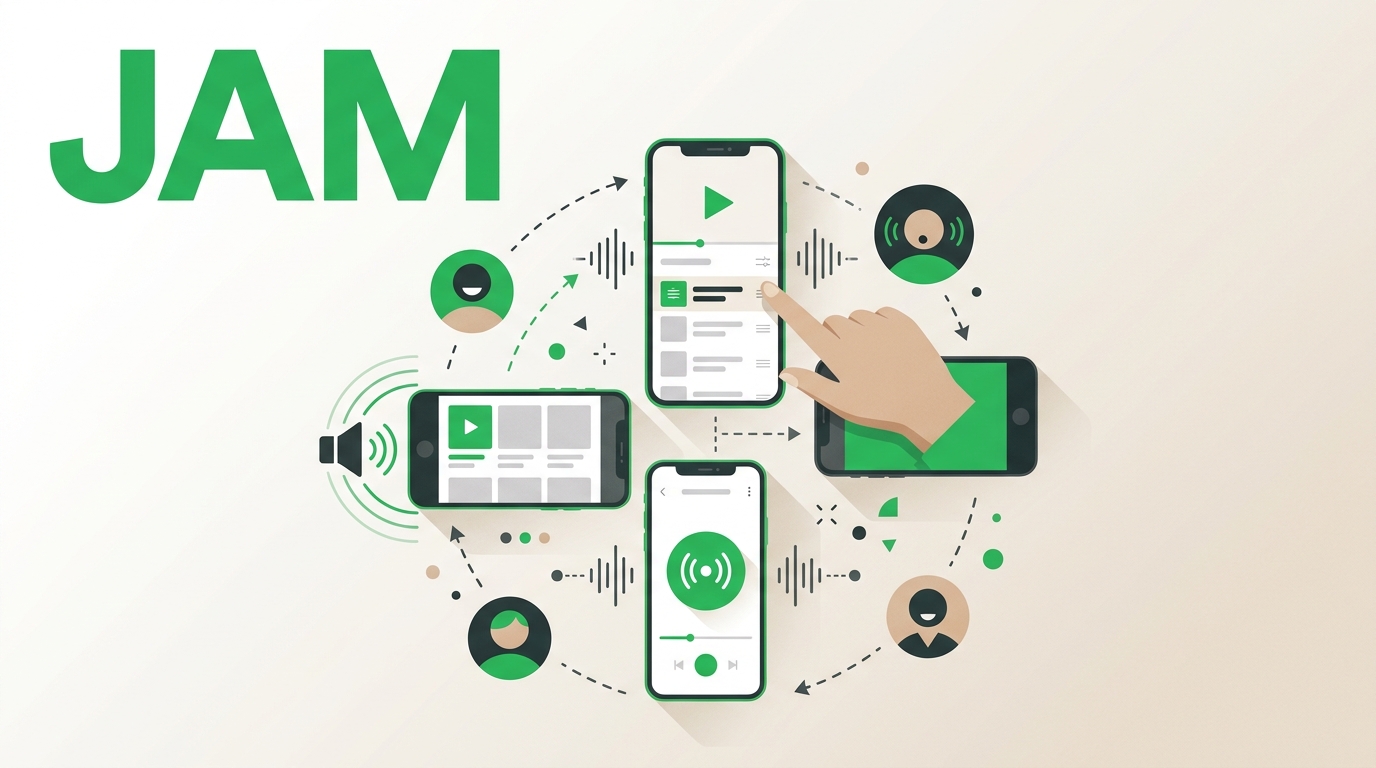
Here's the short answer: To start a Spotify Jam, play a song, tap "Connect to a device," choose "Start a Jam," and then invite by link, QR code, or nearby phone. A Premium user must host. People with a Spotify account can join in person; remote guests need Premium. To leave a Spotify Jam, the guest taps Leave; when the host leaves, the session ends for everyone.
Start a Spotify Jam and Invite Friends
The mechanics are the same on every device, so here's the one four-step sequence to memorize:
- Open Spotify and start playing a song or playlist.
- Tap Connect to a device (the speaker icon on the Now Playing screen).
- Tap Start a Jam.
- Invite friends by sharing the link, showing the QR code, or bringing phones close with Bluetooth on.
One thing I learned the hard way: pick the playback device before you start the Jam. If you flip speakers mid-session, guests sometimes end up on the wrong output and think the Jam is broken.
Spotify Jam Hosting Requirements
- An active Spotify Premium account (required to host).
- The latest Spotify app on your phone or desktop.
- Bluetooth on if you want guests to join by tapping phones nearby.
- A speaker or device selected in Connect to a device if you're playing through one.
Start a Jam on Mobile
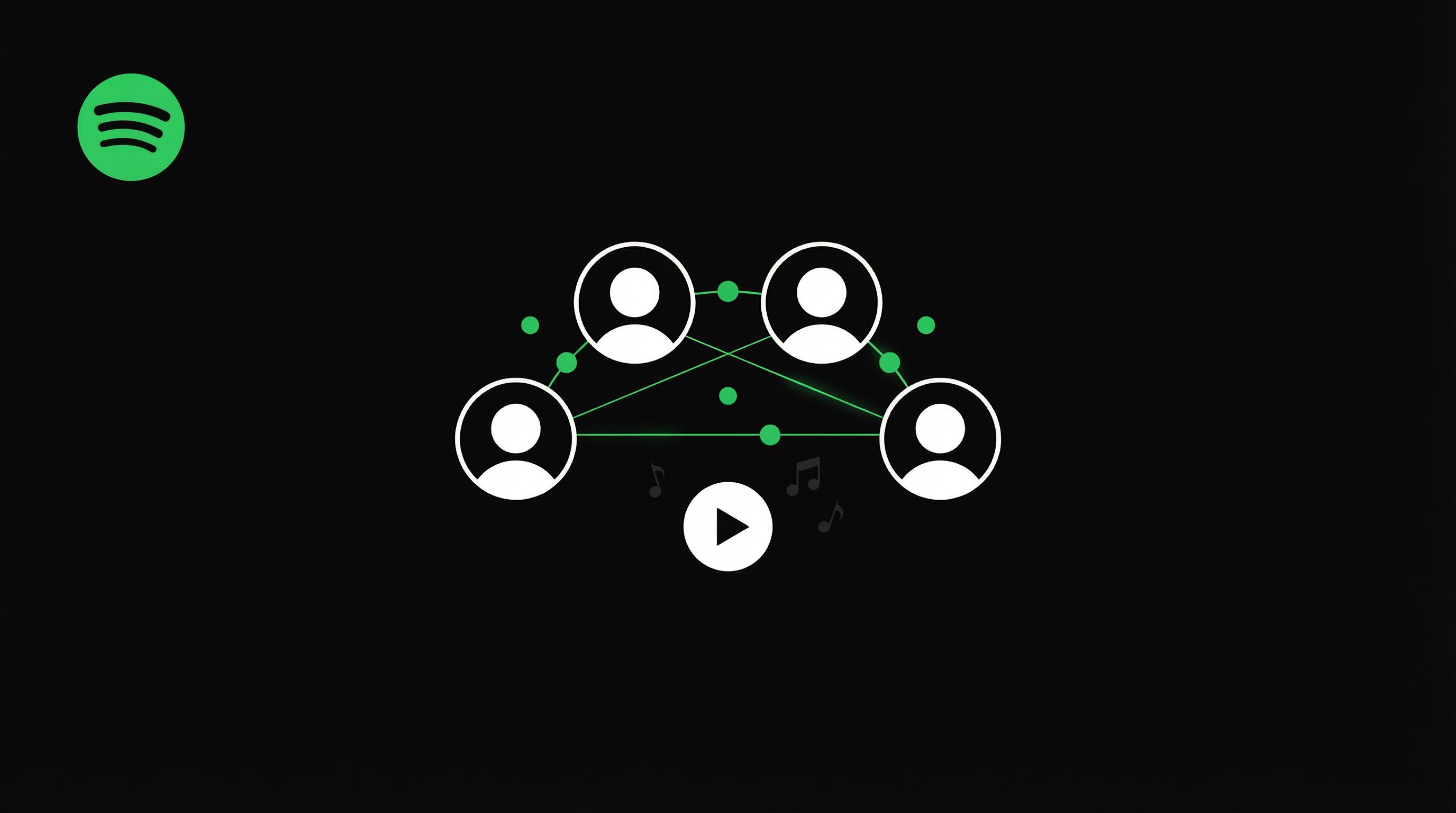
On iPhone and Android the flow follows the four steps above, with one mobile-specific choice at the invite screen:
- Share link — best for remote guests who have Premium.
- Show QR code — fastest when people are in the room.
- Bring phones close—Bluetooth on works within about a meter.
If a FaceTime call is already running, playing music in Spotify can start a Jam through SharePlay automatically.
Start a Jam on Desktop
Desktop hosting is great when your laptop is connected to speakers.
- Open the Spotify desktop app.
- Right-click a song or playlist (or use the headphone icon).
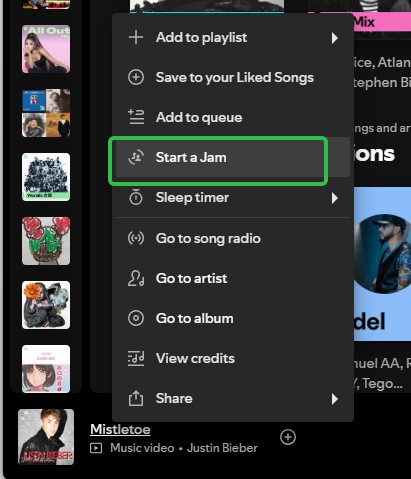
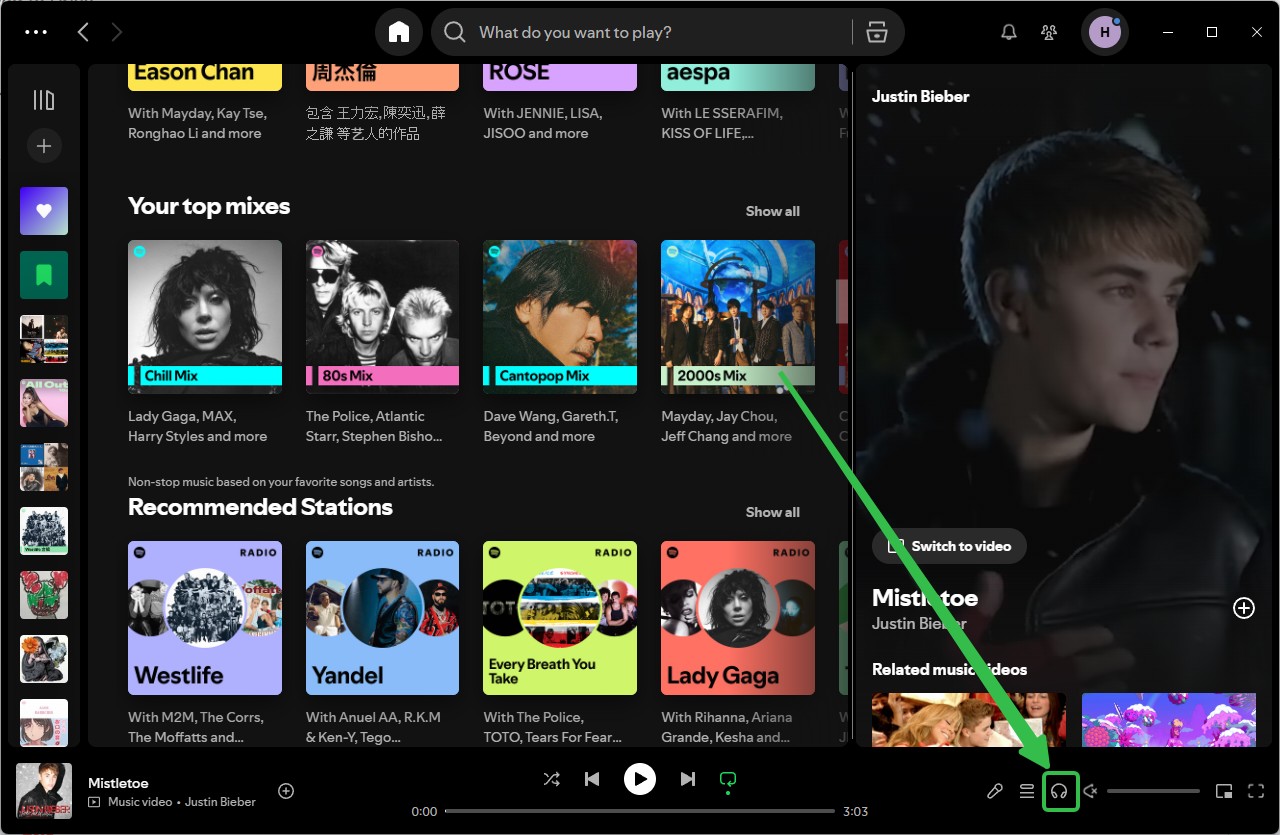
- Choose Start a Jam.
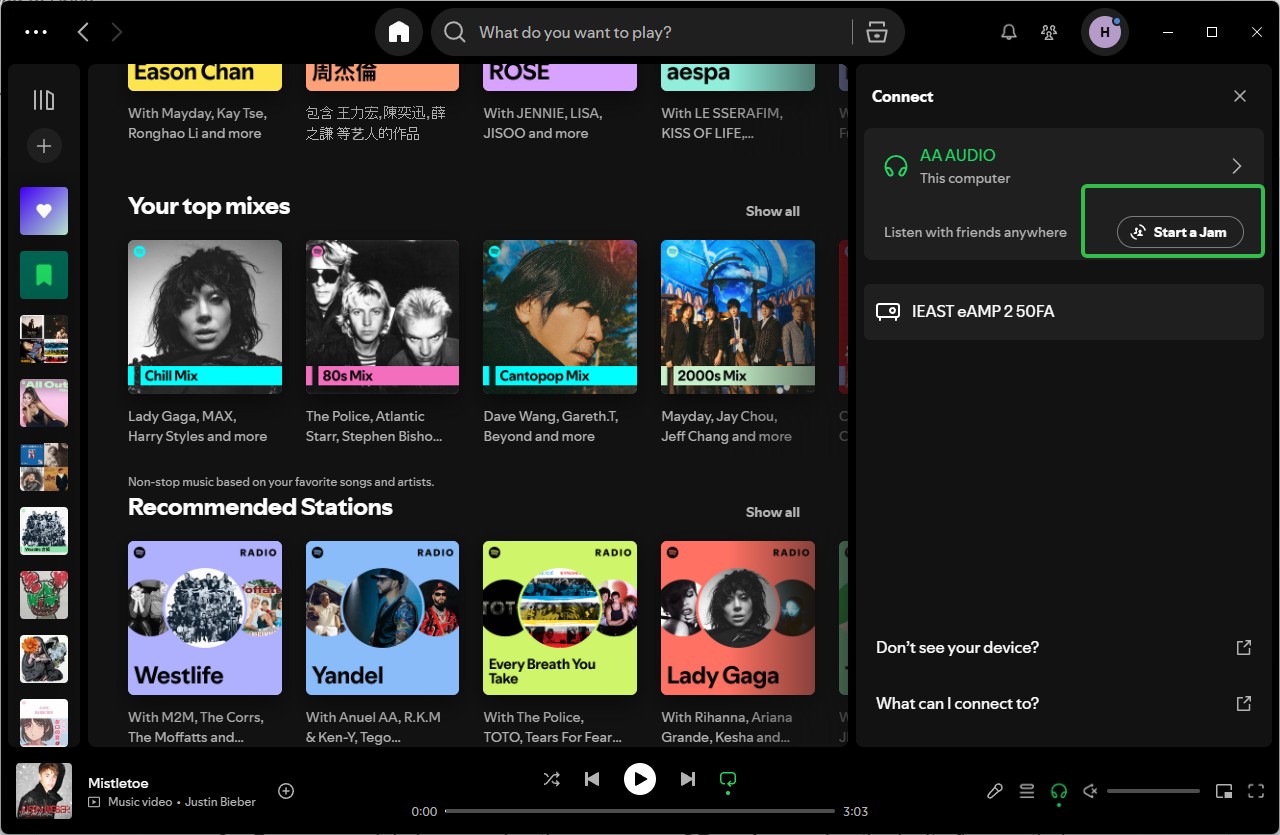
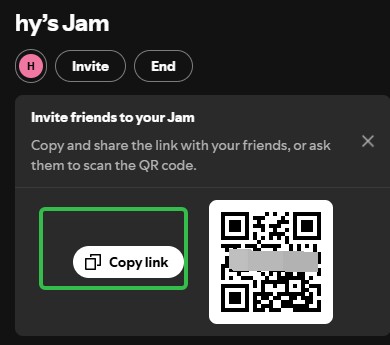
- Share the invite link (or QR code if shown) so friends can join.
Start a Jam in Android Auto
Spotify added Jam to Android Auto so drivers can start the session from the car display.
- Open Spotify through Android Auto and start playing music.
- From the Now Playing view, tap the Jam option (where available).
- Passengers join by scanning the on-screen QR code or using the invite flow on their phones.
Start a Jam in CarPlay
CarPlay has a similar entry point.
- Open Spotify in CarPlay and start playback.
- In the Now Playing view, tap Queue and Jam.
- Select Start a Jam, then invite friends (link/QR/Bluetooth) as needed.
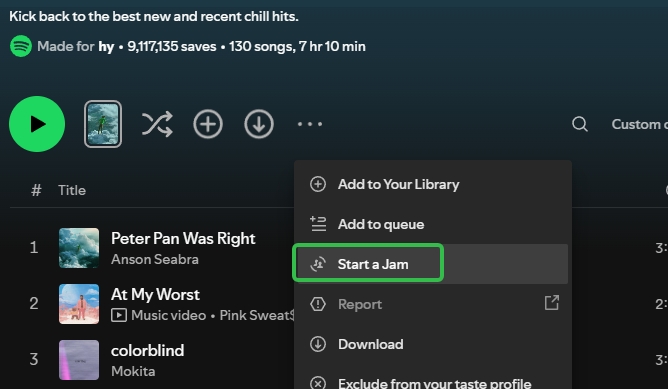
Tip: If you’re browsing and don’t want to hit play first:
- Open the playlist you want.
- Tap the three dots (…) menu.
- Select Start a Jam, then invite friends.
What people can do in a Jam
- Everyone can add tracks to the queue.
- Guests may be able to control what’s playing, unless the host restricts it.
- The host can end the jam for everyone at any time.
Join a Spotify Jam In Person or Remotely
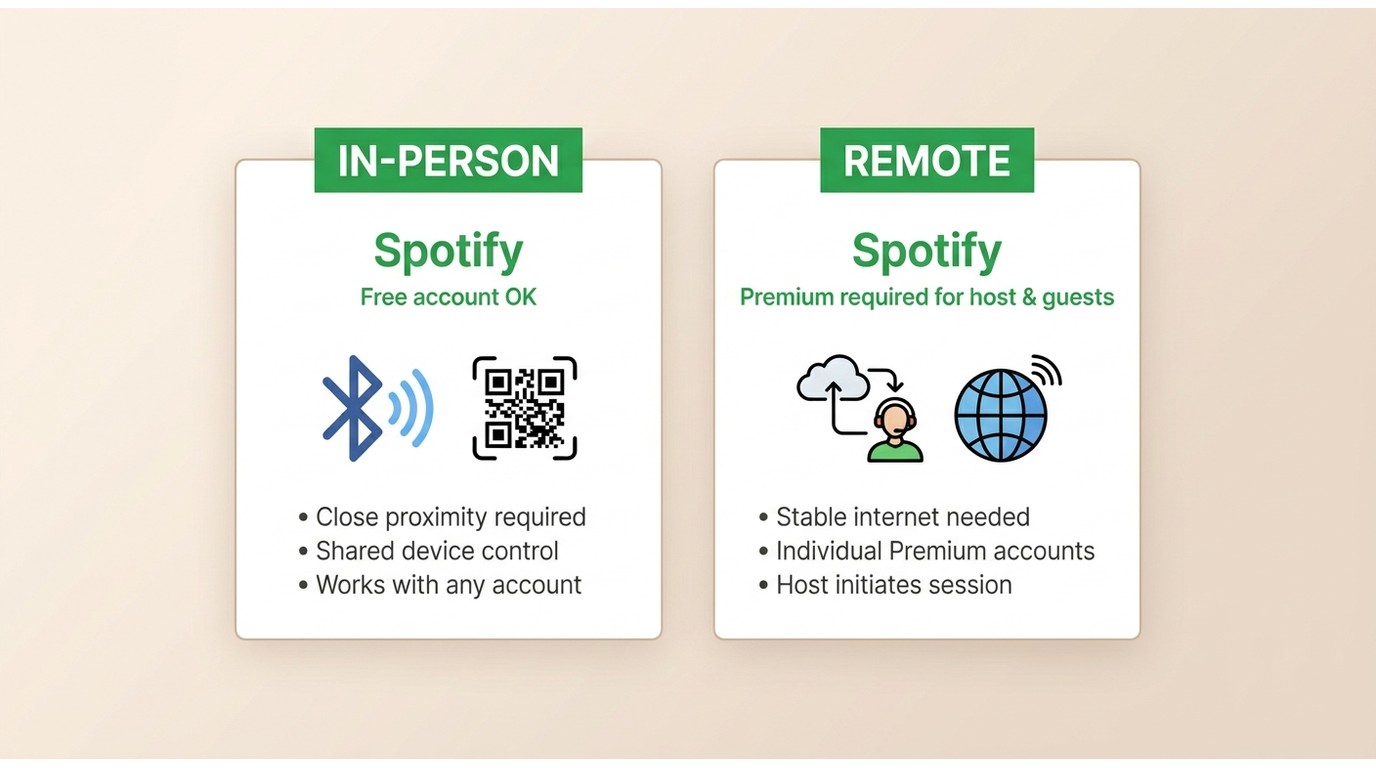
Got a link that won't open? Nine times out of ten it's an eligibility mismatch, not a bug. Here's what actually determines whether you can join:
- Tap the invite link, scan the host's QR code, or bring phones close with Bluetooth on.
- Choose In-person or Remote when prompted.
- Tap Join, then add tracks to the shared queue.
In-Person and Remote Requirements
| Scenario | Who needs Premium? | How guests join |
|---|---|---|
| In-person (same room/device) | Host: Premium required Guests: any Spotify account (Free or Premium) | QR code, nearby Bluetooth, or invite link |
| Remote (different locations) | Host: Premium required Guests: Premium required | Invite link |
My rule of thumb: if your friends are a mix of free and premium accounts, run the jam in person—remote sessions will silently exclude anyone without premium. QR codes are the fastest in-person route; nearby Bluetooth works when you're within arm's reach; the invite link is the only path that works across the country.
Spotify Jam Controls for Hosts and Guests
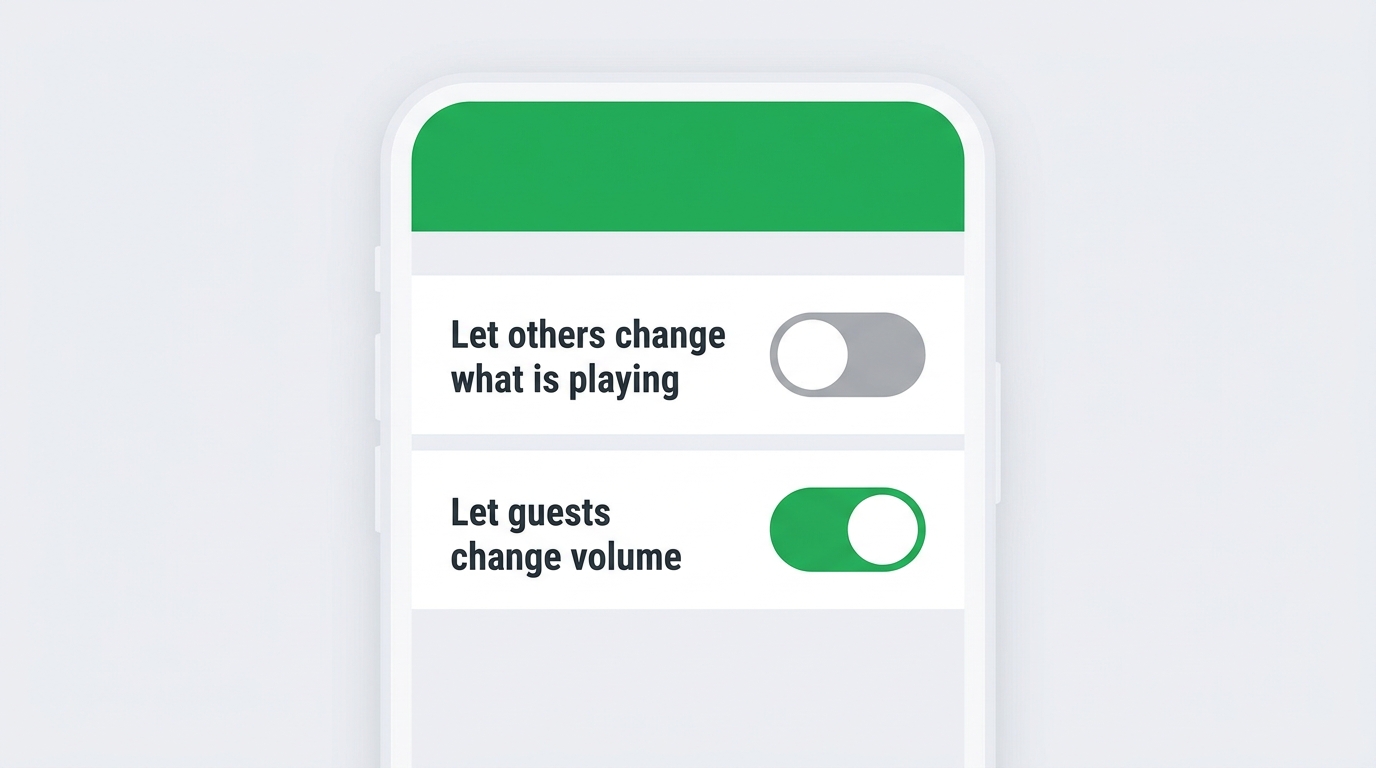
Jam works with smart speakers and most Bluetooth speakers, but what guests can actually touch depends on the host's toggles.
Manage Playback and Participants
The host decides whether guests can change what's playing. If the host turns off Let others change what's playing; guests can still add tracks to the queue but can't reorder or skip playback. For a small group of friends I usually leave controls open; for a party or a work playlist I switch to add-only within the first minute, because one enthusiastic skipper can derail the whole room.
To remove someone: open the jam, tap View Guests, then choose Remove next to a single participant or Remove all participants to clear the guest list at once.
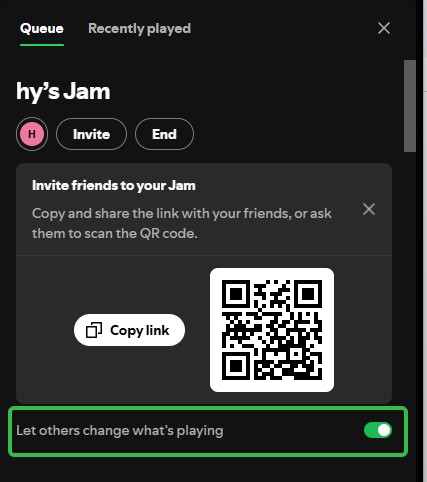
Can everyone control the volume?
Only if the host allows it, and only on supported connection types.
- The host can toggle Let guests change volume.
- Shared volume control works on Chromecast and Amazon Cast.
- Shared volume control is not available on Bluetooth devices or Apple AirPlay.
What happens if the host leaves?
If the host leaves, the jam ends for everyone—so if you’re hosting a party, don’t accidentally “leave” mid-song.
Leave or End a Spotify Jam Session
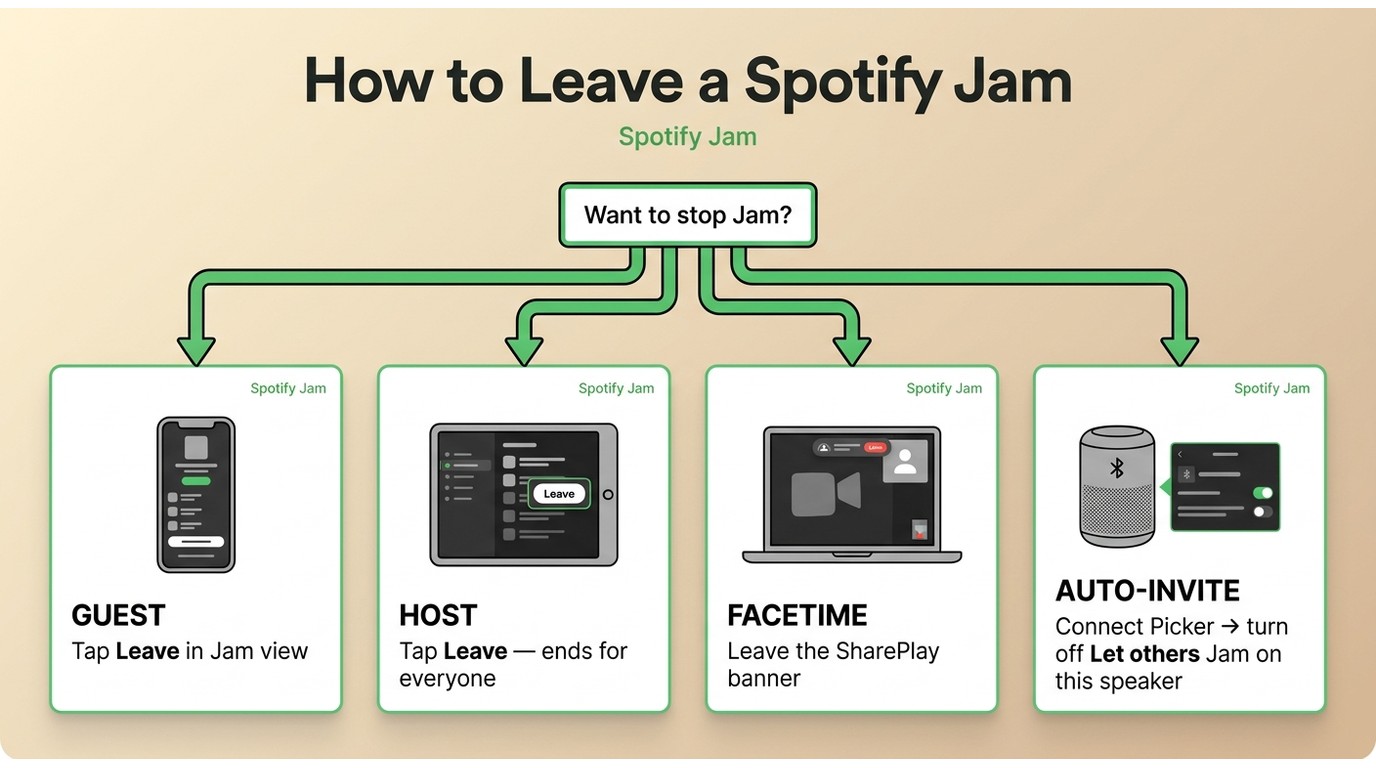
Four different tasks live under "turn off "Jam"—pick the one that matches your situation:
- Guest leaving: open the Jam view and tap Leave.
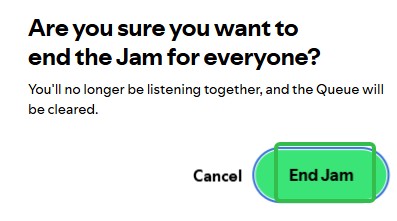
- Host ending it for everyone: Tap the current device (speaker / Connect), then tap Leave. When the host leaves, the jam ends for all guests.
- Jam started via FaceTime SharePlay: leave from the SharePlay banner, tap "Leave session" / "End session" in Spotify, or end the FaceTime call.
- Stop automatic invitations on a connected speaker: open the Connect Picker and turn off Let others Jam on this speaker. This is the official control—you no longer need to disable Bluetooth or juggle Wi-Fi networks to keep houseguests from being pulled into an unintended jam.
Fix Spotify Jam Problems
Most Jam issues trace back to account eligibility, device connection, or the invite pipeline. Work the checks in this order—it matches how the failures actually cluster.
Fast Fix Checklist
- Confirm eligibility. The host needs Premium. Remote guests need Premium; in-person guests can join on any Spotify account.
- Verify the playback device. Open Connect to a device and make sure the correct speaker is selected.
- Update and restart Spotify on host and guest devices.
- Leave and rejoin the session if playback stalls or the guest list looks stale.
- Check host invitation settings—for automatic invites on a connected speaker, the Connect Picker toggle Let others jam; this speaker must be on.
Common Issues and Fixes
- "Start a Jam" is missing → confirm an active Premium subscription and that you're connected to the right speaker or device.
- You can't join a Jam → Check that you accepted the invite, you're connected to the intended device, and—if you're joining remotely—your account is Premium. A free account trying to join remotely is the single most common cause I see.
- Guest joined but hears silence → the guest is likely on mute and joined as a remote participant. Move to an in-person Jam, or upgrade the account.
- Timestamps match, but the audio doesn't (sync drift) → have the affected guest tap Leave and rejoin. If playback is still stuck, quit and reopen Spotify on both ends, then confirm you're both on the intended session and device.
- Participants get ejected shortly after joining → have everyone update the Spotify app, then rejoin from a fresh invite link rather than a stale one.
- Automatic nearby invitations aren't appearing → this depends on the connected speaker and the host's Connect Picker setting. Not every nearby-device setup will auto-invite; fall back to a shared link or QR code, which always works.
- Guests keep skipping songs → as host, turn off Let others change what's playing to make the Jam add-only.
- Volume control isn't shared → the host has to enable Let guests change volume, and shared volume works on Chromecast and Amazon Cast but not on Bluetooth or Apple AirPlay.
Best Practices for a Smooth Session
These are the moves that pay off before anyone hits Play — think of them as the pre-flight checklist, not the recovery kit.
- Pick the right playback device first (TV, smart speaker, laptop-to-speaker setup).
- Match invite method to context: QR for in-person, link for remote, Bluetooth for small in-person groups.
- For calm collaboration, set the Jam to add-only by disabling Let others change what's playing.
Leave Without Disrupting Playback
- Hosts: Leave the Jam to end the session for the entire group.
- Guests: Always tap Leave when you're done so you don't accidentally control the host's music from your pocket later.
Spotify Jam FAQs
Q1. How long can a Spotify Jam stay active?
Spotify's official Jam documentation doesn't publish a fixed time limit. A jam continues until the host leaves or ends it, everyone else exits, or the session is closed from the Connect picker. In practice, treat the host as the on/off switch for duration.
Q2. Can I join a Spotify Jam without an invite?
Sometimes. When the host has automatic invitations turned on for a connected speaker, nearby or same-Wi-Fi devices may see a prompt. To join the session you actually want, though, ask for a link, scan the QR code, or use the deliberate nearby-phone flow with Bluetooth on.
Q3. Where can I find an active Spotify Jam?
Spotify Jam isn't a public directory — there's no browse tab of open sessions. You'll see one either through a link or QR code from the host or via a nearby Connect Picker prompt when you're on the same speaker network. A nearby pond doesn't mean the jam is open to strangers, so check with the host before joining.
Q4. Is Spotify Jam different from Group Session?
"Group Session" was Spotify's earlier name for collaborative listening. The current feature is called Jam, and it's what the app surfaces today under Connect to a device > Start a Jam. If a friend still says "group session," they mean the same shared-queue experience described in this guide.
Q5. How many people can join a Spotify Jam?
A private Jam supports a group session with the host plus additional guests. Spotify has documented a cap in the 30-person range; check the official Jam Help Center page for the current limit before planning a big party.
Q6. Can a Spotify Jam play on multiple devices?
Yes, in the sense that everyone controls one shared queue from their own phone or laptop. But playback comes out of the device the host chose in Connect to a device—a Jam isn't the same as multi-room streaming. Remote guests with Premium hear the queue through their own device; in-person guests share the host's speaker.
Conclusion on Spotify Jam
If your group is a mix of free and premium accounts, run the jam in person—that's the cleanest fit. Remote sessions are premium-only all around. Beyond that, four things cover most situations:
- Fastest start: play a song, then connect to a device → start a jam.
- Stop unwanted auto-invites at the source: Connect Picker → turn off Let others jam on this speaker.
- When playback drifts out of sync, leave and rejoin before you try anything else.
- If the queue turns into chaos, switch to add-only by disabling Let others change what's playing.

Compare each Spotify to Apple Music playlist converter by device, free transfer access, verified 2026 limits, sync options, and mismatched-track review.
By Jane Chen - Sep 22, 2026
Learn how to burn a CD from Spotify on Windows or Mac by preparing MP3/WAV files, choosing a disc type, and using free CD-burning tools.
By Jane Chen - Sep 22, 2026
This guide compares nine Spotify downloaders across browser, desktop, Android, and iOS workflows. It weighs source matching, output quality, playlist and ZIP behavior, metadata, account exposure, and tool status, then explains which option fits a single track, a long playlist, or a managed local library.
By Jane Chen - Aug 26, 2026
Spotify downloads can stall because of Premium eligibility, device limits, storage, network permissions, cache state, or a service incident. This guide gives one nine-fix recovery path, then separates iPhone, Android, Windows/Mac, Apple Watch, partial-playlist, Offline Mode, and clean-reinstall cases. It also explains when a MusicFab local-file workflow fits authorized personal use.
By Jane Chen - Aug 26, 2026