
How to Listen to Spotify Offline: Setup, Limits, Options

Summary: Spotify Premium can download music for playback inside the Spotify app, while Free accounts can download podcasts. This guide covers setup, device differences, download limits, troubleshooting, travel checks, and a portable-file option.
If you need Spotify to work after Wi-Fi and cellular data disappear, download the content while online, confirm it finishes, and cold-start the app with every radio off. That is how to listen to Spotify offline reliably, not merely how to make a green download badge appear.
The gap between “downloaded” and “actually plays offline” is where most bad travel advice fails. I think a cold-start test matters more than the download button because a stream that began online proves very little. Below, I’ll show how to save songs on Spotify for offline use, explain the Premium and device limits, and work through failed downloads in the order least likely to erase them. I’ll also separate Spotify’s app-managed downloads from portable audio files, since they solve different problems.
How to Download and Play Spotify Music Offline
If you are looking for how to listen to music offline on Spotify with Premium, the sequence is download, verify, then cold-start in Offline Mode. To listen to Spotify music offline, you need Premium, an internet connection for the initial download, enough free storage, and the Spotify app. Download an album or playlist, wait for the completed-download indicator, then enable Offline Mode and test playback without any connection.
My practical rule is simple: preparation is not finished until Spotify launches from a fully closed state and plays more than one downloaded item. That extra minute catches incomplete playlists and account problems while you still have a connection.
Check the prerequisites before downloading
Before touching the download button, confirm these basics:
- Use an eligible account. Spotify Premium is required to download music. Spotify Free can download podcasts, but not songs or music playlists.
- Use the installed app. Offline music works in Spotify’s mobile, tablet, and desktop apps, not the browser-based Web Player.
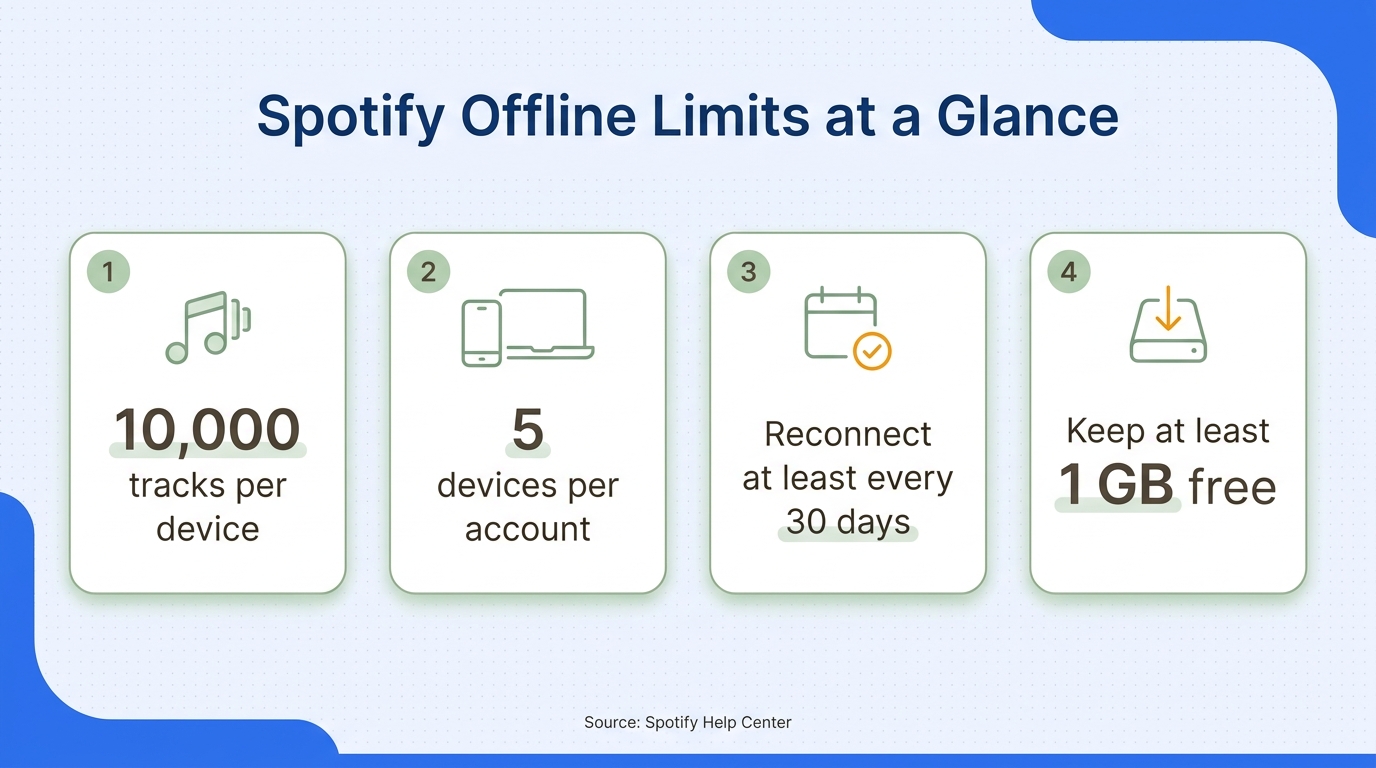
- Make room. Spotify recommends at least 1 GB of free device memory. A large high-quality library needs considerably more.
- Update Spotify. An old app can lose download recognition or fail during sync.
- Stay online and powered. Keep the app open long enough for every selected item to finish.
Spotify’s current offline-listening guidance says Premium users may download up to 10,000 tracks on each of five devices and must reconnect at least once every 30 days. Those limits are useful planning numbers, but the download-status icon beside each item is still the better check for a specific playlist.
Download an album, playlist, or podcast
Spotify does not provide a download button for an individual song. Add single tracks to a playlist first, then download that playlist.
- Open Spotify while connected to a stable Wi-Fi network.
- Go to the album, playlist, or podcast you want available offline.
- Tap or click the Download button.
- Leave Spotify open while the content syncs. Avoid battery-saving or cache-cleaning tools during this step.
- Check that the completed-download symbol appears. Open the playlist and look for any tracks that still show a pending state.
- Repeat for anything else you will need, including podcasts and a backup playlist.
If you are building a large travel library, download in smaller groups. It is easier to spot one failed album in a batch of five than one failed track inside a giant queue.
Turn on Offline Mode and verify playback
Downloads should play automatically when Spotify loses its connection, but Offline Mode is a cleaner test because it hides or grays out content that is not stored locally.
- On mobile, tap your profile picture, open Settings and privacy, choose Data-saving and offline, and switch on Offline mode.
- On a Mac, open the Spotify menu and select Offline Mode. On Windows, open the three-dot menu, choose File, then Offline Mode.
- Turn off Wi-Fi and cellular data, or enable airplane mode.
- Fully close Spotify. Remove it from the recent-apps view on a phone or quit it on desktop.
- Relaunch Spotify and play a track from the middle of a downloaded playlist.
- Skip forward, switch to a second album or podcast, and confirm playback starts without reconnecting.
That cold start is the conclusion anchor for the whole setup: if Spotify relaunches and several items play with every connection disabled, your offline library is ready.
Choose download quality without wasting storage
Higher download quality can improve listening on good headphones, but it also increases storage use and download time. Choose the setting before downloading a large library; changing it later generally means replacing the existing downloads.
For phone speakers, a commute, or spoken podcasts, the highest setting may buy little audible benefit. For wired headphones or a quiet flight, a higher setting can make more sense. My preference is to spend storage on a smaller library I have actually verified instead of filling a device with albums I will not reach. If you want a deeper breakdown of bitrate and settings, the Spotify audio quality guide explains the tradeoffs without treating a bigger file as automatic proof of better sound.
How to Use Spotify Offline on iPhone, Android, and Desktop
The shared workflow is the same on iPhone, Android, Windows, and macOS: open content in the installed Spotify app, download it while online, then use Offline Mode. The genuine differences are where the control lives and how each platform handles storage.
I would not split this into four separate tutorials. The download logic is identical; repeating it hides the few device details that can actually break your setup.
iPhone and iPad
On iPhone or iPad, open an album, playlist, or podcast and tap the download button. When the status is complete, tap your profile picture, open Settings and privacy, choose Data-saving and offline, and enable Offline mode.
iOS keeps Spotify downloads in app-managed device storage. You cannot browse them as MP3 files in the Files app or move them to another player. If iOS runs low on space, it may clear unused stored data, so leave headroom rather than filling the device to its last gigabyte.
Spotify downloads over Wi-Fi by default. If you deliberately want to use cellular data, the control sits under Data-saving and offline in the Downloads and streaming area. Watch the size of the queue before enabling it; a few high-quality playlists can use far more data than a podcast episode.
Best for: iPhone users who want the simplest official setup inside Spotify.
Not ideal for: anyone who expects the downloaded tracks to appear as transferable files in iOS Files or another music app.
Android phones and tablets
For readers asking how to listen to Spotify offline on Android, the download and Offline Mode controls follow the same mobile path. The meaningful difference is storage choice: supported Android devices can place Spotify downloads on an accessible SD card through Settings and privacy > Data-saving and offline > Storage.
That does not turn the downloads into ordinary audio files. The SD card is simply another location for Spotify’s managed data, and the app still controls playback and recognition. If the card is removed, becomes unreadable, or has less than the recommended free space, the library may disappear from Spotify until the storage problem is fixed.
When moving a large library to an SD card, let the transfer finish before closing the app or removing the card. Spotify restarts after the move. Test Offline Mode afterward instead of assuming the transfer preserved every item.
Best for: Android listeners who need more offline capacity through expandable storage.
Not ideal for: moving a Spotify cache between unrelated apps or devices.
Windows and macOS desktops
On desktop, Spotify supports playlist downloads. Open the playlist, click the download button, and wait for the completed status. macOS places Offline Mode in the top Spotify menu; Windows places it under the three-dot menu and File.
Desktop storage can be moved through Spotify’s settings, but changing the cache location does not create a portable music folder. The files remain tied to the installed app and its current account state. This distinction matters after a Windows reset, a drive change, or a Spotify reinstall.
Desktop offline playback suits a laptop used in a hotel, studio, or other low-connectivity space. It is not a path to copy Spotify downloads onto an MP3 player. For that second use case, you need music you already own or a separate, authorized workflow that produces standard local files.
Spotify Free vs. Premium: What Works Offline
Spotify Free cannot download music for offline playback. Free accounts can download podcasts, while Premium adds offline downloads for albums, playlists, and podcasts in the Spotify app.
The useful distinction is not “free trick versus paid trick.” It is whether you need offline Spotify music, downloadable podcasts, or local audio you already have the right to use.
What Spotify Free can save for offline use
On a Free account, a missing download control on an album or music playlist is expected behavior, not an app fault. Spotify’s official help page limits Free downloads to podcasts. You can still stream music when connected, but the app will not prepare those songs for offline playback.
A Reddit user in r/ask_privacy captured the confusion directly: “I was trying to download some songs but I wasn't able to figure out how to do it so I need some advice on that. is it even possible to download the songs if I am using free spotify?” The answer for Spotify music is no. Upgrading the app, clearing the cache, or hunting through settings will not reveal a music-download switch on a Free account.
What Premium adds for music and playlists
Premium enables music downloads within Spotify’s supported apps. It also keeps those downloads dependent on the account, periodic online validation, device limits, and the app’s managed storage.
That is a good fit when you mainly listen in Spotify and want albums ready for commutes or flights. It is less suitable when your goal is to move tracks into a different player, archive a folder by artist, or use hardware without a Spotify app. Premium solves offline access inside Spotify; it does not sell you ordinary copies of the catalog.
What legitimate no-cost options can and cannot do
If the real query is “where can I listen to music offline for free,” the clean options are narrower than many search results imply. You can download eligible podcasts in Spotify Free, play local music files you already own, use legally offered downloads from artists or libraries, or evaluate a bounded software trial with an active source-platform subscription.
None of those choices turns Spotify Premium music downloads into free, independent files. The guide to downloading Spotify music to a phone without Premium covers the distinction between owned files, official Spotify access, and converter-based options in more detail. My take is blunt: if a method’s main promise is avoiding the subscription itself, it is answering the wrong problem and creating a bigger one.
Spotify Download Limits: Storage, Expiration, and App-Bound Files
Spotify offline downloads are encrypted, app-managed data, not ordinary audio files you can open, rename, or move into any player. Their availability depends on Spotify recognizing the files, the signed-in account, the app installation, and periodic online checks.
This storage model is the missing piece behind many “where did my downloads go?” questions. Once you understand it, reinstall failures and copied-cache folders stop looking mysterious.
Why Spotify downloads stay inside the app
Spotify stores downloads for playback through Spotify. On iPhone, the company explicitly describes them as encrypted data in device storage. Android and desktop can offer more control over storage location, but location is not the same as portability.
You therefore cannot treat the download directory as an album collection, drag it into another music player, or expect filenames and folders to behave like a normal MP3 library. If you need help locating and managing the cache itself, this explanation of where Spotify saves music maps the common device locations while keeping that app-bound distinction clear.
Why account, app, and connectivity checks matter
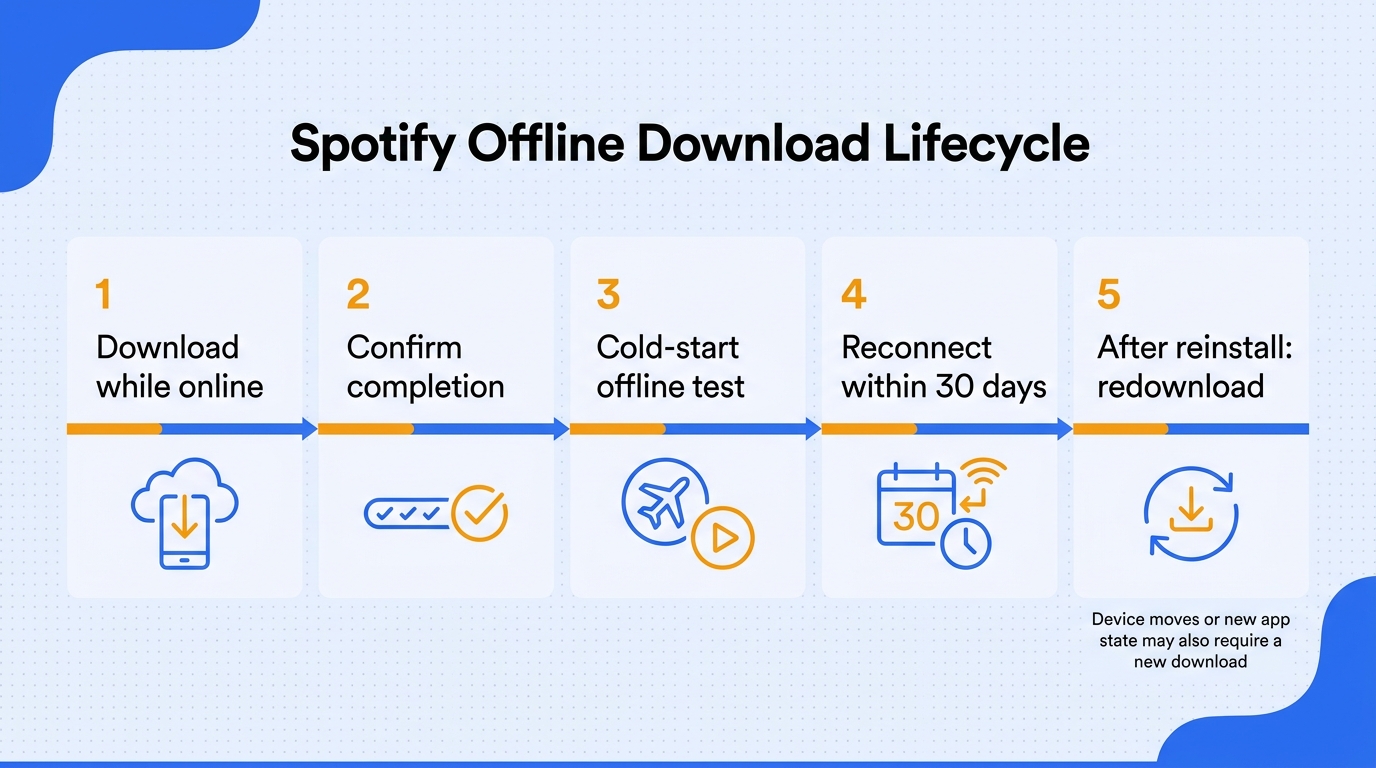
Spotify requires the app to reconnect at least once every 30 days so it can validate access and collect play data used to compensate artists. Downloads may also disappear if the app is out of date, the device limit is exceeded, the SD card fails, or the account no longer has the required access.
That is why Offline Mode is not the same as permanent disconnection. It is a managed offline window inside a continuing service relationship. I see this as a reasonable fit for convenience, but a poor fit for anyone building a device-independent archive.
What changes after an app reinstall or device move
Reinstalling Spotify removes downloaded music and podcasts, and Spotify says they must be downloaded again. Copying an old cache folder back to the same path may not restore recognition because the new app state still needs to associate that data with the installation and account.
A Reddit user in r/truespotify described the failure precisely: “Before reinstalling, I already had a large number of Spotify songs downloaded to a specific folder on my drive. Now, when I try to set that folder again in Spotify's settings, none of the downloaded songs show up—not even in Offline Mode.” The practical lesson is to treat reinstalling as a destructive troubleshooting step, not routine cleanup.
Using MusicFab Spotify Converter for Portable Offline Files
A standard local audio file solves a different problem from Spotify Offline Mode: it can play in compatible local players outside Spotify’s cache. That option is relevant when portability matters more than staying entirely inside the Spotify app.
Please note: MusicFab Spotify Converter is a third-party desktop converter relative to Spotify’s official download feature. Use it with an active Spotify subscription for personal, authorized offline use, subject to Spotify’s terms and applicable law; do not redistribute the resulting files.
When a portable file solves a different problem
MusicFab Spotify Converter runs on Windows and macOS and uses a direct-source workflow rather than waiting through one-to-one playback capture. Its verified maximum is up to 20x conversion, although actual speed depends on the computer, network, selected content, and service response.
This route makes sense for a desktop user who needs a compatible local file for an MP3 player, a local library manager, or another device that cannot run Spotify. It does not remove the need for legitimate Spotify access, and it carries a separate software cost. My verdict is that portability is the reason to consider it; buying another tool merely to imitate Spotify’s own Offline Mode would be unnecessary.
Convert a playlist with the built-in Spotify browser
The built-in browser keeps the selection and conversion flow in one desktop app:
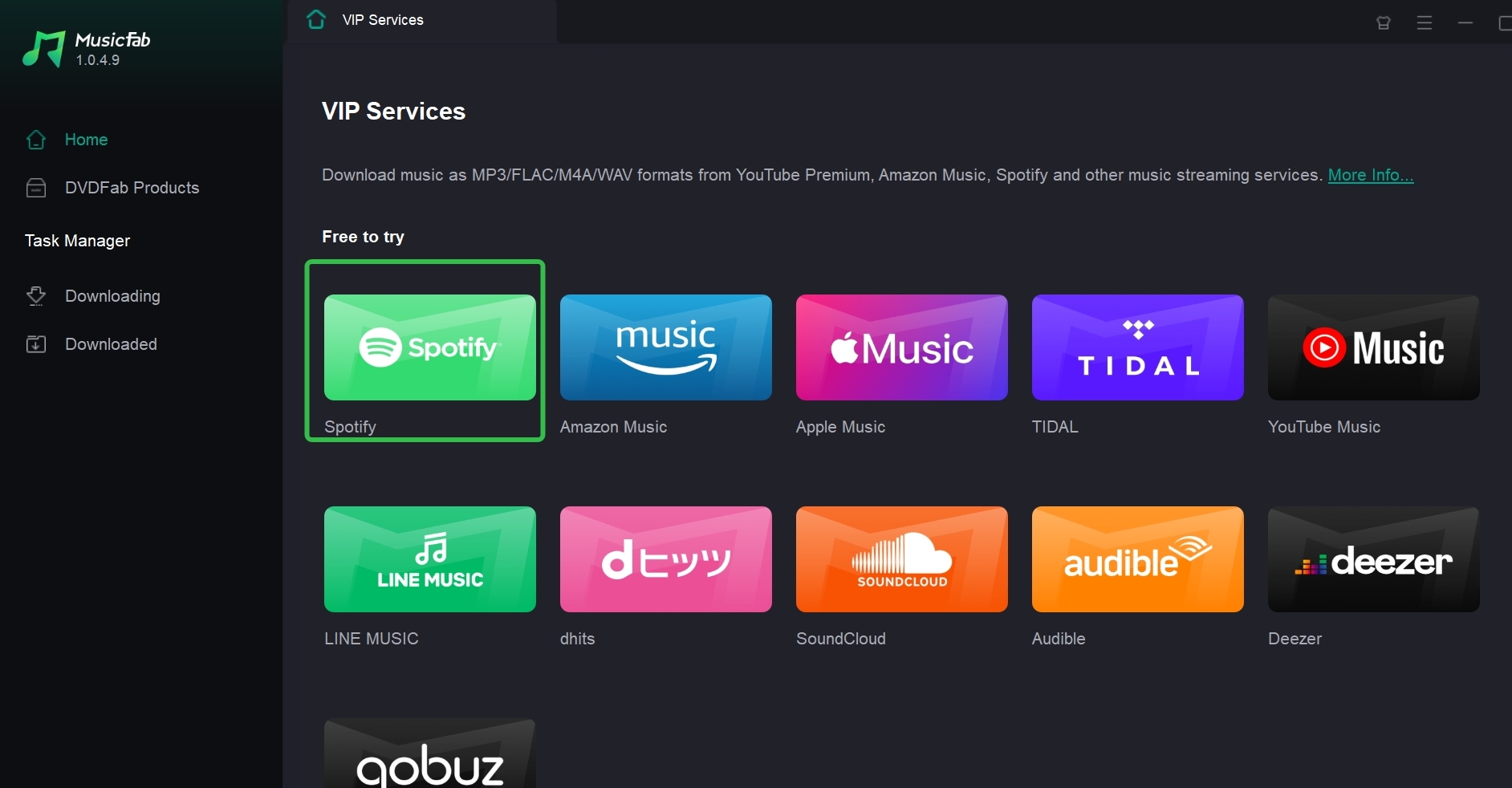
- Install MusicFab Spotify Converter from MusicFab’s official site on Windows or Mac.
- Open its built-in Spotify browser and sign in to the Spotify account with access to the music.
- Open the album or playlist you want to prepare for personal offline use.
- Select the tracks, output format, quality, metadata, and destination folder.
- Start the batch conversion and let the queue finish.
- Open several finished files in the actual player and device you plan to use.
The last step matters. A successful conversion queue proves that files were created; opening them on the destination device proves that the chosen format works there. The Spotify MP3 player guide can help match file formats to hardware that does not have a native Spotify app.
Choose format, quality, tags, and lyrics
MusicFab Spotify Converter is a Windows and macOS desktop app that batch-converts Spotify playlists to MP3, M4A (AAC), WAV, FLAC, or OPUS at up to 320 kbps, with ID3 tags, cover art, track numbers, and optional .lrc lyrics retained.
Choose MP3 for broad compatibility, M4A for efficient playback on modern devices, WAV for an uncompressed container, FLAC for lossless storage of the converted result, and OPUS for efficient supported players. A FLAC or WAV container cannot add detail that was not present in Spotify’s source stream. That point gets blurred far too often: format choice controls compatibility and storage behavior, not a magical upgrade beyond the source.
Evaluate the trial and price before committing
MusicFab offers a 30-day trial that converts three complete songs per service, which is enough to check the full playback path, tags, cover art, lyrics, and device compatibility. As of August 2026, MusicFab Spotify Converter costs $65.99 per year or $89.99 for a lifetime license. Paid licenses raise the working limit to as many as 300 songs per streaming service per day.
Use the trial to check metadata, cover art, lyrics, and the destination player. The desktop installation and Spotify sign-in make it a poor fit for phone-only users or anyone satisfied with Spotify’s in-app downloads.
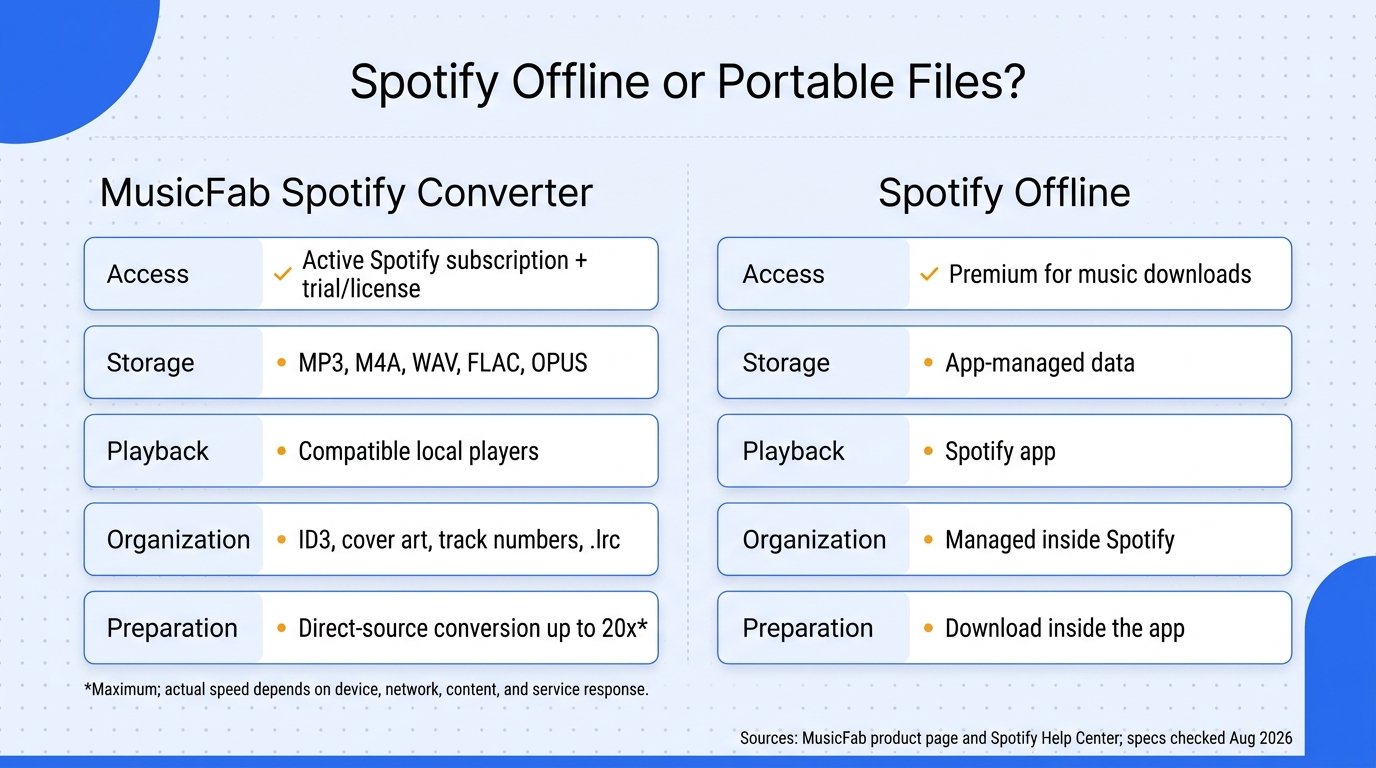
| Decision Point | Spotify Offline | MusicFab Spotify Converter |
|---|---|---|
| Access Requirement | Premium for music downloads | Active Spotify subscription plus trial or license |
| Storage Model | App-managed offline data | MP3, M4A, WAV, FLAC, or OPUS files |
| Playback Location | Spotify app | Compatible local audio players |
| Library Organization | Managed inside Spotify | ID3 tags, cover art, track numbers, .lrc lyrics |
| Preparation Method | Download inside Spotify | Direct-source conversion up to 20x, environment dependent |
Source: MusicFab’s official product page and Spotify’s Help Center, as of August 2026.
The practical upshot is not that one column is universally better. Spotify Offline is simpler for Spotify listeners; MusicFab adds value when file compatibility and library organization justify a separate desktop workflow and cost.
Why Spotify Downloads Will Not Play Offline
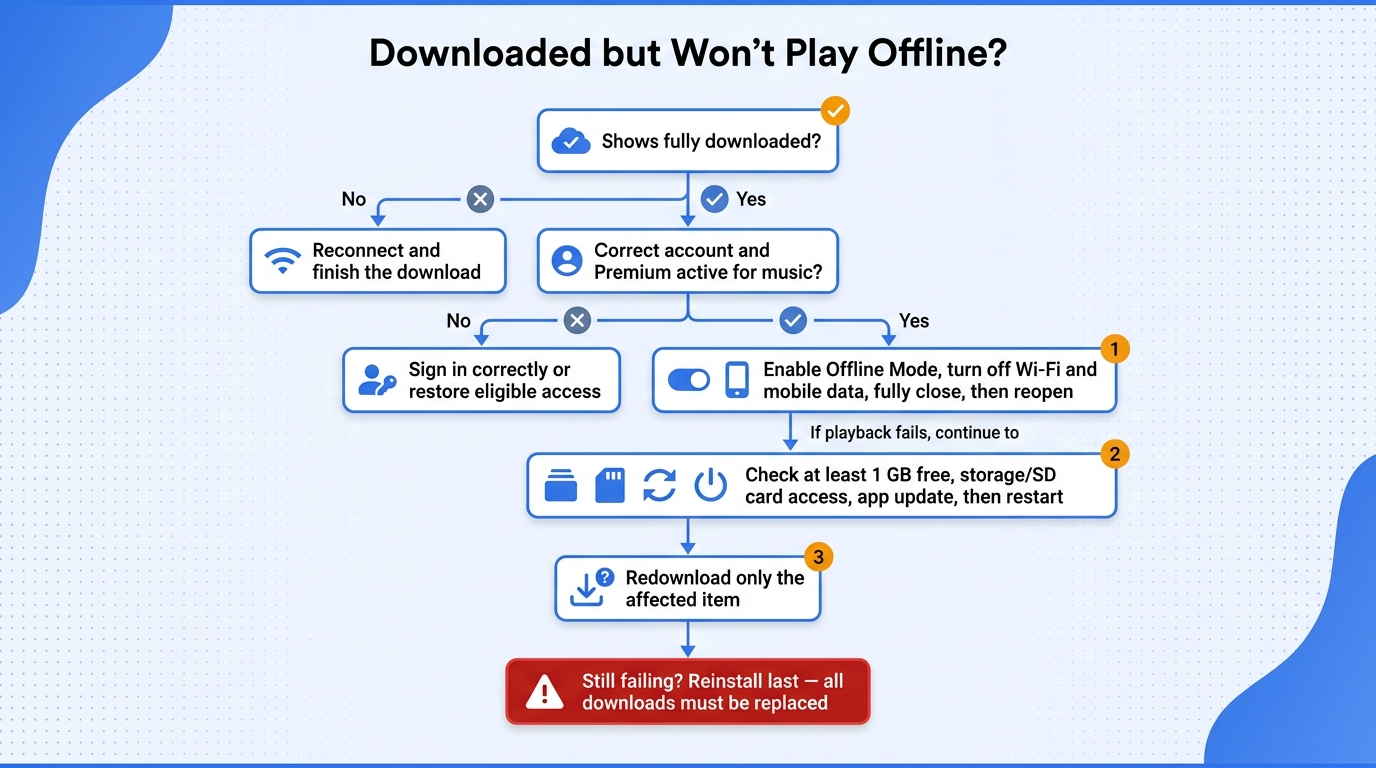
When Spotify marks content as downloaded but will not play it offline, check the download state, account, Offline Mode, storage, app status, and permissions in that order. Redownload the affected content before considering a full reinstall, because reinstalling removes all managed downloads.
Reinstall-first advice is backwards. It destroys the evidence and the cache you are trying to diagnose, so I reserve it for the end.
Confirm the download finished on the correct account
Open the affected album or playlist while online and inspect the status of individual items. One pending track can look like a broken playlist when the rest is available. Confirm that you are signed into the same account and that Premium is active if the failed content is music.
Also check whether the item was removed, replaced, or made unavailable in your region. If only one song fails while the rest of the library works, the problem is probably that item rather than Offline Mode as a whole.
Force a true offline test before clearing data
A true test starts from zero connectivity, not from a song that began streaming online. One Samsung Galaxy A55 owner in r/truespotify described the telltale symptom: “Songs will not play if my Samsung Galaxy A55 is offline (wifi switched off or out of signal range). Songs will play just fine if I start playing the playlist before wifi is disabled or signal is lost.”
Test in this order:
- Enable Spotify’s Offline Mode.
- Turn off Wi-Fi and mobile data.
- Fully close Spotify.
- Reopen it from a cold start.
- Open Your Library and select downloaded content.
- Play a middle track, skip forward, then open a second download.
If playback works only when it begins online, the download may be incomplete or the app may be falling back to the stream. Do not count that as offline success.
Check storage, cache, app state, and permissions
Work from the least destructive fix to the most disruptive:
- Free enough storage to leave at least Spotify’s recommended 1 GB of headroom.
- Disable battery-saving or cache-cleaning apps long enough to test Spotify.
- Confirm that Spotify can access its selected storage location and that an Android SD card is mounted correctly.
- Restart Spotify, then restart the device.
- Update Spotify through the official app store or desktop installer.
- Sign out and back in only after confirming you know the account credentials and can reconnect.
Clear the cache only if the app still behaves incorrectly. Cache and downloads are not identical, but aggressive cleanup tools can disrupt files or state Spotify needs. Change one thing at a time, then repeat the cold-start test so you know which action helped.
Redownload affected items and reinstall only last
If a single playlist fails, remove that download, restart Spotify, and download the playlist again on a stable connection. Check every item before going offline. If several downloads fail, update the app and reauthenticate the account before replacing the full library.
Use reinstalling as the final escalation:
- Note every playlist, album, and podcast you need offline.
- Confirm that you can sign in again.
- Reinstall Spotify from its official source.
- Redownload the required content while online.
- Repeat the full cold-start test.
Spotify’s help page is explicit that a reinstall requires downloads to be replaced. That cost is why “delete and reinstall” is not a harmless first suggestion.
A Preflight Checklist for Spotify Offline Travel
Before a flight or dead-zone trip, finish every download on a stable connection, enable Offline Mode or airplane mode, fully close Spotify, and verify a cold start. Test track changes, podcasts, headphones, and every device you plan to carry.
A green badge is an inventory signal, not a readiness certificate. In my view, the only useful preflight is a rehearsal of the exact no-signal condition.
Finish downloads on a stable connection
Prepare the library while you still have reliable Wi-Fi, power, and time to fix it:
- Update Spotify and confirm the correct Premium account.
- Free storage and connect the device to power.
- Download complete playlists, albums, and podcast episodes.
- Open each collection and look for pending items.
- Add a smaller backup playlist in case a large queue has a hidden gap.
If you are traveling for more than a few weeks, reconnect before departure so the account’s 30-day validation window is fresh. Do not schedule a major app update or reinstall on the way to the airport.
Simulate the exact no-signal environment
Enable airplane mode, then separately confirm Wi-Fi is off if the device automatically re-enables it. Turn on Spotify’s Offline Mode, close the app completely, reopen it, and navigate from the home screen to the downloaded library.
This catches a common false positive: playback that continues because it buffered while the device was still online. A traveler in r/mildlyinfuriating described downloading podcasts and albums, then finding that “most of the podcasts and albums wouldn’t work, despite showing as downloaded.” The cold-start rehearsal is designed for that exact failure.
Test track changes, podcasts, and every travel device
Do not stop after the first song. Skip forward, jump to the middle of an album, start a podcast episode, lock the screen, reconnect Bluetooth headphones, and test playback controls. A library can pass one cached track and still fail on the next request.
Repeat the test independently on a phone, tablet, laptop, or watch. Apple Watch downloads have their own sync state, storage, and Bluetooth requirements; a successful phone test says nothing about the watch. If you prepared authorized local files for a compatible player, open them on that player too, not merely on the computer that created them.
Best for: anyone who will lose service and cannot troubleshoot later.
Not ideal for: last-minute downloading at the gate, where weak Wi-Fi and low battery leave no time for a second test.
Conclusion
Use Spotify Premium downloads when you are happy to stay inside the Spotify app. Troubleshoot the official downloads when they already exist but fail a cold start; choose portable local files when a compatible player or device-independent library is the real requirement and you accept the extra desktop workflow, cost, and usage boundaries.
My fit verdict: do not buy portability when you need convenience, and do not expect convenience-focused app downloads to behave like a personal file library. Pick the storage model first, then follow the setup that matches it.
Run the cold-start test now. If Spotify passes, stop there; if your destination cannot run Spotify, use MusicFab’s three-song trial to verify the local-file workflow before choosing a license.
FAQs
Does Spotify Offline work on Apple Watch without your phone?
Spotify Premium can play music downloaded to a supported Apple Watch without the iPhone nearby. Complete the watch download and pair Bluetooth headphones before leaving. If sync stalls at “waiting,” keep Spotify open on the watch and retry over Wi-Fi, then test in airplane mode.
Can Spotify downloads be stored on an SD card or external drive?
Android can store Spotify downloads on an accessible SD card, and desktop Spotify can change its storage location. Those files remain managed by Spotify and are not transferable audio tracks. An SD card failure, cache move, reinstall, or new app state can require a redownload. Choose external storage for capacity, not portability. If you need files another player can read, Spotify’s cache is the wrong storage model.
How often must Spotify reconnect to keep downloads available?
Spotify requires an online connection at least once every 30 days. The check validates the account and allows Spotify to collect play data used to compensate artists. Reconnect before a long trip rather than waiting until the deadline is close.
Does Spotify Offline use mobile data on a plane or abroad?
True Offline Mode plays downloaded content without mobile data. Airplane mode also disables cellular service, though Wi-Fi may be turned back on separately. If Offline Mode is off and a connection becomes available, Spotify may stream content that was not downloaded, so use the setting when data control matters. Before a flight, finish albums and podcasts on stable Wi-Fi, then close and relaunch Spotify in airplane mode and test track changes. That is the quickest way to catch a download that looks ready but is not.
What rules apply when saving Spotify music as local files for personal use?
A converter may conflict with Spotify’s Terms of Use even when the files are kept private. Copyright risk is a separate issue: redistribution, resale, public sharing, or commercial use can create consequences beyond a platform-account dispute. Personal copying rules vary by jurisdiction, so keep an active subscription, save only content you are authorized to access, limit use to your own offline listening, and consult Spotify’s terms and local law for the rules that apply to you.

Compare each Spotify to Apple Music playlist converter by device, free transfer access, verified 2026 limits, sync options, and mismatched-track review.
By Jane Chen - Sep 22, 2026
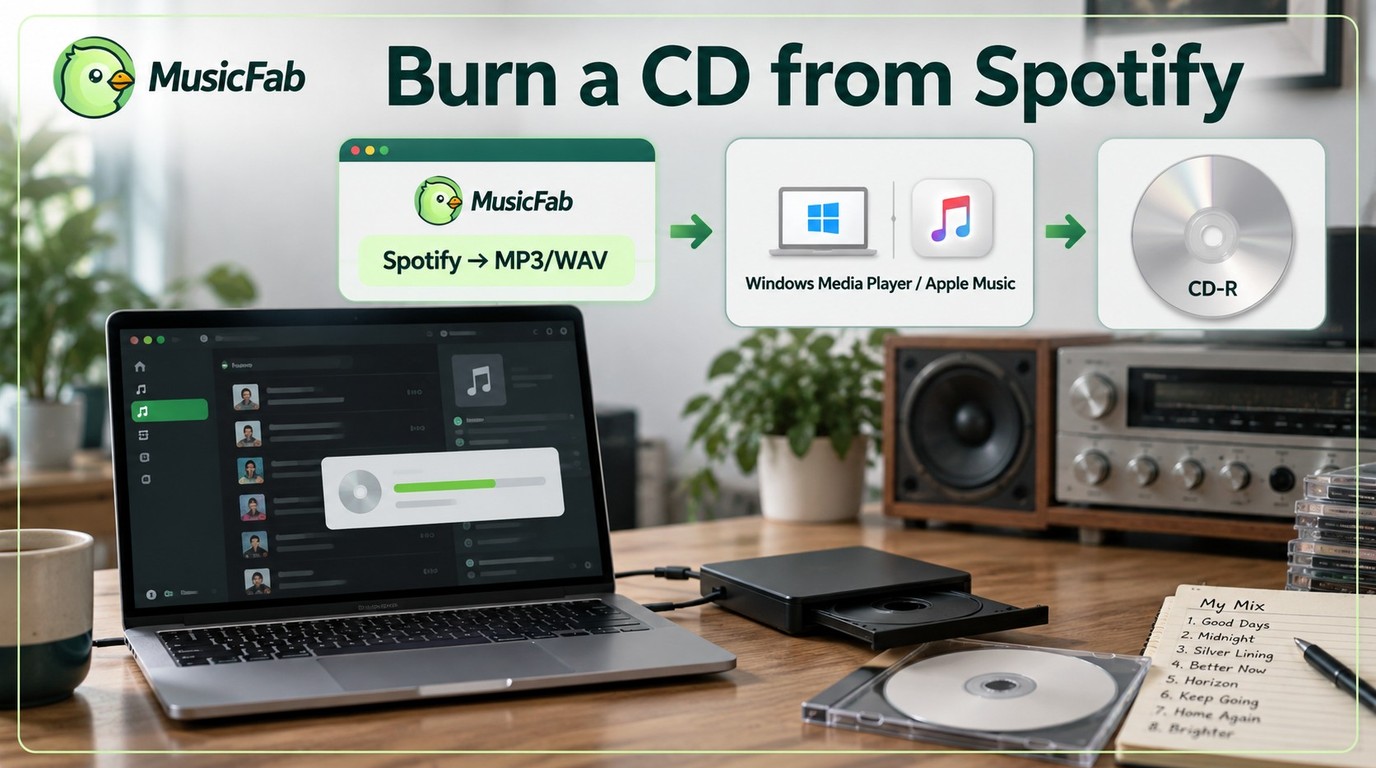
Learn how to burn a CD from Spotify on Windows or Mac by preparing MP3/WAV files, choosing a disc type, and using free CD-burning tools.
By Jane Chen - Sep 22, 2026
This guide compares nine Spotify downloaders across browser, desktop, Android, and iOS workflows. It weighs source matching, output quality, playlist and ZIP behavior, metadata, account exposure, and tool status, then explains which option fits a single track, a long playlist, or a managed local library.
By Jane Chen - Aug 26, 2026
Spotify downloads can stall because of Premium eligibility, device limits, storage, network permissions, cache state, or a service incident. This guide gives one nine-fix recovery path, then separates iPhone, Android, Windows/Mac, Apple Watch, partial-playlist, Offline Mode, and clean-reinstall cases. It also explains when a MusicFab local-file workflow fits authorized personal use.
By Jane Chen - Aug 26, 2026