
Spotify Web Player Not Working? Fix Chrome, Firefox, and Edge

Ever hit Play on open.spotify.com and gotten nothing but a spinner, a black screen, or a silent Play button? That's the exact moment most people search for a Spotify Web Player fix, and the good news is the usual culprits are few: a Widevine or protected-content toggle, cookies, an extension in the way, or a work or school network quietly blocking the pieces the player needs. Below I'll walk through a 60-second symptom check, then the current Chrome, Firefox, and Edge paths, and a network fallback for the black-screen case.
Quick Fixes for Spotify Web Player Problems
Before touching a single setting, I'd run the fastest control test you can: a clean private window on the same computer. If the player works there, the fault is local (an extension, stale site data, or a DRM toggle), not Spotify. The Spotify Web Player on open.spotify.com usually fails due to one of four things: an outage, protected content (Widevine/DRM) being blocked, extensions or corrupted site data, or network restrictions on work or school Wi-Fi.
Use the 60-second checklist, then follow the browser steps:
- Check Spotify's Ongoing Issues page or @SpotifyStatus.
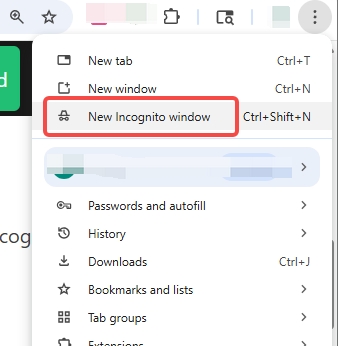
- Open the web player in an incognito or private window.
- If the player stalls in an ad-skip loop, use that private window (or temporarily turn an extension off) as a control test, then turn the extension back on afterward. This is diagnostic, not a way to avoid ads.
- Clear cookies and site data for open.Spotify.com, then sign in again.
- If you see a "protected content" error, enable Widevine/DRM (see the browser paths below).
- Try a mobile hotspot to rule out a work or school network block.
One clean private-window test is more informative than clearing every setting at once, because it tells you whether to keep digging on your machine or move on to the network.
Why Spotify Web Player Stops Working
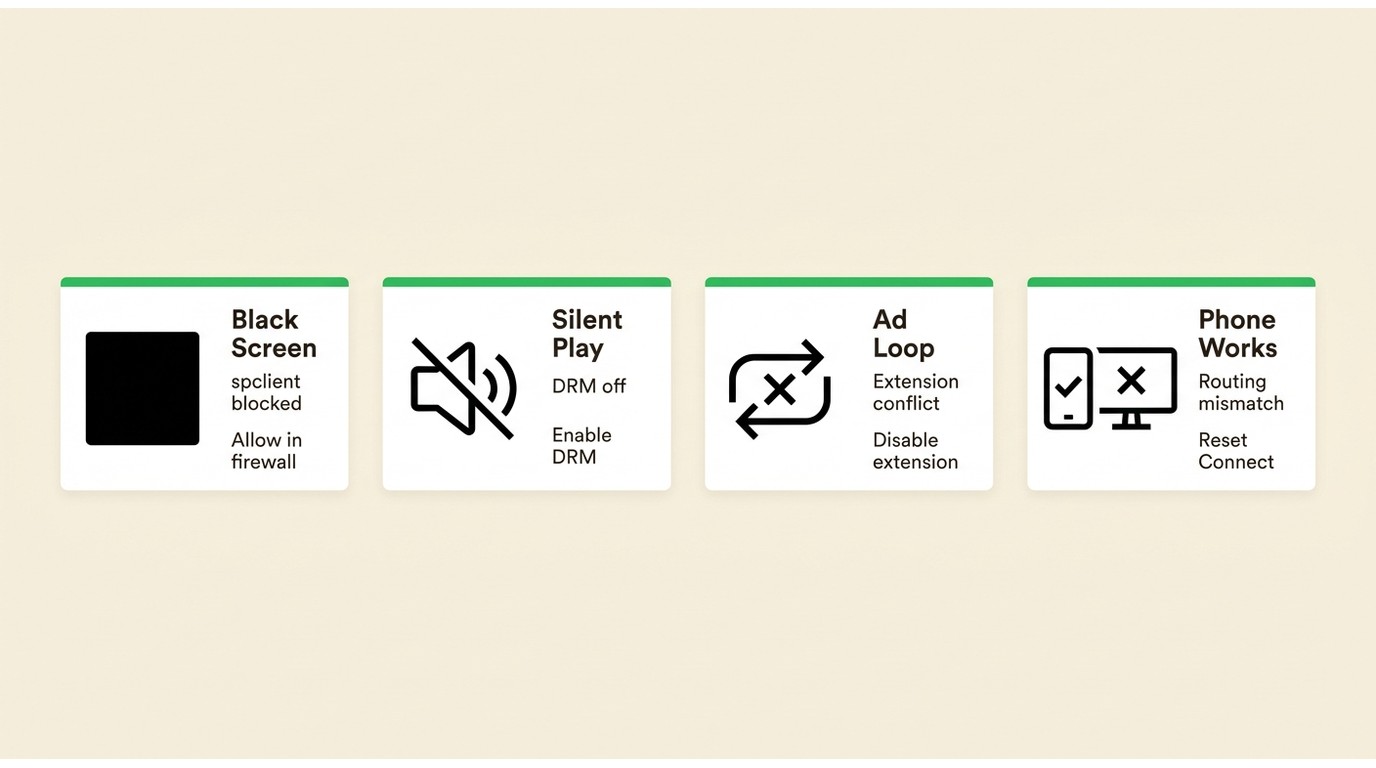
Different failure modes point to different first tests. Instead of a flat cause list, match the symptom you actually see to the single test that tells you the most, then decide whether to keep going in the browser or move on to the network.
| Visible symptom | Likely cause | First control test | Next fix |
|---|---|---|---|
| Black or blank screen after login | An endpoint like spclient.wg.Spotify.com blocked by hosts, Pi-hole, DNS filter, or firewall | Switch to a mobile hotspot and reload | Temporarily allow the endpoint, retest, then restore the rule |
| Page loads but Play does nothing | Protected content off, or a silent DRM failure | Try a private window with extensions off | Enable DRM/protected content in your browser, then clear Spotify site data |
| Ad-skip loop | An extension interfering with ad handling | Reload in a private window with extensions off | Re-enable the extension after testing; treat this as a control test, not a workaround |
| Works on phone but not on computer | Spotify Connect routed playback to another device | Open Devices in Spotify and check the current target | Select "This web browser" to return control to the tab |
| "Protected content" or "Can't play this" error | Widevine/DRM disabled or a supported-browser boundary | Open the same track in a supported browser on the same computer | Enable protected content in the current browser, or fall back to Chrome or Edge |
| Login loop or stuck loading | Cookies blocked, strict tracking protection, or corrupted site data | Add site exceptions and clear Spotify cookies | Sign out and back in; test a different network if the loop returns |
If I had to pick two tests that separate cases fastest, it's these: a clean supported browser on the same computer and the same page on a different network (a phone hotspot works fine). Almost every case sorts itself into "browser-local" or "network" once you've run both.
Browser Fixes for Spotify Web Player
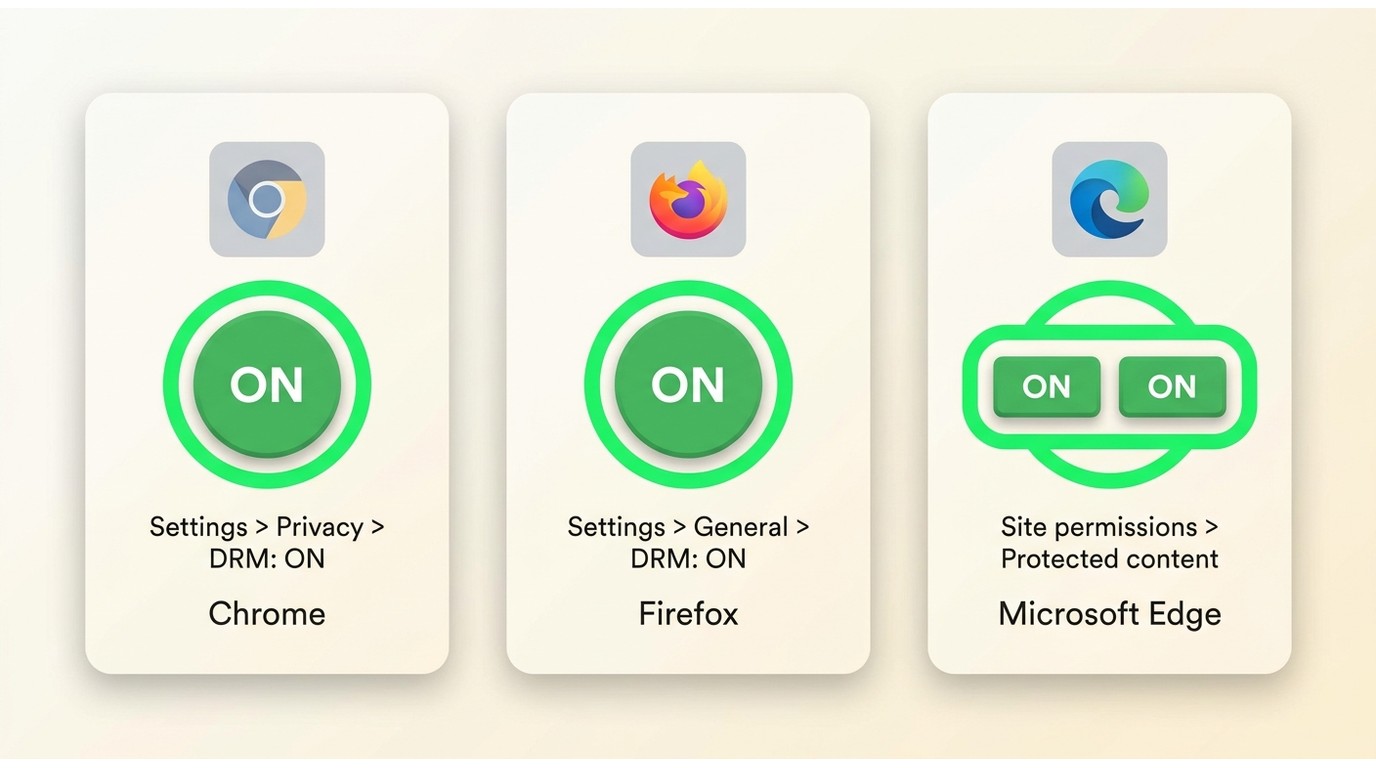
If the symptom points to your machine, work through the browser paths below. I put protected content first because it's the single toggle that resolves the largest share of "page loads, nothing plays" cases I run into.
Protected Content and Secure Playback
Spotify Web Player requires protected-content playback in the browser. The current paths:
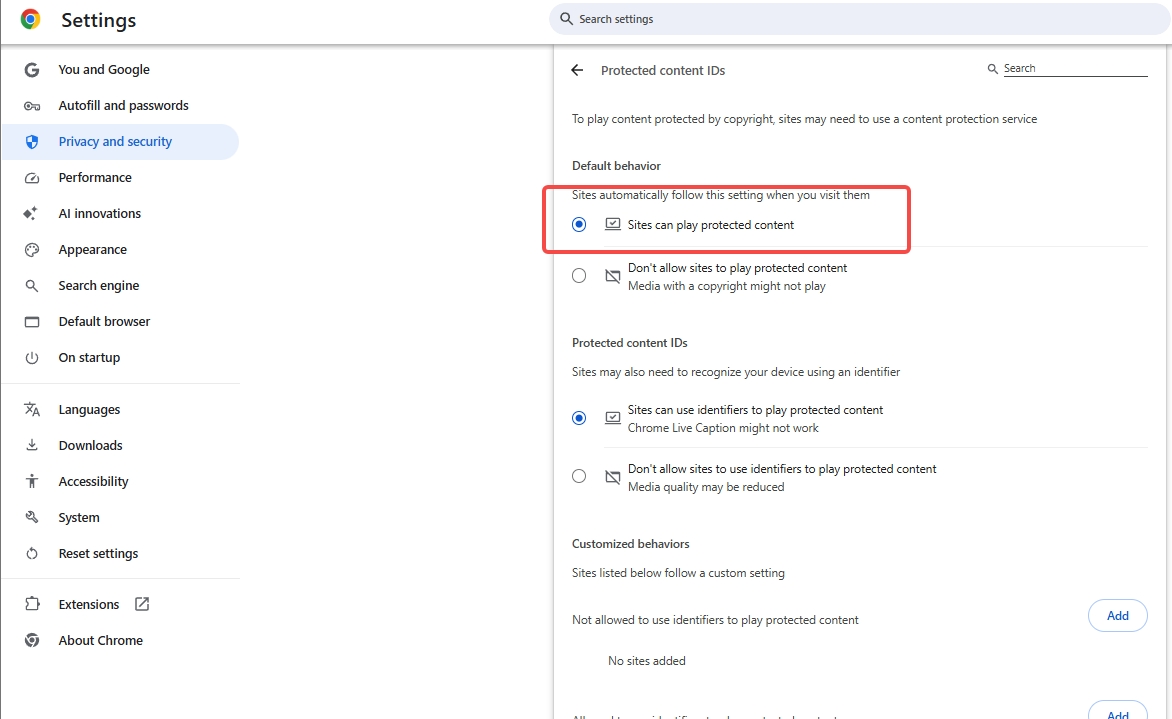
- Chrome: Settings › Privacy and security › Site settings › Additional content settings › Protected content IDs → Sites can play protected content.
- Edge: Settings › Cookies and site permissions › Protected content IDs → Allow sites to play protected content.
- Firefox: Settings › General › DRM content → Play DRM-controlled content. If Firefox shows a yellow "Enable DRM" prompt at the top of the Spotify tab, use that prompt and reload.
This block fixes the classic "protected content" and silent play button cases. If DRM is already on and playback still fails, don't keep toggling it — jump to a supported-browser control test (Chrome or Edge) on the same computer.
Chrome (Windows/macOS/Chromebook)
Go top to bottom and test playback after each step.
Step 1: Confirm protected content is on (see the block above), then restart Chrome.
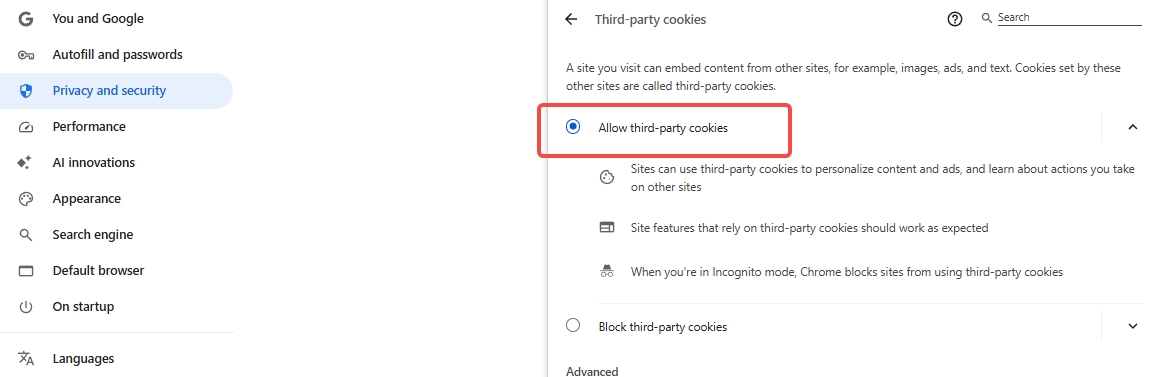
Step 2: Allow cookies for Spotify:
- Settings > Privacy and security > Cookies and other site data → allow cookies/site data for Spotify: Settings → Privacy & security → Cookies and other site data → Add site exceptions for open.spotify.com and accounts.spotify.com → Sign out/in once.
Step 3: Disable extensions for a minute.
- Visit Chrome://extensions → turn off ad-blockers, privacy tools, and script blockers > Hard refresh the Web Player (Ctrl/Cmd + Shift + R).
Step 4: Reset site data.
- Click the lock icon → Site settings > Clear data, or use chrome://settings/clearBrowserData and remove cookies/cache for Spotify.
Firefox
- Enable DRM content.
- Open Settings › General, find DRM content, and turn on "Play DRM-controlled content." If a yellow "Enable DRM" prompt appears on the Spotify tab, use that prompt and reload.
- Cookies and Enhanced Tracking Protection.
- Settings › Privacy & Security → Set Standard, or keep Strict and add Exceptions for open.spotify.com and accounts.spotify.com. Sign in again.
- If the page loads but Play does nothing after DRM is on, run this order: private window → disable ad and privacy add-ons (about:addons) → clear Spotify site data (Settings › Privacy & Security › Cookies and Site Data › Manage Data) → test the same page in Chrome or Edge on the same computer. Silent play-button failure in Firefox is a known pain point, and the supported-browser control test usually tells you within a minute whether it's Firefox or your account.
Microsoft Edge
- Confirm protected content is allowed (see the block above), then restart Edge.
- Cookies and tracking prevention.
- Settings › Cookies and site permissions › Manage and delete cookies and site data → add site exceptions for Spotify (or temporarily allow third-party cookies while testing).
- Tracking prevention: set balanced while testing.
- Turn off ad-blocker and privacy extensions, then hard refresh the player.
- Reset site data if needed and sign in again.
Switch Playback to This Web Browser
If Spotify plays on your phone or another computer but the tab in front of you stays silent, Spotify Connect has probably routed playback elsewhere. Open the Devices menu in the web player and pick "This web browser" to bring control back to the tab. This works the same way across Chrome, Firefox, and Edge — it's a routing fix, not a DRM or network fix, so use it when a different device is clearly playing, not when every device fails.
Safari, Opera GX, Zen, and Other Browsers
Spotify publishes a supported-browser list, and derivative or niche browsers sit outside it. If the current one won't play:
- Safari: update Safari, disable content blockers on Spotify pages, allow cross-site tracking for testing, and clear website data for Spotify. If playback stays inconsistent, compare with Chrome or Edge on the same Mac.
- Opera GX: If protected playback fails in Opera GX but works in Chrome on the same computer, the fault is browser-specific—check the Opera GX profile and its protected-content component before you touch the account or network.
- Zen Browser: Reports of Spotify failing in Zen even when DRM and Widevine look enabled are common. If Zen fails but another supported browser on the same computer works, treat this as a browser boundary rather than an account or network problem.
The pattern is the same for any derivative browser: a same-device test in a browser from Spotify's supported list is the fastest way to separate a browser boundary from a real account or network issue.
Network and Windows Fixes
Once you've ruled out the browser, the two remaining suspects are the network in front of you and Windows itself. Both are worth a quick, reversible test before you assume the account is broken.
Black Screen, Network, and Firewall Checks
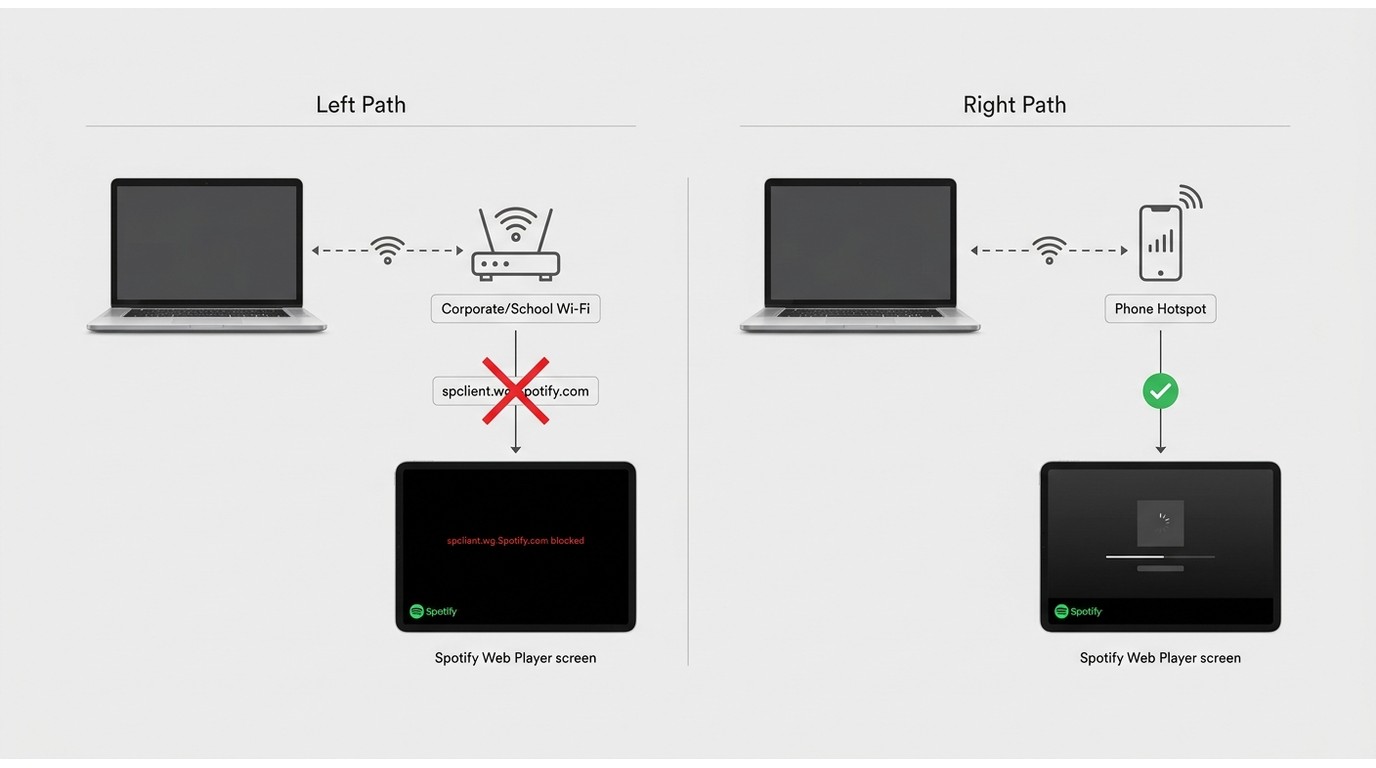
Corporate and school networks often inspect or block traffic that streaming sites need. Connect your computer to a mobile hotspot. If the player works there, your usual network is the issue.
The specific black-screen case is worth a mention: a post-login black screen can happen when a hosts file, Pi-hole, DNS filter, or firewall is blocking spclient.wg.Spotify.com. Temporarily allow the endpoint, retest, and restore the previous rule if it doesn't change the result—that keeps the test reversible.
Other things to try:
- VPN or proxy: turn it off or change location. Some VPNs break sign-in or the WebSocket connections the Web Player relies on.
- For IT admins: permit secure connections (HTTPS and WSS) to Spotify's playback and account services, and avoid SSL inspection on those endpoints, since inspection can break real-time control and playback signaling.
Install the Windows Media Feature Pack
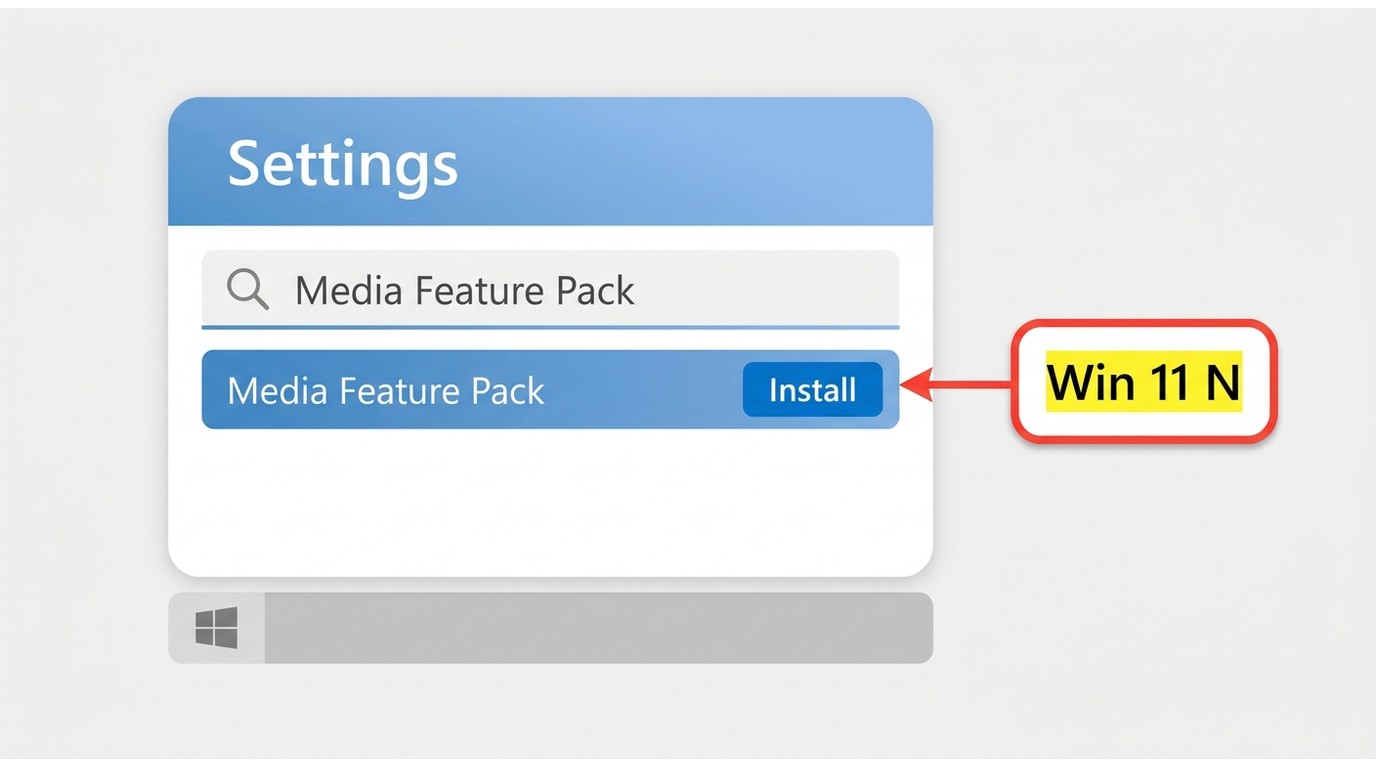
Windows N editions don’t include media components by default. If you use this version, you need to install the Media Feature Pack, reboot, and try again.
Check your edition first:
- Go to Settings › System › About and look under Windows specifications. If you see “Windows 11/10 (Home/Pro) N," you’re on an N edition.
- Alternatively, press Win+R, type winver, and confirm the edition shown.
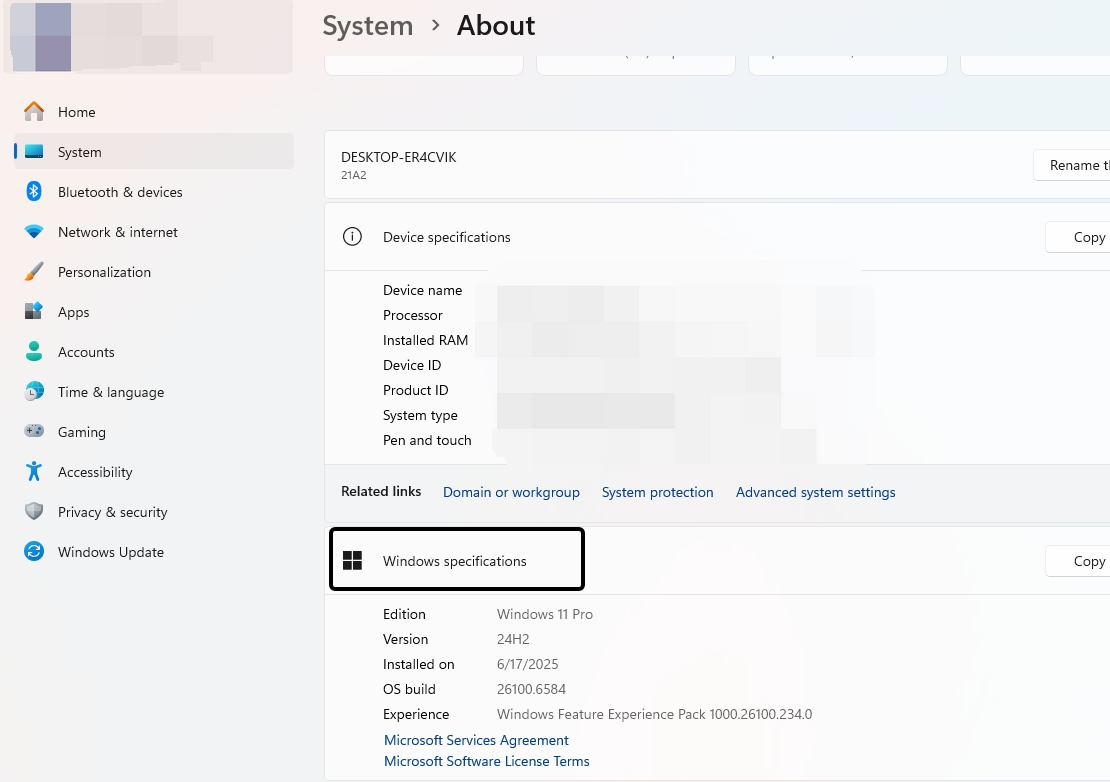
To install the media feature pack:
- Open Settings.
- Go to Apps › Optional features.
- Click "View features" next to "Add an optional feature."
- Search for Media Feature Pack.
- Select it, click Next › Install.
- Restart your PC when prompted, then retry playback.
Conclusion: Choose A Desktop Alternative When Browser Fixes Fail
For content you're authorized to access, where permitted by Spotify's terms and applicable law. MusicFab doesn't repair the web player—it's a different way to reach music you've already paid for by keeping a local copy on your own computer.
MusicFab Spotify Converter runs on Windows and Mac and uses a built-in browser so you can sign in and pull tracks directly, without depending on the open.spotify.com tab that keeps breaking; the same flow covers downloading music from Spotify as albums, playlists, or single songs. It outputs MP3 up to 320 kbps and other common formats while preserving the Spotify audio quality of the original stream, so a saved file sounds like what you'd hear in the app. Best for Windows and Mac listeners who want a stable local-copy workflow with an active subscription; it's not the right tool if you only need to repair the web player or if you need a mobile-only solution.
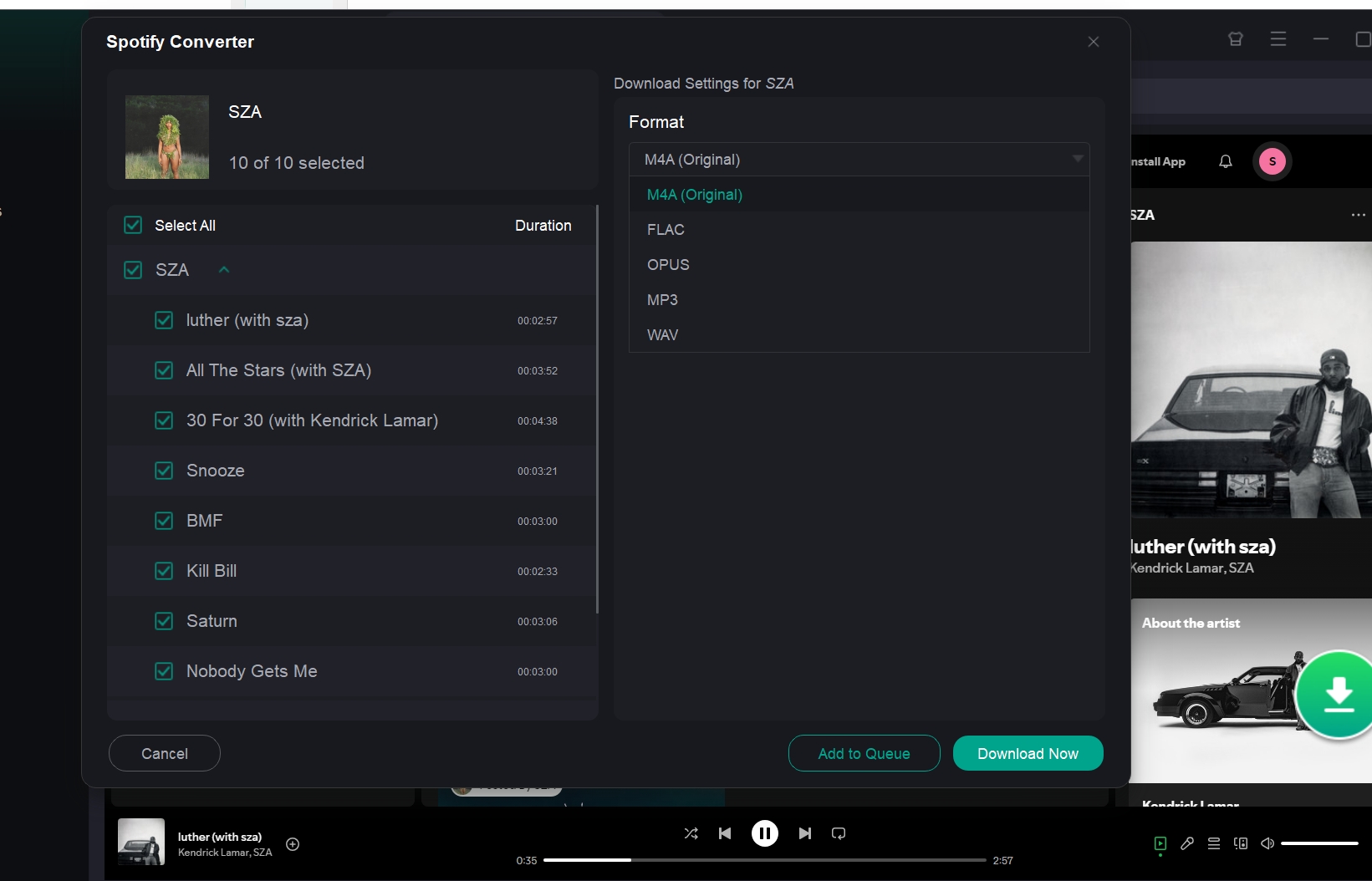
For a detailed MusicFab review and how to use it, head to our post.
FAQs
Q1. Is Spotify down or is my browser the problem?
Run three fast checks in this order: look at Spotify's Ongoing Issues page and @SpotifyStatus, open the player in a private window, and then reload it on a mobile hotspot. If all three fail, it's a Spotify-side incident. If only your regular browser or network fails, the issue is local—continue with the browser, extension, DRM, or network steps in the sections above.
Q2. Why can't Spotify play this right now?
The message often reflects playback routing rather than the track itself. Open Devices in Spotify Connect and select "This web browser," then check your system audio output. If it still won't play, test the same track in a private window with extensions off; if that succeeds, stale site data or an extension is the cause.
Q3. Can I use the Spotify Web Player on a phone?
Support is limited. Mobile browsers often lack the desktop DRM and protected-content menu paths this article relies on, so a phone browser is not a reliable place to troubleshoot playback. Use the Spotify mobile app for listening on a phone, and reserve the web player fixes for a supported desktop browser as your control test.
Q4. What if DRM is enabled but playback still fails?
Don't keep toggling DRM. Escalate in this order instead: open the same track in a supported browser on the same computer, then a private window, then with all extensions disabled, then after clearing Spotify site data, and finally on a different network. Silent play-button failure—common in Firefox after a DRM change—usually resolves at the supported-browser or site-data step.

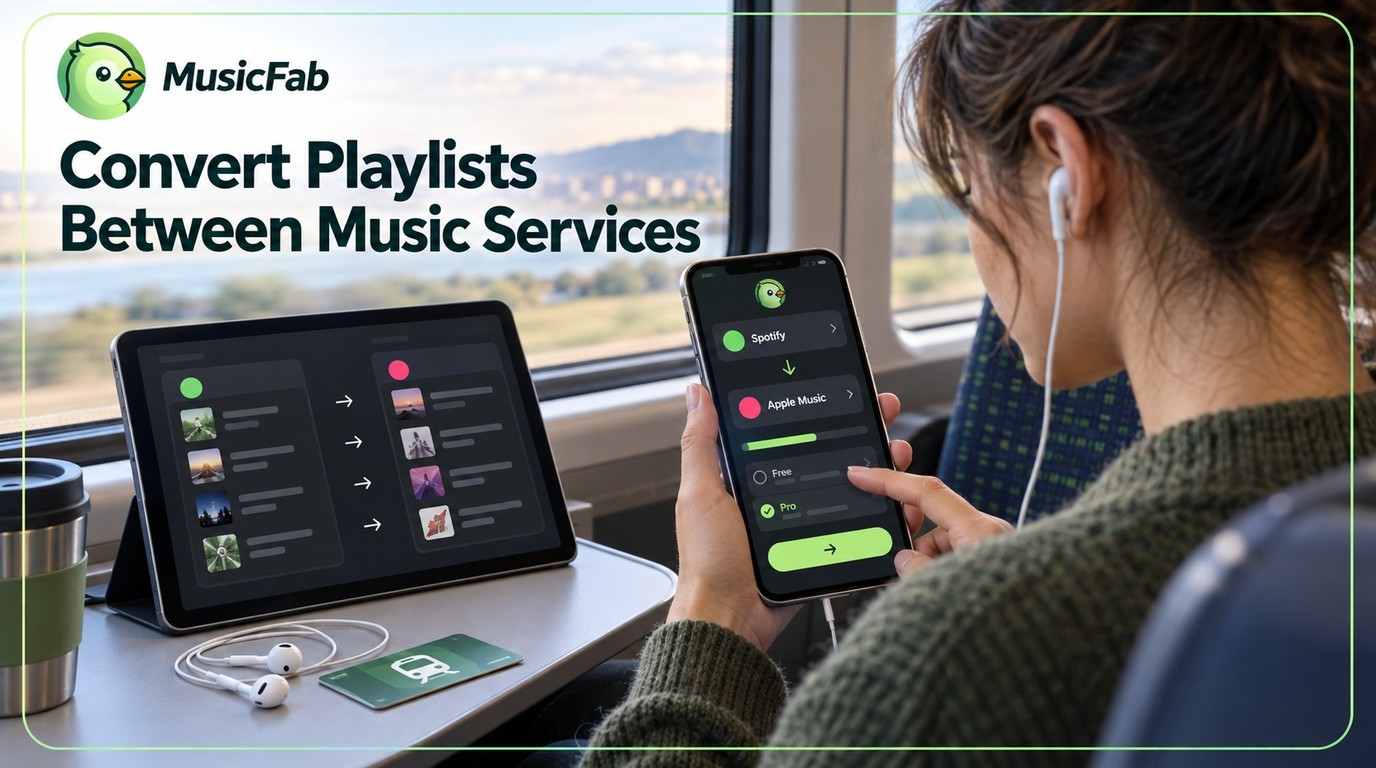
Compare each Spotify to Apple Music playlist converter by device, free transfer access, verified 2026 limits, sync options, and mismatched-track review.
By Jane Chen - Sep 22, 2026
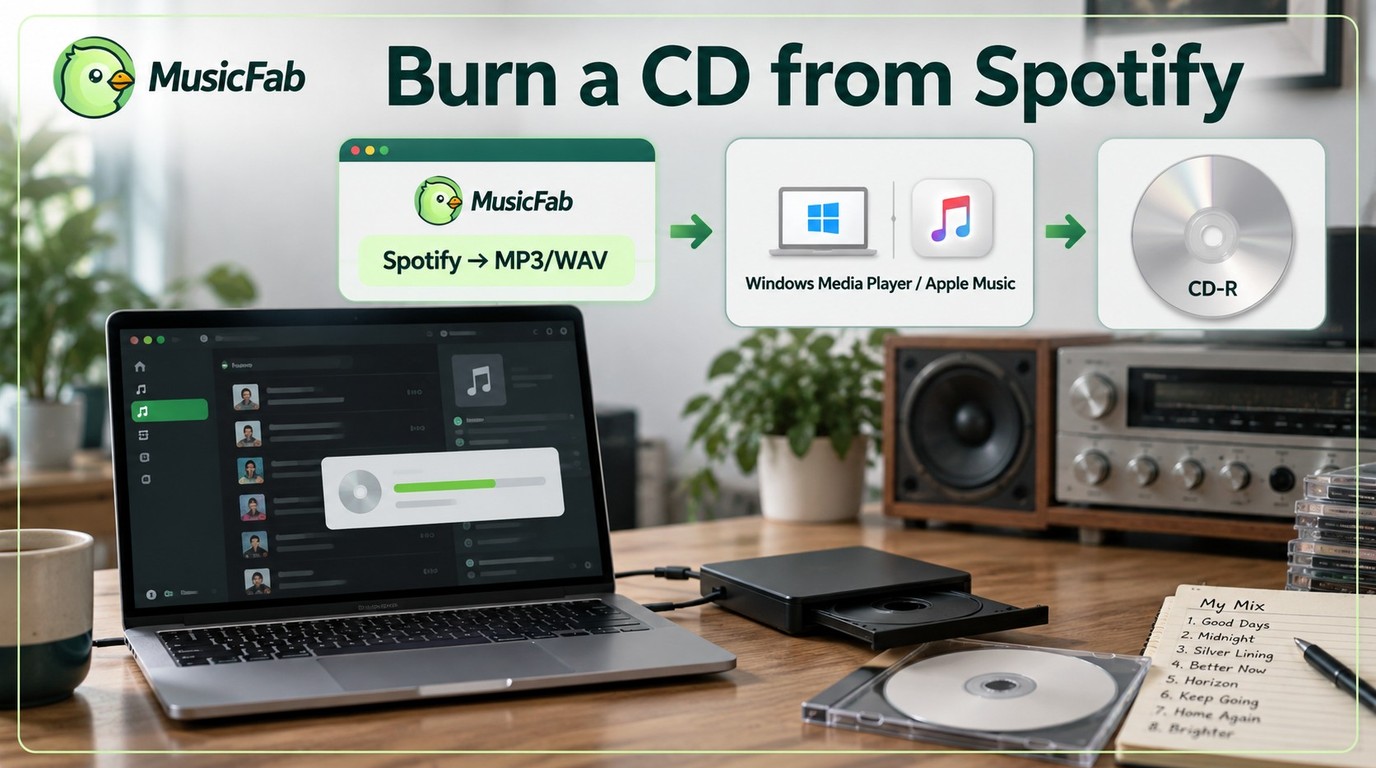
Learn how to burn a CD from Spotify on Windows or Mac by preparing MP3/WAV files, choosing a disc type, and using free CD-burning tools.
By Jane Chen - Sep 22, 2026
This guide compares nine Spotify downloaders across browser, desktop, Android, and iOS workflows. It weighs source matching, output quality, playlist and ZIP behavior, metadata, account exposure, and tool status, then explains which option fits a single track, a long playlist, or a managed local library.
By Jane Chen - Aug 26, 2026
Spotify downloads can stall because of Premium eligibility, device limits, storage, network permissions, cache state, or a service incident. This guide gives one nine-fix recovery path, then separates iPhone, Android, Windows/Mac, Apple Watch, partial-playlist, Offline Mode, and clean-reinstall cases. It also explains when a MusicFab local-file workflow fits authorized personal use.
By Jane Chen - Aug 26, 2026