Spotify Playback Paused While Transmitting Audio: Fixes & Limits

Summary: Reduce unwanted Spotify pauses by checking Discord microphone activity and choosing the right input mode. Understand the trade-offs for Listen Along, distinguish immediate mobile pauses, and assess a separate local-music workflow.
Table of Contents
Adjust Discord Voice Settings to Reduce Unwanted Auto-Pauses
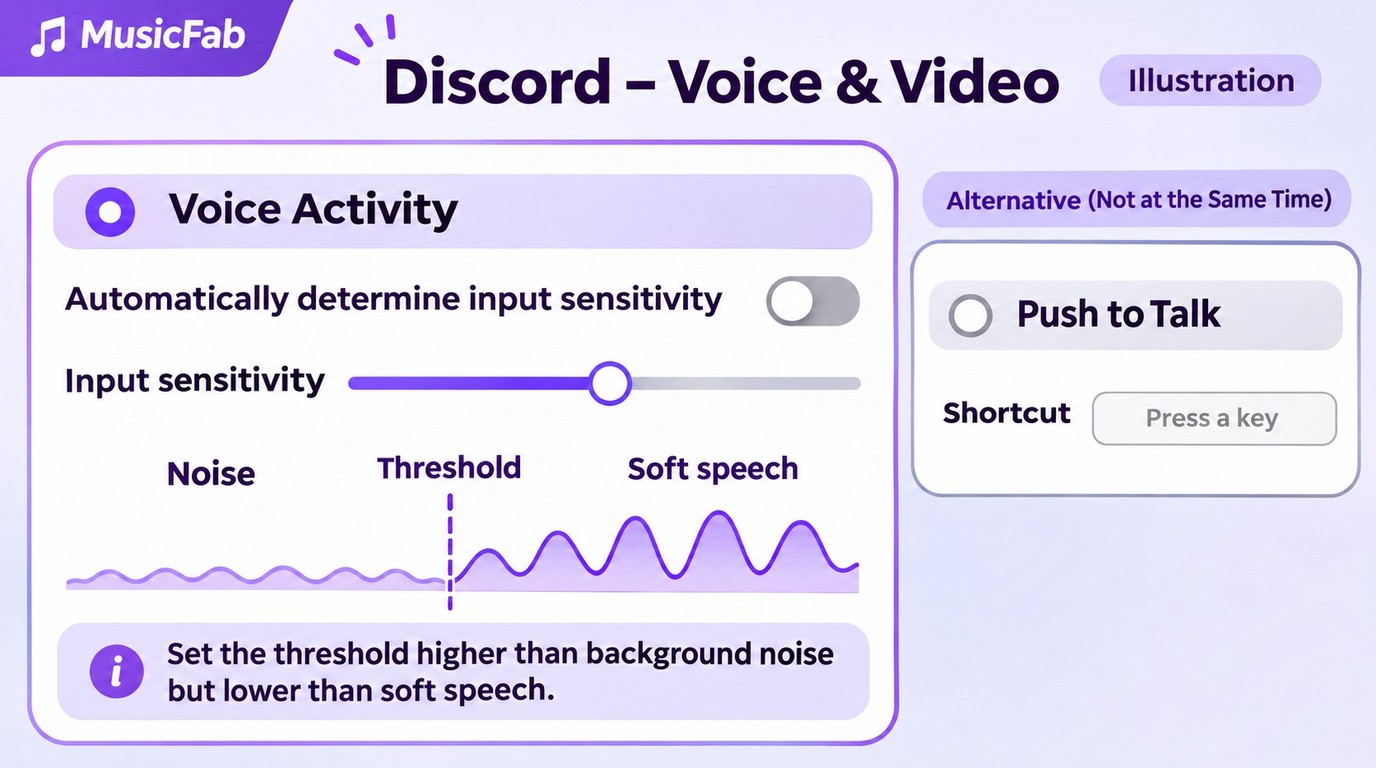
Start by checking whether Discord transmits while you are silent, then adjust Voice Activity or select Push to Talk. These settings address unwanted mic activation; they do not disable the auto-pause rule during sustained speech.
Match the warning before changing anything. Discord documents a pause after your mic transmits for 30 seconds while Spotify plays. The warning also appears during screensharing or Go Live, Discord’s live-streaming feature. Note whether you are in one of those situations and whether the pause follows continuous transmission. An immediate pause when you merely open the phone app belongs to the FAQ below.
Headphones do not rule out this trigger. As one Reddit poster in r/discordapp wrote in April 2026, “My noise cancellation is flawless. My friends can’t hear a single decibel of my music through my mic.” That describes the frustration, not a music-detection mechanism. The documented condition is mic transmission. I would fix unintended input before reinstalling Spotify.
Check Voice Activity and Stop Unintended Mic Transmission
Voice Activity fits hands-free conversation when it opens the mic for speech and closes it during silence. An always-active mic needs attention. One r/discordapp poster described the confusing instruction this way: “It says to check the voice settings, but I can't find/there isn't a clear option related to that.”
Use these Discord desktop controls on Windows or Mac:
- Open User Settings with the gear beside your username, then select Voice & Video.
- Under Input Mode, select Voice Activity. Check whether Automatically determine input sensitivity is enabled.
- Stay silent and watch the input activity. If the mic stays active, turn automatic sensitivity off and move the manual threshold above background noise, but below your soft speaking voice.
- Return to the same call with Spotify playing. Check that silence stops transmission and quiet speech still comes through.
The target is usable speech, not the highest threshold. If friends lose the ends of your sentences, you have traded music interruptions for clipped conversation. Adjust the threshold back toward your voice. A setting that excludes keyboard noise but also excludes you is not a fix.
Change the threshold before replacing hardware. Your voice, room noise, and mic position determine the useful setting, so copying someone else’s slider value is a poor shortcut. Keep the same headset and call open while checking the change; swapping devices at the same time makes the result harder to interpret.
Use Push to Talk for Deliberate Mic Control
Push to Talk fits you if background sound keeps activating Voice Activity. It transmits while you hold a shortcut key, so your mic no longer has to decide when speech begins.
- In Discord, open User Settings → Voice & Video → Input Mode and select Push to Talk.
- Select the shortcut’s Edit Keybind control and press the key you want to use. Confirm that it appears under Shortcut.
- Return to your call. Hold the key to speak, then release it and check that transmission stops after the configured release delay.
Use the desktop client for background gaming. Browser Push to Talk requires the browser window to stay focused. Holding the key through a long conversation still means sustained transmission; this is deliberate mic control, not an off switch for the rule.
Disconnect Spotify If You Do Not Need the Integration
Disconnecting fits private listening without Discord’s Spotify features. Skip this option if keeping those features is the point.
- Open the Discord desktop app and go to User Settings → Connections.
- Find Spotify and select the X on its connection card.
- Choose Disconnect to confirm, then repeat the original listening situation.
Treat the outcome as a diagnostic result. If the pause remains, record whether the same banner appears and whether the trigger has changed. Do not keep removing unrelated connections. The next choice is about which Spotify features you want to retain.
Which Options Preserve Spotify’s Discord Features?
Adjusting input sensitivity or using Push to Talk keeps Spotify connected to Discord. For Listen Along, synchronized listening through Discord, use text chat: Spotify requires Premium for joining and does not support Listen Along during voice chat.
| Your situation | First choice | Spotify connected? | Main limitation |
|---|---|---|---|
| Mic transmits while silent | Adjust input sensitivity | Yes | Sustained speech still triggers auto-pause |
| Want manual mic control | Push to Talk | Yes | Browser window must stay focused |
| Want Listen Along | Use text chat | Yes | Premium required; no voice chat |
| Do not need integration | Disconnect Spotify | No | Integrated Spotify features unavailable |
Sources: Discord’s auto-pause explanation, voice-input controls, and connection settings; Spotify’s Discord features and offline listening, as of November 2026.
For private listening, I would keep the connection and adjust input if you still use Spotify’s social features. For a shared listening session, choose text chat. Disconnecting is a fit when you do not need that integration; it sacrifices those features rather than preserving everything with a hidden setting.
Offline listening answers a different question. You need Premium to download Spotify songs for music playback inside the app; those downloads are not exported MP3 files. Spotify Offline Mode restricts playback to downloaded content. It addresses internet access, not the microphone-transmission trigger, so do not treat it as another fix for this banner.
If your goal is simply listening to Spotify offline, the official app handles that scenario. A separate file library is an additional need. You can skip the next section if the input changes have resolved your problem and you do not want local files.
When MusicFab Fits a Separate Local-Music Workflow

- Save Spotify music as MP3, FLAC, WAV, M4A or OPUS format.
- Download Spotify songs/playlists/albums/podcasts in batch
- Remove Spotify ads for free users.
- Save Subtitles as External SRT Files.
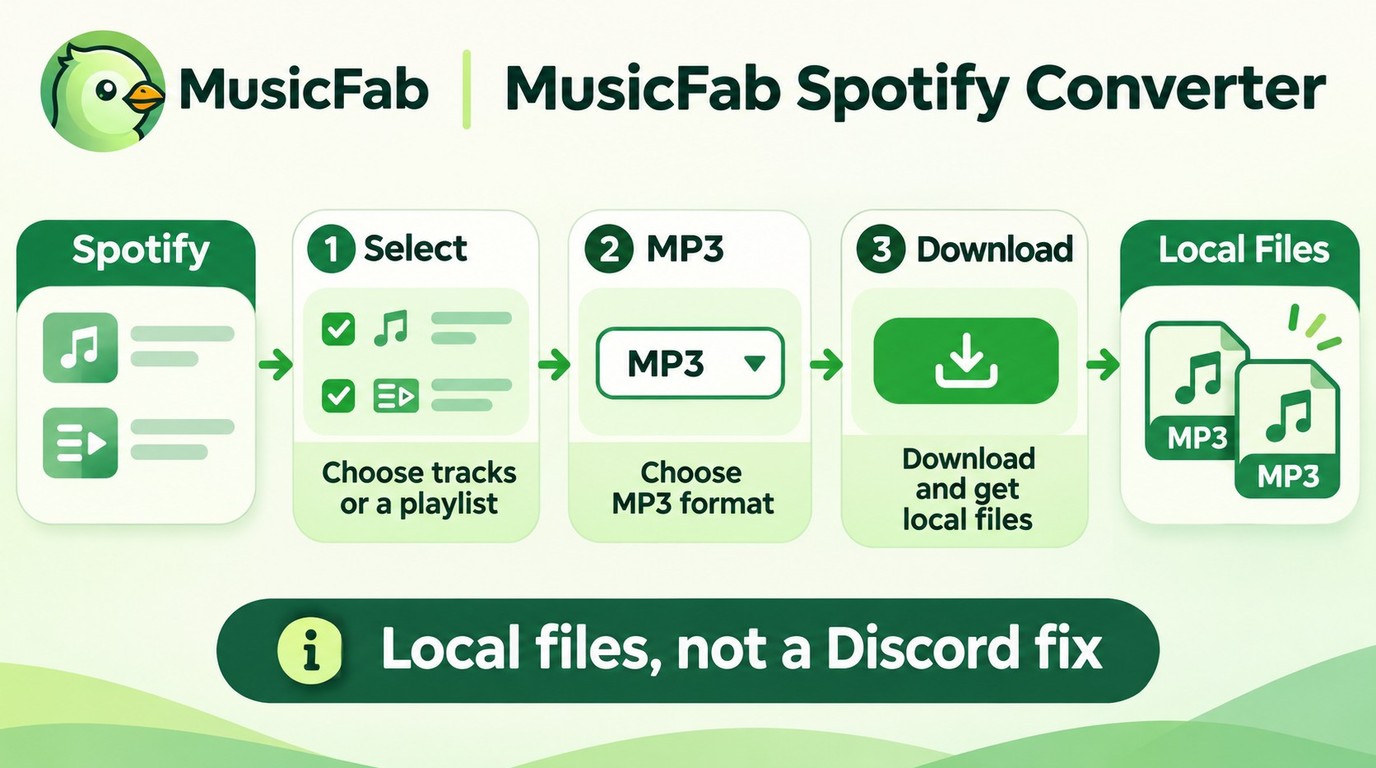
MusicFab Spotify Converter fits you if you separately want Spotify files for a local player on Windows or Mac. I treat that as a library choice, separate from repairing Discord’s Spotify integration.
- Open MusicFab Spotify Converter and sign into Spotify in its built-in browser. Find the track or playlist you want to save.
- Choose an output format your local player accepts, such as MP3, M4A (AAC), WAV, FLAC, or OPUS. MusicFab retains ID3 tags, including artwork and track numbers, so albums remain identifiable outside Spotify.
- Select Download Now, then open the completed file in your local player. Check playback and the track details there.
The boundary is Discord integration: converting files does not repair its mic settings or provide Listen Along. MusicFab’s 30-day trial includes 3 complete Spotify songs, so you can check a full track in your intended player.
For this file-based workflow, get the Windows or Mac app from the MusicFab Spotify Converter official page.
FAQ: Other Spotify and Discord Pause Scenarios
Q1. Does hiding my Spotify status disconnect the account?
A: No. Display on Profile and Display Spotify as your status control what others see; they do not remove Spotify from Connections . Turning those displays off changes visibility, not the underlying link. Use them for privacy, not as a substitute for the disconnect action above.
Q2. Why does Spotify pause as soon as I open Discord on my phone?
A: An immediate pause outside a call does not match the sustained-transmission warning. One r/discordapp poster wrote, “All it takes is opening Discord to read a message for Spotify to pause. I'm not referring to calls or listening to voicemails.” On iPhone or Android, note the phone model, OS and app versions, exact banner, and whether it happens outside calls. Send that reproducible pattern to support; do not assume the desktop mic adjustment addresses it.
Q3. What should I check before signing in to a Spotify converter?
A: Use an established tool’s official installer, inspect the sign-in page and requested permissions, and avoid unknown sites asking for credentials. For MusicFab, use the official page linked above; a Spotify music converter’s name alone does not establish its account-handling practices. Platform terms may restrict third-party tools; keep an active Spotify subscription and save only authorized content for your own offline listening, within applicable law. Do not redistribute or resell files: platform permission and copyright obligations are separate matters.
Choose the Fix That Matches the Pause
Start with unintended mic activity when the transmission warning appears; investigate immediate phone pauses as a separate symptom. Keep Spotify connected if you need its Discord features, and choose disconnection when you do not. My recommendation is to match the setting to your listening situation rather than cycling through generic playback fixes. The deciding limit remains Listen Along: use text chat for synchronized listening, not a voice call.


Send an Apple Music playlist from an iPhone or copy its link in a browser. Learn how listening links differ from public profiles and collaboration invites, and what to check when sharing fails.
By Jane Chen - Nov 6, 2026
Save Spotify playlists to Apple Watch with the official app, then confirm playback without your iPhone. This guide covers setup, stalled downloads, account requirements, and the separate role of desktop music files.
By Jane Chen - Nov 6, 2026
Create and check a Spotify playlist on mobile or desktop, then choose listening or editing access. The guide also covers prompt-based creation, finding a missing playlist, and offline listening requirements.
By Jane Chen - Nov 6, 2026
Spotify Premium can download music for playback inside the Spotify app, while Free accounts can download podcasts. This guide covers setup, device differences, download limits, troubleshooting, travel checks, and a portable-file option.
By Jane Chen - Nov 5, 2026