How to Download Spotify Songs on Apple Watch for Offline Use

Summary: Save Spotify playlists to Apple Watch with the official app, then confirm playback without your iPhone. This guide covers setup, stalled downloads, account requirements, and the separate role of desktop music files.
Table of Contents
To download Spotify songs on Apple Watch for a phone-free run, use Spotify Premium and save a playlist through the Watch app or your iPhone’s Download to other devices menu. Select Apple Watch as the destination, then confirm offline playback through headphones paired to the Watch.
I would not treat a downloaded badge as the finish line. A playlist can look ready while your headphones still play from the nearby iPhone. My standard is playback after the phone connection and internet are gone. That is the check this guide builds toward, with download instructions first and symptom-specific fixes afterward.
How to Download Music With the Spotify Apple Watch App
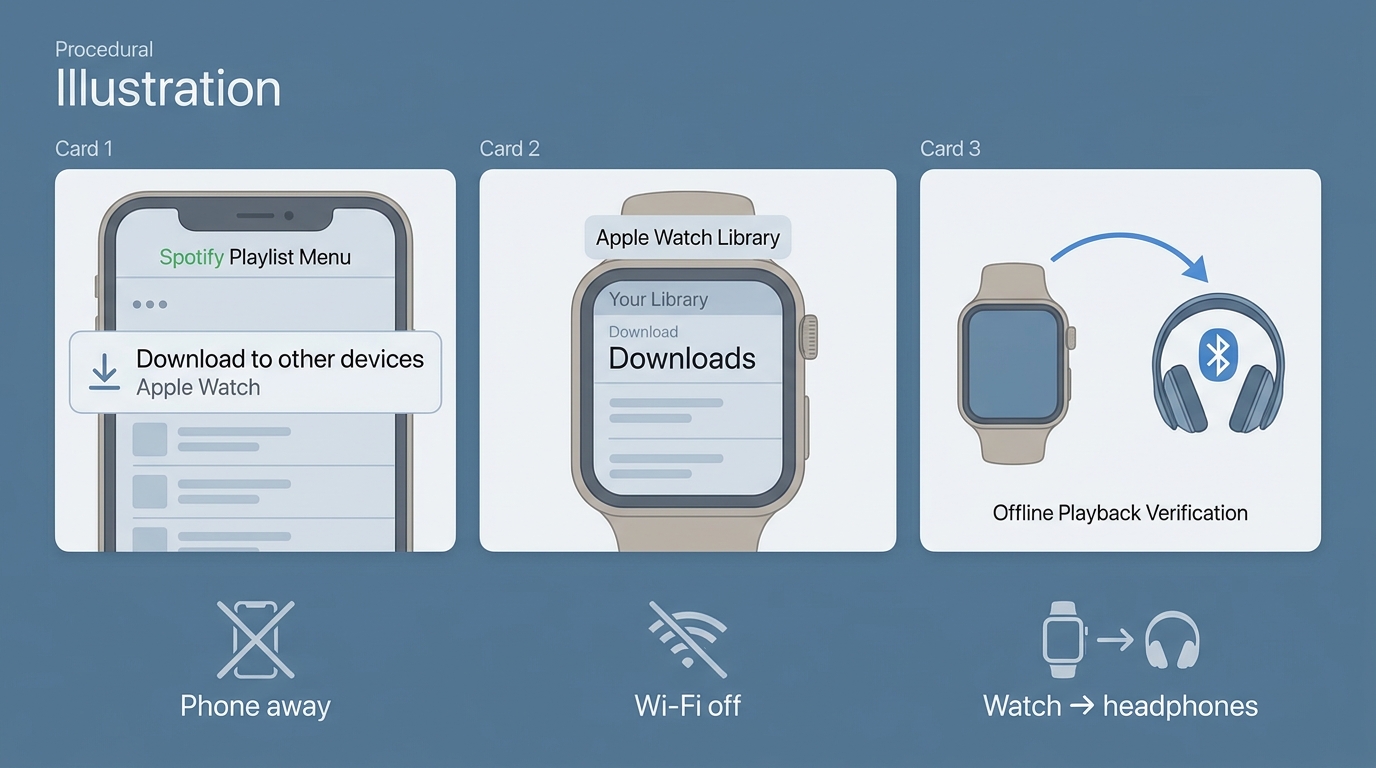
Save a playlist to the Watch itself, then open Your Library > Downloads in its Spotify app. Playback with the iPhone out of range and the Watch offline confirms that you have music for a phone-free run.
Before You Start: Premium, Compatibility, and Installation
Spotify’s current US requirements are Apple Watch Series 4 or later with watchOS 10 or above. You need Spotify Premium for direct Watch listening, plus Bluetooth headphones paired to the Watch. Sign in to Spotify on your iPhone before starting. Have the paired iPhone and a Wi-Fi connection available for setup and downloading.
Install Spotify through the Watch app on your iPhone, under Available Apps. If the devices are not paired, complete pairing when prompted. The Watch App Store is another installation entry point. Installing the app does not download your playlists; those are separate actions.
Series 3 no longer receives Spotify app updates. Updating Spotify on the paired iPhone removes its Watch app, although the Watch can still control Spotify playing on the phone. An older tutorial’s compatibility advice is a poor reason to keep searching for an installation button.
Choose the listening state you actually need:
| Listening Mode | Premium Required | Connection During Playback | Audio Plays From |
|---|---|---|---|
| Phone remote control | No | Watch-to-phone connection | Phone or controlled device |
| Direct Watch streaming | Yes | Watch Wi-Fi or cellular | Watch-paired headphones |
| Downloaded Watch playlist | Yes | None after downloading | Watch-paired headphones |
Source: Spotify’s official Apple Watch Help Center, as of November 2026.
For a run without a phone or internet, choose the downloaded-playlist route. Remote controls on your wrist do not mean the audio lives there.
Send a Playlist to Apple Watch From Your iPhone
Use a playlist as the download unit. To save individual songs, add them to a playlist first; downloading them on the iPhone alone does not place them on the Watch.
The destination is the important part. A phone download and a Watch download are separate copies managed by Spotify. Older screens and tutorials use Download to Apple Watch or Manage Downloads; the current help page uses the menu above.
Start a Download Directly on the Watch
The Watch offers another starting point in the same Spotify app. This is useful when you already know which playlist you want and prefer selecting it on your wrist.
Use either entry point for the same goal: a playlist stored on the Watch. You do not need to repeat both flows.
Check Playback Before Leaving Your Phone Behind
A disconnected playback check is more useful than another glance at progress. I recommend doing it at home, where a missing track is easy to address.
Music that plays in that state is ready for offline listening. Music that stops as the phone leaves range needs another look at the selected device and Watch download status.
Large playlists have a separate boundary. As one Reddit user in r/AppleWatch put it, “Why on earth can I only download 100 songs to my watch from Spotify per playlist?” Spotify’s documented limit is 100 downloads per playlist, so divide longer selections into smaller playlists. Its capacity wording is at least 10 hours, depending on model, not a universal 10-hour ceiling.
Spotify Downloads Stuck on Apple Watch: What to Check
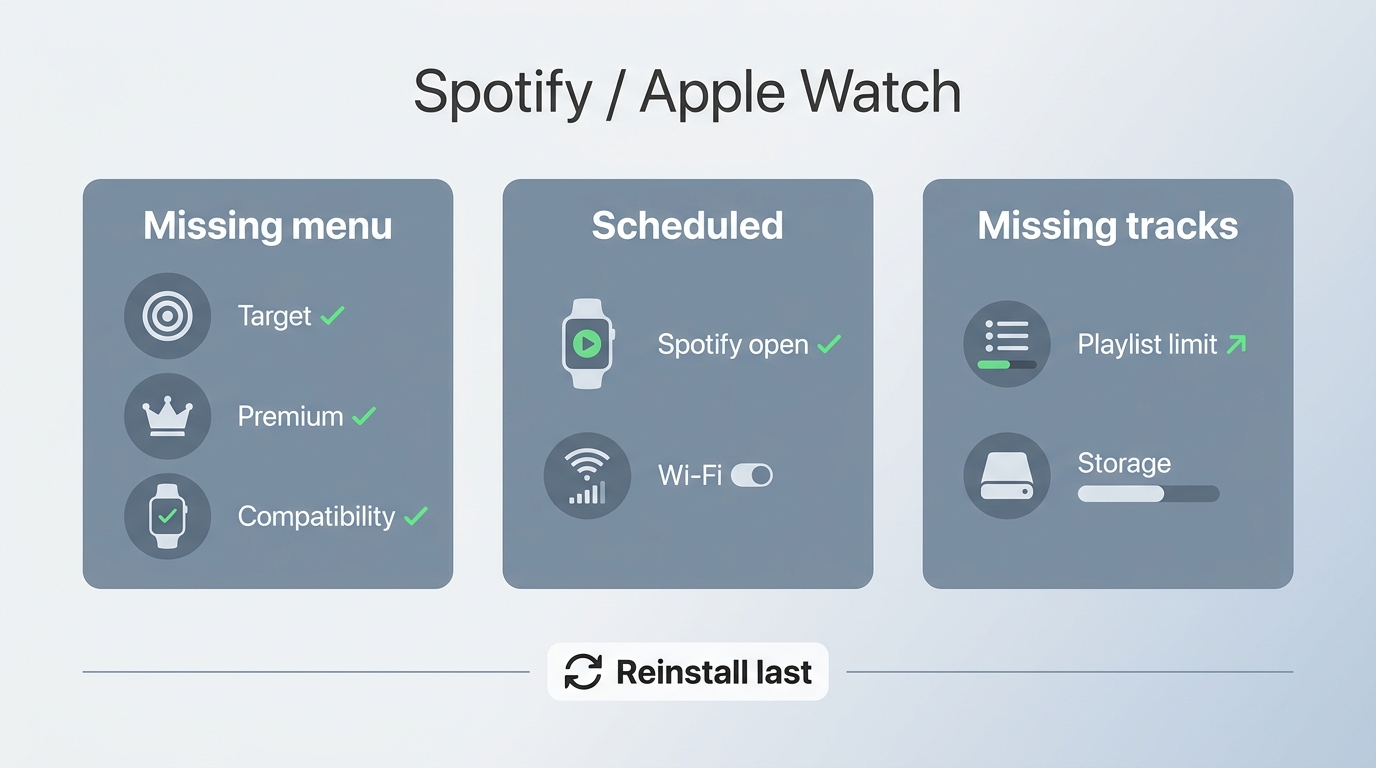
A missing download menu, a scheduled transfer, and missing tracks are different symptoms. Check the entry point, Watch connection, and available space before removing downloads or reinstalling Spotify.
A Missing Menu, a Waiting Transfer, or Missing Tracks?
A missing menu calls for checking the destination control. Use the iPhone menu described above, or start inside Spotify on the Watch. A missing legacy label does not establish that Watch downloads have been removed. Confirm that the Watch meets the compatibility requirements and that the signed-in account has Premium.
“Scheduled” means the transfer still needs attention. One Reddit user in r/AppleWatch described it plainly: “I go to Spotify, Manage downloads, click on Apple Watch and it stays as download scheduled forever.” That describes a symptom, not its cause. Keep Spotify open on the Watch and make sure the Watch has a working Wi-Fi connection.
Spotify also suggests downloading over Wi-Fi instead of Bluetooth. Its tip is to turn off the iPhone’s Bluetooth in the Settings app, not Control Center. Use this during the transfer, then turn Bluetooth back on and restore the phone and headphone connections you normally use. It is a transfer option, not a guaranteed repair.
Partial downloads need a track-count and storage check. If the playlist is below the stated cap, that cap does not explain the missing tracks. Check free space and distinguish entries still waiting from entries already downloaded. Avoid repeatedly toggling a downloaded playlist’s button; removing it creates another transfer.
I would leave reinstalling until after these checks. Spotify’s general offline guidance says reinstalling means downloading saved music again. The broader Spotify download troubleshooting workflow also distinguishes connection and storage problems; neither requires assuming the whole library is corrupt.
When MusicFab Spotify Converter Fits a Local Music Library
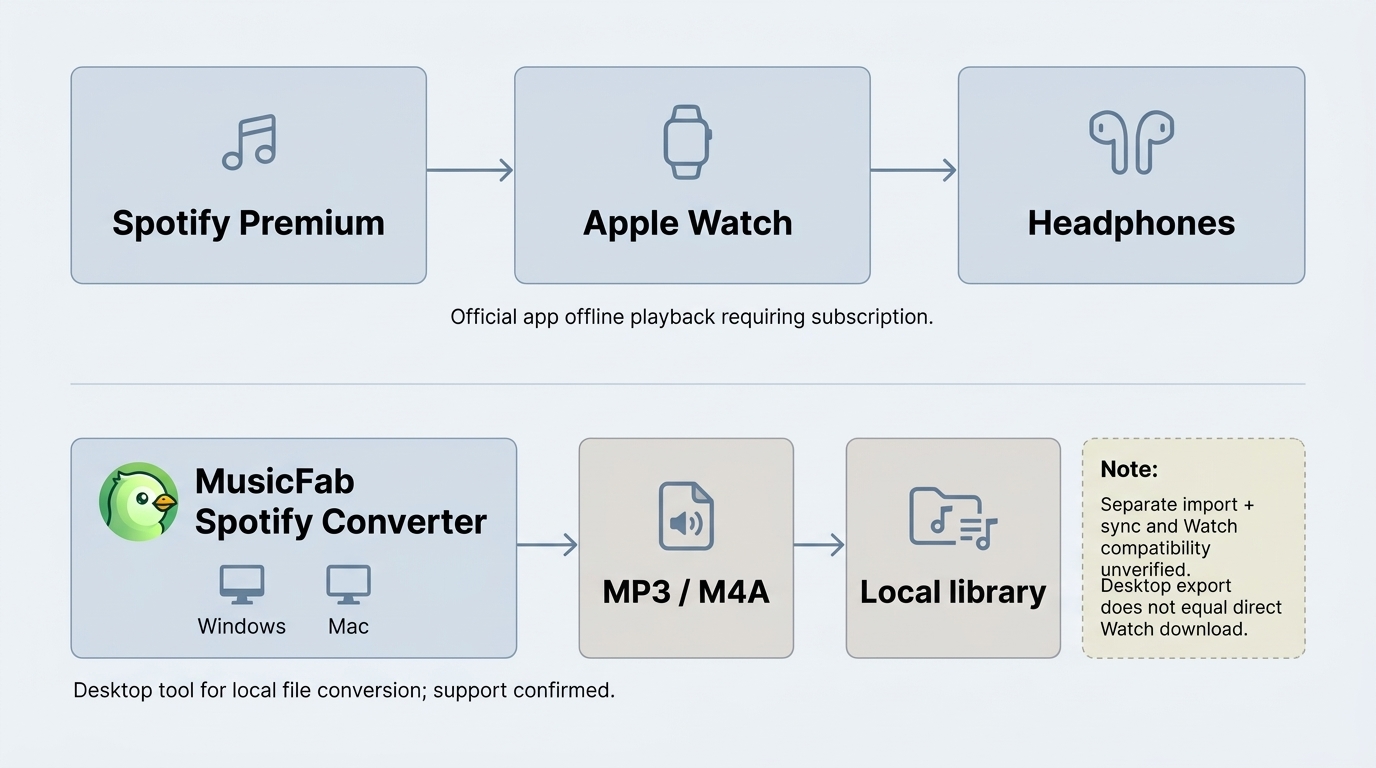
MusicFab Spotify Converter fits you if you also want organized music files on your computer. For listening inside Spotify on Apple Watch, the official download workflow above handles the task.

- Save Spotify music as MP3, FLAC, WAV, M4A or OPUS format.
- Download Spotify songs/playlists/albums/podcasts in batch
- Remove Spotify ads for free users.
- Save Subtitles as External SRT Files.
The desktop app for Windows and Mac exports Spotify playlists to formats including MP3 and M4A (AAC), with audio up to 320 kbps, so you can manage files in a local library. Batch export with track names, artwork, and ID3 tags reduces manual sorting. It uses direct-source download technology and is desktop software, rather than a Spotify playlist downloader online.
Keep Desktop Files Separate From Watch Downloads
I would treat a desktop library as a separate job, not a fix for a stuck Watch transfer. Apple’s music-sync feature adds playlists and albums from the iPhone’s Music library to Apple Watch. A desktop export still needs an appropriate import and transfer path before it belongs in that library.
The practical limit is that desktop export does not establish end-to-end Watch compatibility; use the trial to assess your intended file-and-library workflow. The 30-day trial includes 3 complete songs per music service, giving you full tracks to evaluate rather than a shortened preview. An MP3 option is a file-management choice, not a promise of a different Spotify Watch listening mode.
Use an active subscription and save only authorized content for personal offline use, without redistribution or resale; Spotify’s terms may restrict third-party tools, and local law governs any personal-copying exception. The MusicFab Spotify Converter official page provides the desktop trial entry point.
FAQ: Spotify Offline Listening on Apple Watch
Q1. Does a GPS-Only Watch Need Premium or a Cellular Plan for Offline Music?
A: Premium is required; a cellular plan is not. A GPS-only Apple Watch can play completed Spotify music downloads through paired Bluetooth headphones without the iPhone nearby. Streaming unsaved music needs an internet connection. Spotify Free supports remote control of playback on other devices, not direct Watch streaming or offline listening. For a downloaded running playlist, paying for cellular adds no requirement you need to satisfy.
Q2. How Often Does the Watch Need to Reconnect to Keep Downloads?
A: Spotify’s general offline policy requires going online at least once every 30 days to keep downloads. Treat that as the service’s offline rule, not a separate Watch-specific countdown. Reconnect and open Spotify during normal use between offline outings. Keep Premium active for music downloads, and avoid treating a playlist already on the Watch as a permanent archive.
Q3. Can an iPad Replace the iPhone for Spotify Watch Setup?
A: The documented setup uses a paired iPhone and requires a previous Spotify login on the phone. An iPad is not a replacement in that setup path. Jane Chen recommends separating initial setup from everyday listening: leaving the phone at home afterward does not change how the Watch was paired. For family-managed configurations, resolve the specific account and pairing arrangement rather than assuming the standard instructions apply unchanged.
Q4. What Should I Check Before Signing In to a Spotify Converter?
A: Choose an established publisher’s official installer and read its privacy policy. Check that the sign-in destination is Spotify’s real login page rather than a password-collection form. An embedded browser alone is not a security guarantee. Use a unique password, and manage connected apps through Spotify’s account settings. If access looks unfamiliar, Spotify’s account-protection guidance explains how to remove connected apps and sign out.


Create and check a Spotify playlist on mobile or desktop, then choose listening or editing access. The guide also covers prompt-based creation, finding a missing playlist, and offline listening requirements.
By Jane Chen - Nov 6, 2026
Spotify Premium can download music for playback inside the Spotify app, while Free accounts can download podcasts. This guide covers setup, device differences, download limits, troubleshooting, travel checks, and a portable-file option.
By Jane Chen - Nov 5, 2026
TunePat Spotify Converter review covering source modes, trial restrictions, pricing, dated user feedback, and practical safety guidance.
By Jane Chen - Nov 2, 2026
This review examines TuneFab Spotify Music Converter through its features, historical hands-on evidence, purchase terms, troubleshooting, safety questions, and user-report patterns. It also explains when TuneFab may fit, when caution is warranted, and when MusicFab is a more suitable desktop alternative.
By Jane Chen - Nov 2, 2026