
iTunes Converter for Eligible Local Files: Convert to MP3

In short: for eligible local iTunes library files, start with Apple’s built-in MP3 encoder in the Apple Music app or iTunes for Windows. It is the most direct choice when the song is already in your local library. Choose Audacity only when you want a more manual export workflow. This guide is limited to eligible local files; separate Apple Music playlist workflows have their own guide.
How to Choose an iTunes Converter for Eligible Local Files
As of August 2026, Apple’s support guidance says that the Apple Music app and iTunes for Windows can convert songs in a library, as well as files, folders, and disks. The original file remains in place, while a new converted copy is created. Because converting between compressed formats can reduce audio quality, keep the original and make an MP3 copy only when compatibility is the goal.
Use Apple’s Built-In MP3 Encoder for a Straightforward Local Conversion
Use this method when your eligible local songs are already in the library and you want the simplest route to an MP3 copy. Apple documents the relevant conversion controls in its Music app and iTunes conversion guidance.
Step 1: Open iTunes or the Apple Music app and add an eligible local file to the library if it is not already there.
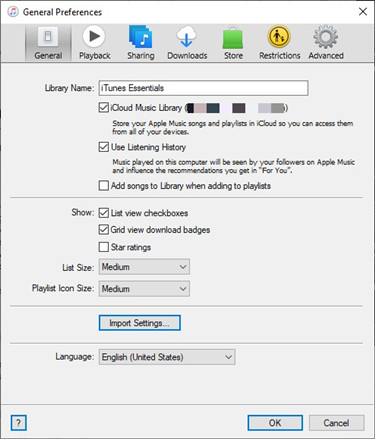
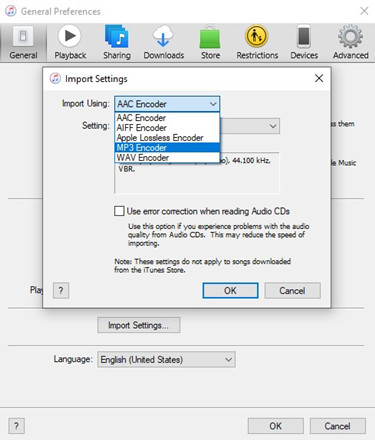
Step 2: Open the import settings and select MP3 Encoder as the import format.
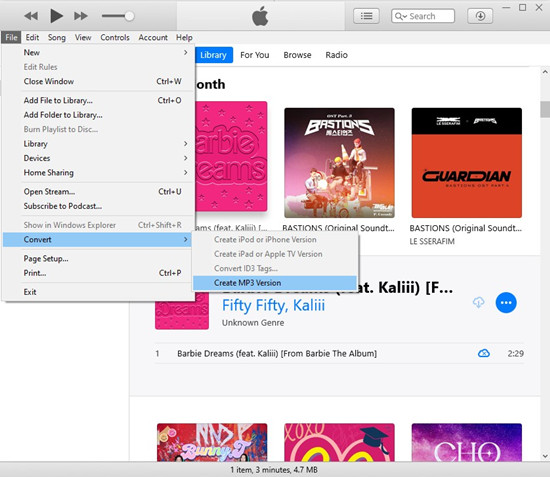
Step 3: Select the song or songs in the library, then use the Convert menu to create an MP3 version.
Why choose it: it is the first option to try for eligible local files because it works from the library you already use. Expect a separate MP3 copy rather than a replacement for the original file.
Use Audacity When You Need a Manual Export Workflow
Audacity is a reasonable alternative when you can open the eligible local audio file and want a hands-on export process. It adds manual steps, so it is better for people who want to review export settings rather than simply create a copy from the iTunes library.
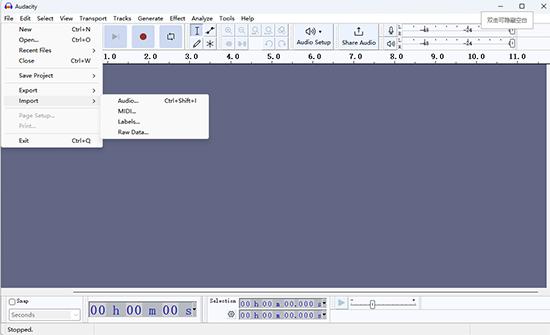
Step 1: Import the local audio file into Audacity. You can use the Import command or drag the file into the project window.
Step 2: Choose an export command, select MP3 as the output format, review the settings you need, and save the new file.
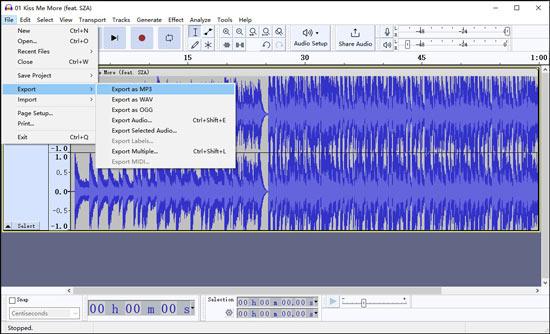
When it fits: Audacity gives you a manual, file-by-file workflow. It is useful when that extra control matters more than the convenience of converting directly inside the iTunes library.
MusicFab Workflow Screenshots and Scope
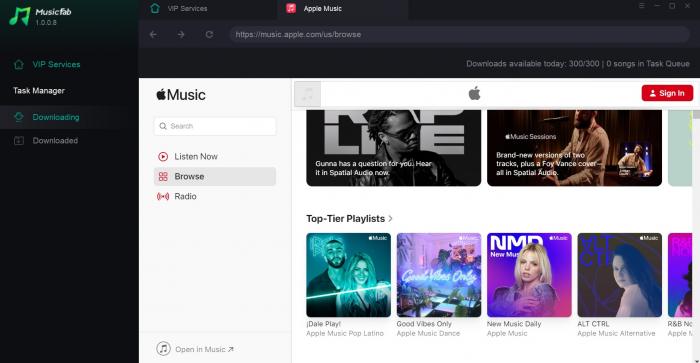
MusicFab uses a separate workflow with an Apple Music browser and output settings for content available through an authorized account. That workflow does not change the first recommendation on this page: for eligible local iTunes files, start with Apple’s built-in converter. For current product-specific information, consult the MusicFab Apple Music Converter product page.
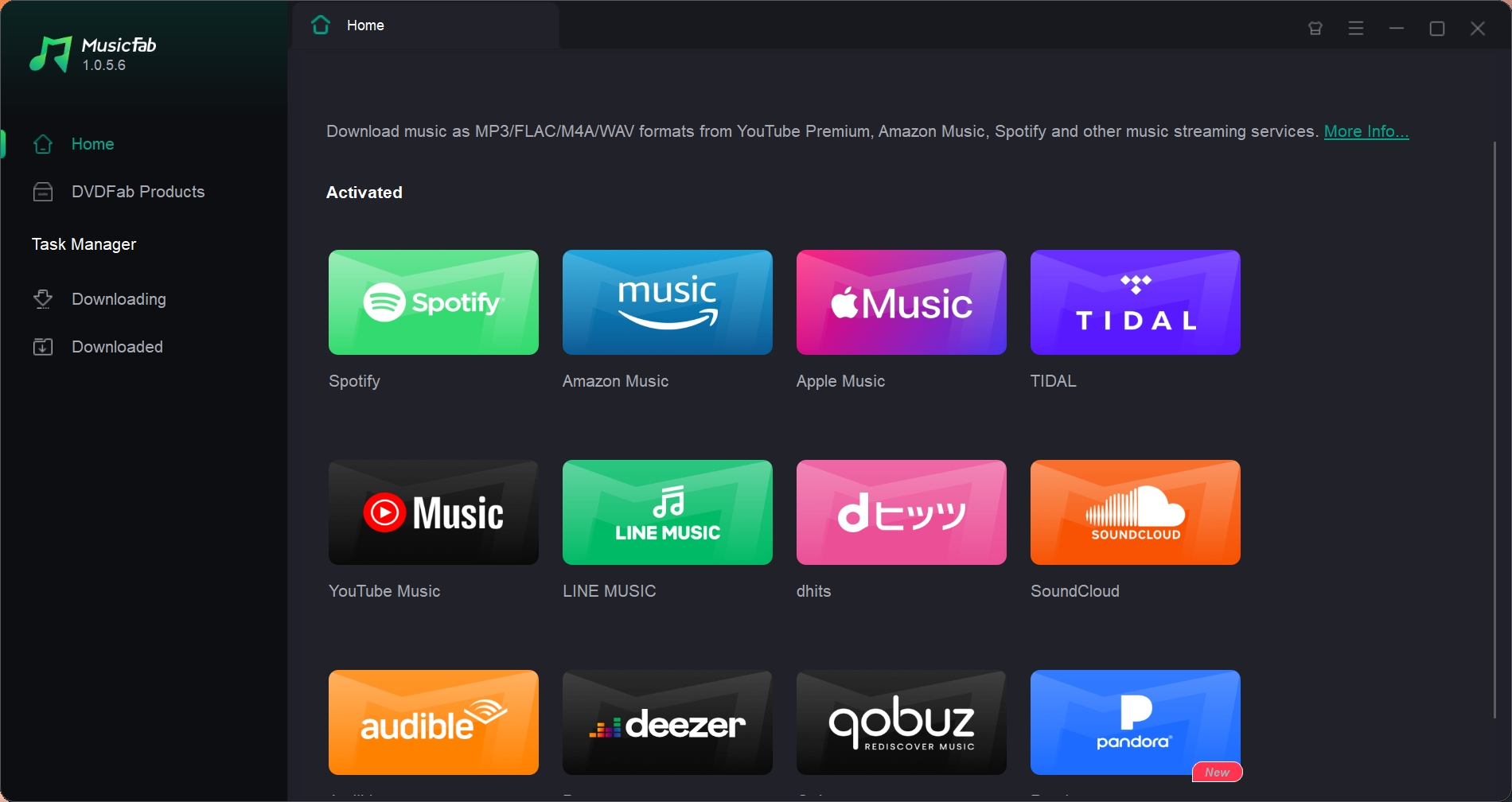
The interface flow includes a screen for selecting an item.
The output-settings screen shows MP3 selected.
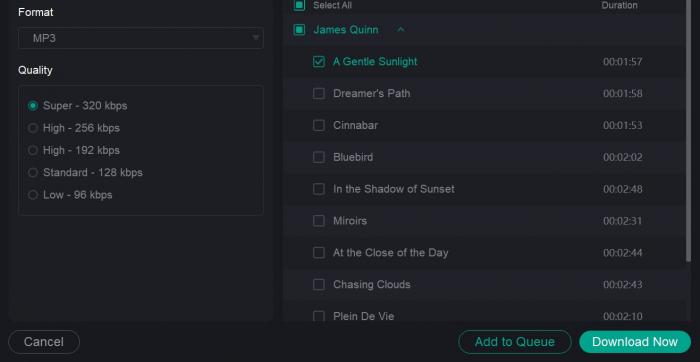
How it fits this decision: the registered product workflow uses an Apple Music browser, item selection, output settings, and a download action for content available through an authorized account. It is separate from the built-in conversion path for an eligible local iTunes file.
For this article’s local-file question, return to the Apple Music app or iTunes method above first. A different task involving an authorized Apple Music playlist belongs on the separate Apple Music playlist-to-MP3 guide.
iTunes Converter Decision Table for Local Files
Use the table below to choose a workflow based on the local-file task in front of you. It compares only the decision points needed to answer this page’s question.
| Option | Choose it when | What you do | Why it is the right fit |
|---|---|---|---|
| Apple Music app or iTunes MP3 Encoder | Your eligible local songs are already in the library. | Create an MP3 version from the library. | The direct first choice for a simple local conversion. |
| Audacity | You want a manual export workflow for a local audio file. | Import the file and export it as MP3. | Useful when you want to review the export process yourself. |
| A separate Apple Music workflow | Your task is not a local-file conversion. | Use the page that matches that separate task. | Keeps this page focused on eligible local iTunes files. |
Check the Local-File Boundary Before You Convert
The key question is not which brand name is on the file, but whether you have an eligible local file that the selected app can work with. Keeping that boundary clear prevents a local-file converter choice from being confused with a different Apple Music task.
| Situation | Does this guide answer it? | Recommended next step |
|---|---|---|
| An eligible audio file is already in your local iTunes or Music library. | Yes. | Start with Apple’s built-in MP3 encoder. |
| You have a local audio file and prefer a manual export process. | Yes. | Use Audacity if you can open the file there. |
| You need help with an Apple Music playlist workflow. | No; it is a different primary task. | Use the dedicated playlist guide linked above. |
FAQs
These answers cover only the local-file converter choice addressed on this page.
Will converting a local iTunes file delete the original?
Apple says the original remains unchanged and a new converted file is created. Keep the original if you want to preserve it as your reference copy.
When should I use Audacity instead of iTunes?
Choose Audacity when you prefer a manual workflow: open an eligible local audio file, review the export settings, and save an MP3. For a straightforward library conversion, the built-in encoder is usually the simpler first choice.
Summary
For eligible local iTunes files, use Apple’s built-in MP3 encoder first: it is the clearest match for songs already in your library. Use Audacity when you deliberately want a manual export workflow. Keep the original file, create an MP3 copy only when compatibility requires it, and use a dedicated page for tasks outside this local-file boundary.

The Apple Music Family Plan costs $19.99 a month in the US for up to six people.
By Jane Chen - Aug 26, 2026

Apple Music's official apps handle offline listening on iPhone, iPad, Android, Mac, and Windows, but those downloads remain app-based. This guide explains device steps, whole-library limits, cancellation effects, and when a MusicFab or online local-file workflow fits better.
By Jane Chen - Aug 18, 2026

Learn the official steps to listen to Apple Music offline on iPhone, Android, Windows, Mac, and Apple Watch, with practical playback fixes and a clear comparison
By Jane Chen - Aug 13, 2026
Compare six FLAC-to-ALAC converter options for Mac and Windows. Find the right workflow for preserving metadata, batch conversion, and confirming an M4A file uses
By Jane Chen - Aug 12, 2026