
FLAC to Apple Lossless: 6 Converter Options for 2026

To get straight to the point, FLAC to Apple Lossless works best when you convert FLAC to ALAC in a dedicated converter, verify that the resulting M4A uses ALAC rather than AAC, and then import it into Apple Music or iTunes.
This guide compares desktop, command-line, and browser routes to convert FLAC to ALAC, with a focus on metadata, batch handling, and the checks worth making before you import a full library.
Overview: Convert FLAC to ALAC Methods
| Converter | Best For | Platform | Batch Support |
|---|---|---|---|
| fre:ac | Free cross-platform conversion | Windows / Mac / Linux | Yes |
| XLD | Metadata-focused Mac libraries | Mac | Yes |
| dBpoweramp | Large, curated libraries | Windows / Mac | Yes |
| foobar2000 | Configurable Windows workflows | Windows | Yes |
| FFmpeg | Repeatable command-line jobs | Windows / Mac / Linux | Yes |
| Browser converter | Small, non-sensitive files | Any modern browser | Usually limited |
For large or carefully tagged libraries, local desktop tools are the safer default because they avoid uploading files and give you more control over output folders and metadata. Choose foobar2000 for a configurable Windows setup, FFmpeg for command-line automation, or a browser converter only when the files are small and non-sensitive.
FLAC vs Apple Lossless
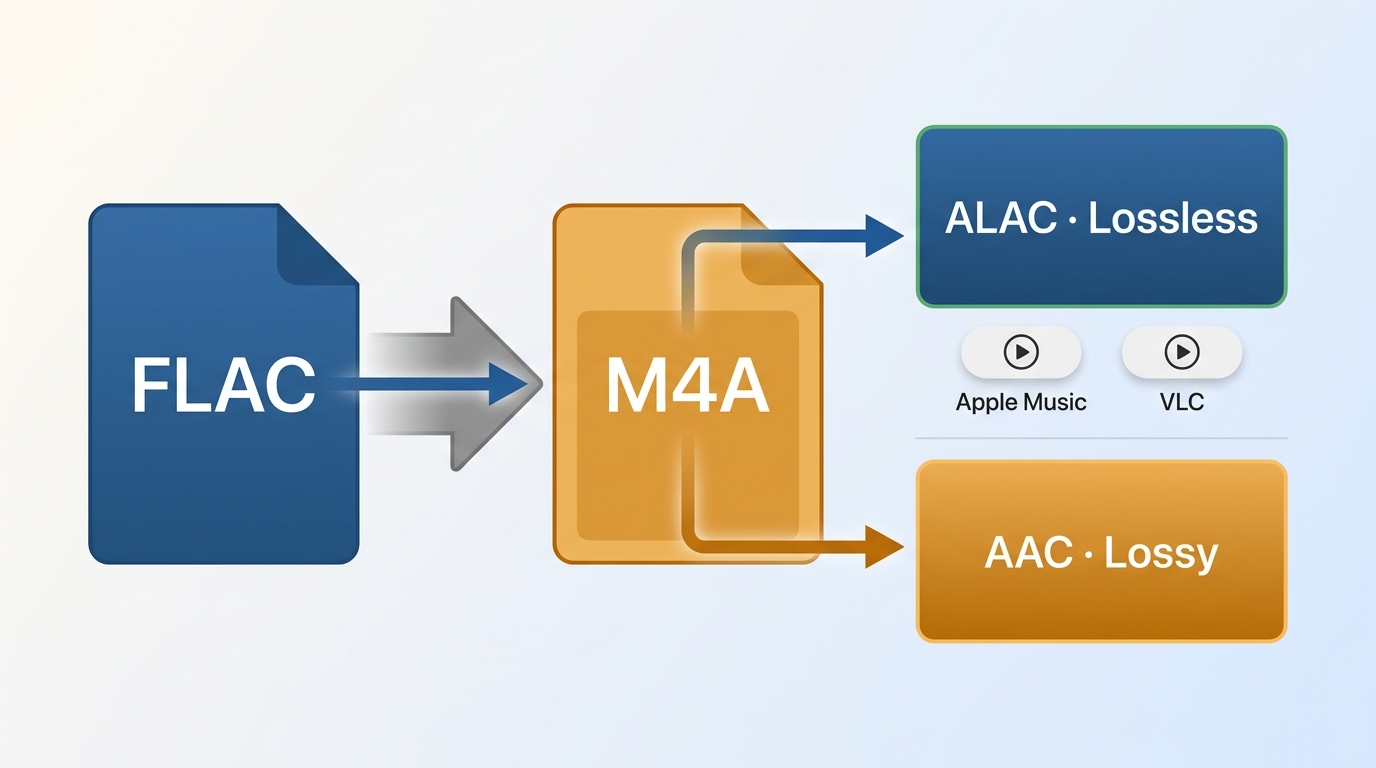
FLAC (Free Lossless Audio Codec) is an open-standard lossless format supported by most audio players and devices. Apple Lossless, officially called ALAC (Apple Lossless Audio Codec), is Apple's equivalent, stored in an .m4a container and natively supported across the Apple ecosystem.
Both formats encode audio without data loss. A properly converted FLAC file and ALAC file from the same source should sound identical. The practical difference is compatibility, not quality.
| Property | FLAC | Apple Lossless (ALAC) |
|---|---|---|
| File extension | .flac | .m4a (or .caf) |
| Container | Ogg/FLAC | MPEG-4 |
| Audio quality | Lossless | Lossless |
| Max bit depth | Up to 32-bit | Up to 32-bit |
| Apple device support | Partial (varies by OS version) | Full native support |
| Android/Windows support | Broad | Limited without extra apps |
An .m4a extension identifies the MPEG-4 container, not the audio codec. It can contain lossless ALAC or lossy AAC, so inspect the codec in a media-information tool or player before deleting your source FLAC files. After converting, check the codec, sample rate, bit depth, tags, cover art, track order, ReplayGain values, and playback of one test album. In my view, verifying the codec matters more than the file extension because that is what confirms the conversion actually preserved the format you intended.
Method 1: Convert FLAC to Apple Lossless with fre:ac (Free)
fre:ac is a free, open-source audio converter that runs on Windows, macOS, and Linux. It handles FLAC to ALAC conversion in batch, preserves metadata, and doesn't require a paid license.
How to use fre:ac
- Download and install fre:ac from the official site.
- Open fre:ac and drag your FLAC files (or folder) into the file list.
- Click the output format dropdown and select Apple Lossless (ALAC).
- Choose your output folder.
- Click the Convert button to start.
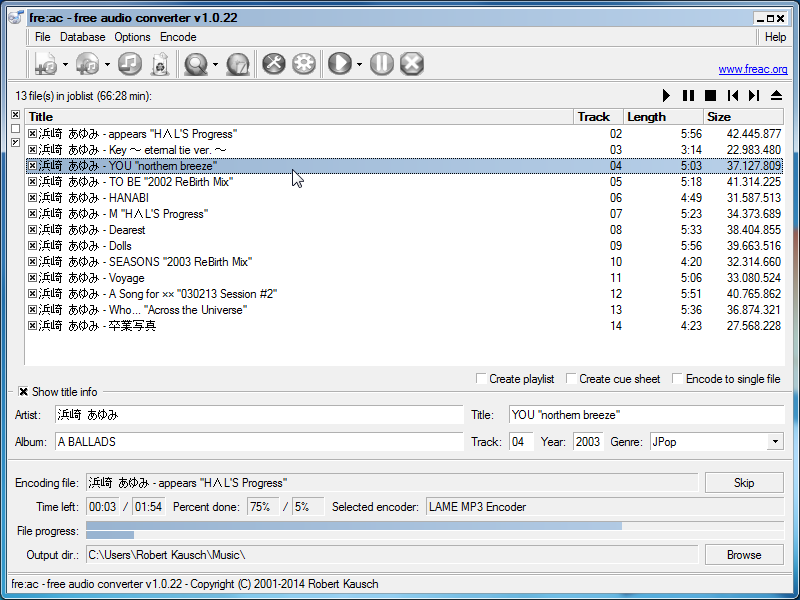
Batch & stability: fre:ac processes files sequentially and can report errors per file, which helps isolate problem files in a larger queue. It is useful when converting an entire album library at once.
Library: Metadata transfer is generally reliable for standard fields — title, artist, album, year, track number. Cover art carries over in most cases, though embedded art from unusual FLAC taggers occasionally gets dropped. Verify a sample before converting hundreds of files.
Workflow: The UI is functional but dated. No account required, no ads, installs quickly. The format selector can be hard to spot on first use — look for the output encoder dropdown on the right side of the toolbar, not a menu.
fre:ac is a good fit if you want a completely free solution that works on any OS. It's not ideal if you need advanced renaming rules or want a polished UI.
Method 2: XLD for Mac Libraries
X Lossless Decoder (XLD) is a Mac-specific audio tool that audiophile communities have recommended for years. It handles FLAC to ALAC conversion cleanly and is particularly good at preserving ReplayGain tags and embedded cue sheets.
How to use XLD
- Download XLD from its official site.
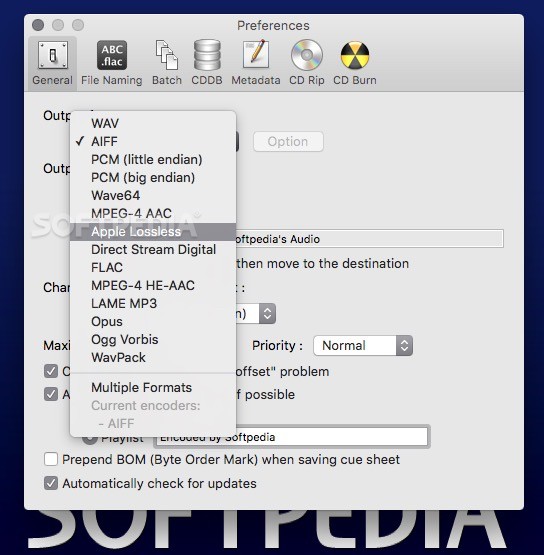
- Open XLD Preferences and set the output format to ALAC.
- Drag FLAC files onto the XLD window or use File > Open.
- Set the output directory and start the conversion.
Batch & stability: XLD can process folders and report format or read errors individually, which is helpful when working with older FLAC files that may have inconsistent tagging.
Library: Metadata handling is one of XLD's strengths. It reliably transfers extended tags, cover art, and ReplayGain values. For users migrating a curated FLAC library into Apple Music, this matters more than most free tools acknowledge.
Workflow: Mac-only, free, no account needed. The preferences panel is where you configure output format — it's not a per-job setting, which can trip up new users expecting a per-conversion dialog.
XLD remains a capable choice for Mac users with organized FLAC libraries who care about metadata accuracy, but its official site lists a March 2, 2025 build, so it has a slower maintenance cadence than fre:ac. Readers who prioritize more current development may prefer fre:ac. XLD is not available on Windows.
Method 3: dBpoweramp for Large Libraries
dBpoweramp is a paid audio converter with a long track record among audiophiles and library managers. It supports ALAC output, parallel multi-core encoding for large batches, and integrates with music databases for metadata lookup.
How to use dBpoweramp
- Install dBpoweramp and the ALAC codec (available from the dBpoweramp codec page).
- Right-click your FLAC files or folder in Windows Explorer (or use the Mac app).
- Select Convert To and choose Apple Lossless as the output format.
- Confirm output location and start the conversion.
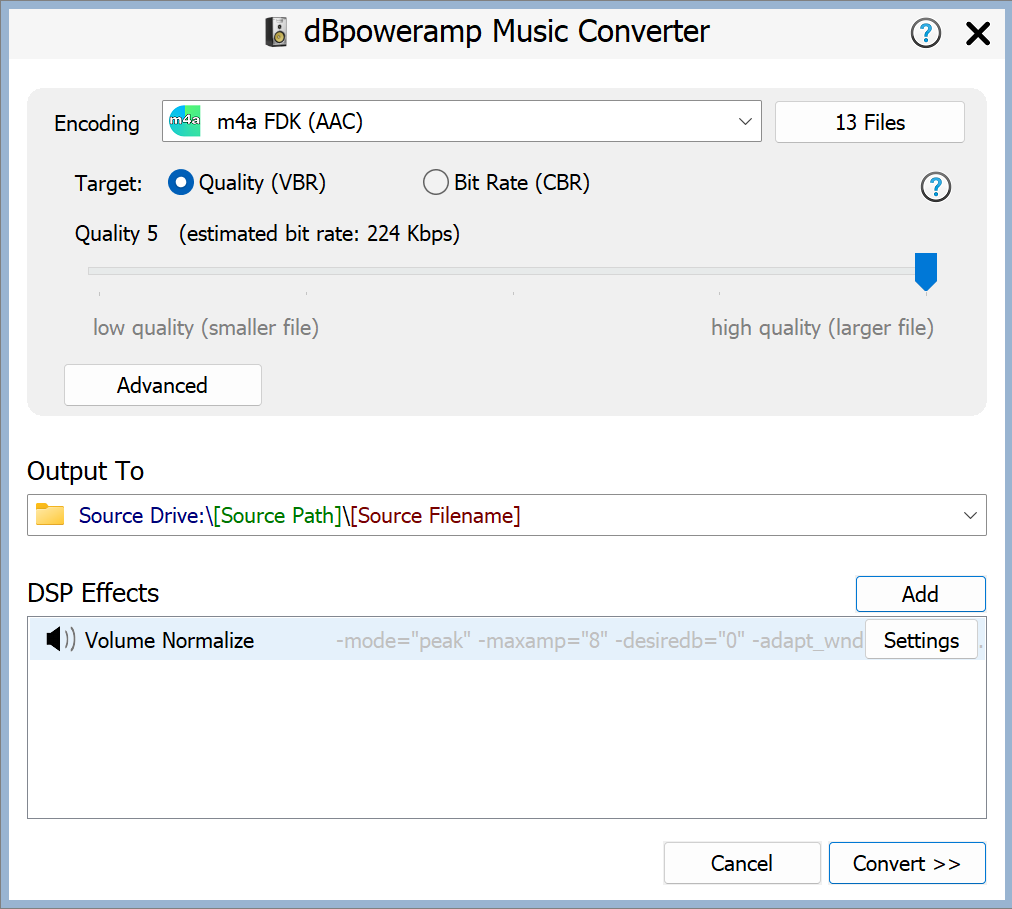
Batch & stability: dBpoweramp supports multi-core encoding and generates a conversion log for review afterward. Those features make it well suited to large-library conversion workflows.
Library: Tag handling supports embedded album art, multiple artist fields, and compilation flags. That makes it a practical option for users with carefully tagged libraries.
Workflow: dBpoweramp Reference Personal costs $48 in the United States as of August 2026. The Windows context-menu integration can be convenient once installed, but the setup is more involved than fre:ac.
dBpoweramp is a good fit for users converting large, carefully curated libraries where metadata accuracy and conversion speed both matter. It's not necessary for occasional small batches.
Method 4: Import ALAC into Apple Music
For a reliable Apple Music or iTunes workflow, convert FLAC to ALAC with a dedicated converter first, confirm that the output uses the ALAC codec, and then add the ALAC file to your library.
How to add ALAC to Apple Music
- Convert your FLAC files to ALAC with a dedicated converter.
- Inspect one output file to confirm that its codec is Apple Lossless.
- Open Apple Music (macOS) or iTunes (Windows).
- Use File > Import and select the verified ALAC files.
- Check one imported album for playback, artwork, track order, and metadata.
Apple Music and iTunes are the library-import step, not a substitute for a converter. Keep the original FLAC files until you have checked the imported ALAC album for codec, metadata, and playback.
Comparison: FLAC-to-ALAC Converter Options
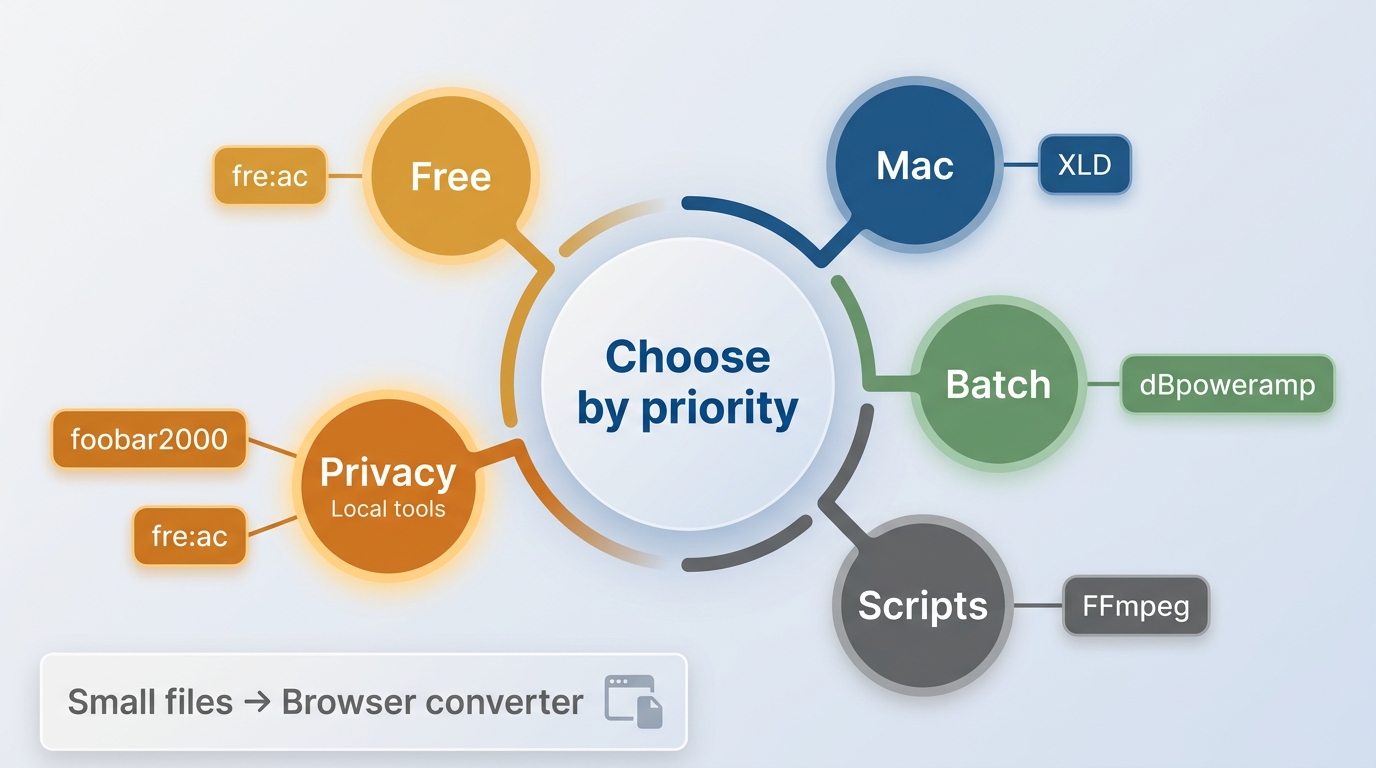
| Tool | Platform | Cost | Batch or Automation | Metadata or Privacy |
|---|---|---|---|---|
| fre:ac | Windows / Mac / Linux | Free | Batch conversion | Standard tags supported |
| dBpoweramp | Windows / Mac | Paid | Multi-core batch tools | Detailed tag controls |
| foobar2000 | Windows | Free | Configurable conversion | Test encoder setup first |
| FFmpeg | Windows / Mac / Linux | Free | Scriptable batches | Manual metadata workflow |
| Browser converter | Any modern browser | Varies | Small jobs only | Review privacy policy |
XLD is still a useful Mac-specific option for metadata-conscious users, but its slower maintenance cadence makes it less comparable to the actively maintained desktop and command-line routes above. Apple Music and iTunes belong after conversion, as the destination for verified ALAC files.
Why FLAC-to-ALAC Conversion Stays Lossless
Both FLAC and ALAC are lossless formats. A proper FLAC-to-ALAC conversion is a lossless transcode: the converter decodes the FLAC audio and encodes the same audio data as ALAC. With appropriate settings and a codec check, the resulting ALAC file should preserve the audible quality of the source.
This differs from converting a lossless format to a lossy one, such as FLAC to MP3, which removes audio data during encoding. The key distinction is not the M4A extension but whether the output codec is ALAC.
FAQs
Is FLAC or Apple Lossless better quality?
Can I play FLAC on iPhone without converting?
What is the output file extension for Apple Lossless?
Is it legal to convert my own FLAC files to Apple Lossless?
Can FFmpeg convert FLAC to ALAC in batches?
FFmpeg is useful for repeatable command-line or automated batch workflows. Its flexibility comes with more setup, so verify a sample file for ALAC codec details, metadata, and playback before processing an entire folder.
Conclusion
For most free cross-platform work, fre:ac is the sensible starting point. Choose dBpoweramp for a large, carefully tagged library, foobar2000 for a configurable Windows workflow, or FFmpeg when repeatable automation matters. Browser conversion fits small, non-sensitive files, while XLD remains a Mac option for users comfortable with its slower maintenance cadence. If Apple-library compatibility is not essential, a very large FLAC library may be better served by direct FLAC playback instead of a full-library conversion.

The Apple Music Family Plan costs $19.99 a month in the US for up to six people.
By Jane Chen - Aug 26, 2026

Apple Music's official apps handle offline listening on iPhone, iPad, Android, Mac, and Windows, but those downloads remain app-based. This guide explains device steps, whole-library limits, cancellation effects, and when a MusicFab or online local-file workflow fits better.
By Jane Chen - Aug 18, 2026

Learn the official steps to listen to Apple Music offline on iPhone, Android, Windows, Mac, and Apple Watch, with practical playback fixes and a clear comparison
By Jane Chen - Aug 13, 2026
Learn how Apple Music playlist-to-MP3 workflows differ from eligible local-file conversion and in-app offline downloads.
By Jane Chen - Aug 9, 2026