
Spotify to FLAC in 2026: Download Options and Quality Checks

Table of Contents
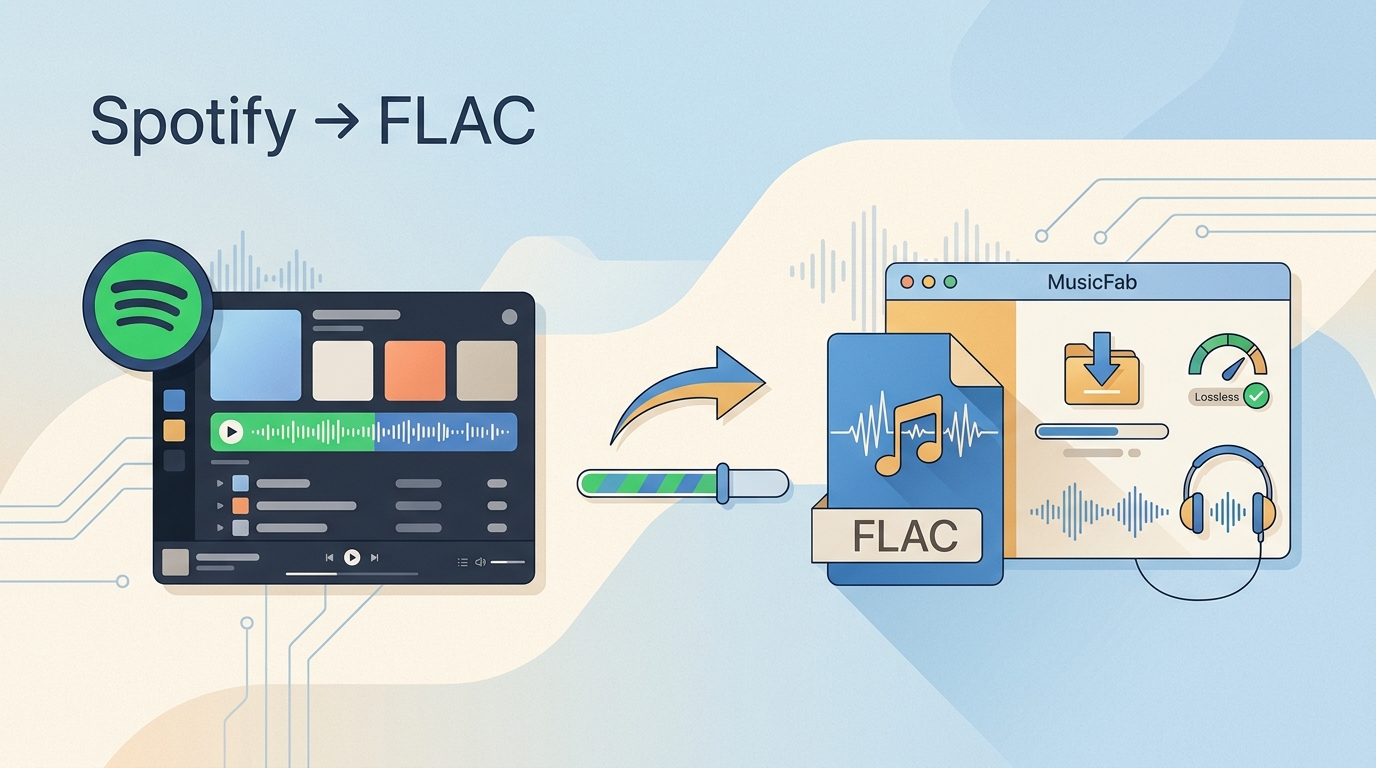
Searching for Spotify to FLAC gets confusing fast: a Spotify FLAC downloader may create a standard file, retrieve audio from another catalog, or leave downloads inside Spotify. The key takeaway is to check the file’s source before comparing the FLAC label or format.
As of August 2026, eligible Spotify Premium listeners in the United States can use Lossless for music on supported devices, with quality up to 24-bit/44.1 kHz. Spotify’s in-app downloads remain managed inside the app, while a playable FLAC file outside Spotify is a different outcome.
This guide explains that official limitation, a desktop local-file workflow, the source paths behind common Spotify-to-FLAC options, and the checks that help identify a misleading FLAC output.
What Spotify to FLAC Means in 2026
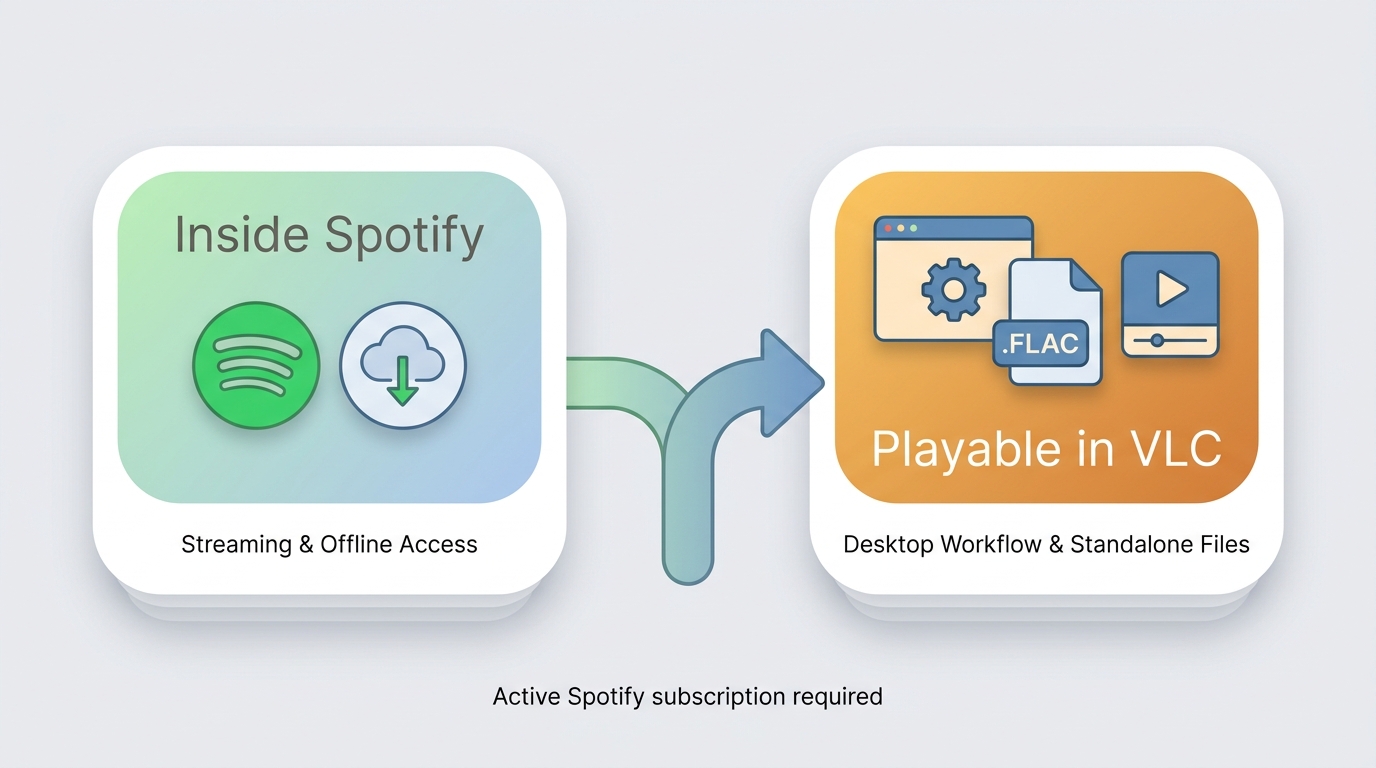
Spotify to FLAC does not mean Spotify exports ordinary FLAC files from its app. Spotify Lossless is a Premium listening and download feature for supported devices and music tracks; podcasts, audiobooks, and music videos are outside that Lossless scope. In my view, this is the distinction worth settling before choosing any converter, because a FLAC extension alone says nothing about the source quality.
Spotify does not directly export playable FLAC files. A Spotify-to-FLAC workflow can preserve the source quality available to an account, but converting a lossy source to FLAC cannot add missing audio detail. It creates a larger file, not true lossless audio.
How to Convert Spotify to FLAC with MusicFab
This is one path for desktop users, not a replacement for Spotify’s in-app offline mode. For authorized personal use where permitted by Spotify’s terms and applicable law, MusicFab Spotify Converter provides a local-file workflow for Windows and Mac and requires an active Spotify subscription. It uses direct source download technology and does not perform DRM decryption.
It fits listeners handling albums or playlists who want local FLAC, MP3, M4A, WAV, or OPUS files with ID3 tags and artwork. Batch-oriented libraries benefit from processing up to 20x faster, while the 30-day trial includes three full songs per music service. Complete tags, cover art, track numbers, and synced .lrc lyrics are particularly useful when a large library would otherwise need manual cleanup. Spotify Lossless quality still applies to music tracks only, not Music Videos, Podcasts, or Audiobooks, and attainable output quality depends on the source available to the account and track.
It is not the right fit for someone who only needs Spotify’s managed offline downloads or cannot use desktop software.
Download Tracks and Playlists in FLAC
Step 1: Check your Spotify audio quality settings and select the highest source quality available to your account and device.
- Open Spotify Settings > Audio quality / Media quality.
- Set both Streaming and Downloads to the highest option you see:
- Select Lossless, if it appears for your supported device, or
- Very High if Lossless isn’t available yet.
- Turn off any Data Saver/low-bandwidth modes.
Account and quality note: MusicFab supports Spotify Free and Premium accounts, while attainable output quality depends on the source quality available to the account and track.
Step 2: Open MusicFab and click the Spotify icon.
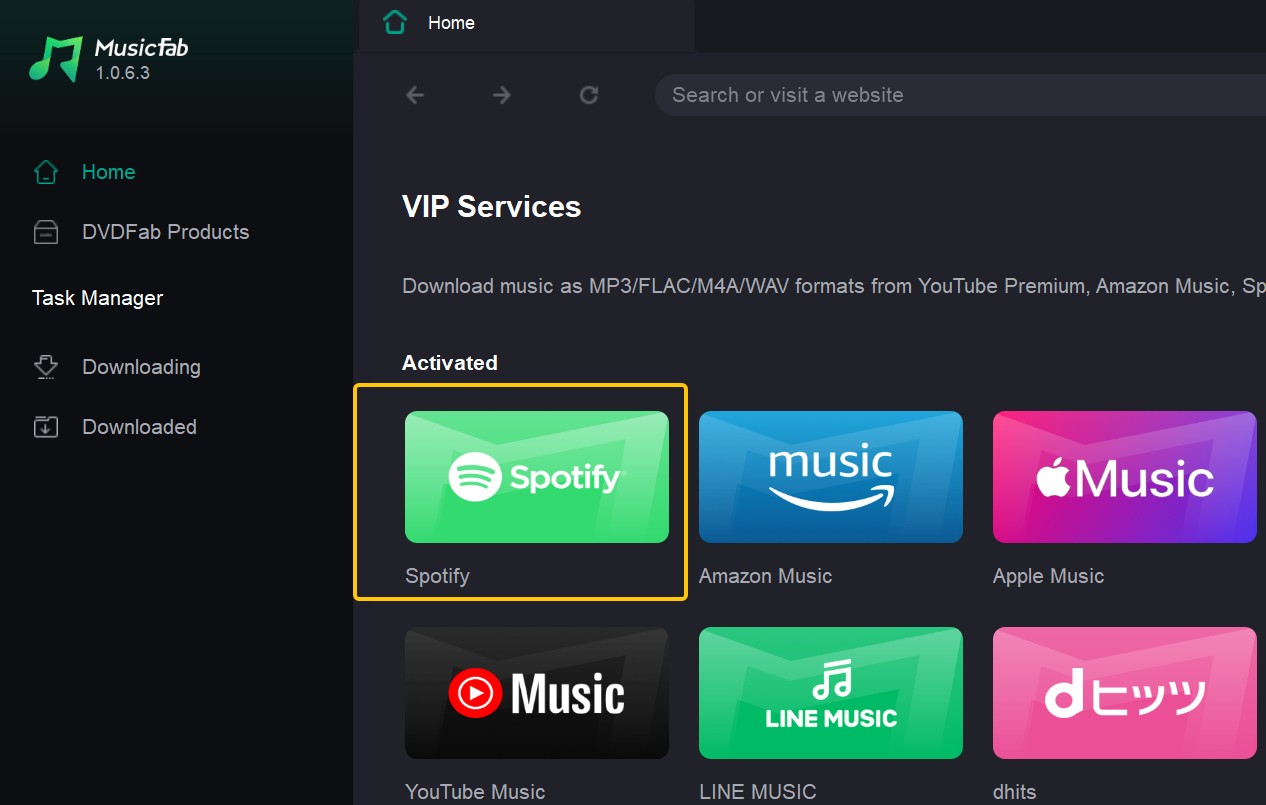
You’ll see a built-in browser window. Log in to your Spotify Free or Premium account, then browse to the playlist or album you want to convert.
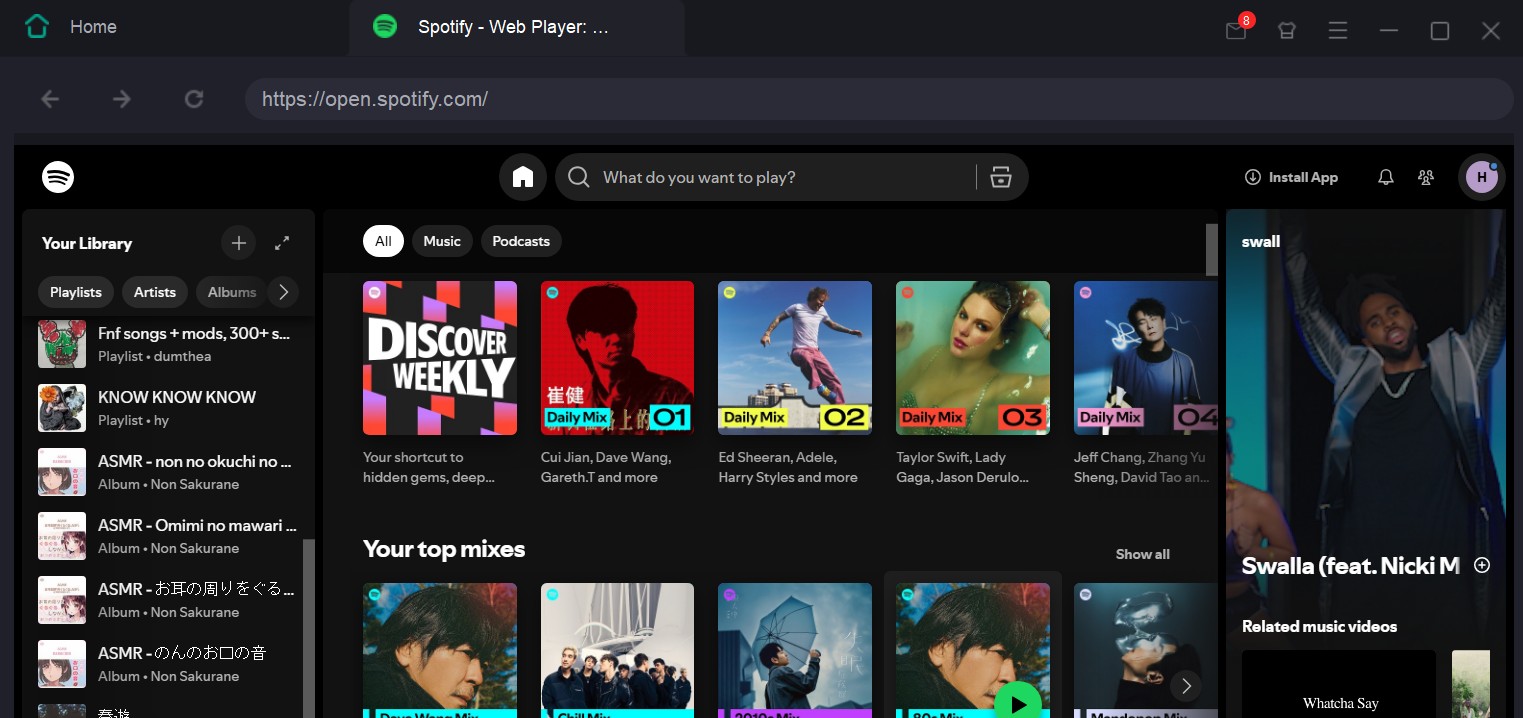
Note: For music tracks, choose the highest Spotify audio-quality setting available to your Premium account and supported device. FLAC output cannot improve a lower-quality source.
Step 3: Use MusicFab’s download button to convert. MusicFab will analyze the playlist, which makes it a practical Spotify playlist downloader workflow when you need to process a queue locally.
If a playlist does not load or parse, confirm that it is visible to your account, retry the analysis, and split an unusually large queue if needed. Resume failed items after the queue reloads, then spot-check several completed tracks before processing more.
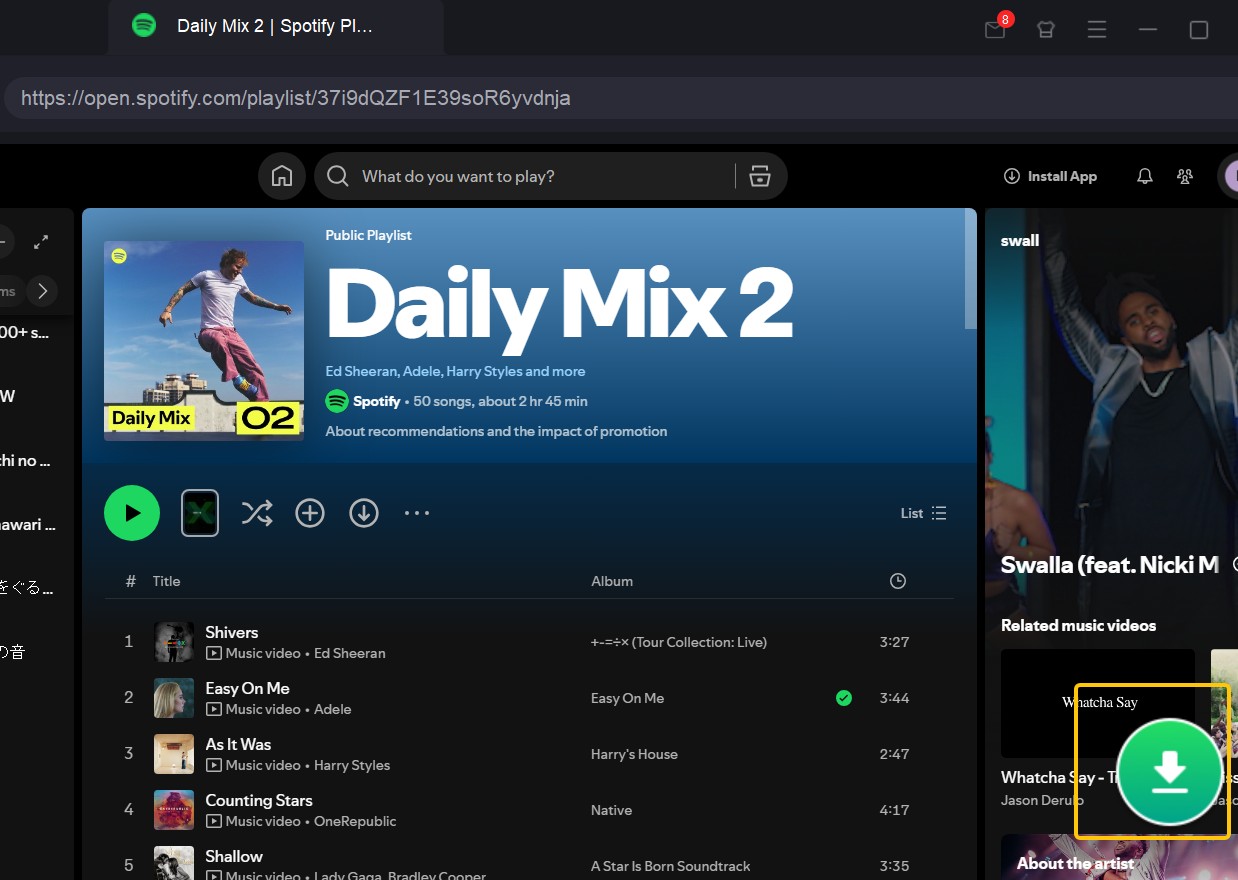
A pop-up window will appear. Set FLAC as your output format and choose quality options.
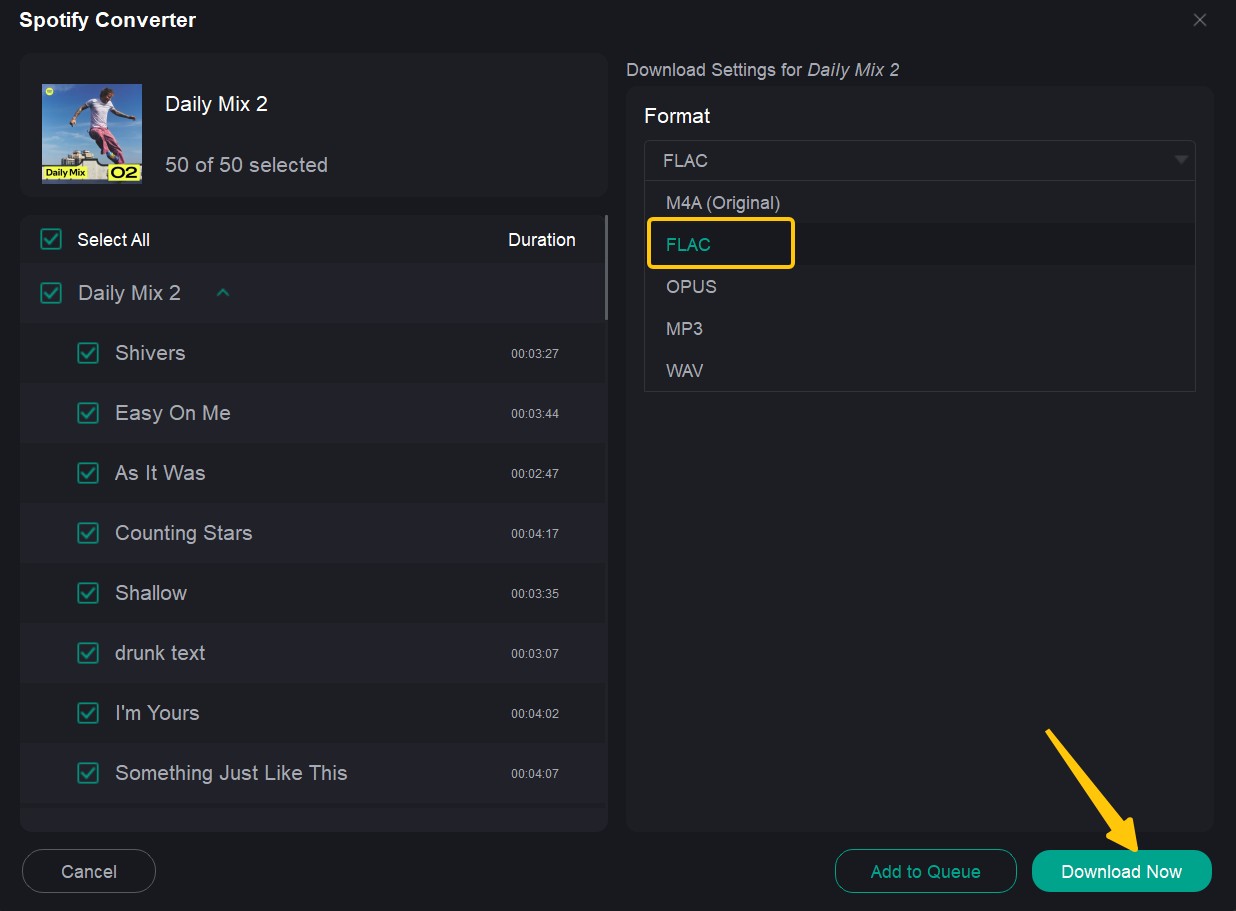
Step 4: Click Download Now to start processing the queue in the background.
Spot-check a few files for the expected format, ID3 tags, artwork, track numbers, and synced .lrc lyrics before treating a large queue as complete.
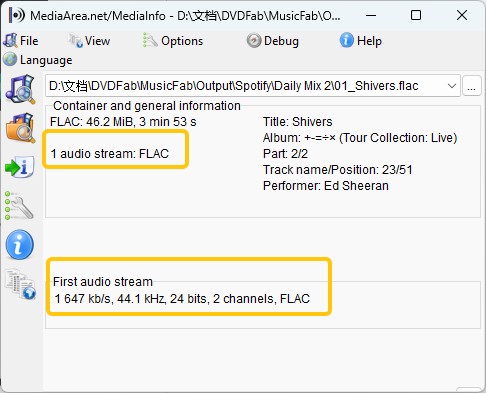
Avoid Fake FLAC Outputs
If a tool claims lossless FLAC, it should be able to preserve the source quality. Three tips to help you:
- Check the source first: make sure it is true Lossless.
- Check track info: verify metadata, file sizes, and consistency across an album/playlist.
- Be skeptical of unclear sources: an online tool should explain where its audio comes from instead of relying on a FLAC label alone.
Fast checklist to spot fake FLAC:
- File size: a lossless track that's usually small is suspicious
- Specs: check sample rate/bit depth(common: 44.1 kHz)
- Spectrum: a sharp high-frequency cutoff can indicate a lossy source, although it is not a complete test by itself.
Compare Spotify FLAC Methods by Source
A Spotify FLAC downloader label does not describe one consistent method. The useful question is where the audio comes from and where the resulting file can play. I would not compare formats until that source path is clear.
| Method | File source | Where playback works | Main limitation | Best fit |
|---|---|---|---|---|
| Spotify in-app Lossless | Spotify app download | Inside Spotify | Not an exportable FLAC file | Spotify-only listening |
| MusicFab desktop conversion | Spotify music source available to account | FLAC-compatible apps and players | Desktop software and active subscription | Batch local-file libraries |
| Online paste-link retrieval | Varies by provider | Depends on output | Source and safety vary | Small, carefully checked jobs |
| Cross-catalog FLAC matching | Another catalog matched by metadata | FLAC-compatible apps and players | May produce failed or different matches | Experienced users |
Cross-catalog tools may use Spotify metadata to locate matches in services such as Tidal, Qobuz, Amazon Music, or Deezer. A match is not a file sourced from Spotify, so verify its provenance and metadata before relying on it.
Choose the Right Spotify FLAC Method
Choose Spotify in-app Lossless if you want offline listening that stays inside Spotify. Choose a desktop local-file workflow if authorized personal use, batch handling, and complete metadata matter more than mobile convenience. Consider online or cross-catalog tools cautiously, and only when their source path and setup requirements are clear.
My recommendation is simple: source transparency matters more than the FLAC label. No method can turn a lossy source into true lossless audio, and Spotify’s official downloads remain the lower-friction choice for listeners who do not need files outside the app.
Build a Reliable Spotify FLAC Workflow
For authorized personal use where permitted, start with an active Spotify subscription and the best source quality available to your account. When using MusicFab, its direct source download process does not perform DRM decryption.
- Check the available source quality for the music tracks you want.
- Choose a source-transparent method that fits where you plan to listen.
- Confirm the output format, sample files, ID3 tags, artwork, track numbers, and synced lyrics.
- Keep authorized personal copies in a FLAC-compatible player or music library.
Complete metadata and synced lyrics reduce cleanup dramatically when a playlist or album becomes a larger local library.
FAQs
Can Spotify play local FLAC files on iPhone or Android?
Spotify’s in-app downloads and local files are separate features, and mobile local-file behavior can vary by device and app version. For a standard FLAC file, a FLAC-compatible mobile player or portable player is often the simpler choice. Spotify lists current supported-device behavior on its official site.
Is FLAC worth the extra storage space over MP3?
FLAC makes sense when you want to preserve the quality available from the source and have enough storage for a larger library. MP3 is still practical for smaller libraries, casual portable listening, and devices with limited space. Neither format can improve the source it starts with.
Are GitHub Spotify FLAC tools practical for beginners?
They can be useful for people comfortable with configuration, command-line setup, and troubleshooting failed matches. Many cross-catalog projects use Spotify metadata to locate audio elsewhere, so their provenance and results need careful review. For beginners, that setup burden is usually the deciding factor.
What should I check before using an online Spotify FLAC downloader?
Check whether the provider clearly explains its audio source, avoid services that request unnecessary account access or push installers and aggressive ads, and look for playlist limits and metadata handling. Then inspect a few resulting files instead of assuming that a FLAC extension proves lossless quality.
Conclusion
If you simply want offline listening inside Spotify, the app's built-in download feature may already cover your needs. If you want locally stored FLAC files for a DAC, media server, external drive, or personal music library, a desktop tool such as MusicFab Spotify Converter provides more control over the output format, metadata, and file organization.

This guide compares nine Spotify downloaders across browser, desktop, Android, and iOS workflows. It weighs source matching, output quality, playlist and ZIP behavior, metadata, account exposure, and tool status, then explains which option fits a single track, a long playlist, or a managed local library.
By Jane Chen - Aug 26, 2026
Spotify downloads can stall because of Premium eligibility, device limits, storage, network permissions, cache state, or a service incident. This guide gives one nine-fix recovery path, then separates iPhone, Android, Windows/Mac, Apple Watch, partial-playlist, Offline Mode, and clean-reinstall cases. It also explains when a MusicFab local-file workflow fits authorized personal use.
By Jane Chen - Aug 26, 2026
Spotify Premium can download music for playback inside the Spotify app, while Free accounts can download podcasts. This guide covers setup, device differences, download limits, troubleshooting, travel checks, and a portable-file option.
By Jane Chen - Aug 18, 2026
Is Spotify Duo still worth $18.99 for two people at one address? Get the current price, savings vs Individual and Family, address verification rules, setup
By Jane Chen - Aug 13, 2026