How to Burn a CD from Spotify on Windows/Mac [2026 Guide]

Here, you will find various tools, and methods to explore how to burn CDs from Spotify. The practical route is to use MusicFab to prepare MP3 or WAV files, then burn an Audio CD with Windows Media Player or Apple Music.
![How to Burn a CD from Spotify on Windows/Mac [2026 Guide]](https://images.dvdfab.cn/artifact/2026/09/20/xvi8v_wILPJ1T_U9SWSnBPaT_pAfVvET/feature_cover.jpg)
Can You Burn a CD From Spotify?
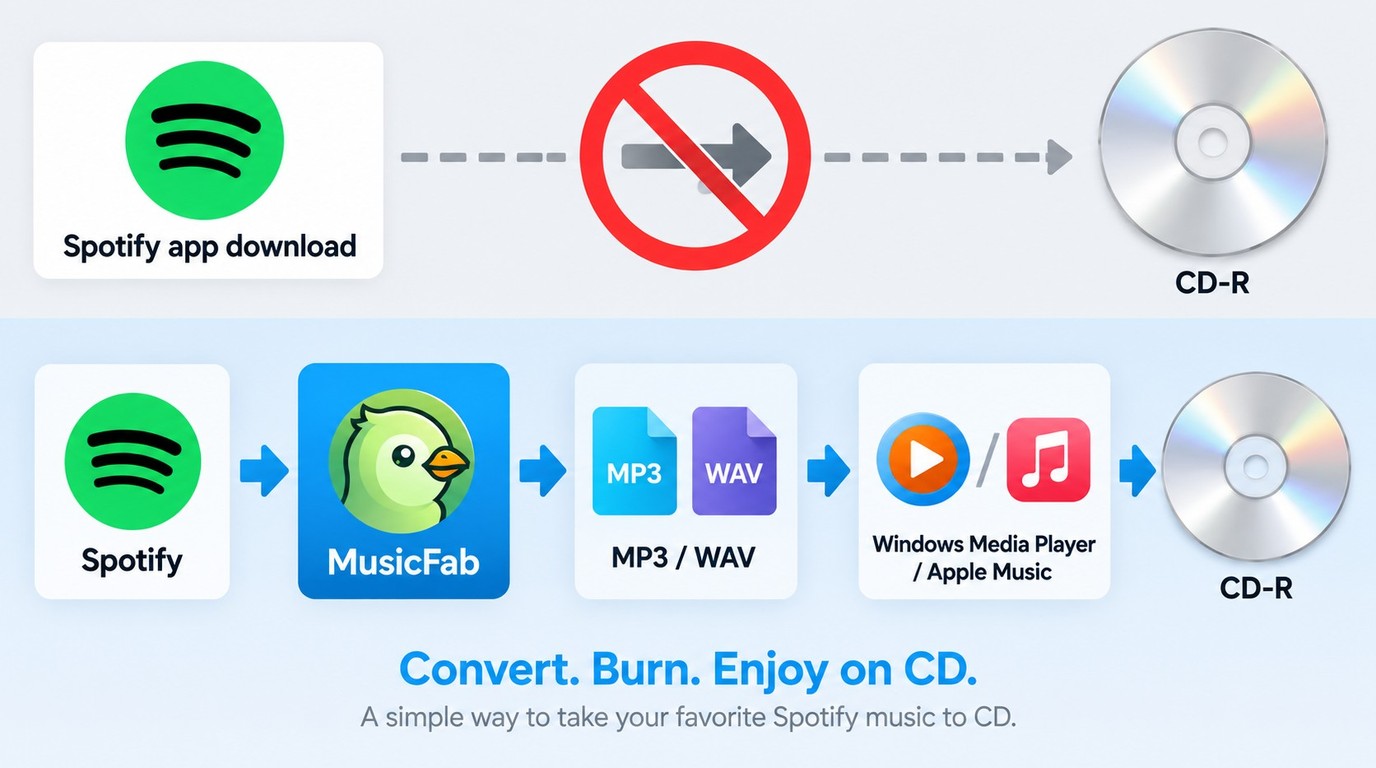
Spotify Premium offline downloads remain app-managed and cannot be dragged into CD-burning software as ordinary local audio files. Spotify Premium can stream Lossless audio at up to 24-bit/44.1 kHz FLAC on supported tracks and devices; source quality varies by plan, settings, device, and track availability.
But you can do this with 2 steps:
- With an active Spotify subscription, download and convert the Spotify songs you are authorized to access to MP3, WAV, or another CD-compatible format using MusicFab. It uses direct source download technology rather than real-time audio capture.
- Burn the converted Spotify files to a CD using Windows Media Player or Apple Music.
Avoid pirated downloads and cracked software; they are not part of this workflow.
What You Need to Burn a CD
| Hardware | CD-R discs Built-in CD/DVD writer or compatible USB external CD/DVD writer |
|---|---|
| Software | Ordinary local MP3 or WAV files MusicFab (Convert Spotify to MP3/WAV) Windows Media Player (Windows) or Apple Music (macOS) for burning |
| Other Tips | Burn at ≤ 4x speed, Use WAV as an uncompressed input for Audio CD authoring. Use MP3 for making an MP3 data disc for newer players Use CD-Text if player supports it. |
Use only content you are authorized to access, and create discs for personal backup where permitted by Spotify's terms and applicable law. Do not share, sell, or redistribute copied discs; specific limits depend on the use case.
Prepare Spotify Tracks for CD Burning
MusicFab offers a limited trial for three complete songs, while Windows Media Player, Apple Music, AnyBurn Free, and BurnAware Free can handle the later CD-burning stage. To prepare local files, you can convert Spotify tracks to MP3 or WAV with MusicFab Spotify Converter, then continue to the burning steps below.
Why MusicFab Fits CD Projects
MusicFab Spotify Converter handles the local-file preparation stage rather than burning the disc itself. It can process a Spotify playlist in batches and output standard formats such as MP3 and WAV while retaining ID3 details, including track titles, artists, album names, artwork, and track numbers.
For a CD project, retained track data makes it easier to confirm the playlist order before burning. MusicFab also supports additional audio formats and .lrc lyrics, but if you already have compatible local files, you can skip directly to the CD-burning section.
Steps to Convert Spotify Music to MP3/ WAV
The 30-day trial lets you prepare three complete Spotify songs before purchasing a license.
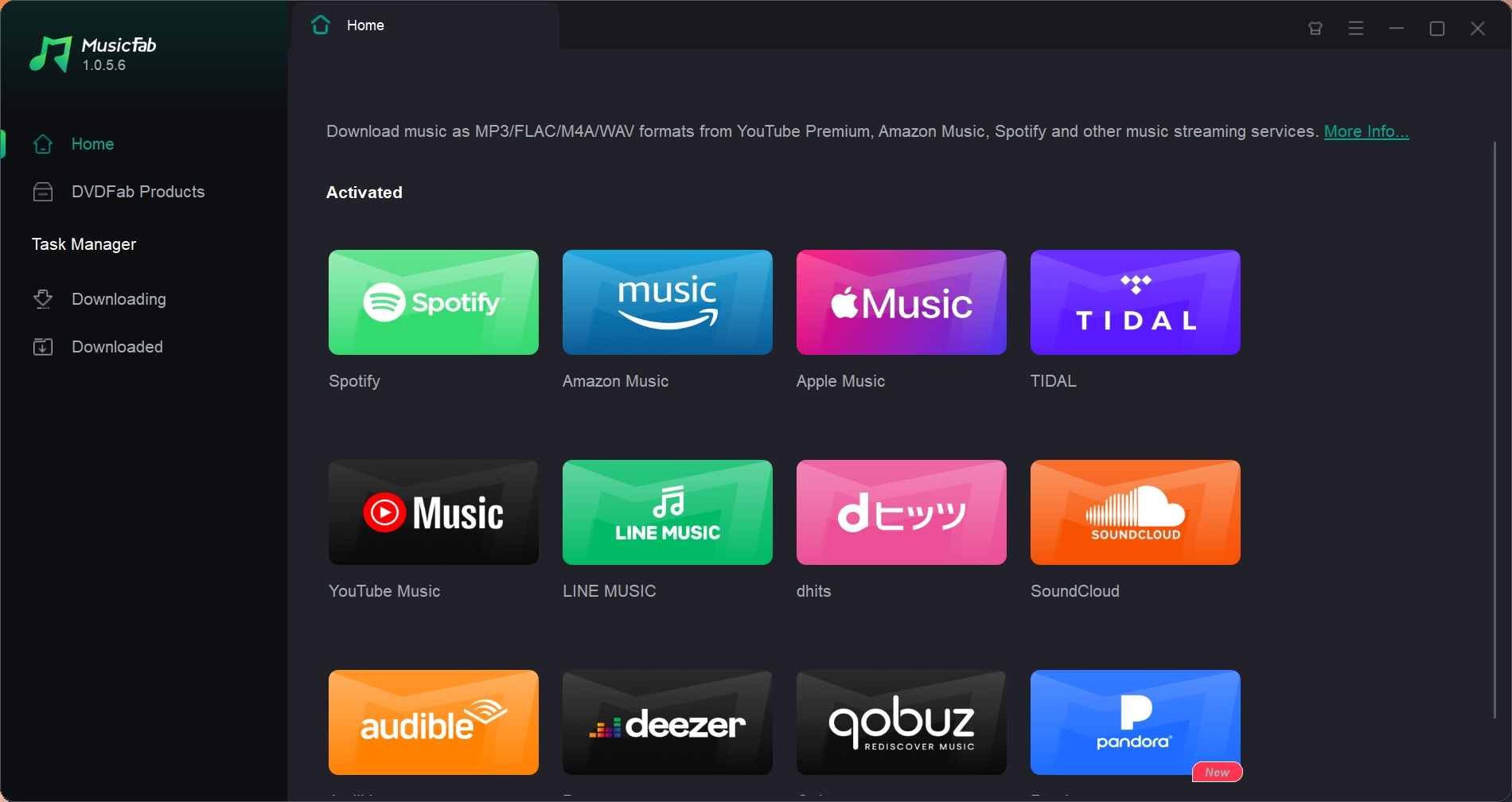
Step 1: Once you launch and start the MusicFab program on your Windows or Mac system, head to the main interface and select the “VIP Service” option. Then, choose the “Spotify” icon card from the various website icon options.
Step 2: Sign in to your official Spotify free or premium account using the MusicFab built-in browsing option. Then, select your preferred Spotify song or playlist you wish to convert to MP3 or WAV. And click the download button to analyze the playlist, then customize your download settings.
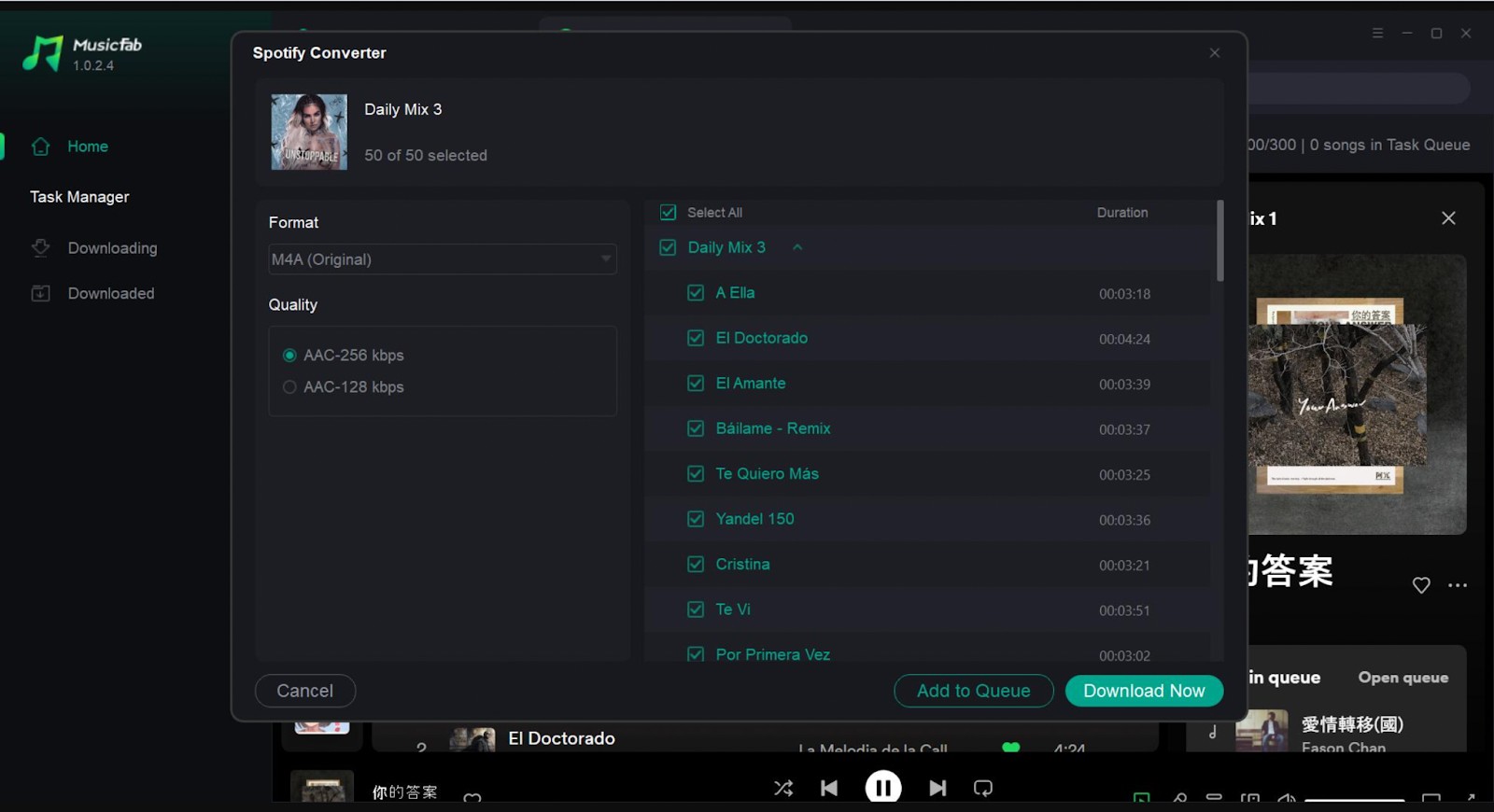
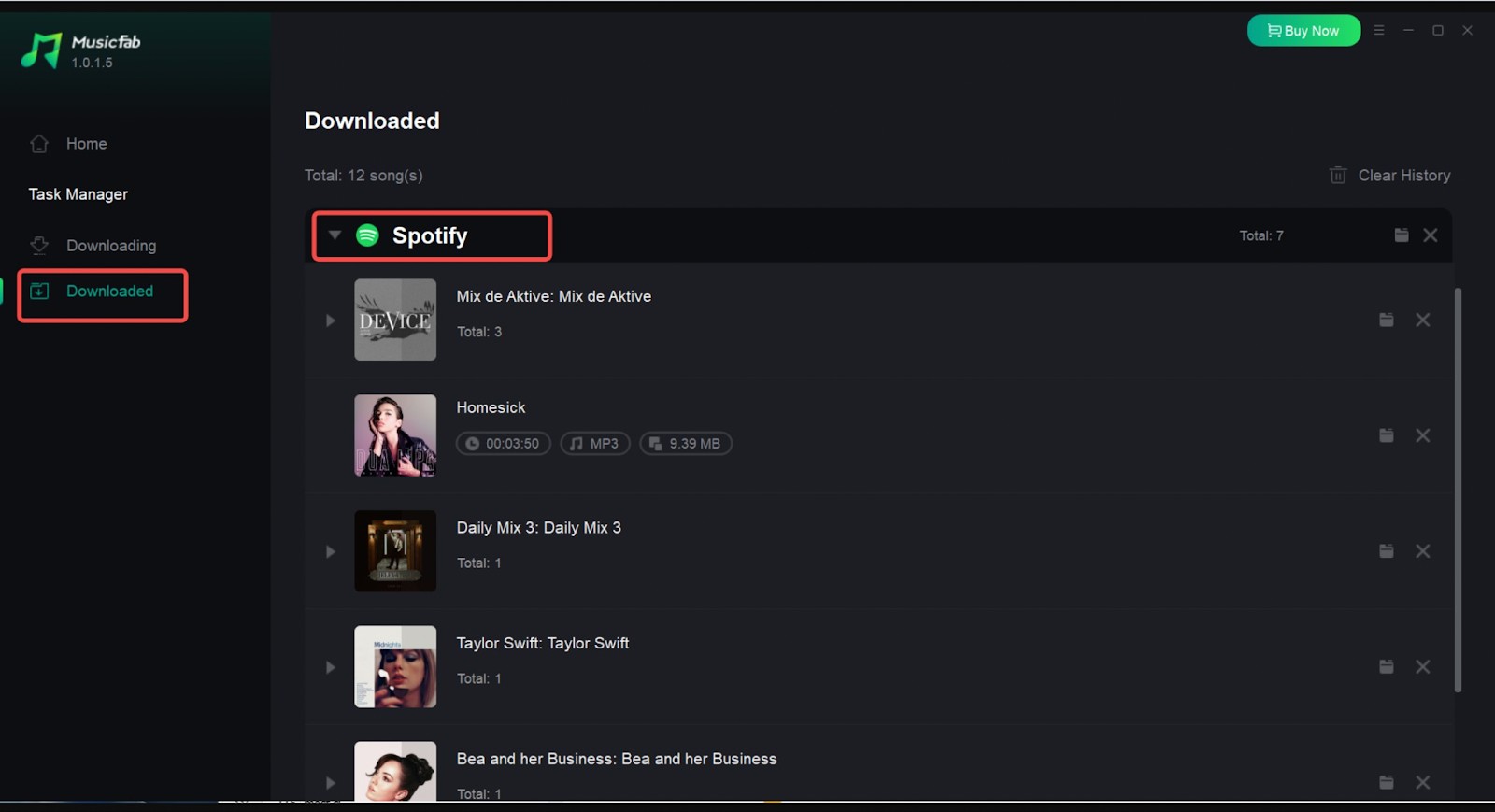
Step 3: Go to the “Download” tab to find the converted file.
Tips: For more information about MusicFab, refer to this comprehensive MusicFab review.
How to Burn Spotify Playlists to CD for Free
The free part of this workflow is the CD-burning stage: MusicFab's trial prepares up to three complete Spotify songs, while the tools below can burn compatible local files without an additional burning-software purchase. Start with Windows Media Player on Windows or Apple Music on Mac, then consider AnyBurn or BurnAware when you need a separate Windows burner.
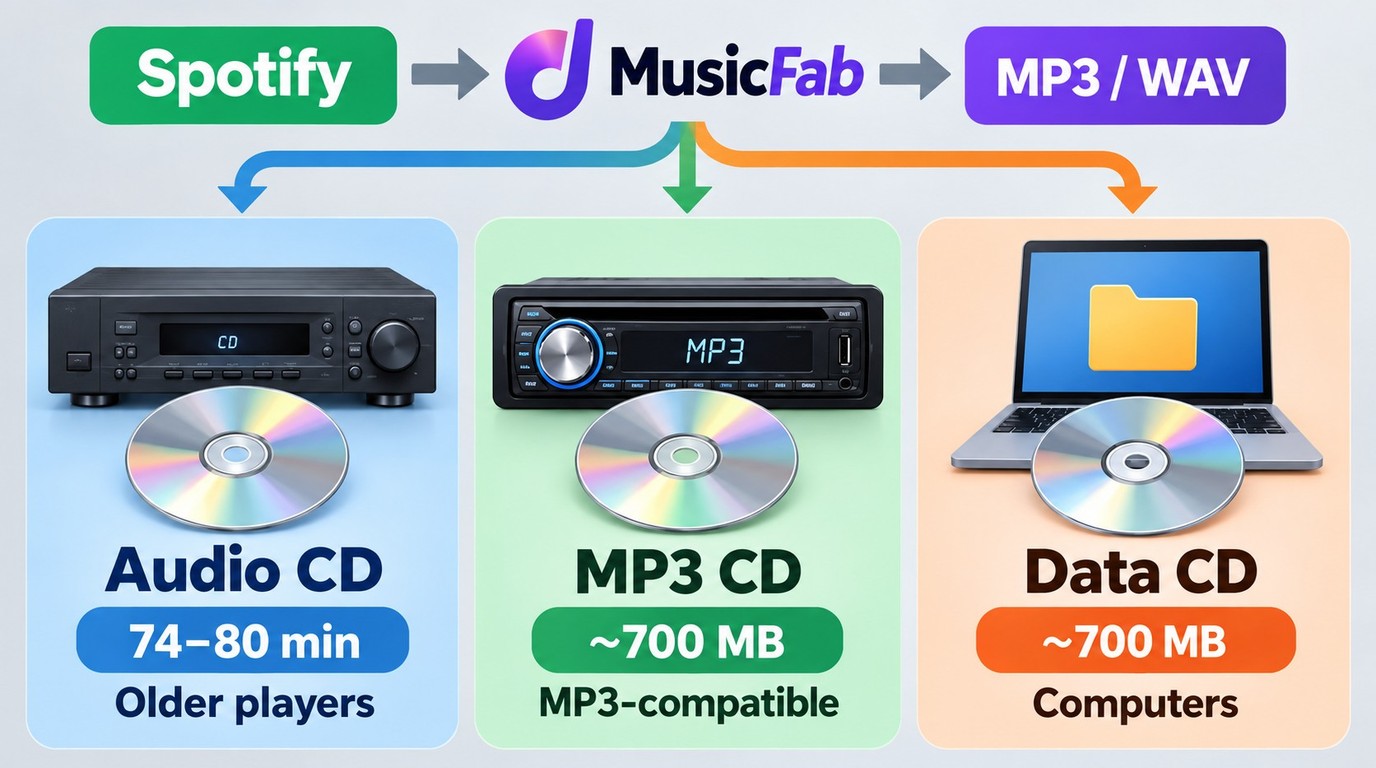
Audio CD vs MP3 CD: Which Should You Make?
| Disc Type | Source File | Disc Output | Limit | Player Compatibility |
|---|---|---|---|---|
| Audio CD | WAV or other supported audio | CD-DA audio | About 74–80 minutes | Best for older players |
| MP3 CD | Lossy MP3 files | MP3 data disc | About 700 MB | Requires MP3 support |
| Data CD | MP3, WAV, or FLAC | Files and folders | About 700 MB | Mainly computers |
Spotify Premium Lossless can provide up to 24-bit/44.1 kHz FLAC on supported tracks and devices as of September 2026. However, converting a lossy source to WAV does not restore audio detail that was already discarded; WAV simply provides an uncompressed input for Audio CD authoring.
If you want the CD to work in most old CD players, choose Audio CD. If your car stereo supports MP3 discs and you want to fit more songs on one disc, choose MP3 CD.
Free CD Burning Tools at a Glance
| Tool | Workflow Role | Operating System | Audio CD Support | Cost Boundary |
|---|---|---|---|---|
| MusicFab Spotify Converter | Prepares local audio files | Windows / macOS | No | 30-day trial, 3 full songs |
| Windows Media Player | Burns discs | Windows | Yes | Included with Windows |
| Apple Music app | Burns discs | macOS | Yes | Included with macOS |
| AnyBurn | Burns discs | Windows | Yes | Free edition available |
| BurnAware | Burns discs | Windows | Yes | Free edition available |
For the shortest workflow, use the built-in burner for your operating system: Windows Media Player on Windows or Apple Music on Mac. AnyBurn and BurnAware are practical Windows alternatives when you want a dedicated disc utility. VLC can handle playback or conversion but is not the burner in this workflow, while the Burn app is covered below as a legacy Mac alternative.
Burn a Spotify CD with Windows Media Player
Best For:
- Use the CD with old stereos and home CD players.
- Prefer few settings.
Steps:
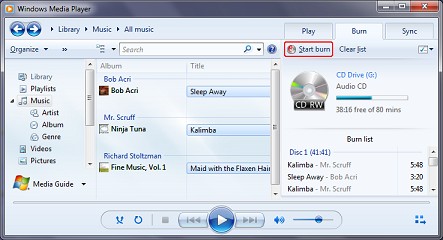
- Step 1: Insert the blank CD-R into your CD/DVD drive.
- Step 2: Go to the Burn tab, then drag and drop the Spotify file converted by MusicFab into the Burn panel on the right side.
- Step 3: Start the burn options to Audio CD, select ≤ 4x speed, and check the box to Finalize.
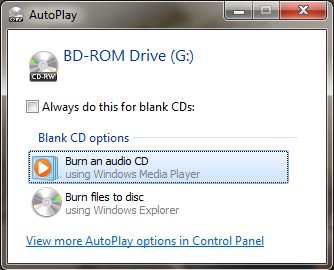
- Step 4: Click Start Burn and wait for the burning process to complete.
Troubleshoot:
- No optical drive: Connect a compatible USB CD/DVD writer.
- Drive cannot write discs: Confirm that the drive is labeled CD-RW, DVD-RW, or otherwise supports writing rather than read-only playback.
- Playlist exceeds 80 minutes: Split it across multiple Audio CDs, or make an MP3 disc if the target player supports MP3 playback.
- Disc not recognized: Try a CD-R instead of a CD-RW, use another blank disc, and make sure the finished disc is finalized.
- Disc works on a computer but not in a car: Burn an Audio CD rather than an MP3 or data disc.
- Tracks play in the wrong order: Rearrange the Burn list before starting the disc.
- Skipping or audio problems: Clean the drive, try another CD-R brand, and confirm that the source files play correctly before burning.
- Final check: Test the completed CD in the car stereo, home system, or portable player where you plan to use it.
Burn Spotify Music to CD with Apple Music
Best For:
- Apple ecosystem user, want a simple, native flow.
Steps:
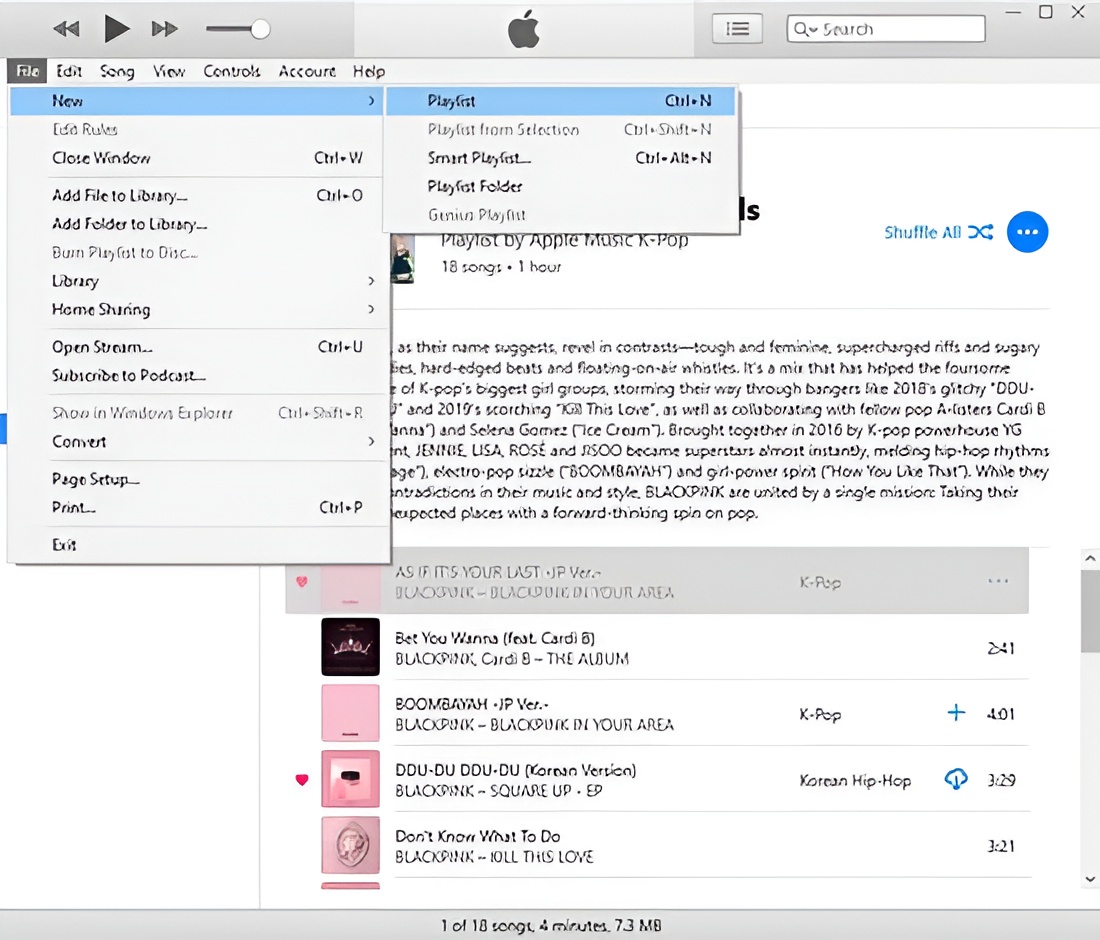
- Step 1: Open the Music app, then choose File > New > Playlist and give the playlist a name.
- Step 2: Add the local Spotify audio files prepared with MusicFab to the newly created playlist, then arrange them in the order you want on the CD.
- Step 3: Insert a blank CD-R into the Mac's built-in drive or a compatible USB CD/DVD writer. Select the playlist, then choose File > Burn Playlist to Disc.
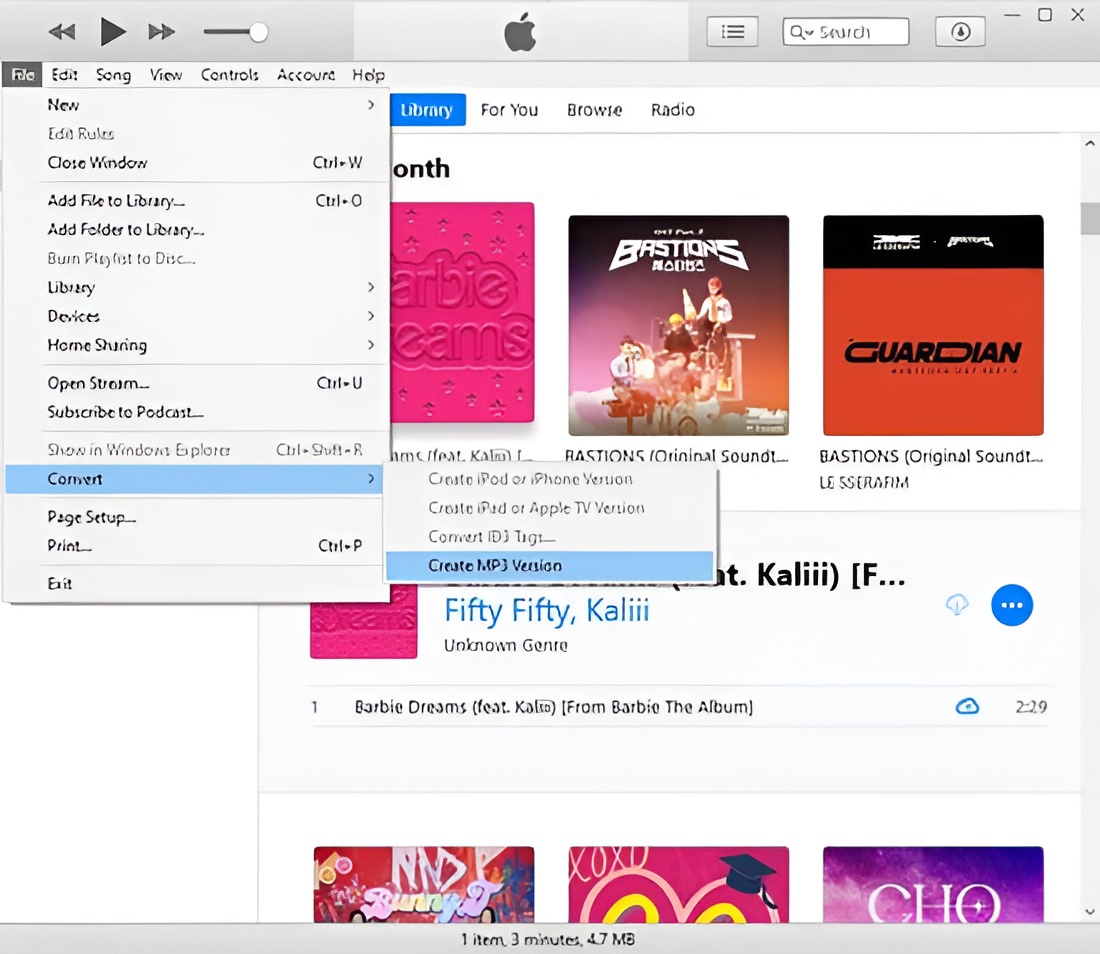
- Step 4: Choose the burn speed and disc format, then click “Burn” to start creating the CD.
VLC Converts Files but Does Not Burn CDs
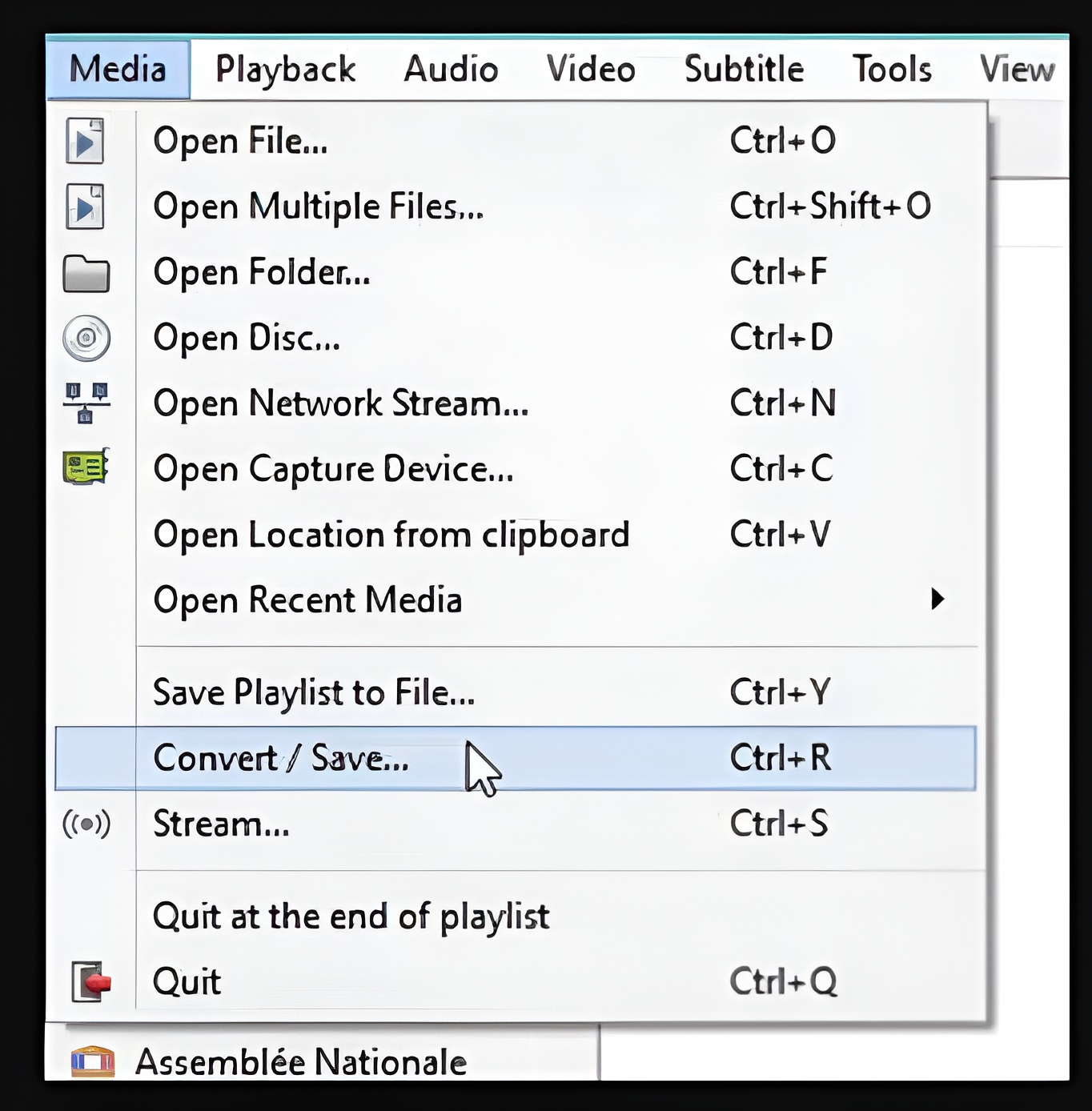
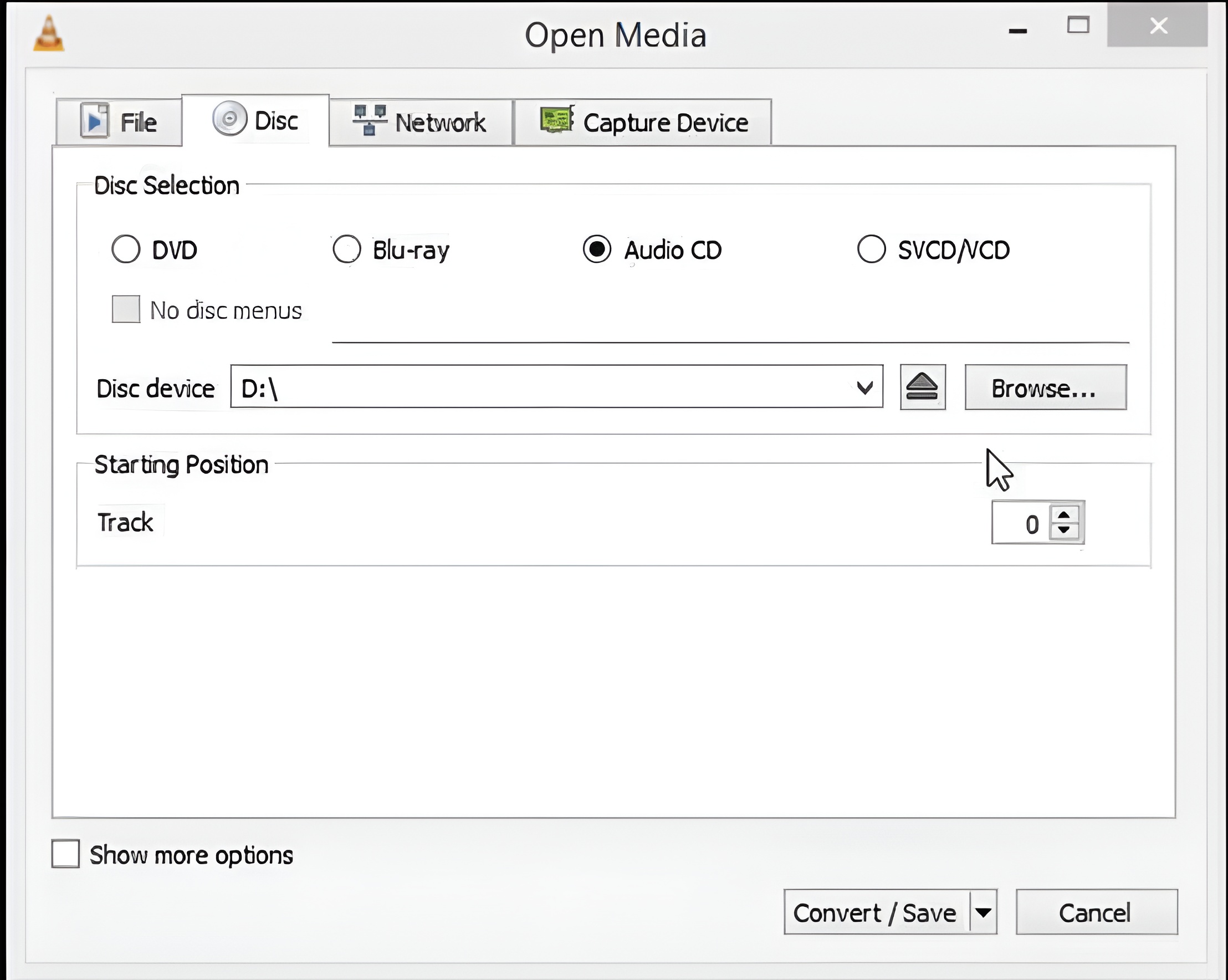
VLC can play audio and convert compatible local files, but its Convert / Save command does not create an Audio CD. Use Windows Media Player, Apple Music, AnyBurn, or BurnAware for the disc-burning stage.
4.5 How to Burn a Spotify Playlist to a CD Using AnyBurn
- Step 1: Start AnyBurn program > tap the “Burn Audio CD from MP3/ FLAC/ APE.” option.
- Step 2: Tap on the “Add” option to import the converted Spotify file. Then select “Next” to choose the burning drive.
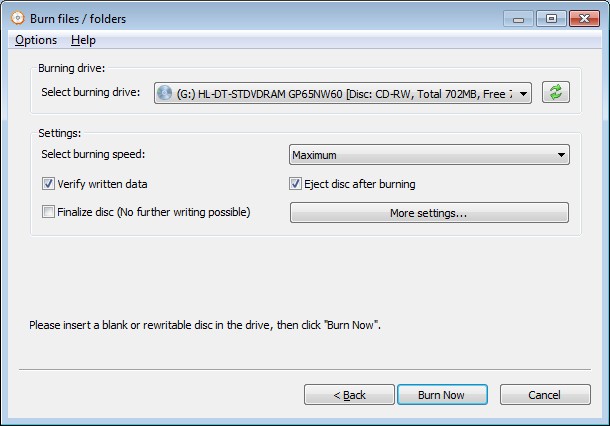
- Step 3: Now, insert the blank CD and tab the “Burn Now” option.
Burn for macOS: A Legacy Alternative
Burn for macOS 3.1.9 is an older alternative for Macs already running the app. For current macOS systems, the built-in Apple Music workflow is the primary choice.
- Step 1: Put a blank CD > Open the Burn app and tap on “Audio”.
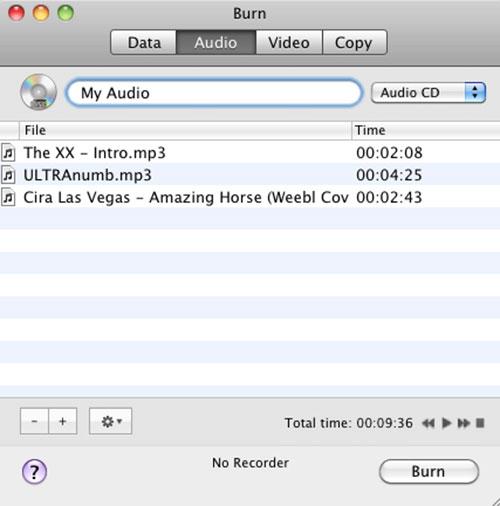
- Step 2: Hit the “+” sign to upload the converted Spotify playlist by MusicFab > next tap on the “Select” option and get a drop-down list > select the CD type from the list.
- Step 3: Finally, tap the “Burn” option.
4.7 How to Burn a CD From Spotify Using BurnAware
- Step 1: Open BurnAware then go to the “Create” section and select “Audio CD”.
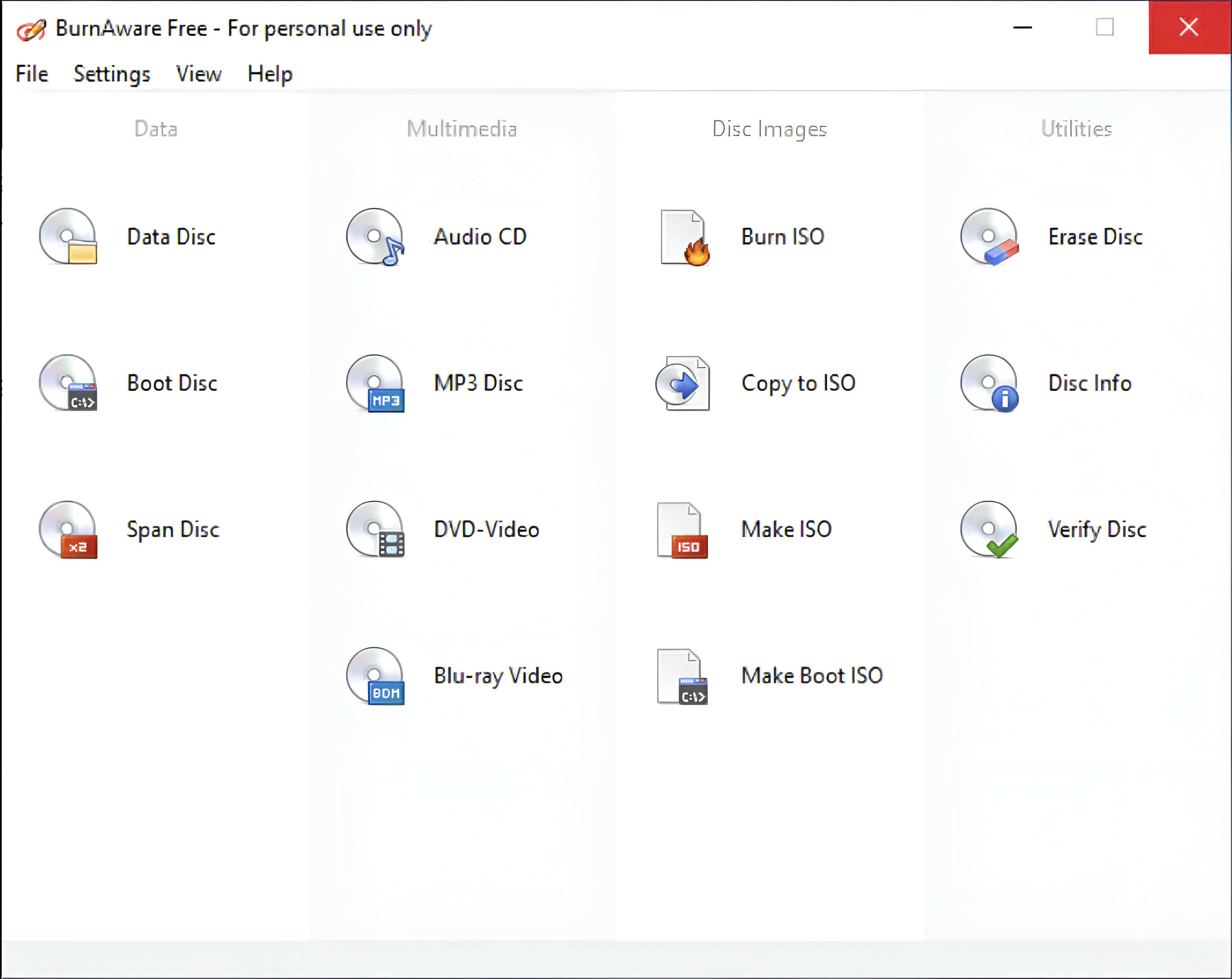
- Step 2: Upload the Spotify track using by drag-and-drop function
- Step 3: Insert a blank CD.
- Step 4: Adjust the burn speed and other settings according to your needs. Then, select “Burn”.
Conclusion
- You cannot burn Spotify songs to a CD directly. Spotify Premium offline downloads remain managed inside the app and cannot be dragged into CD-burning software as ordinary MP3 or WAV files.
- The workable method is to prepare local audio files first. For authorized personal use with an active Spotify subscription, MusicFab Spotify Converter can save songs, albums, or playlists in CD-compatible formats. Its trial covers three complete Spotify songs, while the later burning stage can use free tools.
- Choose WAV as an uncompressed input for a standard Audio CD. Converting a lossy source to WAV does not restore audio detail that was already discarded, but an Audio CD remains the safer disc type for older car stereos, home systems, and portable CD players.
- Choose MP3 for an MP3 CD or data disc. MP3 lets you fit more songs on one disc, but your CD player must support MP3 playback.
- Windows and Mac users need different burning tools. On Windows, you can use Windows Media Player, AnyBurn, or BurnAware. On current macOS systems, use the Apple Music app; Burn for macOS is an older alternative.
- VLC is not the CD-burning step. It can play or convert audio files, but you still need a disc-burning tool such as Windows Media Player, Apple Music, AnyBurn, or BurnAware.
- For best compatibility, use CD-R instead of CD-RW. CD-R discs are more likely to work with older CD players and car stereos.
Spotify-to-CD FAQs
Can I burn a Spotify CD using only an iPhone?
No. An iPhone cannot write an optical disc by itself. You need a Windows PC or Mac, ordinary local audio files, and a writable optical drive. If the computer has no built-in drive, use a compatible USB CD/DVD writer.
Why does my burned CD work on a computer but not in my car?
Older car stereos may not support MP3 or data discs. Create a finalized Audio CD on CD-R media, then test it in the target player before making additional copies.
What should I do if my playlist is longer than 80 minutes?
Split the playlist across multiple Audio CDs. An MP3 disc can hold more songs, but it is suitable only when the car stereo or CD player explicitly supports MP3 playback.
Should I use CD-R or CD-RW for an older CD player?
CD-R is generally the more compatible option for older car stereos, home systems, and portable CD players. CD-RW media may not play reliably on older hardware.
Is the complete Spotify-to-CD workflow free?
Not necessarily. MusicFab provides a limited trial for three complete Spotify songs during the local-file preparation stage. Windows Media Player, Apple Music, AnyBurn Free, and BurnAware Free can handle the later CD-burning stage without an additional burning-software charge.


A WAV extension does not prove that audio came from Spotify or that it is lossless. This guide compares MusicFab, OnTheSpot, and Audacity, then explains source quality, batch workflow, setup tradeoffs, account considerations, and when FLAC is the more efficient choice.
By Jane Chen - Oct 21, 2026
Compare each Spotify to Apple Music playlist converter by device, free transfer access, verified 2026 limits, sync options, and mismatched-track review.
By Jane Chen - Sep 22, 2026
This guide compares nine Spotify downloaders across browser, desktop, Android, and iOS workflows. It weighs source matching, output quality, playlist and ZIP behavior, metadata, account exposure, and tool status, then explains which option fits a single track, a long playlist, or a managed local library.
By Jane Chen - Aug 26, 2026
Spotify downloads can stall because of Premium eligibility, device limits, storage, network permissions, cache state, or a service incident. This guide gives one nine-fix recovery path, then separates iPhone, Android, Windows/Mac, Apple Watch, partial-playlist, Offline Mode, and clean-reinstall cases. It also explains when a MusicFab local-file workflow fits authorized personal use.
By Jane Chen - Aug 26, 2026