How to Transfer Spotify Playlist to Amazon Music: 2 Ways

Summary: Move Spotify playlists into Amazon Music through the official mobile import flow or a browser transfer service. Learn how to check missing tracks, recording versions, destination accounts, and offline listening options.
Table of Contents
To transfer a Spotify playlist to Amazon Music, use Amazon Music's mobile import flow or TuneMyMusic in a browser. You can bring over a carefully built playlist without adding each track manually; both routes match songs against Amazon's catalog rather than upload Spotify audio.
Your workout mix and late-night playlist represent choices, not just song titles. I care more about keeping the right recording than getting a green completion screen. I'll walk you through the mobile and browser routes, then show you what to inspect in the results. That includes the awkward cases: a missing favorite, an unexpected remix, or a playlist arriving in the wrong account.
Import Spotify Playlists with Amazon Music's Mobile Import Tool
Amazon Music offers an official mobile playlist import flow for iPhone and Android. The flow starts at the QR code on its import page and ends with imported playlists in your Amazon Music app library.
I'd use this route when you're already listening on your phone. It gives you an Amazon-provided starting point without making desktop software part of the transfer. It suits a library move, rather than a request for audio files you can manage on a drive.
The distinction matters before you begin. Importing rebuilds a playlist from recordings in Amazon's catalog. Downloading inside Amazon Music prepares eligible music for offline playback in that app. Saving local audio files is a separate task; neither playlist-transfer route is an audio-file export.
Before You Import: Accounts, Access, and Catalog Availability
Start with the accounts you actually want to connect. Make sure you can open the source playlist in Spotify, then check the Amazon account and listening profile on your phone. In a household with several listeners, recognize the destination by its account details rather than by a familiar playlist name.
Keep the source playlist open for reference. Its name, track count, and a few distinctive recordings will help you recognize the imported copy. If you're moving a shared playlist, confirm that the connected Spotify account can access it; possessing a link and seeing the playlist in the selection screen are different things.
Amazon's catalog sets the boundary. Its import page states that tracks are subject to availability, so an import is not a promise that every Spotify recording exists on Amazon. You also don't need separate iPhone and Android instructions: both begin with the same QR-code entry point.
The curation problem is real. In r/AmazonMusic, the author of “How to transfer Spotify playlists to Amazon Music” asked, “Does anyone know an easy way to transfer all my Spotify playlists to Amazon Music without losing any songs or having to recreate them manually?” Automated matching handles the rebuilding; the checks below address the missing-song concern.
Scan the QR Code and Complete the In-App Import
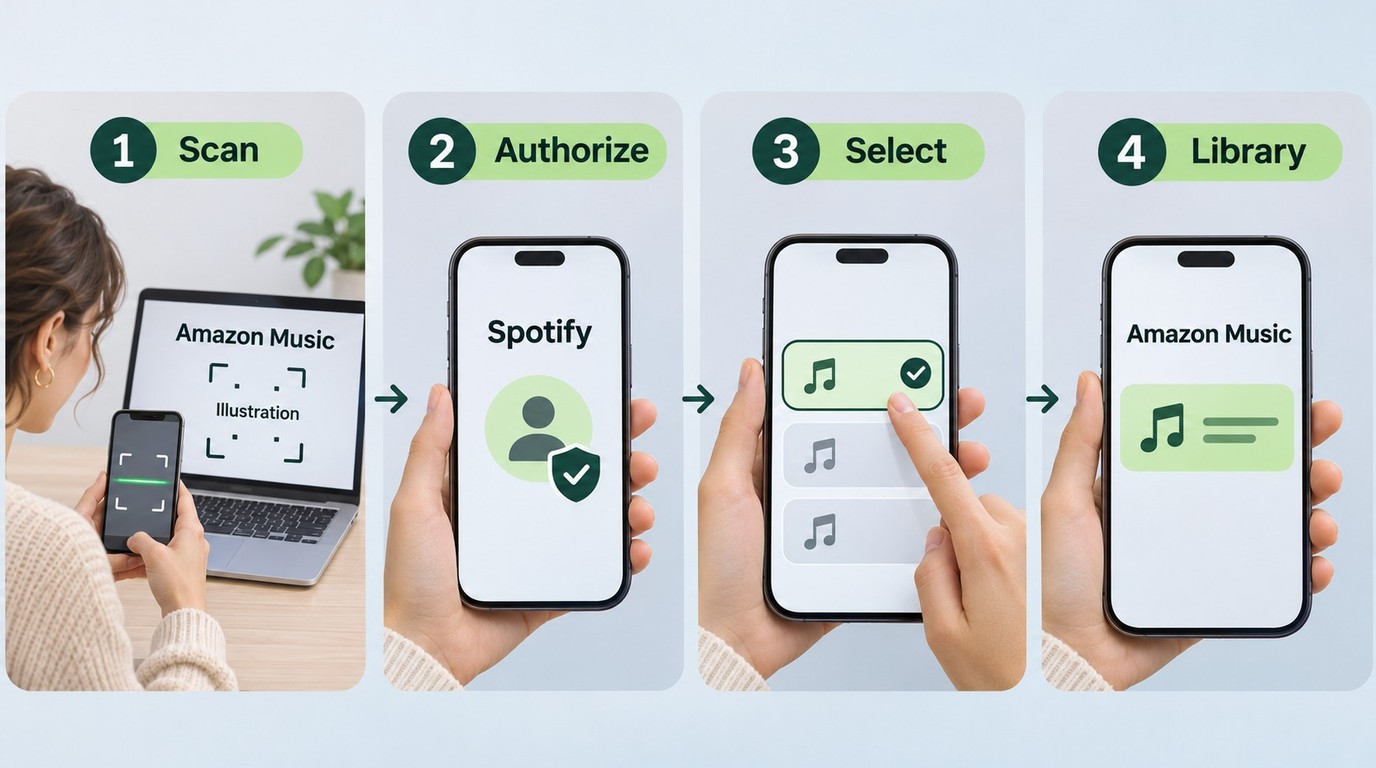
Use the official entry point rather than hunting through unrelated settings:
- Open Amazon Music's playlist import page on a screen where you can view the QR code.
- Scan that code with your iPhone or Android phone to enter the Amazon Music import flow.
- Follow the on-screen prompts to connect Spotify, authorize the requested access, and select the playlists you want to import.
- Finish the import, then open your library in the Amazon Music app and inspect the resulting playlists.
The finish line is a populated playlist in the intended library. Open it instead of stopping at the completion message. Leave detailed track-by-track cleanup for the results check after the browser method.
If the Mobile Import Flow Is Unavailable
Use the browser route below if the QR flow won't open or your account doesn't show the import process. It's also a practical fit when you're working at a computer. An unavailable entry point on your device is a reason to change routes, not evidence that Amazon has discontinued playlist imports.
Transfer Spotify Playlists in a Browser with TuneMyMusic
TuneMyMusic transfers a Spotify playlist to Amazon Music by matching its entries and rebuilding the destination playlist. You connect the accounts, select the music, and review the transfer results in a browser.
This is the route I'd choose when a computer makes reviewing a large collection easier. You get a selection stage and a missing-track report. It doesn't turn the playlist into downloadable audio, and its transfer allowance is a separate issue from Amazon's own library limits.
Connect Spotify, Select Playlists, and Choose Amazon Music
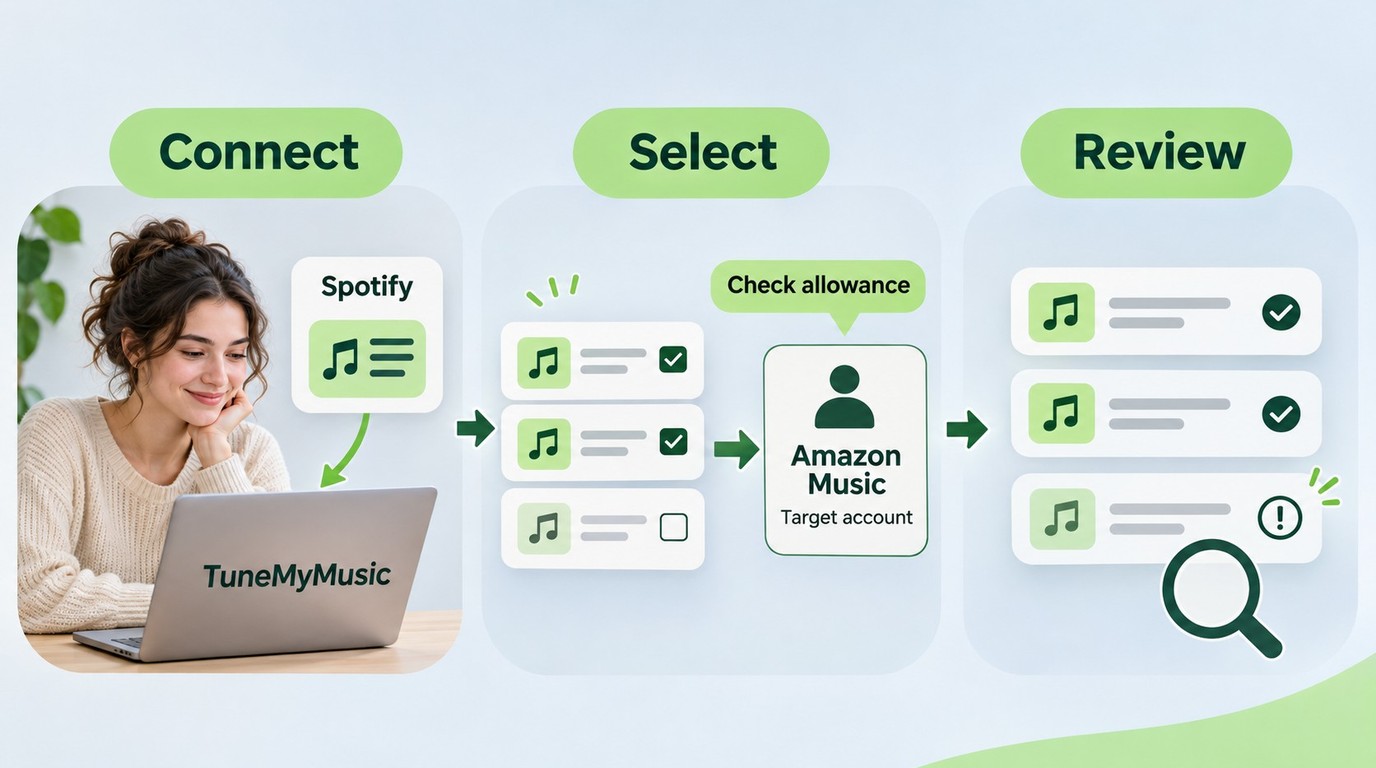
Open TuneMyMusic at tunemymusic.com and choose its Spotify-to-Amazon Music transfer. Keep the direction visible while you work:
- Choose Spotify as the source and connect the Spotify account containing your playlists.
- Select the playlists you want to copy, checking the selection before continuing.
- Choose Amazon Music as the destination and connect the intended Amazon account.
- Review the selected music and any allowance or upgrade screen shown for that job.
- Start the transfer and follow its progress to completion.
- Open the results, save the missing-song CSV report if needed, and check the new playlists in Amazon Music.
Treat that report as a cleanup list. A CSV is a spreadsheet-readable file, so you can keep the unmatched titles beside the destination playlist while checking them. Start with those entries rather than rebuilding the whole list again.
Matching identifies recordings; it doesn't improve their audio quality. TuneMyMusic describes using titles, artists, albums, and ISRCs, the industry codes that identify sound recordings. A matching code helps distinguish recordings, but a song title alone doesn't tell you whether you're getting the studio, live, or remastered version.
Choose the library objects deliberately. TuneMyMusic lists playlists, favorite songs, and favorite artists for this route, but its specific exclusions say favorite albums won't transfer. Don't treat importing playlists as a promise to move every saved album too.
Large Playlists: Free Limits and When Soundiiz Fits
The useful question is whether your selected tracks fit the transfer allowance. A December 2025 r/AmazonMusic post put it plainly: “Best way to export a spotify playlist that has around 500 songs?” That describes a collection size, not a current free-tier entitlement.
For a large TuneMyMusic job, load the intended selection before deciding whether to pay. If it exceeds the free allowance displayed in the flow, narrow the selection or choose the offered paid option for that scope. I wouldn't budget a migration around a remembered forum limit.
Soundiiz offers another fit for smaller selections. As of November 2026, Soundiiz Free supports transfers one playlist at a time, with up to 200 selected tracks per playlist; moving multiple playlists as a batch requires a paid plan. Its default selection starts at the beginning of the playlist, but you can change which tracks are included. The free allowance suits a short playlist, while a whole-library batch calls for a different scope. Neither condition proves a speed or matching-quality advantage over TuneMyMusic.
Check Missing Songs, Wrong Versions, and Account Mix-Ups
Missing tracks usually call for catalog and match checks; an unexpected library calls for an account check. Compare the source and destination, inspect the available transfer report, and confirm the Amazon account before running the job again.
I count a transfer as finished when the intended recordings reach the intended library. A completion banner is useful, but it isn't that check. Compare track counts, then sample distinctive entries such as a live performance, remix, or remastered album track. Equal counts alone won't reveal a wrong version.
Match Counts, Recording Versions, and the Destination Profile
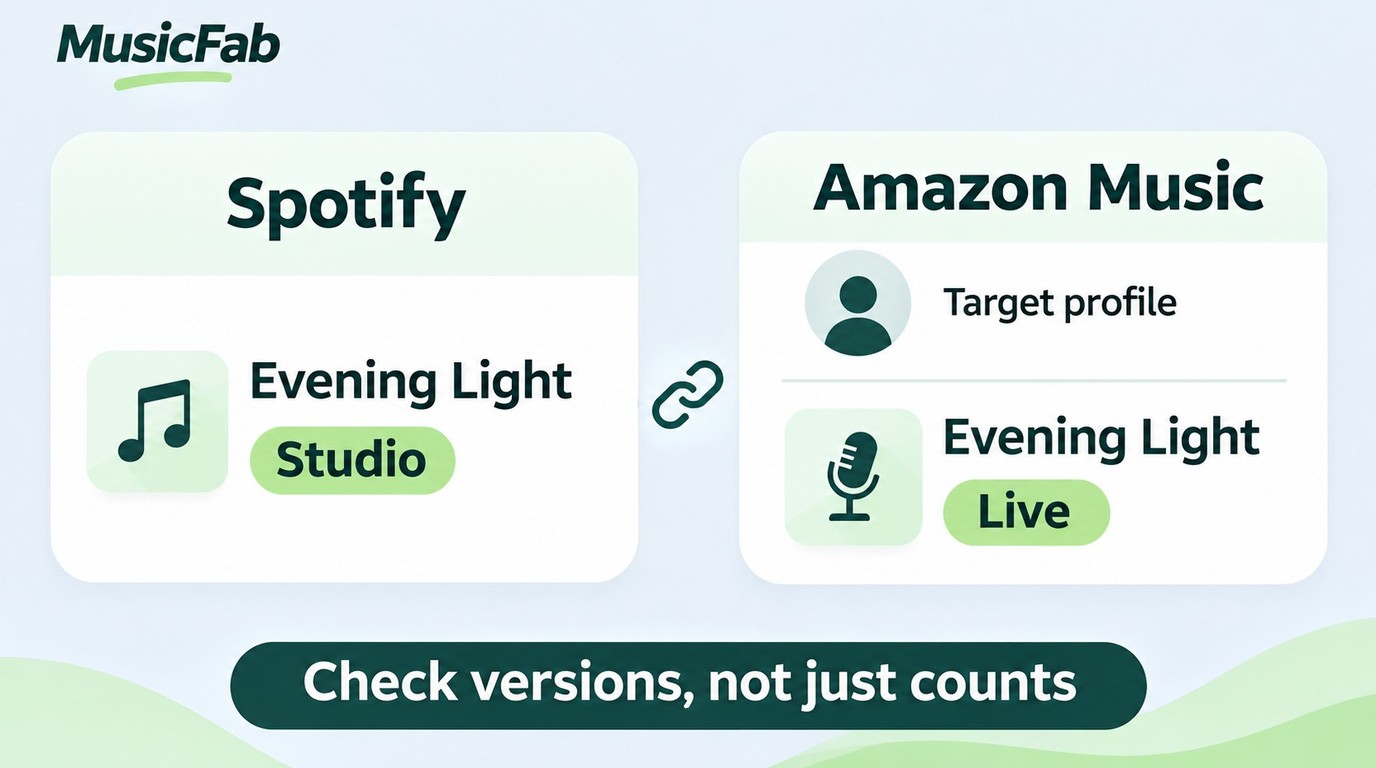
Use the symptom to choose the next action:
| What you see | What to check | Next action |
|---|---|---|
| Missing songs | Catalog availability; missing-track report | Search missing titles in Amazon Music |
| Wrong recording | Artist, album, live or remastered version | Replace mismatched entries |
| Wrong library | Signed-in Amazon account and profile | Correct destination before retrying |
| Incomplete cross-device updates | Online Music; 2,500-song playlist cap | Use online library; review playlist size |
Fix the unmatched entries before repeating a completed transfer. Search by artist and album as well as title; if the recording isn't in Amazon's catalog, repeating the import won't supply it. Amazon's playlist guidance also says to manage playlists with Online Music selected for changes to carry across devices.
The wrong destination deserves special attention. In a January 2025 r/AmazonMusic post about moving from Spotify, a listener wrote that “all of her likes and playlists ended up in my account (primary).” Check the signed-in account, profile, and connection permissions if the expected library is empty. Then retry the unfinished selection; don't assume another full run will remove duplicates automatically.
MusicFab Spotify Converter: Local Files, Not Playlist Imports
MusicFab Spotify Converter fits you if, after moving your playlists, you also want local audio for a personal library on Windows or macOS. It saves files on your computer rather than creating playlists in Amazon Music.

- Save Spotify music as MP3, FLAC, WAV, M4A or OPUS format.
- Download Spotify songs/playlists/albums/podcasts in batch
- Remove Spotify ads for free users.
- Save Subtitles as External SRT Files.
Local-file downloading is a separate workflow: our users completed more than 2,500,000 Spotify downloads from August through October 2026. For this task, the benefit is having files to organize in a local player, alongside the playlist you've already imported.
Formats, Metadata, and the 3-Song Trial
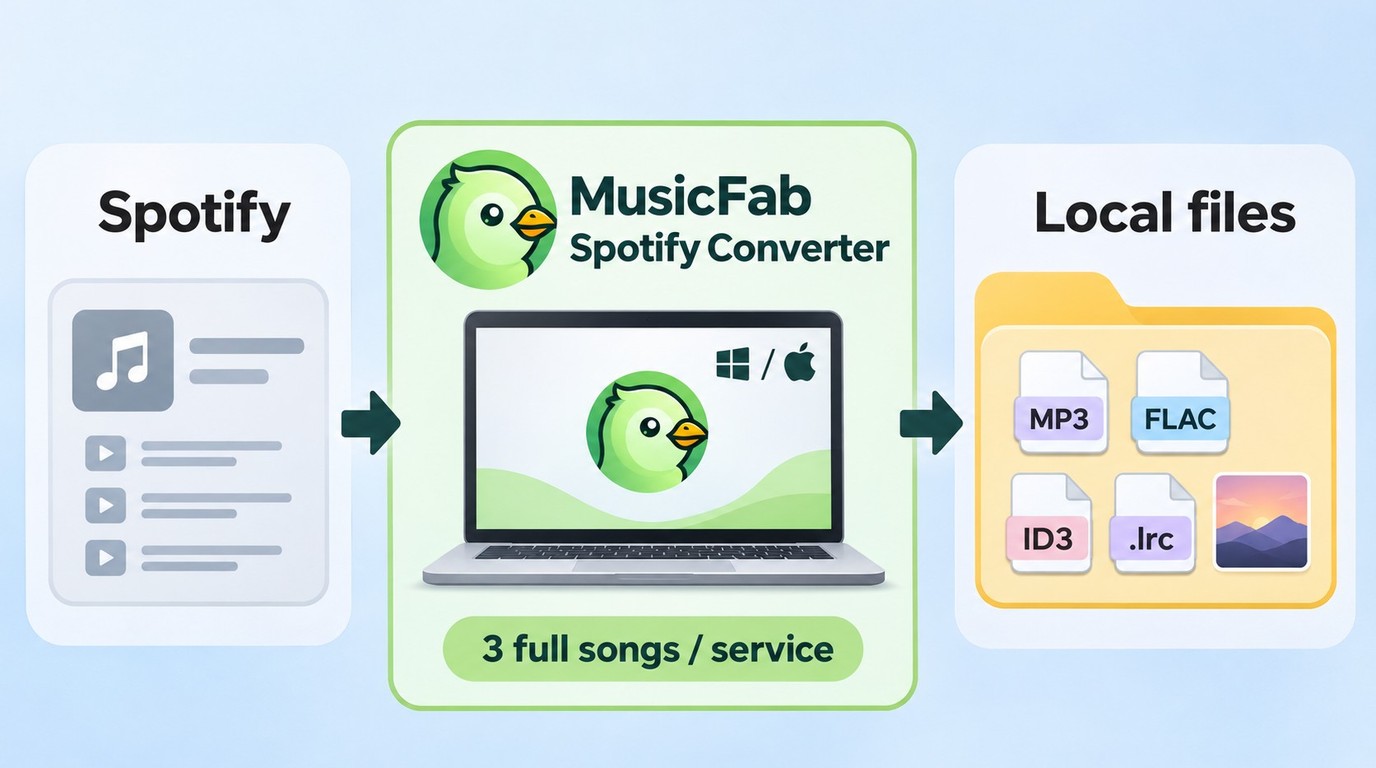
Player compatibility is the reason to choose an output format. Our October 2026 Spotify download records show MusicFab Spotify Converter outputting MP3, AAC, FLAC, WAV, and Opus files for compatible local players. ID3 tags, cover art, track numbers, and separate .lrc lyric files help keep albums recognizable outside the streaming app.
The output ceiling is 320 kbps. I choose formats for player compatibility, not an assumed quality upgrade: a FLAC label doesn't restore detail missing from a lossy source.
From installation, the 30-day trial covers 3 complete Spotify songs with the core features and no format or duration cutoff; continuing Spotify downloads afterward requires a license. Paid licenses provide up to 300 songs per service, per account, each day, resetting at midnight UTC, so larger local libraries need a download schedule.
Start that local-file workflow through the MusicFab Spotify Converter page.
Use an active Spotify subscription and save only music you're entitled to access for personal offline listening, in line with the service's terms. Do not redistribute or resell the files.
FAQ: Spotify and Amazon Music Playlist Transfers
Q1. Will copying playlists remove them from Spotify?
A playlist transfer rebuilds a destination copy rather than moving audio out of Spotify. Soundiiz explicitly says it leaves the original Spotify library unchanged. Keep the source playlists as your reference while reviewing the imported copies, and don't mistake a completed copy for ongoing synchronization. Later edits in Spotify aren't evidence that an earlier Amazon copy has failed to update; automatic syncing is a separate feature to configure.
Q2. What should I check when connecting the accounts?
Account authorization is a normal part of a transfer. Start from Amazon's official entry point or the named transfer service, inspect the Spotify or Amazon sign-in domain, and read the requested permissions. Confirm the destination account before accepting. Spotify's own mobile import flow uses a Tune My Music partnership, so a partner connection isn't itself a warning sign; it also isn't an endorsement of every similarly named website.
Q3. Can the imported playlists play offline on a flight?
Yes, when your Amazon plan and selected music support downloads and you've downloaded them before departure. Amazon Music Prime limits offline downloads to All-Access Playlists; Unlimited and Standard support song, album, and playlist downloads. Subscription downloads stay inside the Amazon Music app. Preparing Amazon Music downloads on your phone or computer is the next task after importing, rather than something the transfer performs. Open the downloaded music before leaving Wi-Fi.
Q4. Can I move Amazon Music playlists back to Spotify?
Yes. Spotify's mobile playlist import feature uses Tune My Music to bring playlists from other streaming services into Spotify. The entry point is the import option in Your Library , with Amazon Music selected as the source. The guided authorization and playlist selection finish with the imported tracks and playlists appearing in Spotify's library. This reverses the direction of the copy without turning either library into an audio-file export.



Spotify downloads live in app-bound offline storage rather than a normal music folder. This guide maps the typical Windows, Mac, Android, and iPhone locations, shows how to manage downloads inside Spotify, and explains storage cleanup, recovery, and authorized local-file options.
By Jane Chen - Nov 13, 2026
A WAV extension does not prove that audio came from Spotify or that it is lossless. This guide compares MusicFab, OnTheSpot, and Audacity, then explains source quality, batch workflow, setup tradeoffs, account considerations, and when FLAC is the more efficient choice.
By Jane Chen - Nov 13, 2026
Spotify Free cannot download songs for offline listening—it can download podcasts only. See Premium limits and how local-file workflows differ.
By Jane Chen - Nov 13, 2026
Compare Spotify downloader options for Android, including APK, browser, and ZIP workflows, and learn how in-app offline listening differs from transferable files.
By Jane Chen - Nov 11, 2026