
Listen to YouTube Music Offline: App vs Local Files

In short, YouTube Music offers official offline listening inside its mobile app for eligible Premium downloads, but those downloads remain app-managed rather than becoming ordinary MP3 files. If you need a transferable local file for a computer, car stereo, or another player, that is a separate workflow. This guide keeps the official app, the desktop web app, a computer-local-file option, and an online single-track option clearly separated.
- Offline listening in the YouTube Music app: use Smart Downloads or download an item manually with an eligible Premium account.
- Browsing on a computer: the YouTube Music PWA provides a desktop-style interface, but do not assume that it creates transferable offline audio files.
- Transferable local audio: use a separate, authorized computer workflow and verify the available output settings before starting.
- One occasional link: an online tool may be convenient, but its current support, source, quality, redirects, and limits need a fresh check.
Listen Offline in the Official YouTube Music App
Google's official offline-download guidance is centered on the YouTube Music mobile app. Eligible Premium members can download songs, videos, and podcasts for offline playback in the app, and Google requires the device to reconnect to the internet at least once every 30 days to maintain those downloads.
What the YouTube Music PWA Does
The Progressive Web App gives YouTube Music a dedicated desktop window and makes it easier to browse a library on a computer. The screenshots below are retained from the original article because they document that desktop interface. However, Google's current help pages used for this update describe official offline downloads on mobile devices, so the PWA should not be presented as proof of a current desktop offline-download feature or a source of ordinary local audio files.
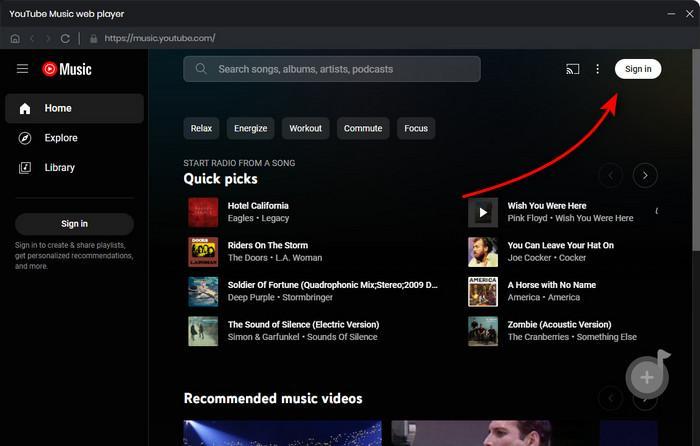
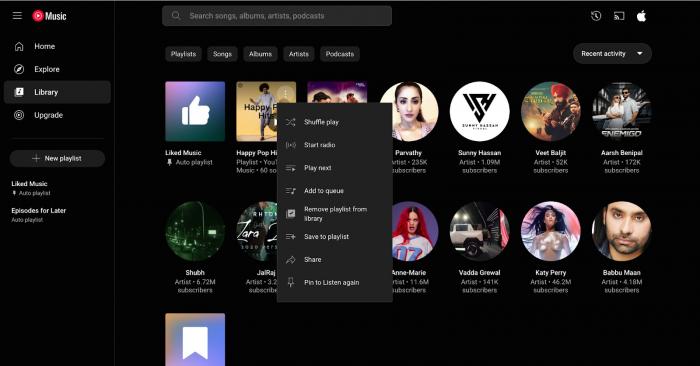
Use the PWA when you want a focused desktop player. For dependable official offline listening, follow the mobile-app controls below and treat the downloaded content as app-managed.
Use Smart Downloads on Mobile
Smart Downloads automatically refresh a selection of music based on your listening history when the feature is enabled. Open the YouTube Music app, select your profile picture, then open Settings → Downloads or Downloads & storage. Enable Smart Downloads and adjust the storage or quality controls shown in your version of the app.
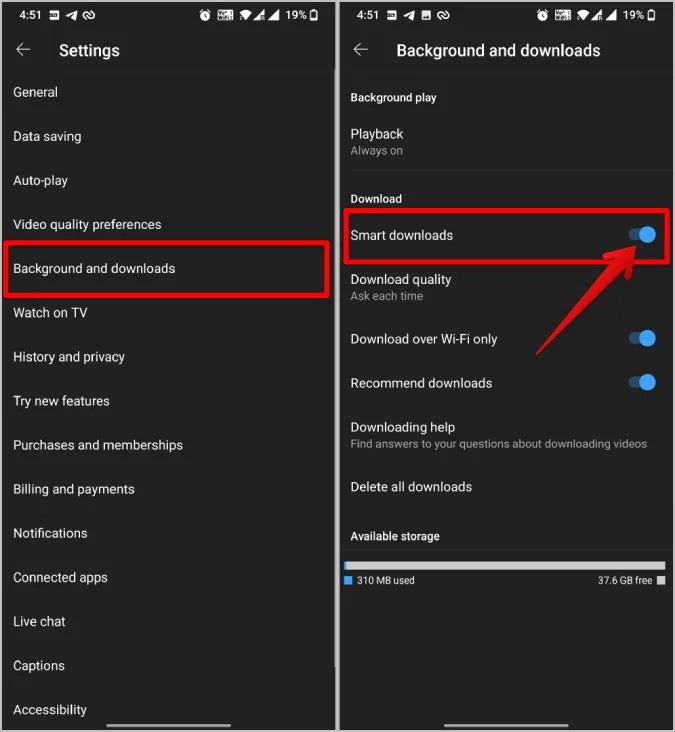
This route is useful when you want the app to maintain an offline rotation automatically. It does not create a folder of MP3 files that can be copied to another player.
Download a Song, Album, or Playlist Manually
- Open the YouTube Music app and find the song, album, playlist, video, or podcast you want available offline.
- Open the item's menu and select Download when that control is available for your account and region.
- Return to the app's Downloads area to play or remove the saved item.
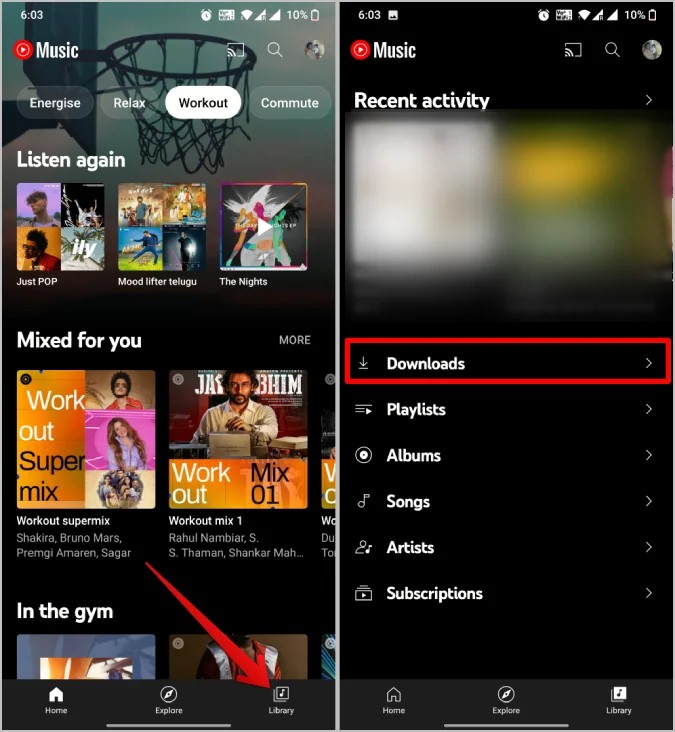
Manual downloads give you more control than Smart Downloads, but the same boundary applies: playback and management stay inside YouTube Music.
Where YouTube Music Downloads Are Stored
On Android, Google documents two storage choices: the phone's internal memory or an SD card. The choice is managed inside YouTube Music through the Downloads settings. Google does not publish a normal user-facing filesystem folder path for these app downloads.
- Internal memory: used when SD-card storage is not enabled.
- SD card: can be selected in the app when the device and card support it.
- Changing locations: Google says downloaded songs cannot be moved directly between internal memory and an SD card. Delete the download, change the storage setting, and download it again.
App Offline Downloads vs. Transferable Local Audio
The word “download” describes two different results in this topic. The official app saves content for offline playback under YouTube Music's controls. A computer-local-file workflow produces a file intended for compatible local playback. Keeping those results separate prevents the most common misunderstanding about where downloads are stored.
| Route | Result | Best for | Main limitation |
|---|---|---|---|
| YouTube Music Smart Downloads | App-managed offline content | Automatic mobile listening | Premium eligibility, periodic reconnect, and app-only management |
| Manual app download | App-managed offline content | Choosing specific mobile items | Not an ordinary transferable MP3 folder |
| YouTube Music PWA | Desktop-style web player | Focused listening and library browsing on a computer | Do not treat the PWA interface as proof of transferable offline files |
| Authorized computer-local-file workflow | Compatible local audio output | Playback on other compatible devices and library organization | Requires separate software, source access, and compliance with applicable terms and law |
| Online single-link tool | Provider-dependent local result | An occasional non-sensitive link | Source, completion, quality, redirects, and limits may change |
Listen Offline With a Computer-Local-File Workflow
If your goal is a compatible local audio file rather than an app-managed download, use a separate computer workflow. The broader guide to downloading YouTube Music to a computer covers that task in more detail. Use any local output only for content you are authorized to access and for purposes allowed by the platform's terms and applicable law.
MusicFab YouTube Music Converter
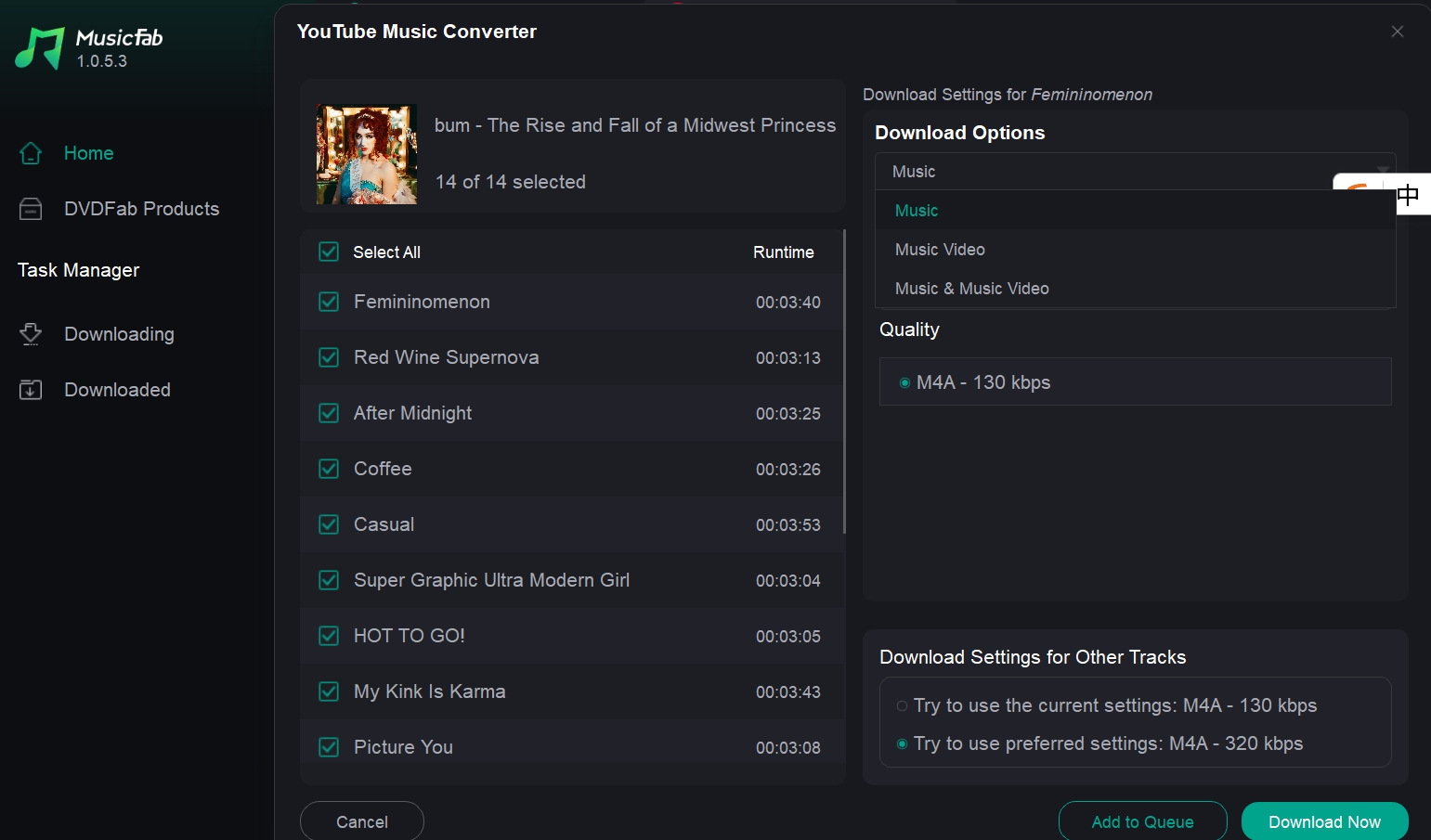
MusicFab uses a built-in YouTube Music browser so you can sign in through the service interface, open eligible content, select items, and choose from the compatible local output settings offered by the current product version. This route is intended for readers who value playlist selection, queue management, metadata, or format control more than a quick one-link conversion.
Current format, quality, operating-system, trial, and plan details can change. Check the official product interface before relying on a specific limit. If M4A is your preferred library format, the separate YouTube-to-M4A workflow explains that output choice.
- Launch MusicFab and select YouTube Music from the available services.
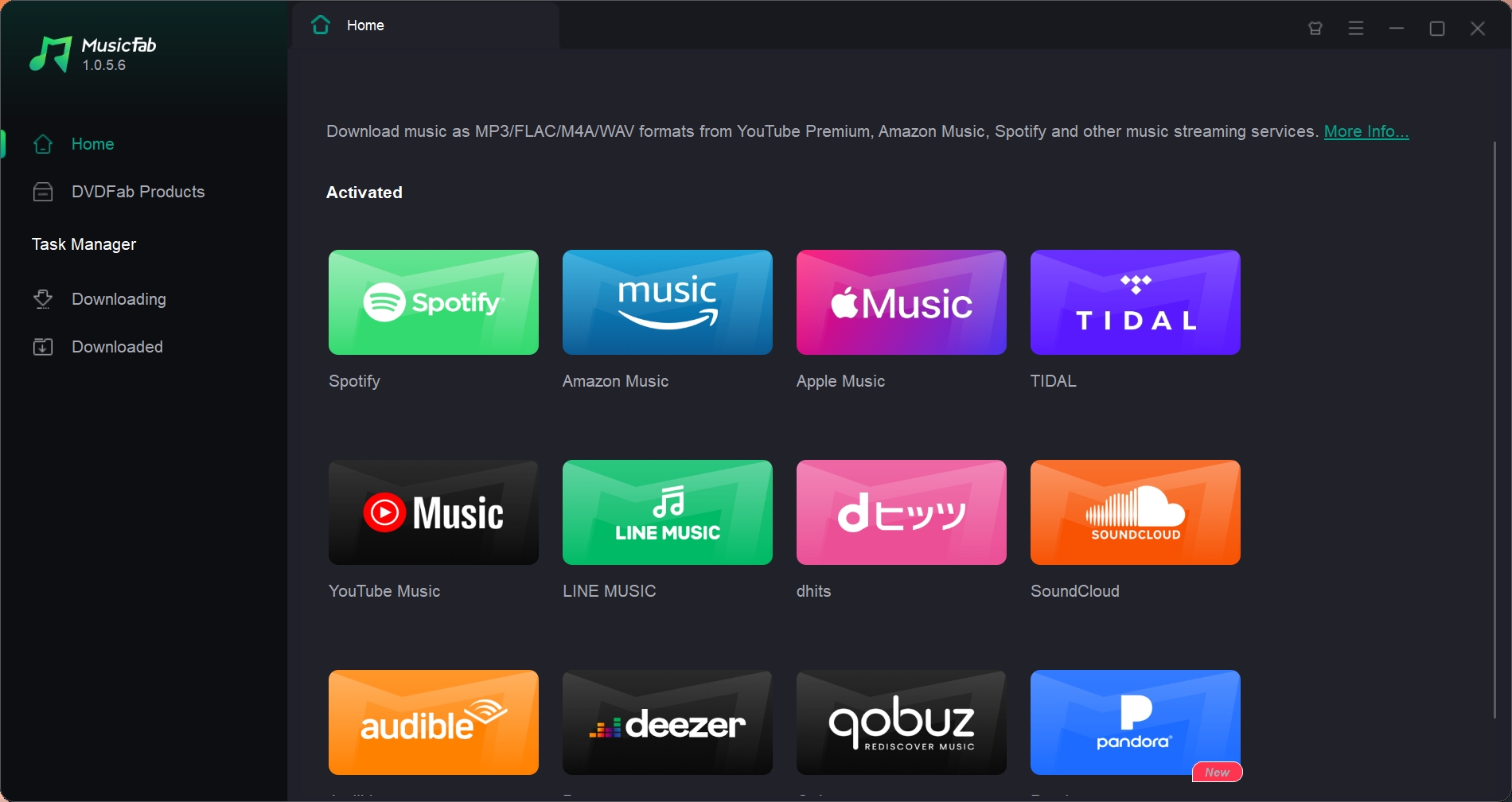
- Use the built-in browser to open the song, album, or playlist, then review the available output format and quality settings before adding the selection to the queue.
- Open the task manager to check progress. When processing is complete, use the folder control to locate the resulting local files.
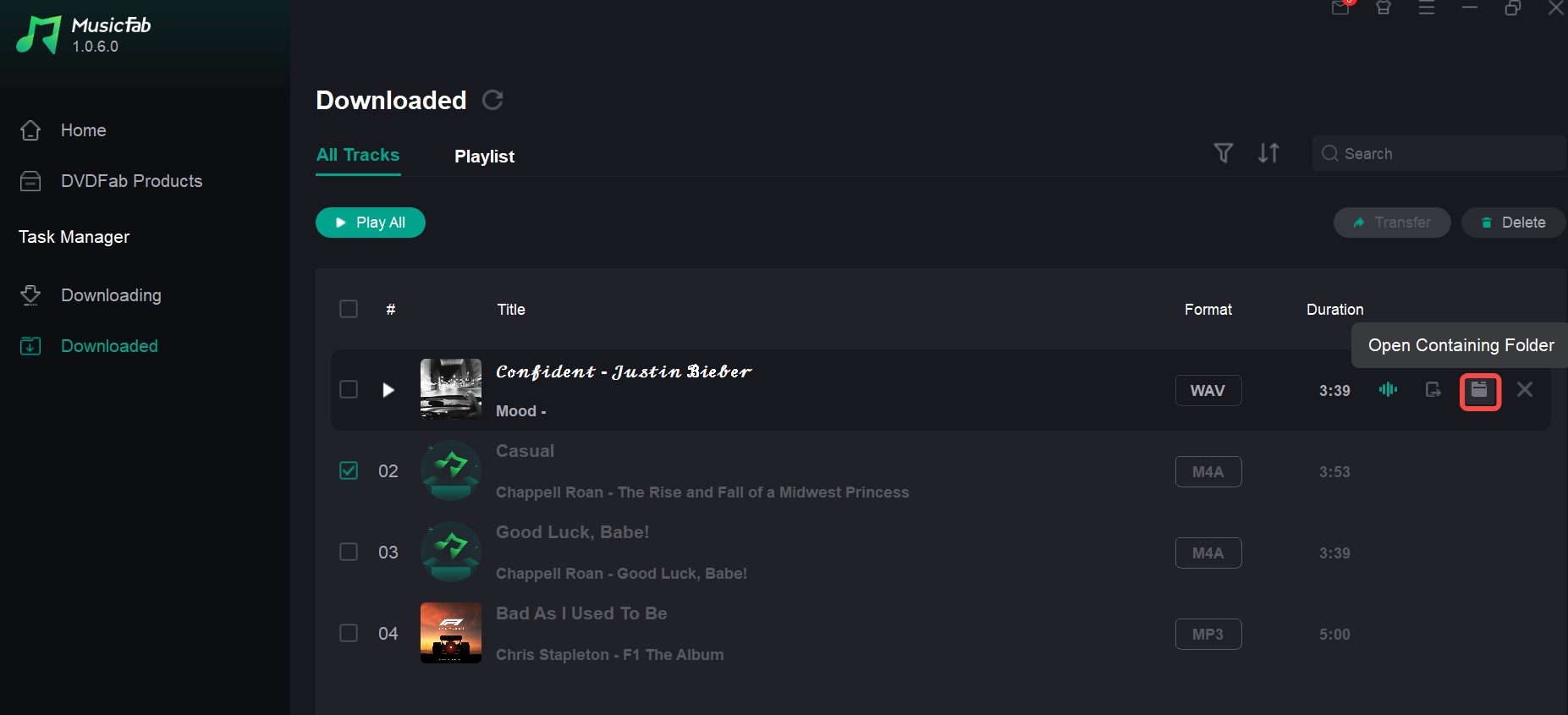
The resulting local-file workflow is separate from YouTube Music's official offline-download storage. Do not describe one as if it were the other.
Use an Online Tool for an Occasional Track
The original article also documented a SaveTube link-conversion interface. Those screenshots are retained as historical workflow evidence rather than a current endorsement. Before using any online converter, check whether the page still accepts the link, whether processing completes, what source it uses, what file is produced, and whether redirects or download gates appear. The YouTube-to-MP3 converter safety review provides a broader checklist.
SaveTube: Dated Single-Link Workflow

- Copy the link for a non-sensitive item and paste it into the online tool only if the current page still supports that source.
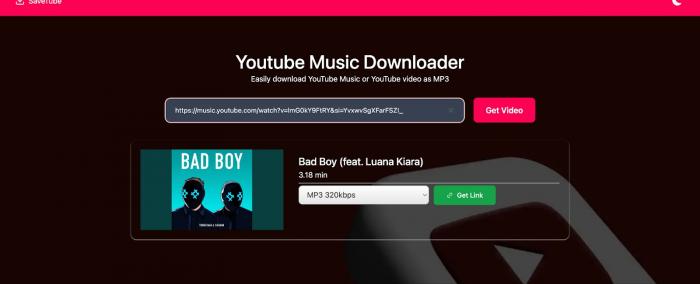
- Review the displayed result carefully before selecting a format. A visible button or bitrate label does not prove that the source, quality, metadata, or download has been verified.
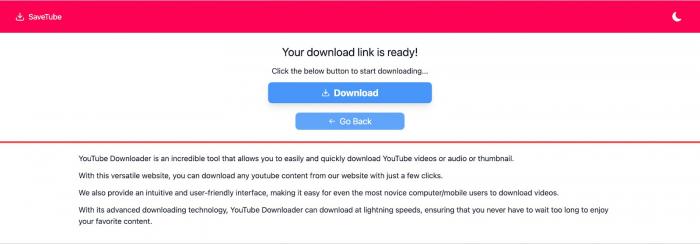
I would reserve this route for an occasional test. It is a poor fit for playlists or a managed library unless a fresh check confirms batch behavior, completed output, metadata, and acceptable redirects.
Frequently Asked Questions
Can you listen to YouTube Music offline?
Yes. Eligible YouTube Music Premium members can download supported content in the mobile app for offline playback. Those downloads remain managed by YouTube Music and require periodic internet reconnection.
Where are YouTube Music downloads stored on Android?
Google documents storage in the phone's internal memory or on an SD card, depending on the app setting. Google does not provide a normal user-facing filesystem path for these app-managed downloads.
Can I move YouTube Music downloads from internal memory to an SD card?
Not directly. Google says to delete the existing download, change the storage location in the app, and download the item again.
Does the YouTube Music PWA download songs as local files?
Do not assume so. The PWA is useful as a desktop-style web player, while Google's official guidance used here documents offline downloads through the mobile app. Neither interface should be described as producing an ordinary transferable MP3 without separate evidence.
What is the difference between an app download and a local audio file?
An app download is managed for offline playback inside YouTube Music. A local audio file is handled by the device's filesystem and compatible players. Creating a local file is a separate workflow and must stay within the source service's terms and applicable law.
Conclusion: Choose App Offline Listening or Local Files
Use the YouTube Music mobile app when you want the simplest official offline experience. On Android, manage internal-memory or SD-card storage inside the app and redownload content after changing locations. Use the PWA for focused desktop browsing, not as proof of transferable downloads. If you need compatible local audio for another player, treat that as a separate, authorized computer workflow and verify its current output before proceeding.
Official app-storage details were checked against Google's YouTube Music download and SD-card guidance on August 9, 2026. Product and online-tool interfaces can change, so recheck their current controls and terms before use.

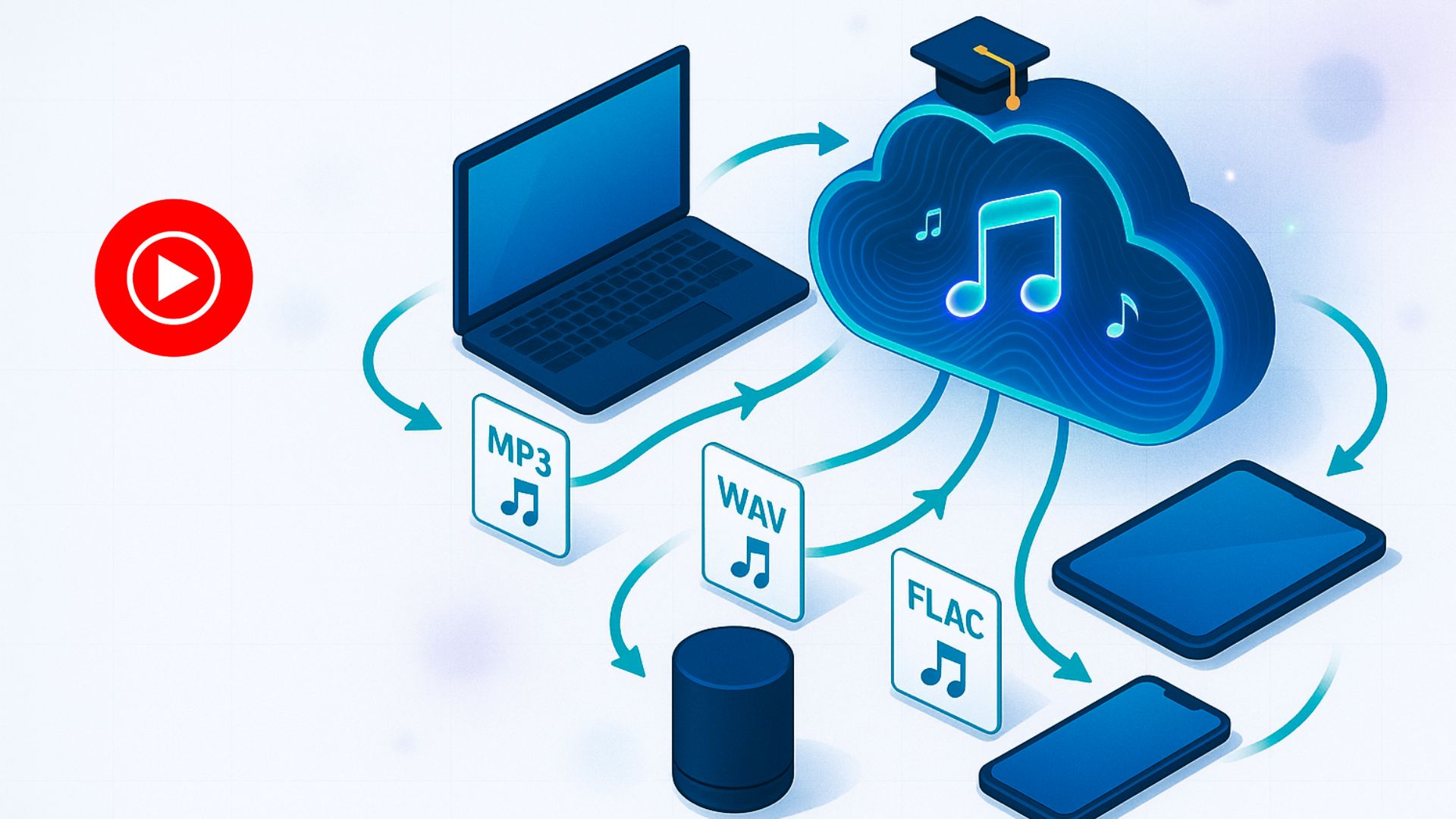
Download YouTube Music to a computer with a clear look at official mobile-only downloads, desktop local-file options, format choices.
By Jane Chen - Aug 26, 2026

This guide separates a converter's live page, completed conversion, and verified .m4a file. It compares six browser tools using current status and prior outcomes, explains how to inspect the container and codec, and outlines desktop workflows for single videos and playlists.
By Jane Chen - Aug 19, 2026
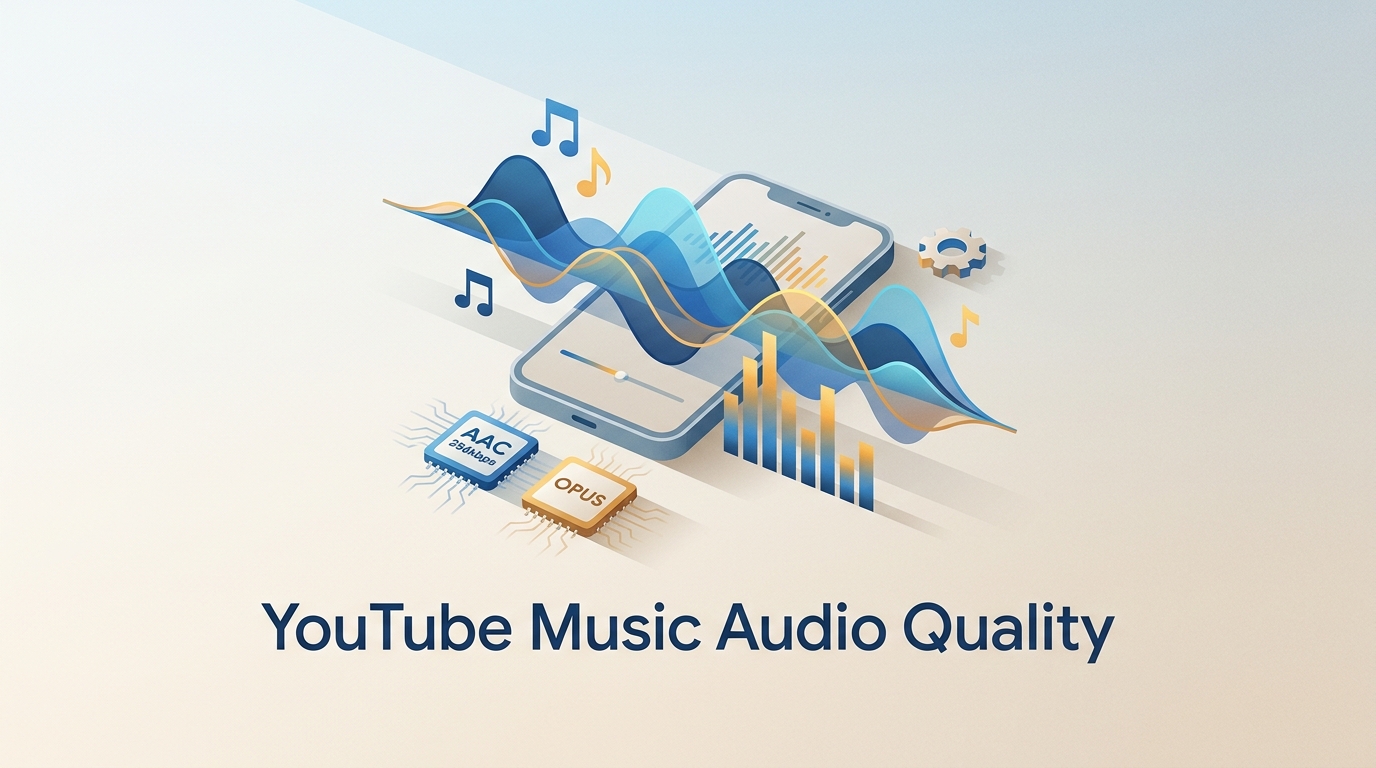
YouTube Music tops out at 256 kbps AAC & OPUS with no native lossless tier. Here's how it compares to Spotify Lossless and Apple Music, plus the Wi-Fi, mobile
By Jane Chen - Aug 13, 2026
Compare six YouTube Music playlist downloaders for desktop, online, and command-line use. See full-playlist support, MP3 output limits, metadata, safety signals
By Jane Chen - Aug 12, 2026